Sigasi Visual HDL (SVH) can generate documentation from the HDL code and corresponding comments in your HDL project. The documentation is written in HTML, which offers more flexibility than other formats such as PDF. Generated HTML documentation can be viewed directly in a browser. In this article, we’ll also show that converting HTML to PDF is trivial. And finally, you can import HTML in Microsoft Word for further processing.
In this article, we’ll show how to convert HTML documentation, generated by SVH, into a PDF or Word document.
Generating HTML documentation in SVH
To export documentation, right-click on a project in the Projects view and select . Alternatively, you can run Sigasi: Export Documentation from the Command Palette ( Ctrl+Shift+P ). A wizard will open to customize your documentation. If you want to convert the exported documentation to PDF or word, we recommend to use the following customization options:
- First, select whether to generate documentation for the entire project or for a specific top level.
- If you want to include block diagrams and FSM graphs, select linked diagrams.
- Don’t select Split pages by design unit count.
- Set the other options as required for your purpose.
After this, SVH generates the documentation. If you didn’t specify an output folder, you’ll find the documentation in the sigasi-doc subfolder of your project. The top level file is documentation.html.
You can find additional information on generating documentation in the Sigasi manual.
Documentation to PDF
Converting the documentation to PDF is fairly trivial. All you need to do is:
- Open the documentation in your web browser.
- Use the print function of the browser, and select Save as PDF, Print to PDF, or how it’s called in your browser.
Alternatively, you can convert the documentation using a headless web browser. With Google Chrome on Linux, you can convert your documentation with:
google-chrome --headless --print-to-pdf=documentation.pdf documentation.htmlIf you want to change the style of the documentation, you can use Cascaded Style Sheets (CSS) or tweak the generated HTML.
Documentation to Word
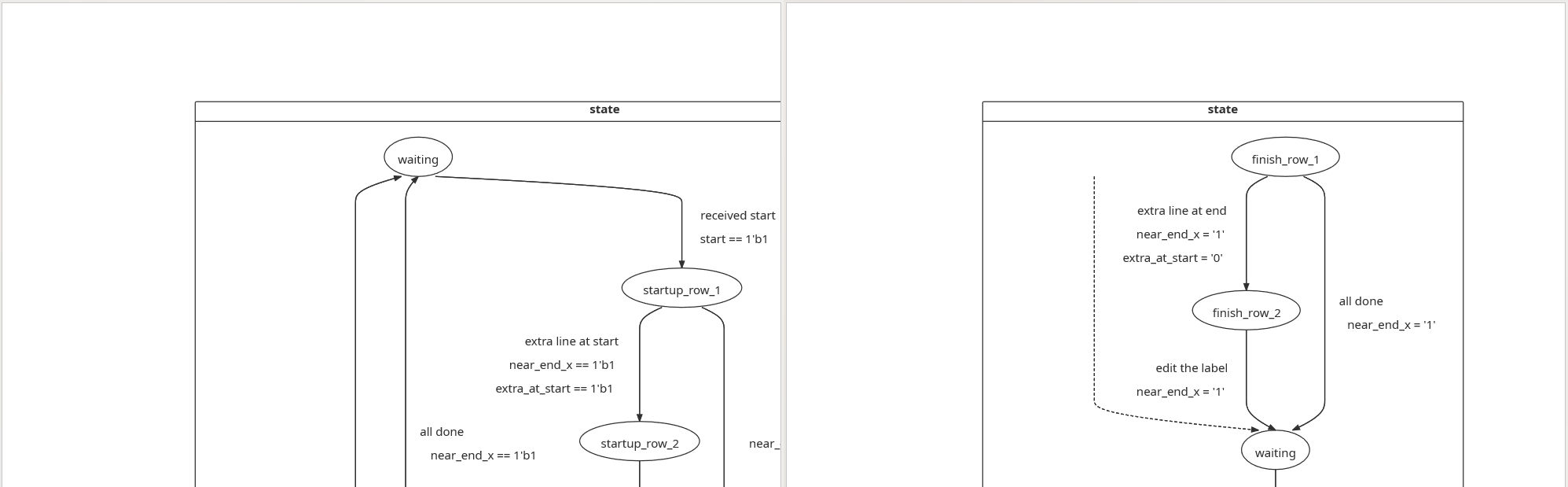
Microsoft Word can open HTML files by default (). However, after importing the HTML documentation in Word, you may notice that some of the included Block Diagrams and State Machine Diagrams can be very large. Adjusting the size of these Diagrams would be a tedious job, but we have an automated solution.
We have developed a Word macro to assist with resizing the diagrams to fit on the pages.
Follow the steps below to install the macro.
- Download the macro file.
- Install the macro: open the View menu in Word and select to open the Visual Basic editor. In the macro editor, choose to import the macro file.
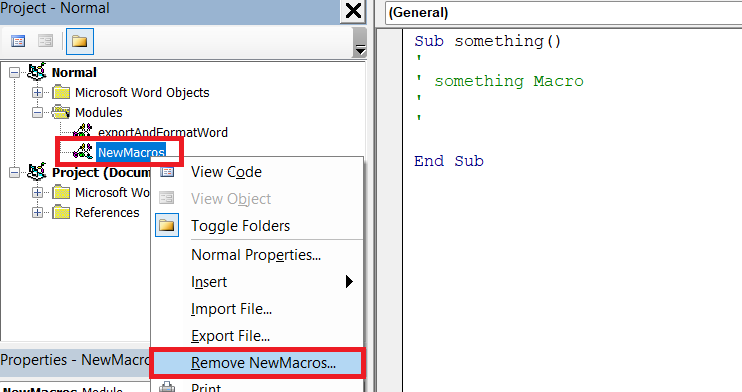
- In the process of creating the new macro, Word may have created a module
NewMacroswith an empty subroutine. Delete the module (if otherwise empty) or the empty subroutine.
Instead of opening the generated HTML documentation from the File menu, run the macro in Word by selecting . A file browser lets you pick the documentation to import. Depending on the size of the exported documentation, this may take a while.
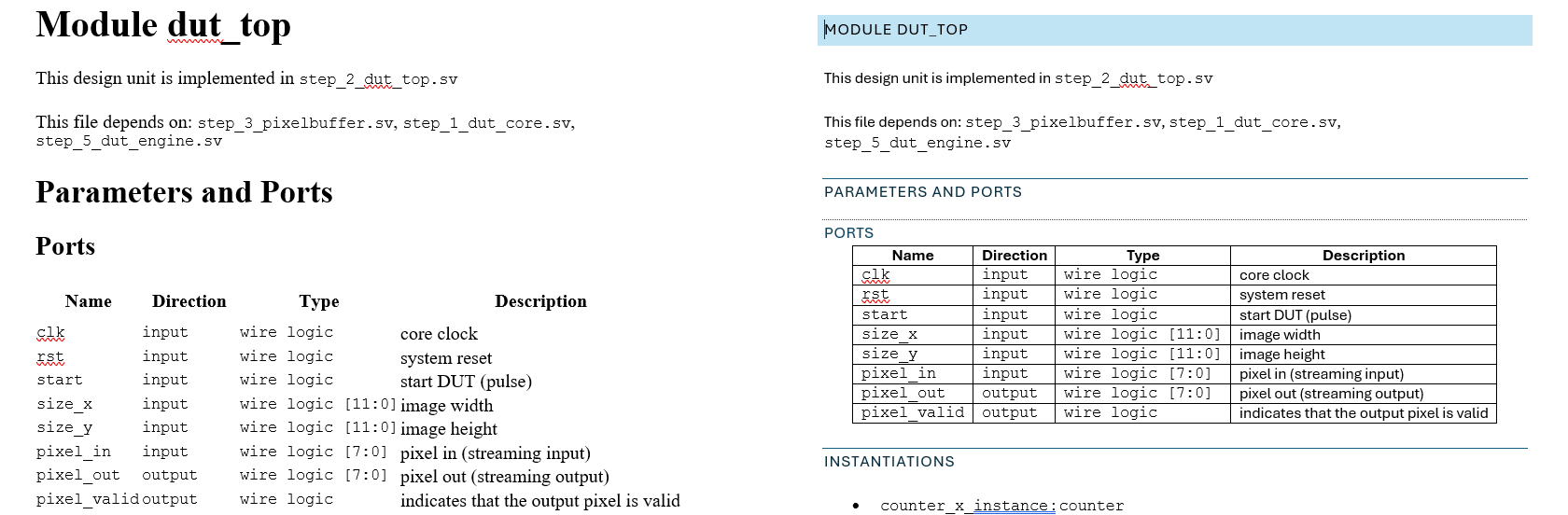
The macro generates a documentation.docx document in the project documentation folder.
The images above and below show the difference: without the macro (left), Word imports the documentation with oversized graphics. With the macro (right), the layout is cleaner and all graphics are resized and styled correctly.
Obviously, you are welcome to enhance the macro to suit your needs. Your feedback is welcome: just send us an email with your remarks.
See also
- Enabling DO-254 guideline checks in Sigasi SVH (knowledge)
- License server setup in Linux using Systemd (knowledge)
- Enabling STARC rules in Sigasi SVH (knowledge)
- Documentation Generation in CI with Sigasi CLI (knowledge)
- Documentation features for large designs in Sigasi Visual HDL (knowledge)