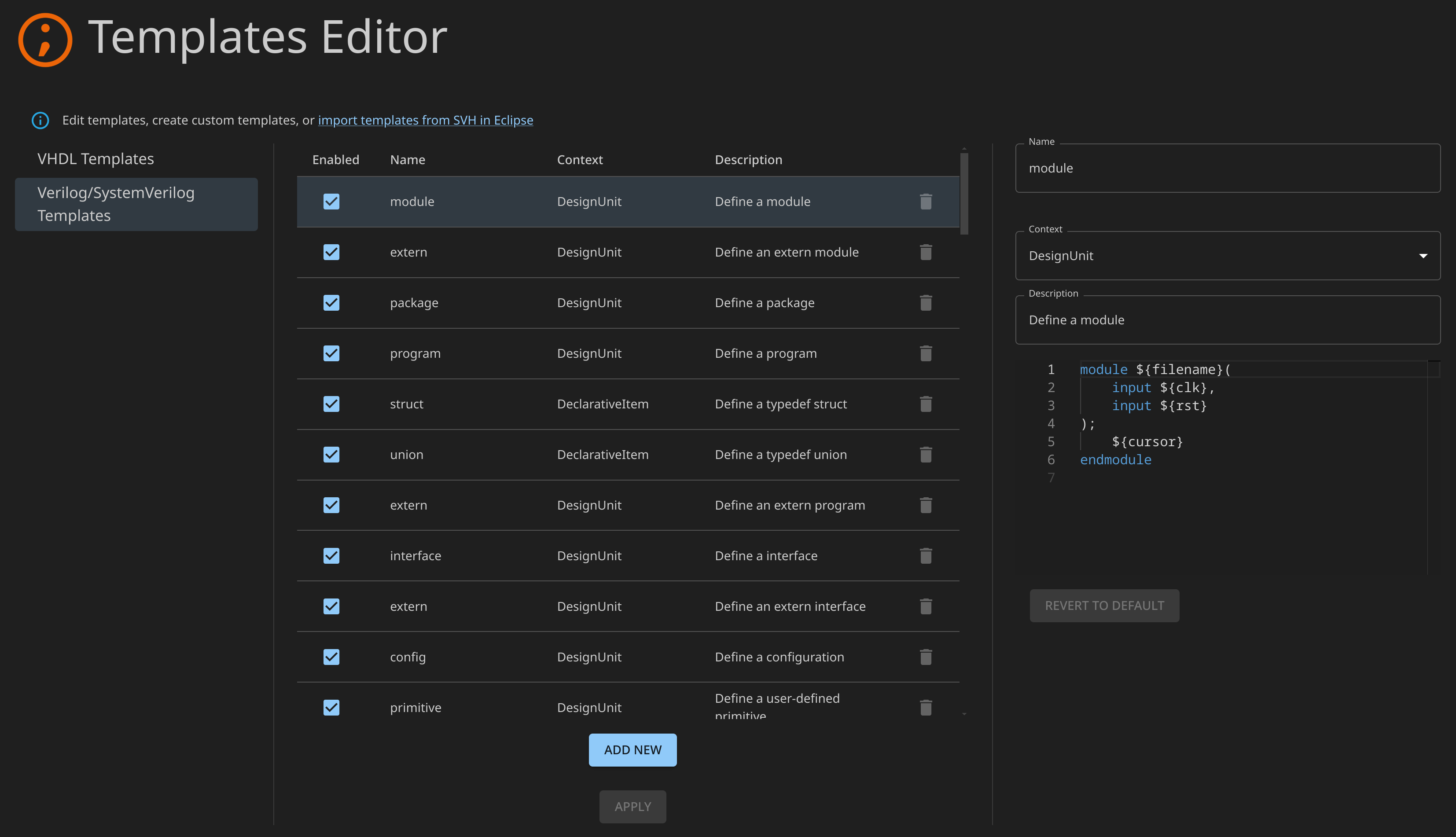
The templates editor allows you to define reusable code blocks encompassing frequently used elements like process blocks, signal declarations, or loop constructs. You can seamlessly insert these templates into your Verilog or VHDL code at the cursor position. This eliminates the need for manual typing of repetitive structures, saving you valuable time and reducing the potential for inconsistencies.
You can access the editor through the Ctrl+Shift+P
> Sigasi: Open Templates Editor command. Alternatively, use the button in the settings UI at the sigasi.userDefinedTemplates
setting.
Click the search button or press Ctrl+F to search the page.
Managing templates
When editing or creating a template (through the ADD NEW button), you can fill in all the details in the column on the right. For every template, the Name and Context are required. The unique name is the prefix you need to type to find your template. The description is optional, but it’s recommended to fill it in as it shows up after the dash symbol and at the top of the code to insert. Finally, you can specify your template. Simply write the Verilog or VHDL code you’d like to reuse, and optionally make use of template variables when using identifiers.
Learn more: context
Learn more: prefix matching

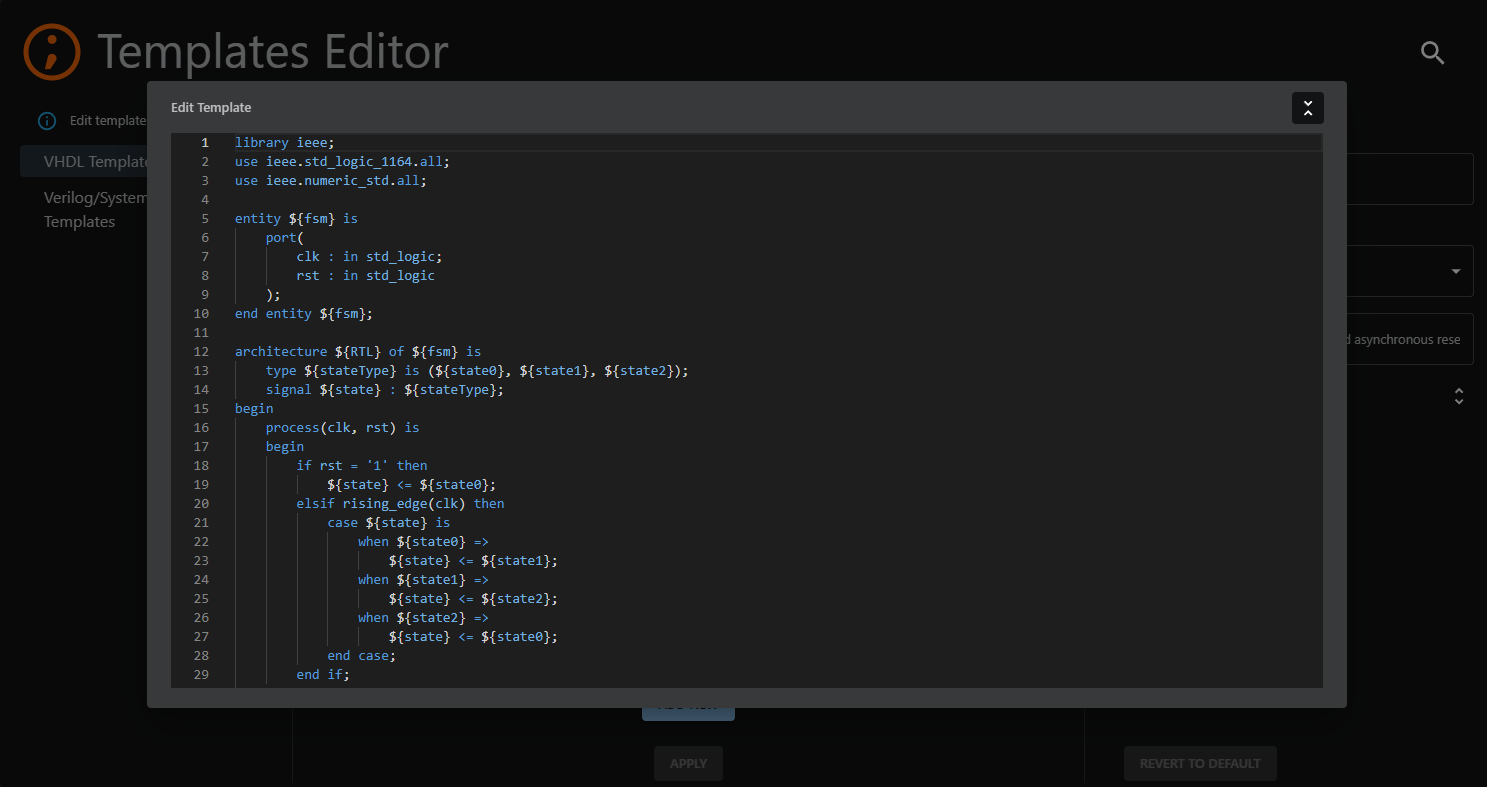
To edit in a larger window, click the expand icon in the top-right corner of the editor. You can collapse the editor again at any time by clicking the collapse icon.
Don’t forget to press the
APPLYbutton after editing an existing template or creating a new one.
You can remove templates using the trash icon on the right of the middle column. If you simply want to temporarily disable a template, uncheck the Enabled checkbox in the middle column.
Template variables
In templates, you can use variables whose values are filled in at the time of insertion. Variables can be specified using the ${name} syntax. Most variables will simply be inserted as is, e.g., ${clk} would simply insert the text clk. Why use variables then, you might ask. Well, every variable can be quickly navigated to at insertion time in the template editing mode. There are also built-in variables, and some built-in functions that can take arguments, for example ${path:env('PATH')}.
The following is a list of all built-in variables Sigasi supports:
| Variable | Description |
|---|---|
${cursor} | Specifies where the cursor will end up when the template is completed. |
${date}${id:date(format)} | Evaluates to the current date in the specified format and locale. The id is mandatory, but otherwise ignored. The format parameter is optional.For example, ${id:date('yyyy-MM-dd HH:mm:ss Z')}. Refer to the Java SimpleDateFormat for help with the format. |
${dollar} | Evaluates to the dollar symbol $. Alternatively, $$ can be used. |
${id:env(name)} | Evaluates to the specified environment variable. The id is mandatory, but otherwise ignored. |
${filename} | Evaluates to the name of the file. |
${filename_ext} | Evaluates to the extension of the file. |
${user} | Evaluates to the username. |
${year} | Evaluates to the current year. |
Importing templates from Sigasi in Eclipse
If you previously used Sigasi in Eclipse, you can transfer any custom templates you created there to the Sigasi Extension for VS Code:
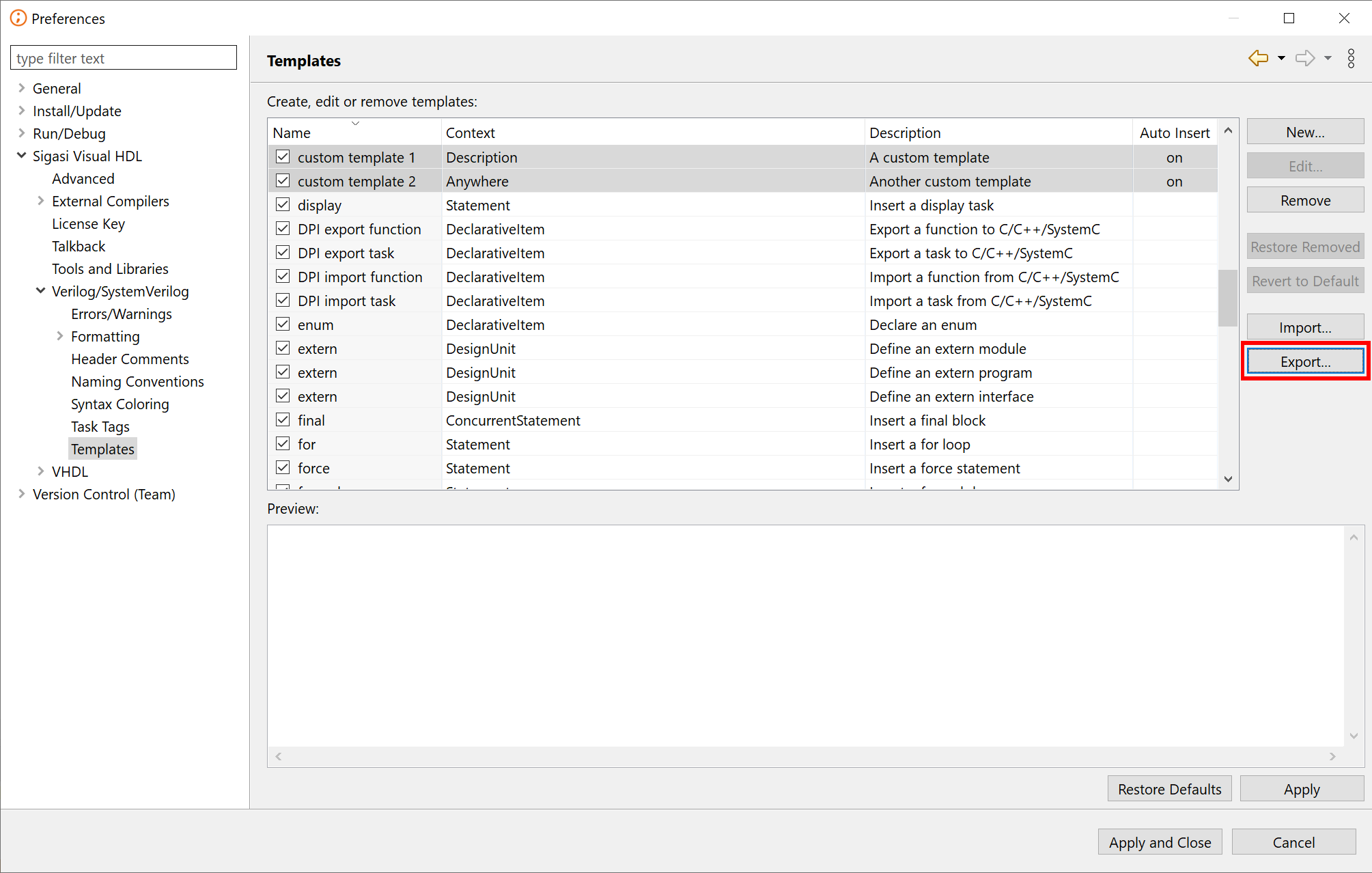
- Export the custom templates as an XML file from within Sigasi in Eclipse.
- Import the XML file(s) into the Sigasi Extension from the Templates Editor or by using Ctrl+Shift+P Sigasi: Import Eclipse Templates from the Command Palette.