The VS Code Editor shows the content of files and allows you to edit them. It has a tabbed view such that multiple files can be opened simultaneously. The active file is the one currently selected. VS Code offers a lot of features out of the box.
Multi-cursor support
VS Code supports multiple cursors for simultaneous edits. Cursors can be added using . If you prefer using Ctrl+Click, open the Command Palette via , type multi, and select Toggle Multi-Cursor Modifier from the list to quickly toggle the modifier. This can also be changed in the settings.
Add parentheses or create a string
If you select a region and press ( or [, the tool will enclose the selected region with the matching closing parenthesis, ) or ].
If you select a region and press ( or [, the tool will enclose the selected region with the matching closing parenthesis, ) or ].
This works for both regular and multi-line strings and with either single or double quotation marks.
You can configure this feature with the
Split editor
The VS Code editor can be split into independent viewports that access the same file buffer. To split the editor, go to and select the desired action.
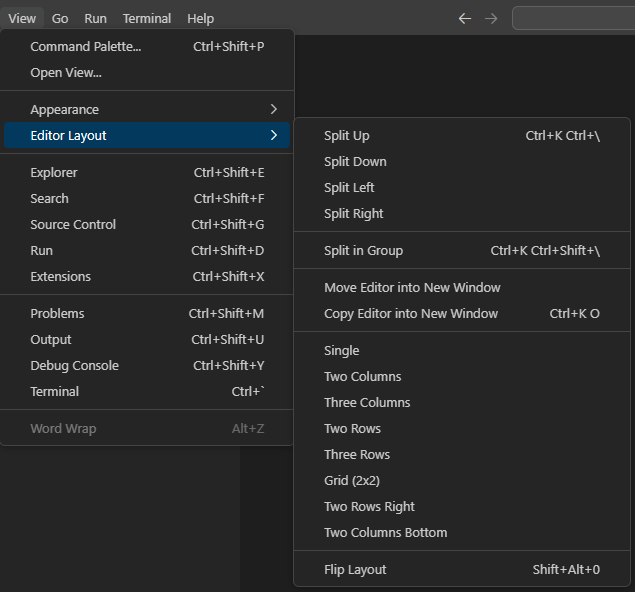
There can be more than two horizontal or vertical splits within an editor.
Side-by-side comparison
With Sigasi, you can compare two files side-by-side.
- Previous versions: local history or version control
- Comparing two files:
the editor tabs you want to compare, right-click one of the tabs, and press
Compare Selected.
