To understand your Verilog source to the fullest, you must understand all the preprocessing that occurs. What your macros expand to, which content you’re including, and in what context the current file is being included. All of that is displayed in full in the Preprocessor View.
You can open it by clicking on Sigasi’s toolbar action (➊)—the  button in the editor toolbar (top right)—and selecting Open Preprocessor View. Alternatively, you can open the view using the command palette Ctrl+Shift+P
and typing
button in the editor toolbar (top right)—and selecting Open Preprocessor View. Alternatively, you can open the view using the command palette Ctrl+Shift+P
and typing Sigasi: Open Preprocessor View or by hovering over an include statement or macro invocation and clicking the Open Preprocessor View hover action.
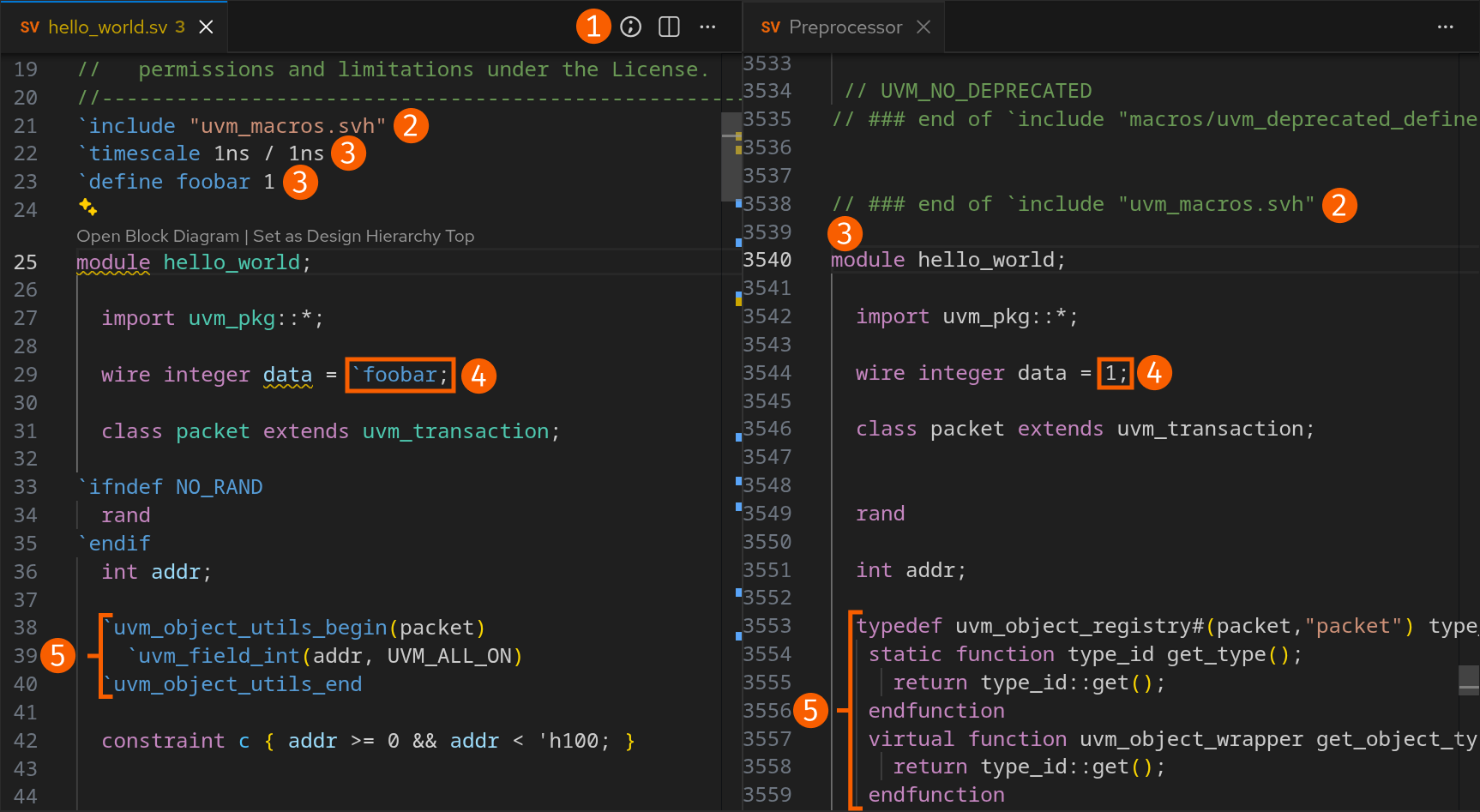
It’ll show the same file, but with all preprocessing applied:
- The toolbar action button to open the Preprocessor View.
- The beginning of an include is marked by
// ### start of `include "file.svh"and the end is marked by// ### end of `include "file.svh". The expanded content of the included file can be found in between these two markers. - Some preprocessor directives don’t have visible output and are not shown in the code, e.g.,
`timescaleand`define. - Macro invocations are expanded and directly shown.
- Macro functions are fully expanded.
Note that the preprocessor view follows your cursor. When you move your cursor in the editor, the corresponding position is scrolled into view in the preprocessor view. The same happens to the editor when moving the cursor in the preprocessor view.
The content in the preprocessor view tends to get extremely long. To remain performant, some features need to be disabled. Notably, syntax highlighting is available, but there’s no semantic highlighting. There are also hovers, but only the Go to Definition and Find All References hover actions are available.