When Sigasi’s linter detects problems, it underlines them with a squiggly line in red (error), yellow (warning), or blue (info). Many of these problems can be quickly fixed through two clicks. To see whether a Quick Fix is available, hover over an underlined problem.
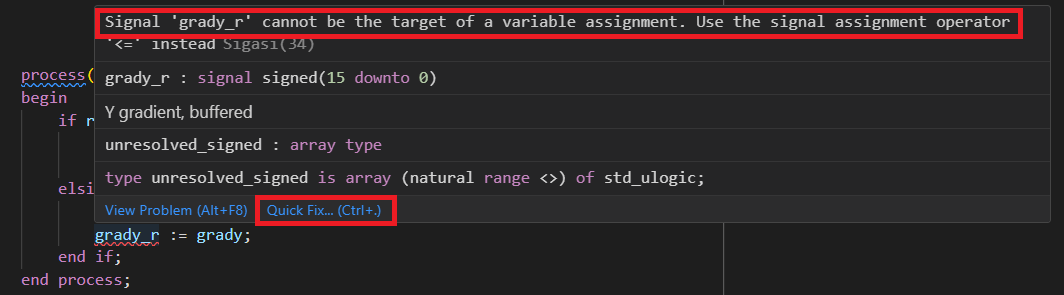
Then click Quick Fix… and select one of the Quick Fixes from the list.
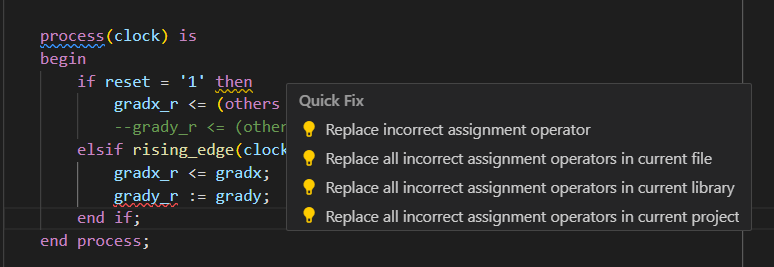
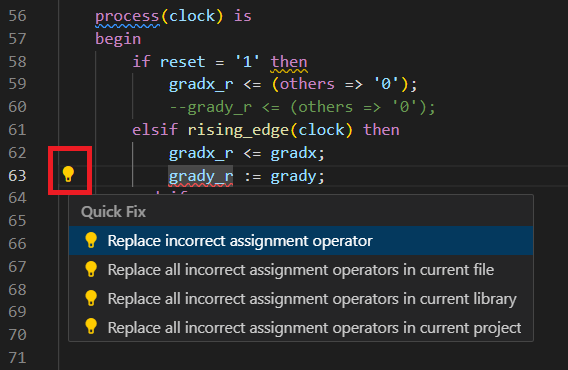
You can also click on the problem marker to make a lightbulb icon appear at the beginning of that line. Clicking the lightbulb will make the Quick Fix list appear. You can then select one of the Quick Fixes from the list. Alternatively, simply press Ctrl+. .
Finally, you can also trigger Quick Fixes from the Problems View by hovering over a problem and clicking the lightbulb icon that appears.
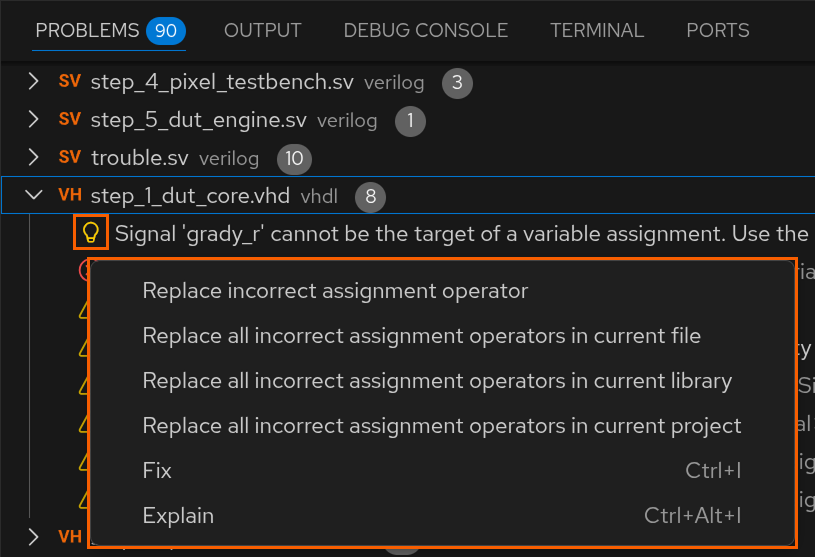
You might’ve noticed that we usually show four versions of the same quick fix. That is because quick fixes can almost always be used to fix the problem once for the entire file, the entire library, or the entire project. Eliminating error categories in one go.
The available quick fixes can be viewed on the linting rule listings. For Verilog, they can be found here, while the VHDL list can be found here. Every rule that has a quick fix is marked with a little lightbulb icon: , , , or .
Generic quick fixes
There are a few generic quick fixes that are almost always available and deserve some more explanation.
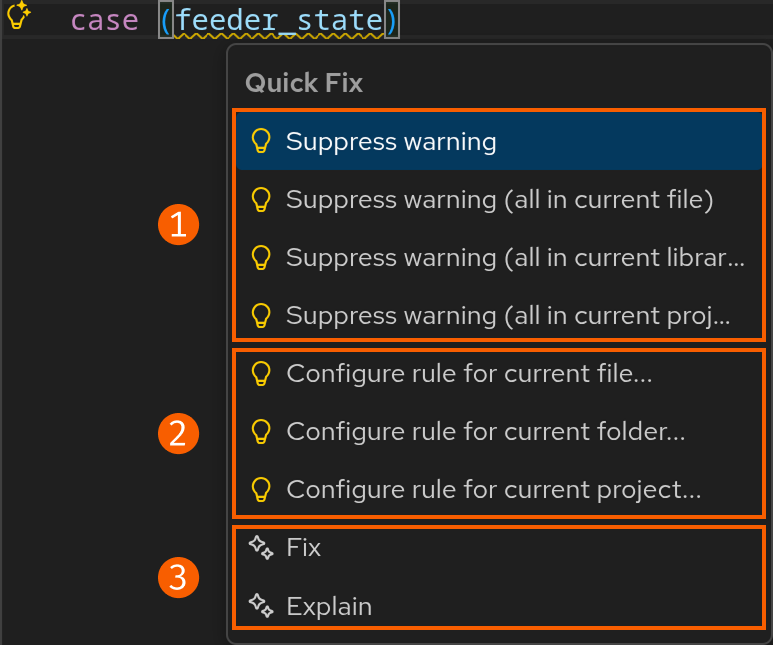
- Suppress problem: Any configurable problem can be suppressed.
- Configure rule: The severity and parameters of many problems can be configured. Instead of trying to find it manually, simply use the quick fix.
- Copilot quick fixes: These last two options are GitHub Copilot items and are not related to Sigasi.
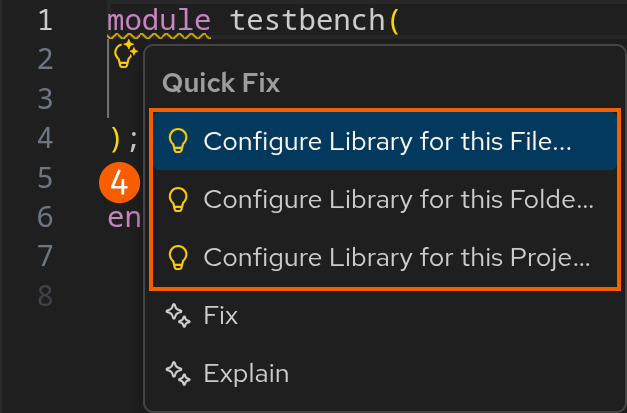
- Configure Library: When you haven’t mapped a file yet, Sigasi cannot offer support for it. As such, there will be a quick fix to help you correctly map the file.
Read-only files
When a quick fix action affects a read-only file, a preview will automatically be shown, even if you didn’t press Ctrl+Enter . In this preview, changes to read-only files are shown, but their checkbox is not checked, ensuring that they won’t be applied unless explicitly confirmed.
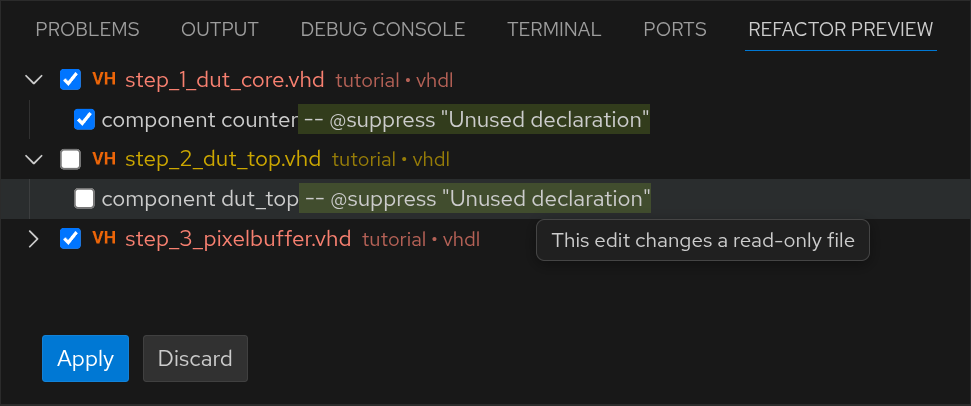
You can disable this preview behavior by toggling the sigasi.editor.previewReadonlyFileOperations
setting. This can be particularly useful if you’re working with a pessimistic version control system like Perforce, where you may prefer that changes to read-only files are applied immediately without requiring additional confirmation. The file will still need to be saved manually when applying changes to the read-only file.