Automated consistent code formatting makes code more readable and understandable for developers, whether working on their own code or when cooperating with colleagues.
In order to format your code, right-click in the editor and select Format Document. For Verilog, only indentation is applied. For VHDL, Sigasi formatting handles indentation, spacing between keywords and references, vertically aligning symbols like <=, keyword casing and comment alignment. All of these can be configured.


Sigasi’s formatter is context-based and tries to respect the author’s style. So depending on your source style, the formatter might make different choices.
One example of this is the decision to format a conditional signal assignment on one or more lines. Sigasi decides based on the position of the first else keyword.
If you put the else keyword on the first line, the formatter will keep everything on one line. If you put the else keyword on a new line, the formatter will use multiple lines for the assignment.
  demo <= (others => '0') when enable = '1'
     else (others => '1') when input  = '1' -- else on new line
     else (others => 'X');
When your source file contains syntactical errors, the formatter cannot always figure out appropriate formatting. For this reason, the formatter is programmed to stop applying whitespace changes beyond unsupported syntax errors.
Format on save
You can use auto-formatting whenever you save a file. This feature can be enabled with the
Disable formatting in defined regions
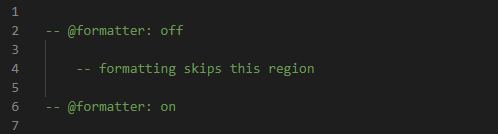
You can disable the formatter for defined regions in your VHDL source files by adding off and on tags:
- off tag:
-- @formatter:off- Turns off the formatter until the end of the file or until an on tag is encountered
- on tag:
-- @formatter:on- Reenables the formatter following an off tag
Indentation and whitespace
You can access the spaces customization controls at the bottom-right of the VS Code window.

If you click Spaces, a dialog box appears at the top-middle of the window.
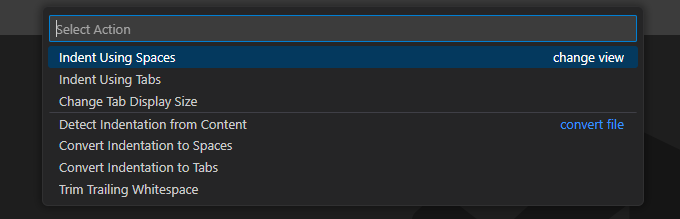
The options in this menu are only valid for the file in the editor. Before using these actions, make sure your file has been saved.