VS Code and Sigasi offer many ways of searching in the workspace, projects, files, and views.
Searching in the workspace
You can perform a text search in the entire workspace through the VS Code Search views. You can also open it via Ctrl+Shift+F This search has a few options:
- Match Case: matches the exact casing you entered
- Match Whole Word: matches the entire word exactly
- Use Regular Expression: allows to search for advanced patterns
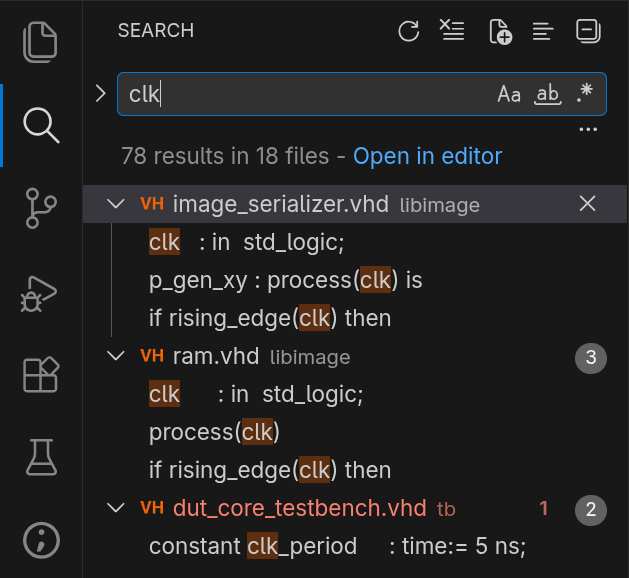
Pressing the icon left of the search field shows the Replace field.
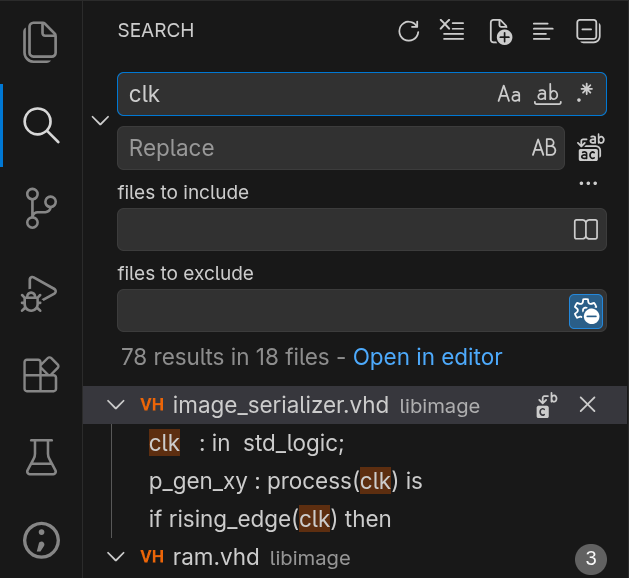
The search results can then be replaced:
- one by one (by hovering over a result), or
- all at once.
Pressing the button opens up the field to include and exclude certain file patterns from the search.
Learn more
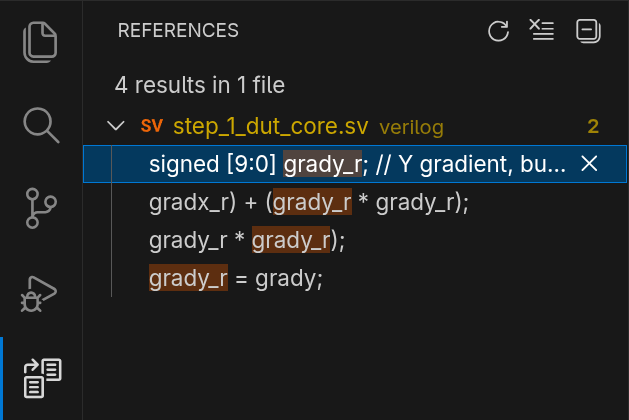
Note that this is a text search. It will find all occurrences of the given text in code, comments, HDL files, and non-HDL files. As Sigasi has profound knowledge of your project, it also offers a semantic search called Find References. If you’re looking for an HDL construct with a name, such as a clock, module, variable, or wire, Find References will likely serve you better by not returning any false positives, e.g., unrelated text occurrences in comments.
Quick search
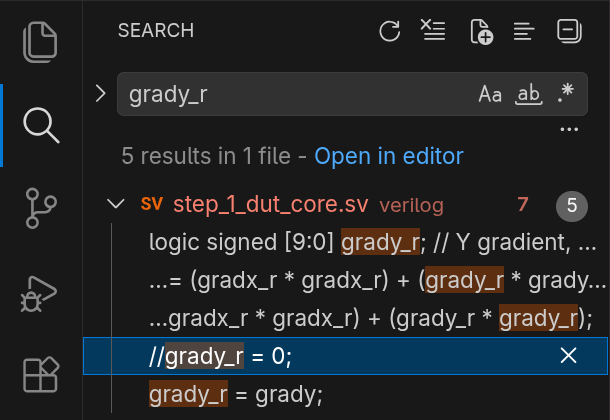
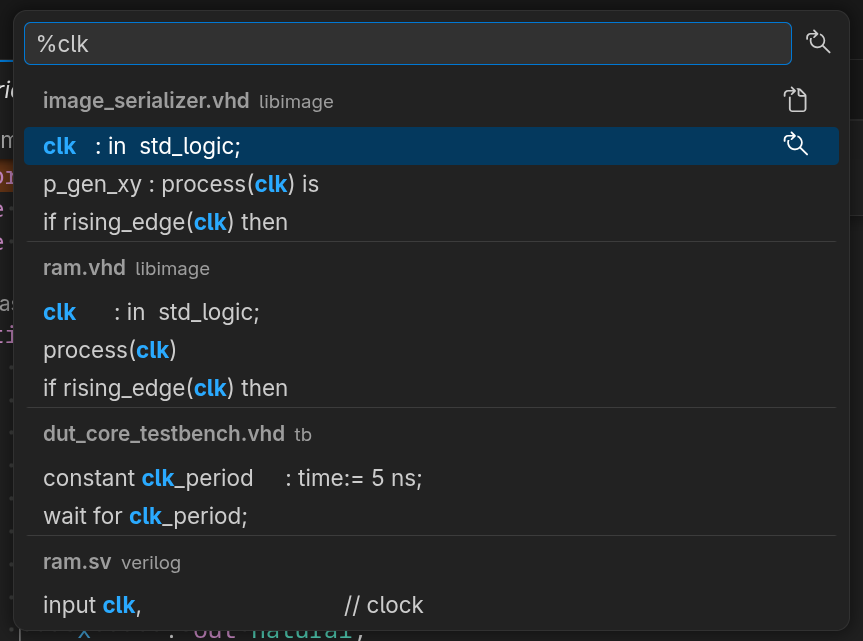
If all you’re looking for is a quick text search, you can open the Quick Search by opening the Quick Open (
Ctrl+P
) and typing %, followed by your search term.
Search in views
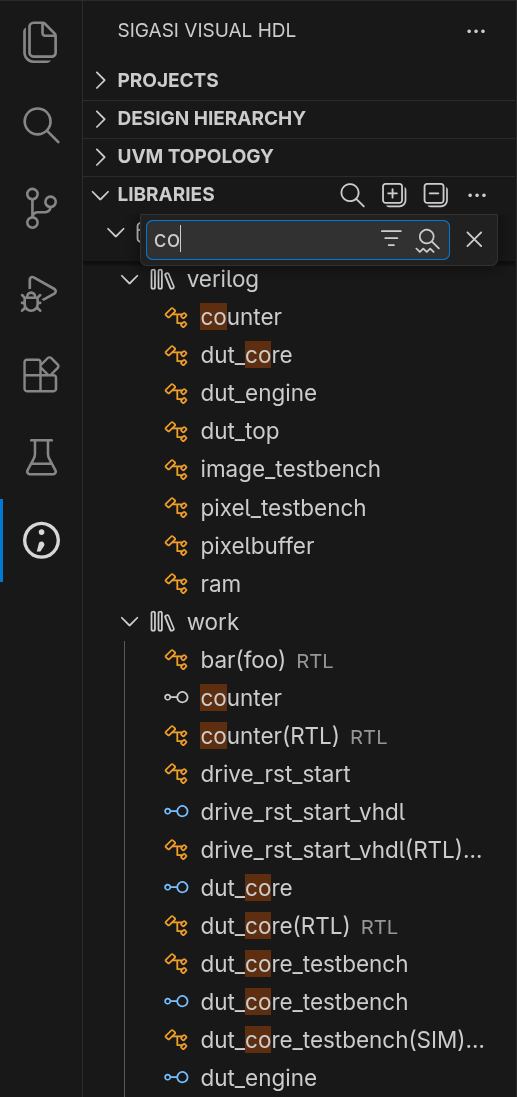
Many Sigasi and VS Code tree views show a search icon. When you click it or hit Ctrl+Alt+F , a search box shows up. In fact, even if there’s no search icon, you can still use the keybind. This search looks for exact matches.
It has two options:
- Filter: don’t highlight search term matches; instead, filter out (= hide) non-matching items
- Fuzzy Match: don’t look for exact matches; instead, do fuzzy matching
Editor
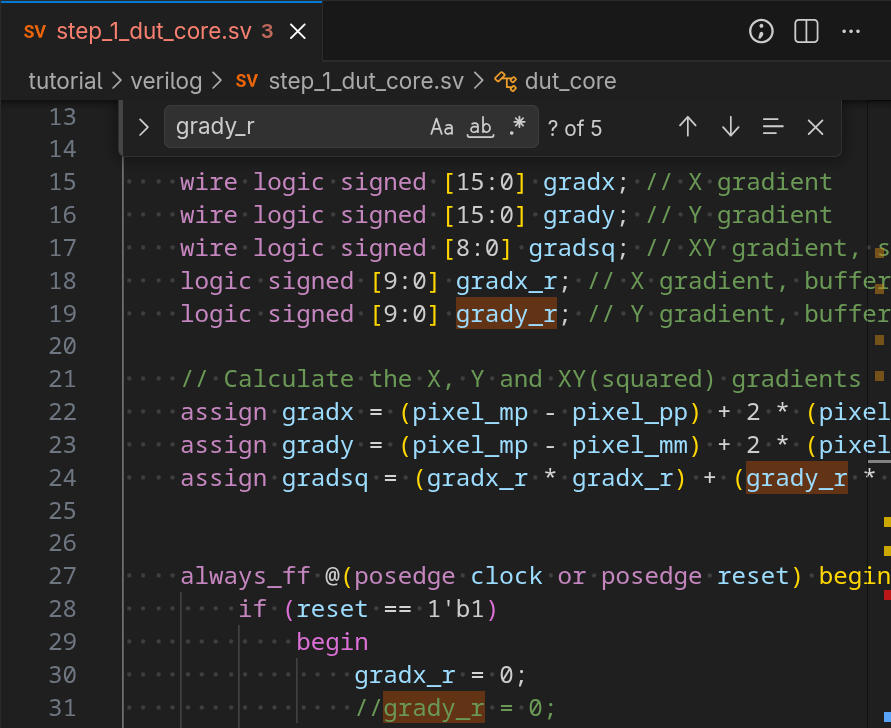
Of course, you can also hit Ctrl+F in any editor. This has many of the same options as the Search view.
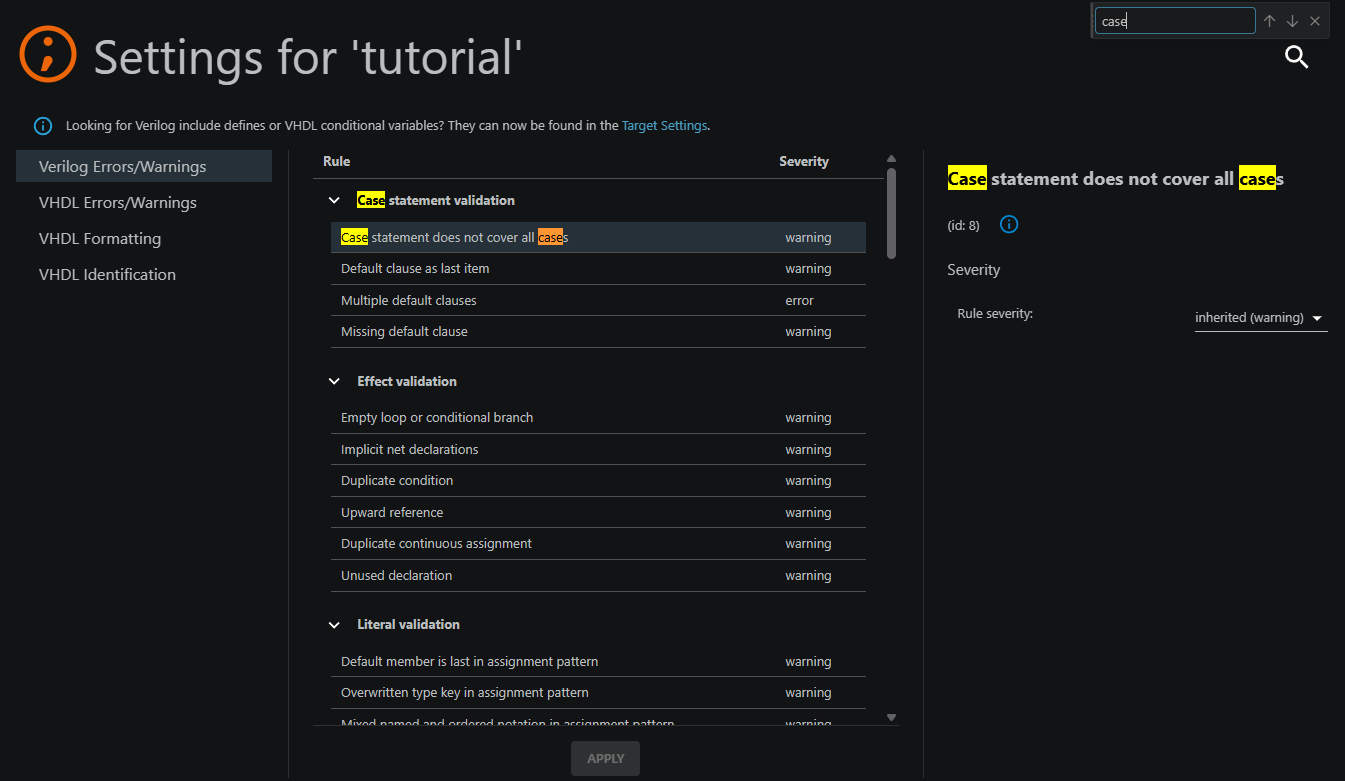
Search in Sigasi settings pages
On any Sigasi settings page, click the search button or press Ctrl+F to search the page.