If this manual didn’t resolve your technical questions, or you found bugs, or you have feature requests or suggestions, please contact our Support team .
For any billing-related questions or administrative questions, such as changing your number of licenses, contact our Sales team .
Reloading
If anything is not behaving as you’d expect it to, it’s a good idea to try reloading VS Code through the Developer: Reload Window command. If the issue persists, is reproducible, or occurs often, please contact our Support team .
License
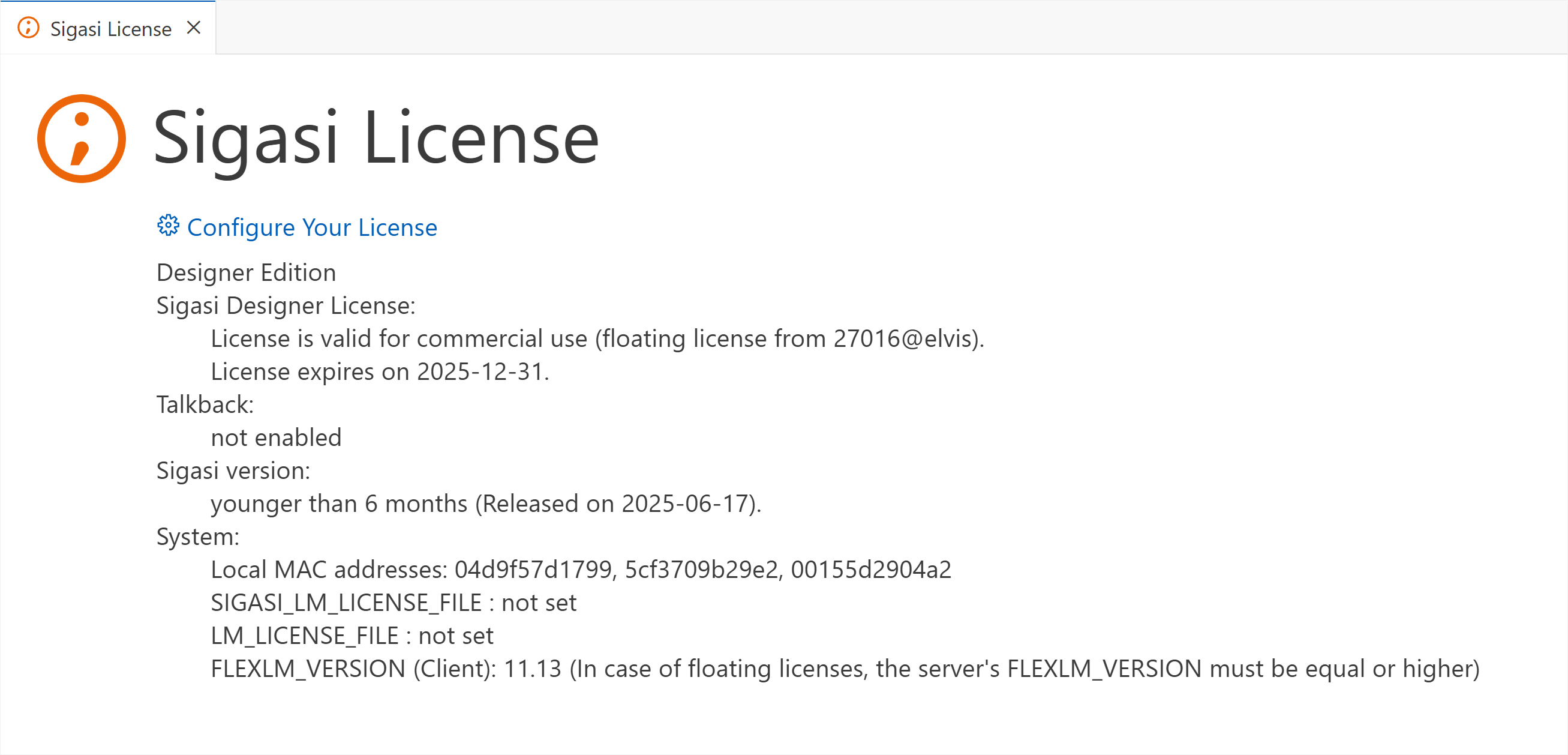
If you’re not getting the right type of license, you can open the license diagnostic page. It can be opened by clicking on the license status bar item at the bottom of your window.
Gathering information
Having contacted our Support team, they might ask for more information. You can get this information as shown below.
Version
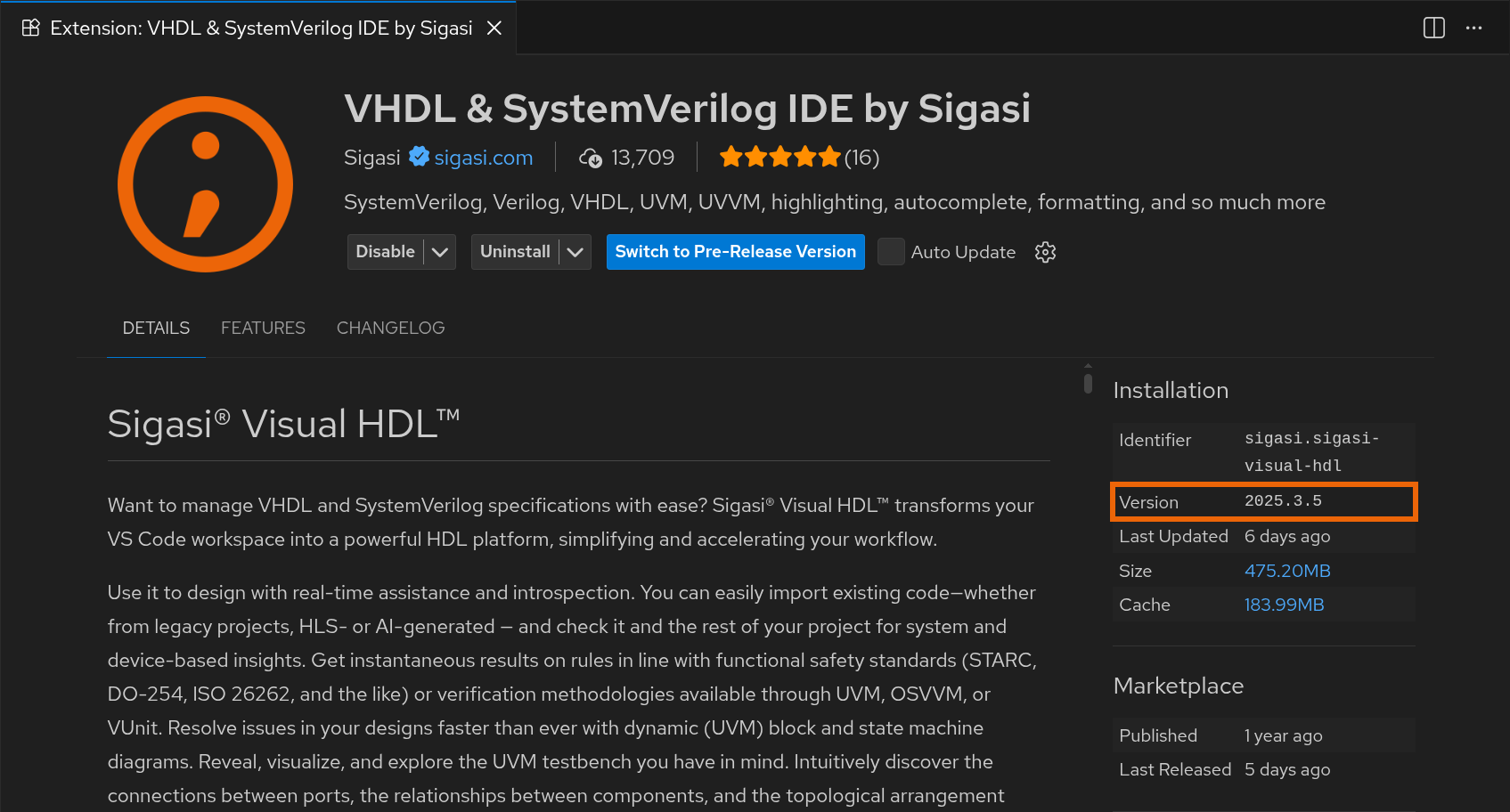
You can find the version on our extension page. Go to the page by opening the Extensions Activity and searching for VHDL & SystemVerilog IDE by Sigasi.
Logs
Sigasi logs contain filenames from your project. Only send them to us if you’re allowed to or after sanitizing them.
Before getting logs, it’s best to increase the log severity. Open the Settings (
) and search for
debug. Every level up from the lowest option (all) logs more than the previous one. To find the logs, open the Command Palette (
) and run the Sigasi: Open Log command. These contain the logs produced by our extensions. We may need to dig deeper and increase the verbosity of the logs.
To understand the interactions leading up to your problem, the Tracing Log is crucial. First, set the
verbose. Then, run the Sigasi: Open Tracing Log command. This log contains all the interactions between our Language Client and Language Server.
You can also find these logs on your filesystem.
- On Linux, the logs are below
~/.config/Code/logs - On Windows, the logs are in
%AppData%\Code\logs
In those folders, find [datetime]/window[1]/exthost/output_logging_[datetime]/[0-9]-Sigasi{Tracing}.log.
For each occurrence of [datetime], choose the most recent directory available. Please send us both the debug log and the tracing log.
We recommend opening the exthost folder using the Developer: Open Extension Logs Folder command.
If you need to enable fine-grained logging to help us debug a very specific issue, refer to the Fine grained logging article.
VS Code logs
If the extension doesn’t even start, or in rare cases, you’ll need to look at the VS Code logs. Open them by typing view Output in the Quick Open menu (
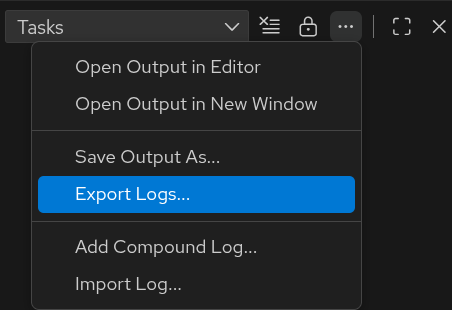
). Press the icon and select Export logs.