Congratulations, you have installed Sigasi. Your next step is to configure a license. Here you have two options:
- Use Sigasi with a commercial license. Multiple license tiers are available as detailed here. You can obtain a commercial license by requesting a trial or contacting our sales team.
- Use Sigasi in Community Edition mode. In this mode, you can use all of Sigasi’s extensive features for free, but with restrictions (see lower down).
Commercial licenses
FlexNet
We utilize FlexNet technology to deploy our commercial software licenses. These are available in two forms: node-locked and floating licenses. Floating licenses allow you to obtain a license from a license server to run Sigasi anywhere. Node-locked licenses allow you to use Sigasi on a single machine with a given MAC address. The flowchart below shows how Sigasi determines which license configuration to use.
  %%{init: {'flowchart': {'curve': 'basis'}}}%%

flowchart TD
  classDef failStyle fill:#ee7777,color:white;
  classDef successStyle fill:#59c980,color:white;

  SETTING{{"Is the VS Code setting called<br/><code>Sigasi: Path To License</code></br>set?"}}
  SERVER_OR_FILE{{"Does it point to a valid<br/>license server or license file?"}}
  FAIL([" Extension not operational"])
  COMMERCIAL(["Commercial Designer, Professional,<br/>or Enterprise license active"])
  SIGASI_LM_LICENSE_FILE{{"Is the<br/><code>SIGASI_LM_LICENSE_FILE</code><br/>environment variable set?"}}
  LM_LICENSE_FILE{{"Is the<br/><code>LM_LICENSE_FILE</code><br/>environment variable set?"}}
  SIGASI_LIC{{"Does <code>~/.sigasi.lic</code> exists?"}}
  CE_ENABLED{{"Is Community Edition requested?"}}
  TB_ENABLED{{"Is Talkback enabled?"}}
  CE(["Non-commercial Community Edition<br/>license active"])

  SETTING --> |Yes| SERVER_OR_FILE
  SETTING --> |No| SIGASI_LIC
  SERVER_OR_FILE --> |Yes| COMMERCIAL
  SERVER_OR_FILE --> |No| FAIL
  SIGASI_LM_LICENSE_FILE --> |Yes| SERVER_OR_FILE
  SIGASI_LM_LICENSE_FILE --> |No| CE_ENABLED
  CE_ENABLED --> |No| LM_LICENSE_FILE
  CE_ENABLED --> |Yes| TB_ENABLED
  TB_ENABLED --> |No| FAIL
  TB_ENABLED --> |Yes| CE
  LM_LICENSE_FILE --> |Yes| SERVER_OR_FILE
  LM_LICENSE_FILE --> |No| FAIL
  SIGASI_LIC --> |Yes| COMMERCIAL
  SIGASI_LIC --> |No| SIGASI_LM_LICENSE_FILE

  class FAIL failStyle;
  class COMMERCIAL,CE successStyle;
Node-locked license
An example node-locked license is shown below.
INCREMENT com.sigasi.hdt.xl sigasi 5.0 18-jan-2026 uncounted \
        VENDOR_STRING=company:Sigasi;mac:10f2dd92c5ac;mail:john.doe@company.com;stamp:1752568192.1032;start:2026-01-18;type:lease \
        HOSTID=ANY ISSUER=Sigasi ISSUED=18-Jan-2026 SIGN="0CCC 87EA \
        9BB6 256E 7D81 E49D B2A6 E53D 1CA5 41D4 63DF 8671 5695 EF82 \
        0E30 1028 732D DED3 0999 FD11 8B97 42B0 7CF2 F51F 20A0 DA6E \
        7F54 9D64 FF29 49AB"
The first line starts with
INCREMENT. If it starts withSERVERorDAEMON, you’re dealing with a floating license.
Save the license that was sent to you in a file, e.g., sigasi.lic.
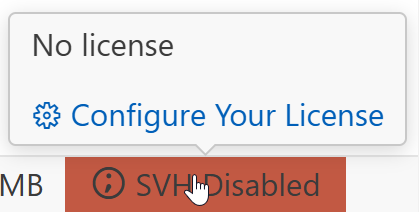
You can set the path to your license file through the
SVH Disabled.
Then click the Configure Your License button in the pop-up to open the license settings.
Type the path to your license file (e.g., /home/user/sigasi.lic) in the box under Sigasi: Path to License.
Floating license
An example floating license is shown below.
DAEMON sigasi port=27001
SERVER your_server_name1 BD41FCF5DE27 27000
INCREMENT com.sigasi.hdt.xl sigasi 5.0 18-jan-2026 4 \
        VENDOR_STRING=company:Sigasi;mail:john.doe@company.com;stamp:1752568192.3209263;start:2026-01-18;type:lease \
        HOSTID=ANY ISSUER=Sigasi ISSUED=18-Jan-2026 SIGN="0CCC 87EA \
        9BB6 256E 7D81 E49D B2A6 E53D 1CA5 41D4 63DF 8671 5695 EF82 \
        0E30 1028 732D DED3 0999 FD11 8B97 42B0 7CF2 F51F 20A0 DA6E \
        7F54 9D64 FF29 49AB"
The first line starts with
SERVERorDAEMON. If it starts withINCREMENT, you’re dealing with a node-locked license.
If you have a floating license key, you need to configure both a license server and Sigasi. Sigasi’s license key management system is based on the well-known FlexNet (a.k.a. FlexLM) license manager. In order to use a floating license, you should first set up a license server. Read more about this on the License server setup page.
Configuring the license server in Sigasi
You can set the path to your license server through the
SVH Disabled.
After clicking on the Configure Your License button in the hover, the license settings will be opened.
Type the path to your license server (e.g., <portnumber>@<servername>) in the box under Sigasi: Path to License. For example:
27000@myserver.example.com
If you have redundant license servers, enter each of the license servers separated by a comma. We recommend you specify the primary server first in the list, as the first item in the list is checked first. For example:
27000@myserver1.example.com,27000@myserver2.example.com,27000@myserver3.example.com
If you have multiple, non-redundant license servers, the servers should be separated using colons (:) on Linux and semicolons (;) on Windows.
If you leave Sigasi: Path to License empty, Sigasi will try to use an environment variable
to find the license server. If this fails, it will look for a .sigasi.lic file in your home folder.
Configuring the license server via an environment variable
You can also set your license server via an environment variable instead of configuring it in Sigasi.
Both $SIGASI_LM_LICENSE_FILE and $LM_LICENSE_FILE are supported.
When $SIGASI_LM_LICENSE_FILE is set, $LM_LICENSE_FILE is ignored.
Note that if you want to use an environment variable, the
Linux example:
export SIGASI_LM_LICENSE_FILE="27000@myserver.example.com"
For redundant license servers, the servers should be separated using commas (,).
We recommend you specify the primary server first in the list.
For example:
export SIGASI_LM_LICENSE_FILE="27000@myserver1.example.com,27000@myserver2.example.com,27000@myserver3.example.com"
Refer to our guide to learn how to set environment variables.
Upgrading and downgrading
The Sigasi edition is controlled by the license key.
Sigasi will automatically upgrade the license to the
edition that is required for the requested feature.
For example, when first using the Block Diagram, Sigasi will bump your license from Designer to Professional.
Sigasi holds on to the acquired license after upgrading, unless you manually downgrade the license again.
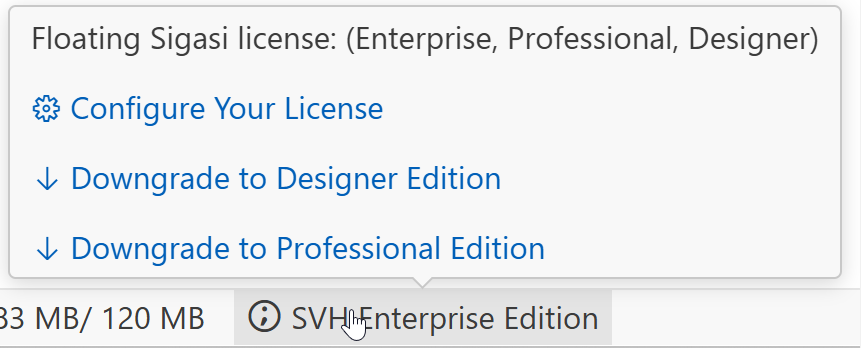
You can downgrade the license through the Downgrade to ... Edition button in the license status bar item.
The license status bar item can be found at the bottom of the window, indicating the current edition that is in use.
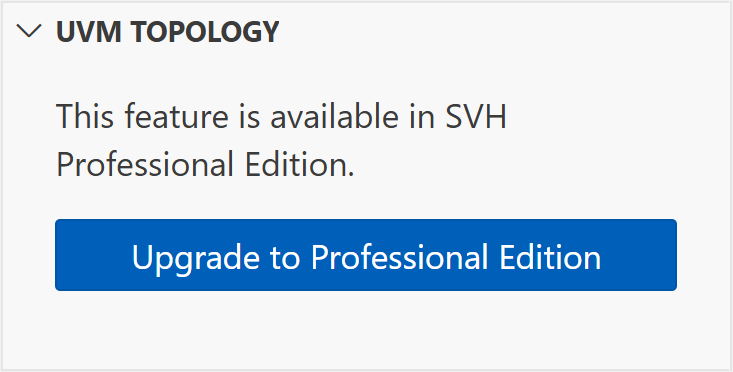
After downgrading, all views that require a higher edition will be disabled. These views will show buttons to upgrade the license again.
Community Edition
In Community Edition mode, you can use all of Sigasi Visual HDL Enterprise Edition’s extensive features for free, with exception of the CLI. The Community Edition is typically aimed at students, hobbyists, educators, etc. who want to enjoy a world-class editing experience.
There are three important things to note though:
- We gather usage statistics and send those to Sigasi servers to continuously improve our product.
- We ask you for an email address, which we’ll use to provide you with a tasteful amount of product news.
- Most importantly, you must be a non-commercial user, as detailed in our EULA.
You can enable the Community Edition by opening the license setup page through the command palette: press and type Sigasi: Open License Setup Page. On the right of the page, you’ll see:
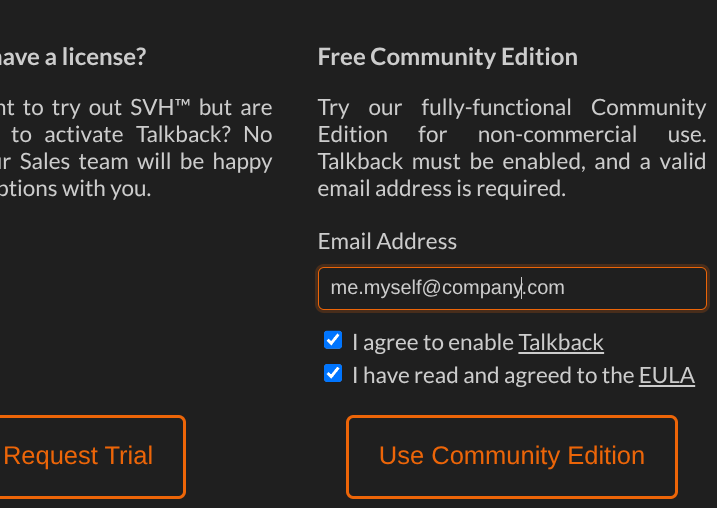
Fill out the form and you are good to go.
Some final things to note:
- The Community Edition license will not activate if you have a commercial license configured. For example, if in the license settings, Sigasi finds a mention of a FlexNet server, the Community Edition will not activate.
- When you restart VS Code, you will regularly see a reminder that you are using the Community Edition.
- The Community Edition requires access to Sigasi’s servers. If a connection cannot be established to upload some usage statistics, Community Edition will be deactivated.
Troubleshooting your license setup
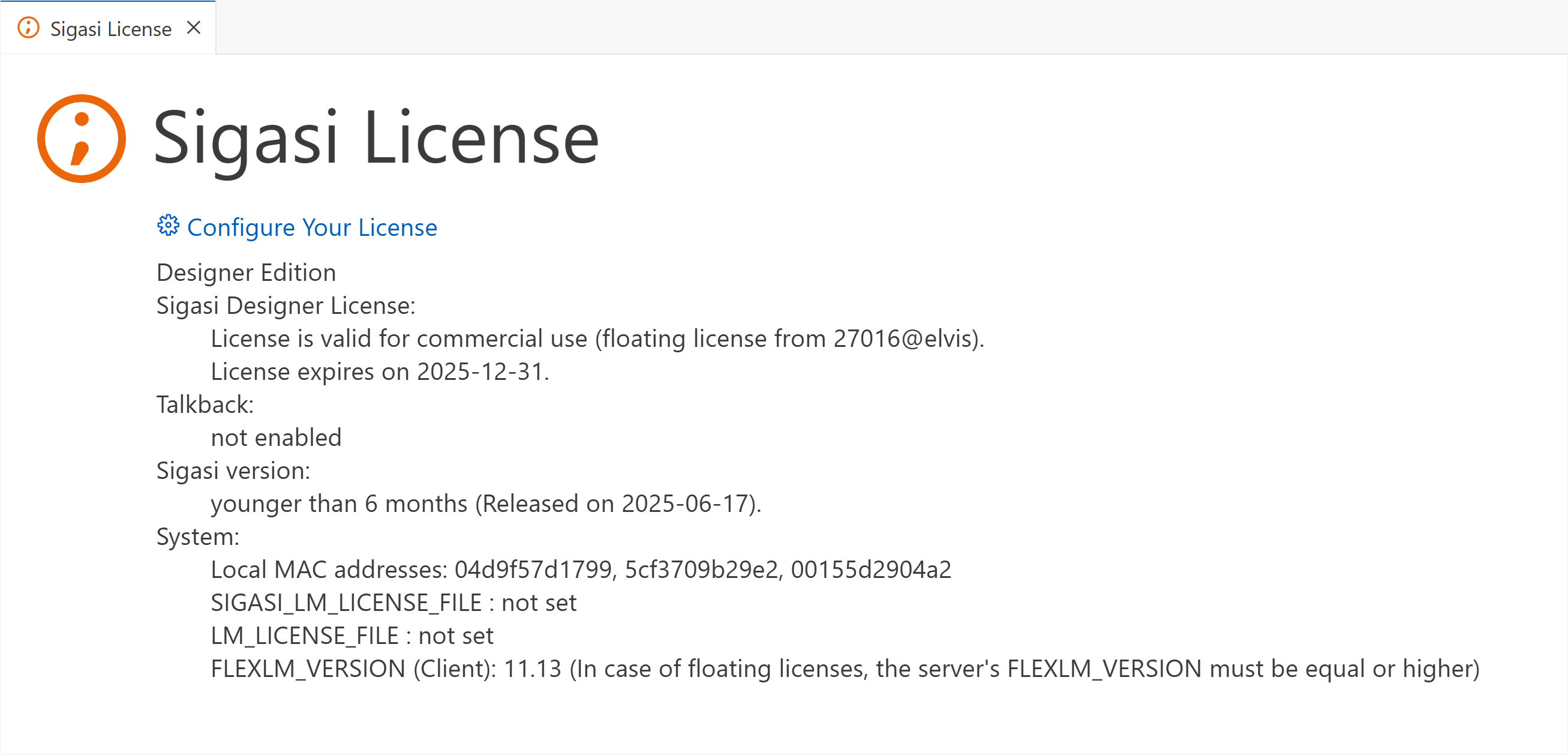
If you’re having trouble setting up your license, you can open the license diagnostic page. It can be opened by clicking on the license status bar item at the bottom of your window.