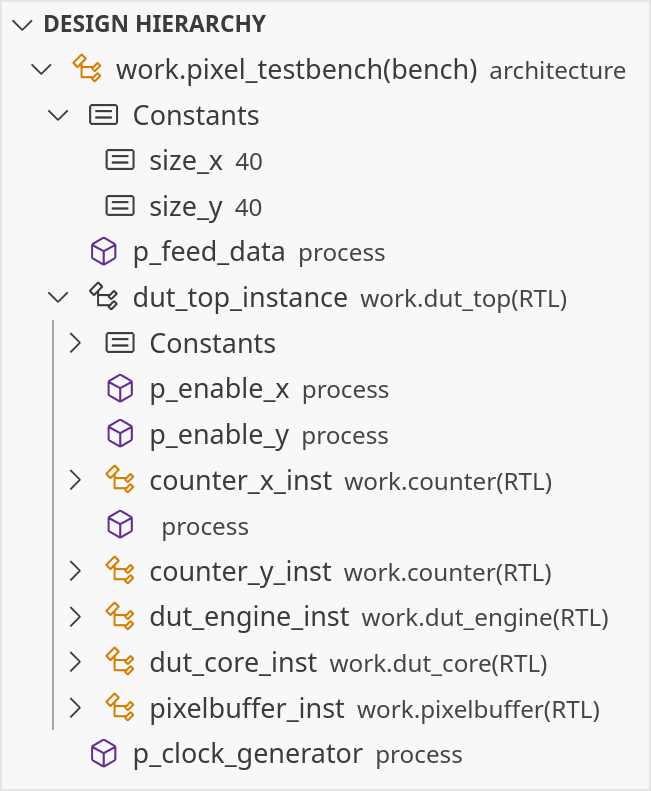
The Design Hierarchy View shows the hierarchy tree of the design. Initially, the Design Hierarchy View will be empty.
To populate it, click on the Select Top Level Design Unit button that is shown to select a top level design unit in your project.
This button is also available in the toolbar ( ).
A Quick Pick will be shown that lists all the available top level design unit candidates.
After picking a design unit from this list, the view will be populated with the structure of your top level.
).
A Quick Pick will be shown that lists all the available top level design unit candidates.
After picking a design unit from this list, the view will be populated with the structure of your top level.
If you want the selection in the Design Hierarchy View to follow your position in the editor, make sure to enable Follow Cursor from the More Actions menu.
Buttons in the Design Hierarchy View
These buttons are available in the Design Hierarchy View:
- Select Top Level Design Unit
- Only show Instantiations (enabled)
- Only show Instantiations (disabled)
- Refresh the Design Hierarchy View
- Search the Design Hierarchy View
- Expand the full Design Hierarchy View
- Collapse the Design Hierarchy View
- More Actions
Follow Cursor: links the Design Hierarchy View with the editorAuto RefreshSort by: PositionSort by: NameSort by: Category