Why do you need a library map?
Both in VHDL and SystemVerilog design units, functions, types, modules, etc.
are stored in “libraries”. For example, VHDL makes information related to
floating point available through the ieee.std_logic_1164 library. Or, for
SystemVerilog, you would compile your files into a library like so: vlog -work my_lib_name source_file.sv.
Whatever the mechanism, Sigasi will only consider your HDL files as being part of a project if they are assigned to a library. If HDL files are not assigned to a library, Sigasi’s functionality will be largely disabled. Only some syntax highlighting will be offered, and a hint will be provided to assign your file to a library.
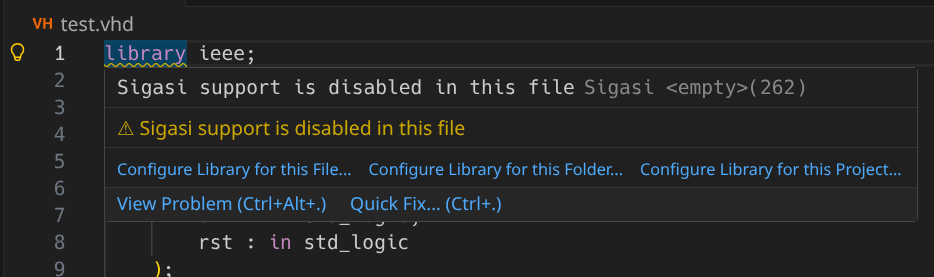
We call the act of assigning an HDL file to a library “library mapping”.
Library mapping
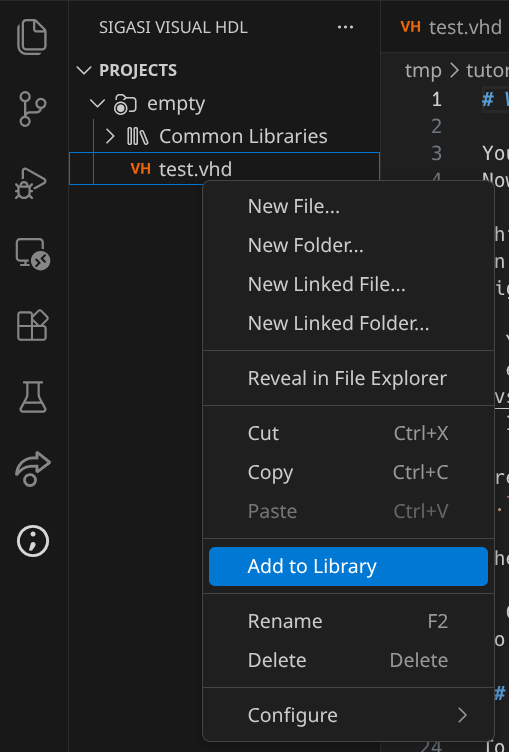
An HDL file can be mapped only to a single library. To map an unmapped HDL file to a library, right-click on a file-node in the Sigasi Projects View and select Add to Library as shown in the image below.
Select an existing library or type a new library name and confirm.
A file that is already mapped to a library can be switched to another library:
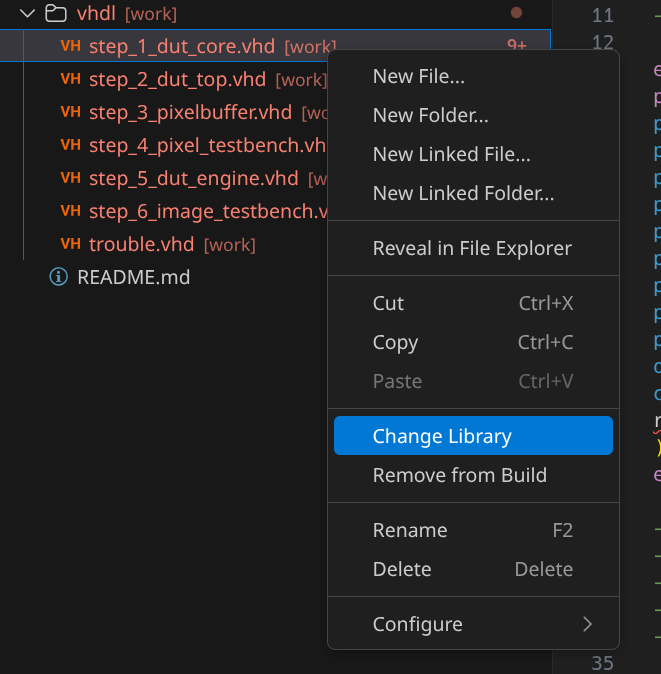
In the context menu, right beneath Change Library, there’s Remove from Build. This actions removes your HDL file from its library, effectively stopping {{> project <}} from analysing the HDL file any further. Removed resource(s) will still be visible in the Sigasi Projects View, and later, you can add them again to the project (Change Library).
Bulk operations for adding, changing, and removing HDL files from libraries are also supported: you can change the library mapping of an entire folder, or project recursively. When you map a folder or project to a library, all existing library mappings relating to the contained files will be overwritten.
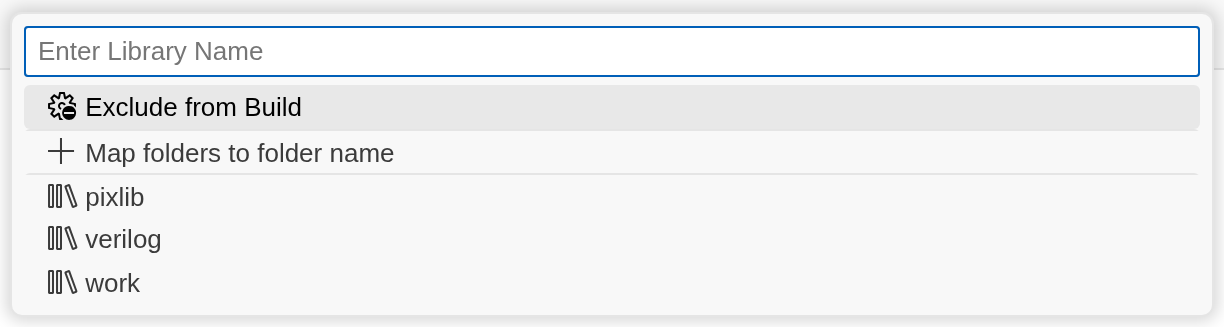
If you’ve applied a bulk operation, for example, if you’ve mapped your entire project to the same library, then any HDL files that are created in the project, will inherit the mapping of the surrounding folder or project.
Examining the library mapping
There are 2 locations where you can see the current library map: the Sigasi Project View and the Library View.
Sigasi Project View
You can examine the library configuration in the Sigasi Projects View, which shows how VHDL or SystemVerilog files and folders are mapped.
Each physical file or folder is annotated with the library it belongs to between square brackets.
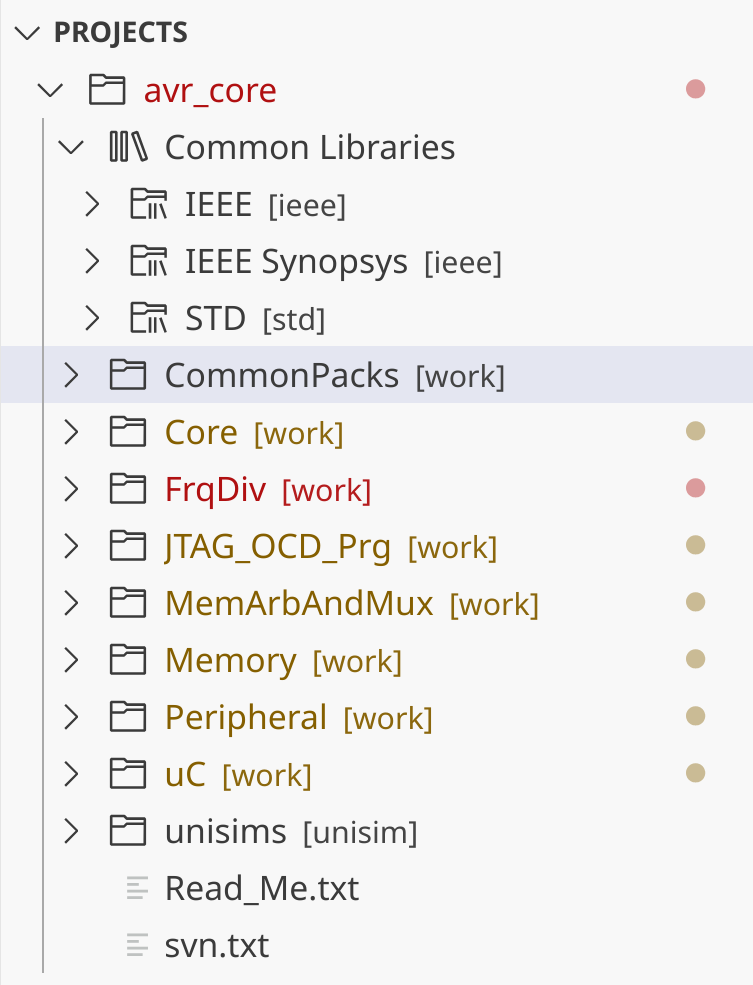
In the image above, you can see a mixed-language project called Sigasi-Demo,
with a folder named Common Libraries. In that folder, you see the typical
standard libraries (std and ieee) upon which all VHDL projects depend.
Lower down, you can see other folders, most of which are mapped to the library
work. One of the folders (verilog) is mapped to the library verilog.
Library View
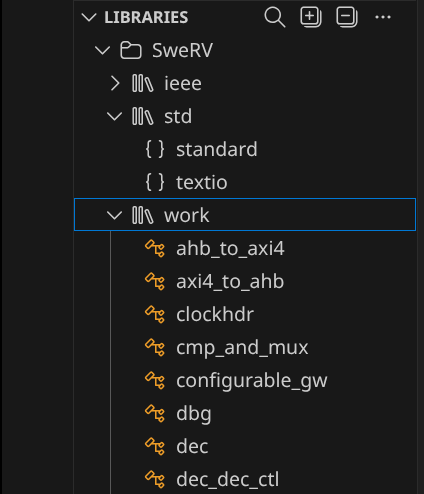
The library view shows a different perspective. Every time you map a file to a library, its content (e.g., design units, modules, etc.) becomes part of that library. In the Library View you see the libraries and their content.
Configuration file
All library configuration information is stored in the .library_mapping.xml
file in the root of your project. If you edit this file, the affected HDL
files in your project will be rebuilt automatically. Note that
.library_mapping.xml should be checked into your version control system.
Sigasi only writes changes to this configuration file when you modify the library configuration. When you do make changes, Sigasi first checks that all paths in the library configuration still exist. If a path no longer exists, it will be removed from the configuration file. Note that the library configuration file is case-sensitive, even on Windows.