For new projects, we recommend using Modular Projects instead. Classic Projects remain supported for existing setups, but Modular Projects are the default going forward and offer more flexibility for modern HDL workflows.
There are a number of ways to create a Classic Project:
- Create a project from scratch: you start with an empty project and add items as you see fit.
- Convert existing projects from other tool flows.
- Import an existing codebase.
- Create a tutorial or demo project for you to play around with.
Creating a new Classic Project from scratch
To create a new, empty, Classic Project, run the Create a Classic Project… command in the command palette. A file browser opens, in which you can create an empty directory and select it.
The project name is taken from the name of the chosen directory and can be changed by right-clicking the project in the Projects View and selecting Rename.
Creating a Classic Project from an existing codebase
If you have an existing project and you want to import it by hand, open its
root folder with VS Code: either through the
Explorer view
, through the
command palette (), or from the command line (type
code path-to-project). Use the Create a Classic Project… command in the command palette to create a project with the existing codebase.
After you’ve created your project, all the HDL files in your project are unmapped. That is to say, they are not part of the design yet, and Sigasi is not analyzing them yet. Your next step is to add your files to a library. Once a library is assigned to a file, Sigasi will start to deeply analyze the file.
Importing external projects
You can import a project originating from another tool by first converting it into a Classic Project using our Sigasi Project Creator. Find it and its documentation on GitHub . Do note that the next generation of Sigasi Projects has a lot of additional capabilities to ingest external project definitions. You might want to explore this in the section on Modular Projects.
Tutorial and Demo Projects
Maybe you do not yet want to jump into the deep end and create your own project. In that case, the extension contains both a tutorial project and demo project. You can find more details in the Tutorial & demo section.
Opening projects
We’ve shown you a number of ways to create projects. But what about the basics:
how do I open such a project? Simple, open the folder that contains the
.project file that we’ve just created. You can do so by invoking VS Code
from the command line, e.g., code /path/to/project, or by going through the
VS Code menu . Sigasi will detect the
.project file and will start analyzing the project.
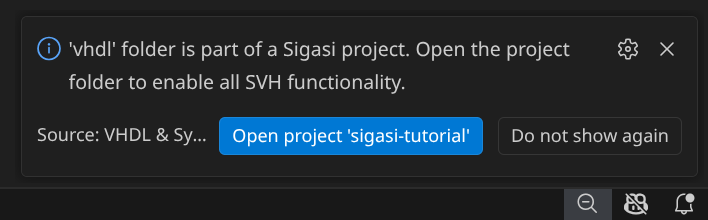
Even if you open a subfolder of your project, as long as it contains some HDL file, Sigasi will look for your project and suggest opening it.
Workspaces
In VS Code, a workspace allows you to work with multiple projects simultaneously. To add a new project to your workspace, select . Ensure the folder you are adding contains a valid .project file.