A linked resource is defined by three key elements:
- Name: The decoded relative path from the project’s root.
- Type: Use ‘1’ for files and ‘2’ for folders.
- Location URI: An encoded relative or absolute URI.
The location can be configured in various ways, depending on the project’s structure or workspace setup. When using relative paths, the path can begin with a variable that is subsequently resolved.
Some predefined variables are:
| Name | Description |
|---|---|
| PROJECT_LOC | The path to your project |
| PARENT-<COUNT>-<VARIABLE> | COUNT levels above the path of VARIABLE |
For example, if your project is located in /design/projects/project1, then PARENT-2-PROJECT_LOC/companylibrary points to /design/companylibrary.
Beyond these predefined variables, you can use system environment variables prefixed with ENV-. Custom variables shared across a workspace offer additional flexibility, which is especially useful for teams using a mix of Eclipse, VS Code, and Sigasi CLI. This lets you define Eclipse variables in VS Code/Sigasi CLI and keep configurations consistent across tools.
The location can be any valid URI, including absolute paths. However, this is not recommended, because absolute paths are not portable. In a team working on the same project, they would require edits on every machine. If you decide to use absolute paths, make sure they are valid (encoded) URIs. For example, if your library resides in /design/custom library, enter file:///design/custom%20library.
Another attribute is location. It can be used instead of locationURI, but it can reference only a local file and must use a file path instead of a full URI.
For example, the following entries are equivalent:
| Location URI | Location (Path) |
|---|---|
| file:///path/to/file | /path/to/file |
| file:///design/custom%20library | /design/custom library |
| PARENT-2-PROJECT_LOC/companylibrary | PARENT-2-PROJECT_LOC/companylibrary |
| PARENT-2-PROJECT_LOC/company%20library | PARENT-2-PROJECT_LOC/company library |
| virtual:/virtual | – (Not supported) |
When manually editing linked resources, use the correct tag and, if needed, encode the URI. For example, the following two entries link to the same resource:
<link>
    <name>custom library</name>
    <type>2</type>
    <locationURI>file:///design/custom%20library</locationURI>
</link>
<link>
    <name>custom library</name>
    <type>2</type>
    <location>/design/custom library</location>
</link>
You can use either of these tags, but not both, for a linked resource.
Custom project variables
Some variables are automatically defined.
PROJECT_LOC, the path of your projectPARENT-<COUNT>-<VARIABLE>, which points toCOUNTlevels above the path ofVARIABLE
For example, if your project lives in /design/projects/project1, then PARENT-2-PROJECT_LOC/companylibrary points to /design/companylibrary.
You can also use custom project variables, e.g., VUNIT, to point to your VUnit installation.
You can configure these variables as follows:
- Press to open the Command Palette
- Select Preferences: Open Settings (UI)
- In the Settings tab, navigate to
- Add variables and their values as required
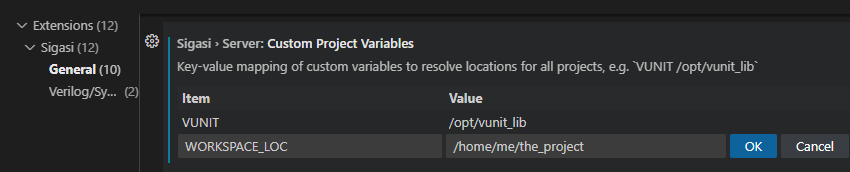
Custom project variables can be set at the User level, per Remote, or for a specific Workspace.