In Classic Projects, the main files of your project are all located in the
same folder as your .project file. However, sometimes you want to refer to
files that are somewhere else on the file system. That’s where linked
resources and environment variables come in handy.
Suppose you have an existing project, but you want to extend it with an additional file or folder located outside of your regular project tree. You could copy the file or folder into your project tree. But that can be inconvenient as copying files can easily lead to files going out-of-sync. Another approach is to use symbolic links from your operating system. However, this is not always convenient because source code management systems don’t always handle symbolic links gracefully, and the behavior of symbolic links differs between operating systems like Linux and Windows. Sigasi offers Linked Resources to solve this.
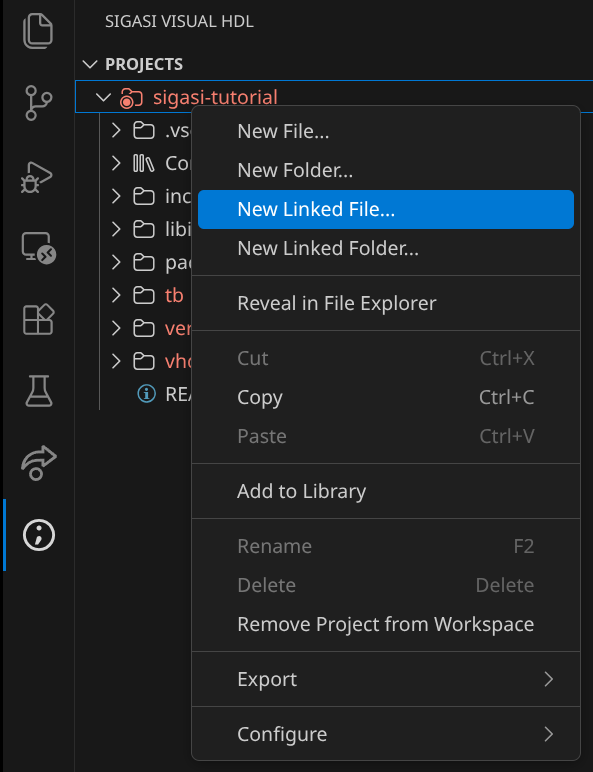
When adding a Linked Resource to your project, you are registering an external resource as being part of your project. The linked resource (a file or a folder) will appear as if it lives inside your project tree. To add a linked resource, you can right-click on the node where you want to add it, then click New Linked File… or New Linked Folder…. A dialog will pop up where you select the file/folder you want to link.
The linked file appears in your project tree with an icon , subtly indicating that it’s a link, not a regular file.
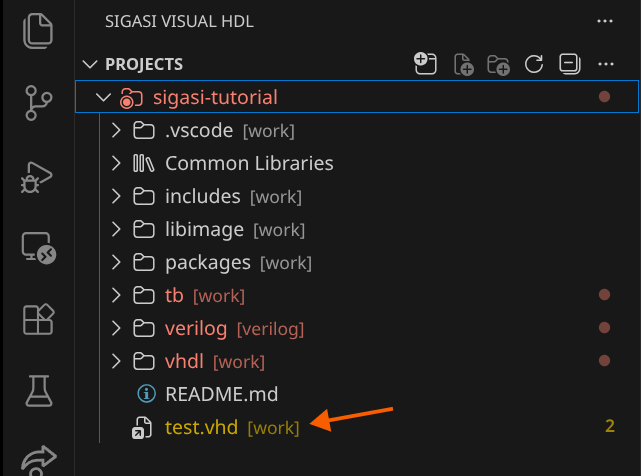
From that point on, Sigasi processes the resource as if it were a regular part of your project.
Environment variables
Linked Resources offer a way to refer to files outside of your project location. But, they do introduce another challenge. Suppose you create a project with a linked resource on your development machine. Probably, you’ll want to share your work with your colleagues, so you check your project in to a source code management system. Imagine that on that second machine, the resource is stored in a different location: the net result is a broken, linked resource.
For this use case (and others), Sigasi supports environment variables
as part of its project configuration. By using environment variables, Sigasi allows you to configure paths in your .project file that vary
from one development machine to another.
In the above scenario, the author of the project would define their linked
resource using an environment variable. On the first development machine, the
variable would point to one location and on the second machine, it would point
to another. The linked resource inside the .project file no longer needs to
be modified.
Environment variables are a power feature for which you will need to edit the
.project file directly. This is an example skeleton of a .project file.
<?xml version="1.0" encoding="UTF-8"?>
<projectDescription>
	<name>sigasi-tutorial</name>
    ...
	<linkedResources>
        ...
		<link>
			<name>test.vhd</name>
			<type>1</type>
			<location>//home/a_user/tmp/empty/test.vhd</location>
		</link>
        ...
	</linkedResources>
</projectDescription>
We’ve omitted the irrelevant parts from the .project XML file to focus on
the Linked Resource called test.vhd. At the moment, the test.vhd
resource points to an absolute path, //home/a_user/tmp/empty/test.vhd. This
is not ideal because on your colleague’s development machine, this path may be
different.
To resolve this, you can make use of environment variables like this:
<?xml version="1.0" encoding="UTF-8"?>
<projectDescription>
	<name>sigasi-tutorial</name>
    ...
	<linkedResources>
        ...
		<link>
			<name>test.vhd</name>
			<type>1</type>
			<locationURI>/ENV-HOME/tmp/empty/test.vhd</locationURI>
		</link>
        ...
	</linkedResources>
</projectDescription>
We’ve replaced the location tag with a locationURI tag and replaced the
home directory with ENV-HOME. By following this approach, Sigasi
will consult the HOME environment variable. Any environment variable can be
used to define the location of a Linked Resource as long as you add the
ENV- prefix.
For example, users of Vivado can define an environment variable pointing to the installation folder of Vivado. This could be a different location on different machines. Use the environment variable to automatically adapt your project setup to the machine on which you’re working.
Check the Advanced concepts section for more details on path variables and linked resource details.