Both in VHDL and SystemVerilog design units, functions, types, modules, etc.
are stored in “libraries”. For example, VHDL makes information related to
floating point available through the ieee.std_logic_1164 library. Or, for
SystemVerilog, you would compile your files into a library like so: vlog -work my_lib_name source_file.sv.
Whatever the mechanism, Sigasi will only consider your HDL files as being part of a project if they are assigned to a library. If HDL files are not assigned to a library, Sigasi’s functionality will be largely disabled. Only some syntax highlighting will be offered, and a hint will be provided to assign your file to a library.
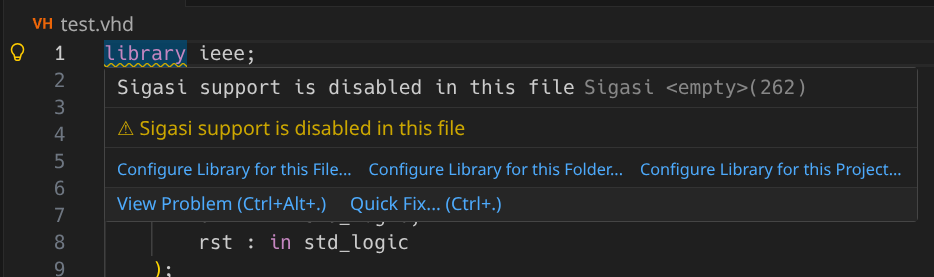
We call the act of assigning an HDL file to a library “library mapping”.
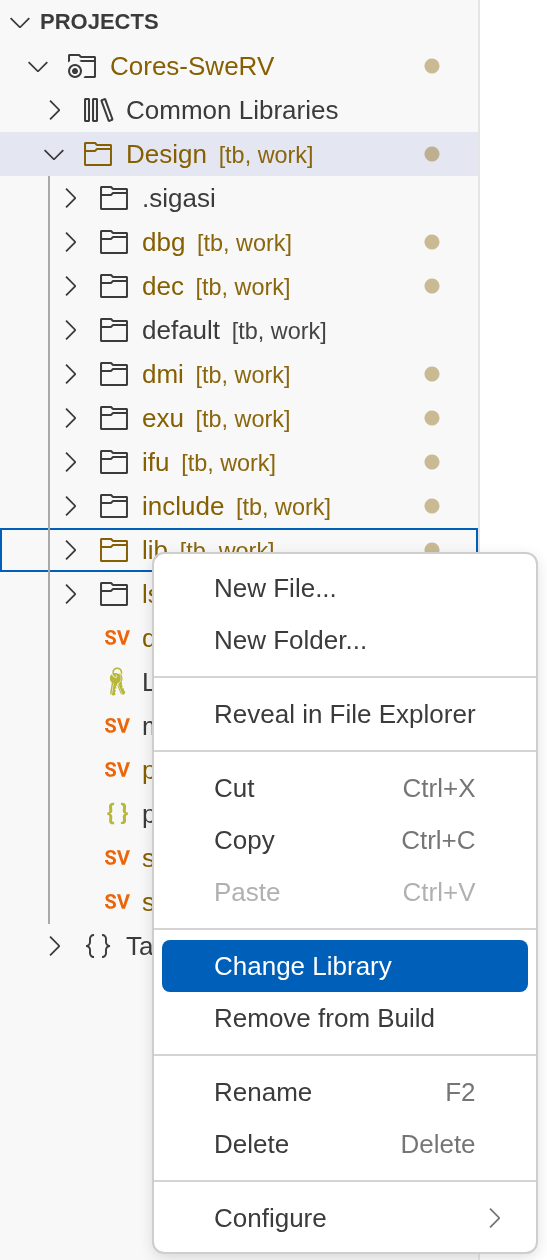
To change the library mapping, you can use the right-click menu in the Projects view and select Change Library as shown in the image below.
You can right-click on individual files, folders, or a selection containing multiple files and/or folders, as well as the entire project or the Design folder.
If multiple targets are available, a dialog will prompt you to select one.
This step is skipped if there’s only one target available, such as when right-clicking on items in the Targets perspective.

Next, you can either select an existing library or type a new library name.
- If you type a new name, a new library will be created and the selected items will be added to it.
- To use an existing library, simply pick one from the list (for example,
work)
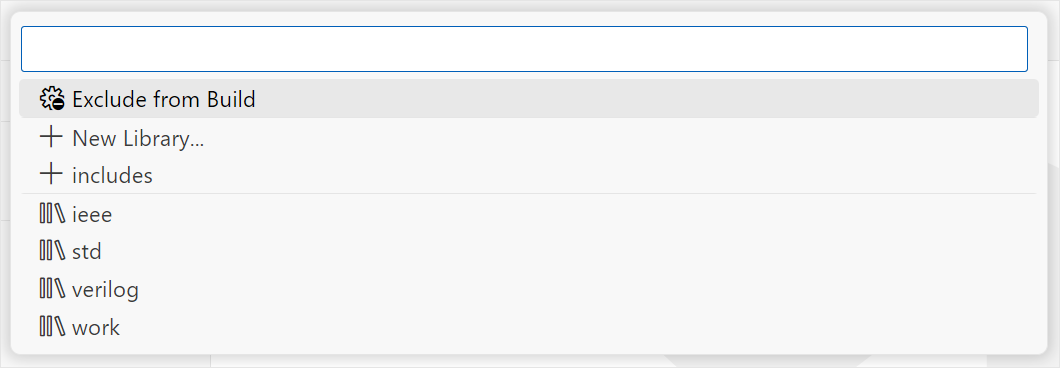
If you want to remove files/folders from a target, select Remove from Build. Note that the removed resource(s) will still be visible in the Projects view, and you can still add them (Change Library) to the project.
Creating new libraries, adding a file/folder to an existing library, or excluding files/folders from the build will modify your project’s project.sigasi file.