Contact us Start a Trial

1. Getting started

Congratulations on your choice to use Sigasi Visual HDL™ (or Sigasi for short), the leading HDL platform for Verilog, SystemVerilog, and VHDL. Sigasi is a world-class productivity tool integrating smoothly with industry tools such as Xilinx Vivado, Siemens Questa, and Synopsys VCS. It allows you to focus on the big-picture design, while it takes care of the syntax and semantics of your code.

This “Getting started” guide helps you set up Sigasi and teaches you the basics of working with projects. Let’s get your productivity journey started.


1.1. Installation

To begin using Sigasi, you must first ensure your environment is properly configured. This page outlines the hardware and software prerequisites followed by step-by-step instructions for installing the extension in VS Code.

System requirements

  • 64-bit Windows 10 or Windows 11
  • 64-bit Red Hat Enterprise Linux RHEL 8 or higher (where glibc >= 2.17)
  • At least 8 GB of memory
  • About 1 GB of free disk space

On RHEL/Fedora-based Linux systems, you will need to install some prerequisite packages:

sudo dnf install -y \
libX11 libstdc++ glibc libnss3 nspr atk at-spi2-atk cups-libs libdrm glib2 \
libXcomposite libXdamage libXext libXfixes libXrandr mesa-libgbm expat libxcb libxkbcommon \
dbus-libs alsa-lib at-spi2-core libgcc libffi pcre gnutls avahi-libs libselinux \
libXrender krb5-libs zlib

VS Code requirements

Sigasi requires VS Code version 1.82.0 or higher. Our extension is known to work on clones of VS Code like VS Codium , Cursor , Antigravity , etc. Do note that we only deeply test on VS Code proper, so your mileage may vary.

Installation

If you have not done so already, follow these instructions  to install VS Code.

Next, install the Sigasi extension from within VS Code:

  • Open the Extensions pane using
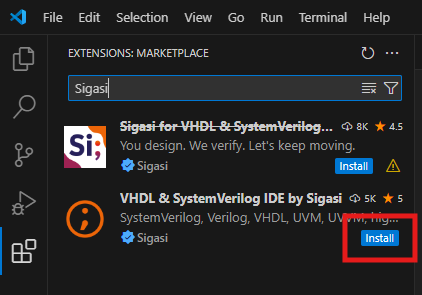
  • In the Search field at the top, type Sigasi
  • Click Install on the Sigasi logo VHDL & SystemVerilog IDE by Sigasi extension
VS Code Sigasi Marketplace Install Button

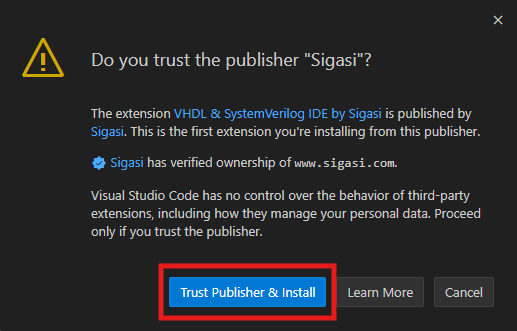
Before the extension is installed, VS Code verifies that you trust the publisher. Verify the publisher is indeed Sigasi and click Trust Publisher & Install.

VS Code Trust Sigasi and Install

More advanced ways of installation (e.g., for offline users) are detailed in Alternative installation methods.

Updating

VS Code automatically updates extensions by default. Since VS Code version 1.85, fine-grained control over which extensions to auto-update is available.
You can right-click on the Sigasi extension in the Extensions pane and toggle the Auto Update option.


1.2. License setup

Congratulations, you have installed Sigasi. Your next step is to configure a license. Here you have two options:

  1. Use Sigasi with a commercial license. Multiple license tiers are available as detailed here. You can obtain a commercial license by requesting a trial or contacting our sales team.
  2. Use Sigasi in Community Edition mode. In this mode, you can use all of Sigasi’s extensive features for free, but with restrictions (see lower down).

Commercial licenses

FlexNet

We utilize FlexNet technology to deploy our commercial software licenses. These are available in two forms: node-locked and floating licenses. Floating licenses allow you to obtain a license from a license server to run Sigasi anywhere. Node-locked licenses allow you to use Sigasi on a single machine with a given MAC address. The flowchart below shows how Sigasi determines which license configuration to use.

  %%{init: {'flowchart': {'curve': 'basis'}}}%%

flowchart TD
  classDef failStyle fill:#ee7777,color:white;
  classDef successStyle fill:#59c980,color:white;

  SETTING{{"Is the VS Code setting called<br/><code>Sigasi: Path To License</code></br>set?"}}
  SERVER_OR_FILE{{"Does it point to a valid<br/>license server or license file?"}}
  FAIL([" Extension not operational"])
  COMMERCIAL(["Commercial Designer, Professional,<br/>or Enterprise license active"])
  SIGASI_LM_LICENSE_FILE{{"Is the<br/><code>SIGASI_LM_LICENSE_FILE</code><br/>environment variable set?"}}
  LM_LICENSE_FILE{{"Is the<br/><code>LM_LICENSE_FILE</code><br/>environment variable set?"}}
  SIGASI_LIC{{"Does <code>~/.sigasi.lic</code> exists?"}}
  CE_ENABLED{{"Is Community Edition requested?"}}
  TB_ENABLED{{"Is Talkback enabled?"}}
  CE(["Non-commercial Community Edition<br/>license active"])

  SETTING --> |Yes| SERVER_OR_FILE
  SETTING --> |No| SIGASI_LIC
  SERVER_OR_FILE --> |Yes| COMMERCIAL
  SERVER_OR_FILE --> |No| FAIL
  SIGASI_LM_LICENSE_FILE --> |Yes| SERVER_OR_FILE
  SIGASI_LM_LICENSE_FILE --> |No| CE_ENABLED
  CE_ENABLED --> |No| LM_LICENSE_FILE
  CE_ENABLED --> |Yes| TB_ENABLED
  TB_ENABLED --> |No| FAIL
  TB_ENABLED --> |Yes| CE
  LM_LICENSE_FILE --> |Yes| SERVER_OR_FILE
  LM_LICENSE_FILE --> |No| FAIL
  SIGASI_LIC --> |Yes| COMMERCIAL
  SIGASI_LIC --> |No| SIGASI_LM_LICENSE_FILE

  class FAIL failStyle;
  class COMMERCIAL,CE successStyle;

Node-locked license

An example node-locked license is shown below.

INCREMENT com.sigasi.hdt.xl sigasi 5.0 18-jan-2026 uncounted \
        VENDOR_STRING=company:Sigasi;mac:10f2dd92c5ac;mail:john.doe@company.com;stamp:1752568192.1032;start:2026-01-18;type:lease \
        HOSTID=ANY ISSUER=Sigasi ISSUED=18-Jan-2026 SIGN="0CCC 87EA \
        9BB6 256E 7D81 E49D B2A6 E53D 1CA5 41D4 63DF 8671 5695 EF82 \
        0E30 1028 732D DED3 0999 FD11 8B97 42B0 7CF2 F51F 20A0 DA6E \
        7F54 9D64 FF29 49AB"

The first line starts with INCREMENT. If it starts with SERVER or DAEMON, you’re dealing with a floating license.

Save the license that was sent to you in a file, e.g., sigasi.lic.

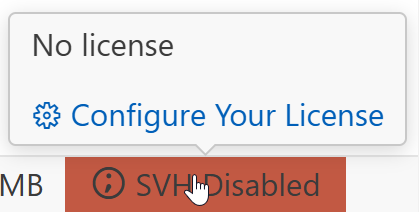
You can set the path to your license file through the sigasi.pathToLicense setting. Navigate to this setting by hovering over the status bar item at the bottom of your window indicating SVH Disabled. Then click the Configure Your License button in the pop-up to open the license settings.

Type the path to your license file (e.g., /home/user/sigasi.lic) in the box under Sigasi: Path to License.

Set Path to License in VS Code

Floating license

An example floating license is shown below.

DAEMON sigasi port=27001
SERVER your_server_name1 BD41FCF5DE27 27000
INCREMENT com.sigasi.hdt.xl sigasi 5.0 18-jan-2026 4 \
        VENDOR_STRING=company:Sigasi;mail:john.doe@company.com;stamp:1752568192.3209263;start:2026-01-18;type:lease \
        HOSTID=ANY ISSUER=Sigasi ISSUED=18-Jan-2026 SIGN="0CCC 87EA \
        9BB6 256E 7D81 E49D B2A6 E53D 1CA5 41D4 63DF 8671 5695 EF82 \
        0E30 1028 732D DED3 0999 FD11 8B97 42B0 7CF2 F51F 20A0 DA6E \
        7F54 9D64 FF29 49AB"

The first line starts with SERVER or DAEMON. If it starts with INCREMENT, you’re dealing with a node-locked license.

If you have a floating license key, you need to configure both a license server and Sigasi. Sigasi’s license key management system is based on the well-known FlexNet (a.k.a. FlexLM) license manager. In order to use a floating license, you should first set up a license server. Read more about this on the License server setup page.

Configuring the license server in Sigasi

You can set the path to your license server through the sigasi.pathToLicense setting. To navigate to this setting, you can hover over the status bar item at the bottom of your window indicating SVH Disabled. After clicking on the Configure Your License button in the hover, the license settings will be opened.

Type the path to your license server (e.g., <portnumber>@<servername>) in the box under Sigasi: Path to License. For example:

27000@myserver.example.com

If you have redundant license servers, enter each of the license servers separated by a comma. We recommend you specify the primary server first in the list, as the first item in the list is checked first. For example:

27000@myserver1.example.com,27000@myserver2.example.com,27000@myserver3.example.com

If you have multiple, non-redundant license servers, the servers should be separated using colons (:) on Linux and semicolons (;) on Windows.

If you leave Sigasi: Path to License empty, Sigasi will try to use an environment variable to find the license server. If this fails, it will look for a .sigasi.lic file in your home folder.

Configuring the license server via an environment variable

You can also set your license server via an environment variable instead of configuring it in Sigasi. Both $SIGASI_LM_LICENSE_FILE and $LM_LICENSE_FILE are supported. When $SIGASI_LM_LICENSE_FILE is set, $LM_LICENSE_FILE is ignored.

Note that if you want to use an environment variable, the sigasi.pathToLicense setting should be cleared, as that path is prioritized.

Linux example:

export SIGASI_LM_LICENSE_FILE="27000@myserver.example.com"

For redundant license servers, the servers should be separated using commas (,). We recommend you specify the primary server first in the list. For example:

export SIGASI_LM_LICENSE_FILE="27000@myserver1.example.com,27000@myserver2.example.com,27000@myserver3.example.com"

Refer to our guide to learn how to set environment variables.

Upgrading and downgrading

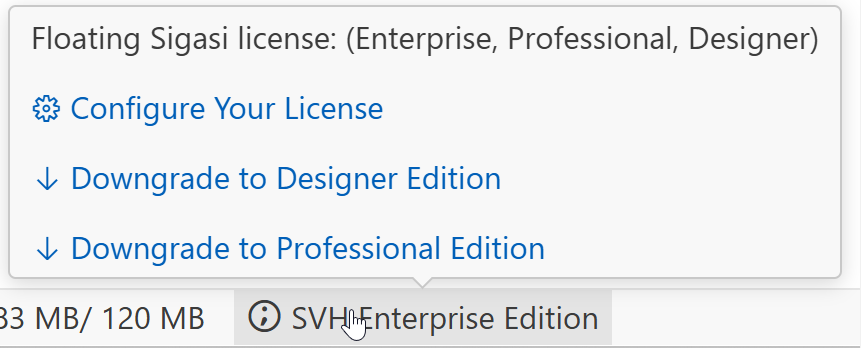
The Sigasi edition is controlled by the license key. Sigasi will automatically upgrade the license to the edition that is required for the requested feature. For example, when first using the Block Diagram, Sigasi will bump your license from Designer to Professional. Sigasi holds on to the acquired license after upgrading, unless you manually downgrade the license again. You can downgrade the license through the Downgrade to ... Edition button in the license status bar item. The license status bar item can be found at the bottom of the window, indicating the current edition that is in use.

Downgrade Your License

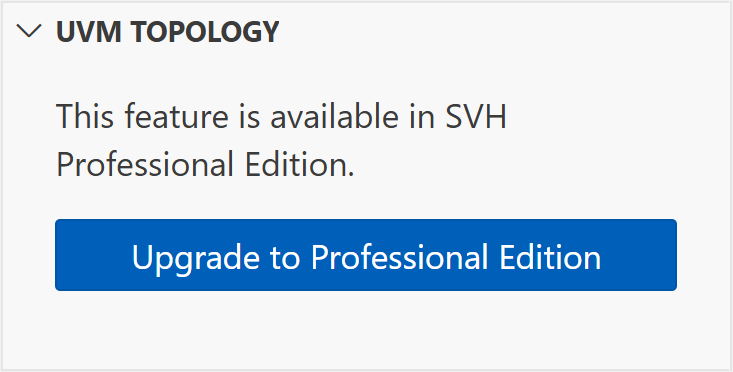
After downgrading, all views that require a higher edition will be disabled. These views will show buttons to upgrade the license again.

Upgrade Your License

Community Edition

In Community Edition mode, you can use all of Sigasi Visual HDL Enterprise Edition’s extensive features for free, with exception of the CLI. The Community Edition is typically aimed at students, hobbyists, educators, etc. who want to enjoy a world-class editing experience.

There are three important things to note though:

  • We gather usage statistics and send those to Sigasi servers to continuously improve our product.
  • We ask you for an email address, which we’ll use to provide you with a tasteful amount of product news.
  • Most importantly, you must be a non-commercial user, as detailed in our EULA.

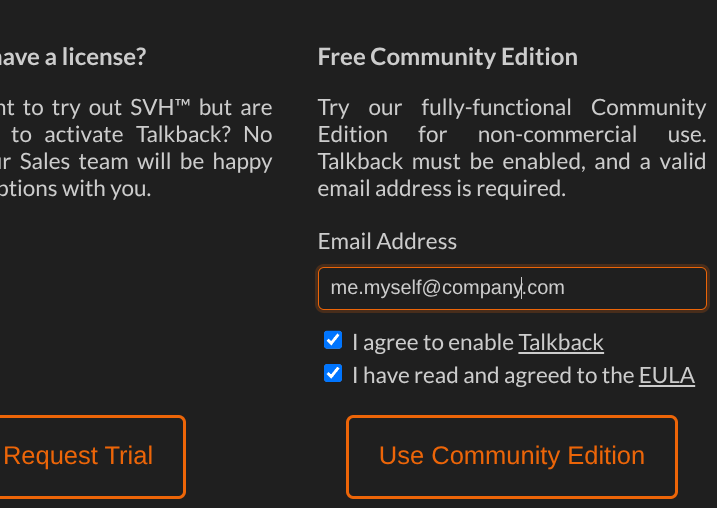
You can enable the Community Edition by opening the license setup page through the command palette: press and type Sigasi: Open License Setup Page. On the right of the page, you’ll see:

Configuring your CE license

Fill out the form and you are good to go.

Some final things to note:

  • The Community Edition license will not activate if you have a commercial license configured. For example, if in the license settings, Sigasi finds a mention of a FlexNet server, the Community Edition will not activate.
  • When you restart VS Code, you will regularly see a reminder that you are using the Community Edition.
  • The Community Edition requires access to Sigasi’s servers. If a connection cannot be established to upload some usage statistics, Community Edition will be deactivated.

Troubleshooting your license setup

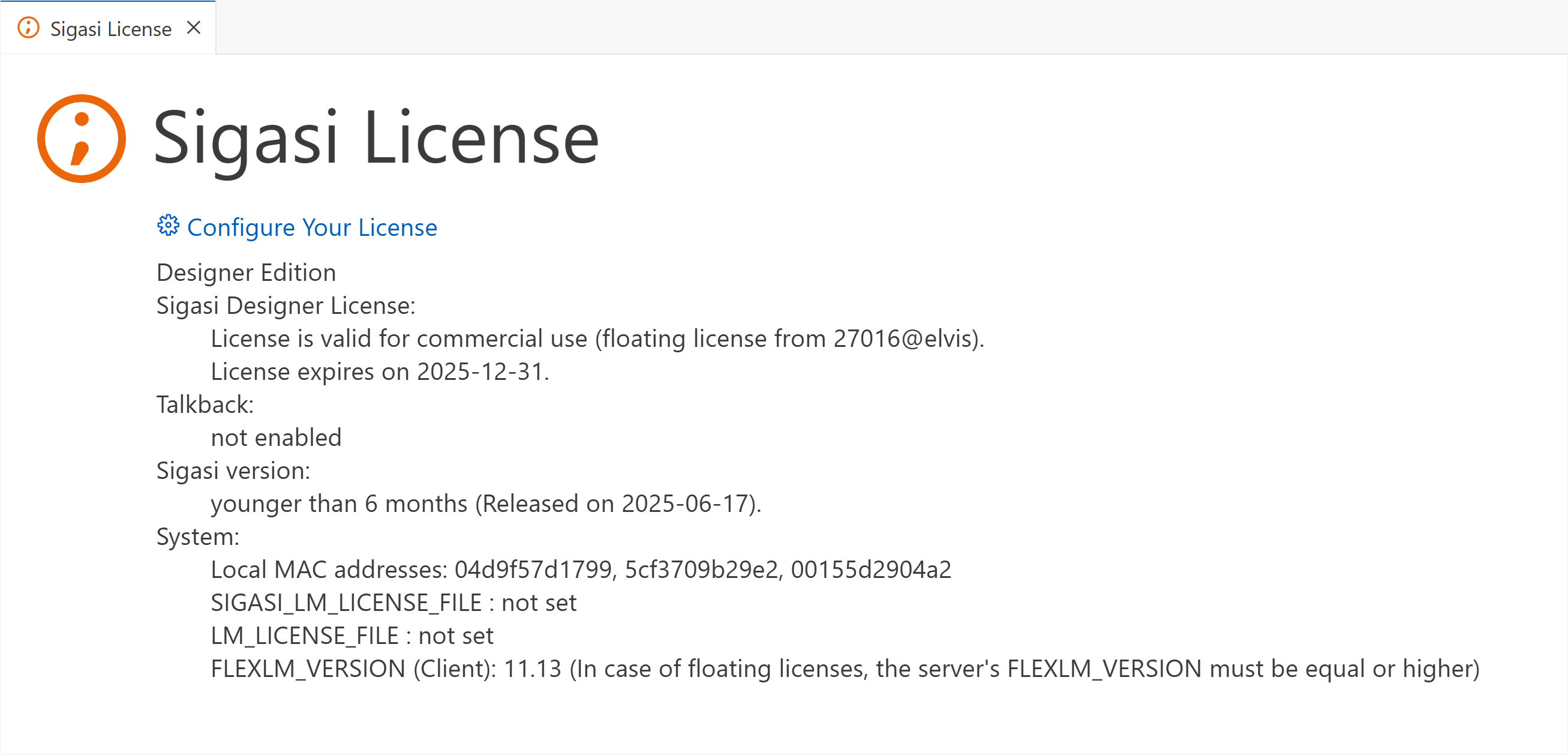
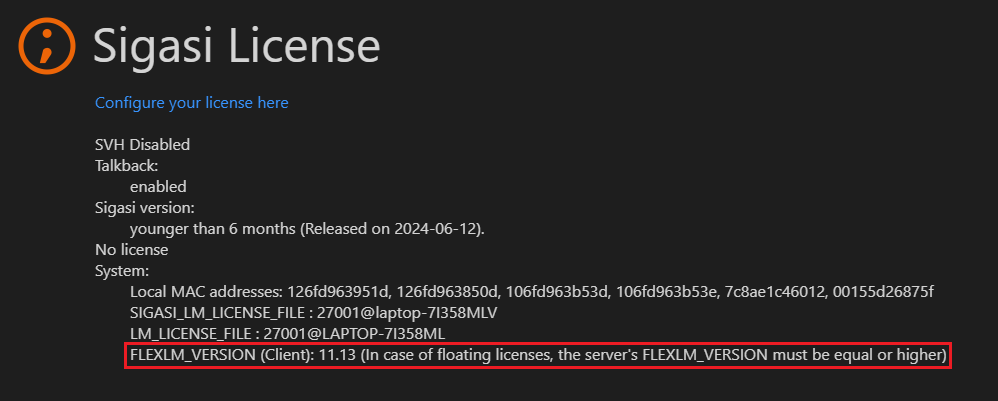
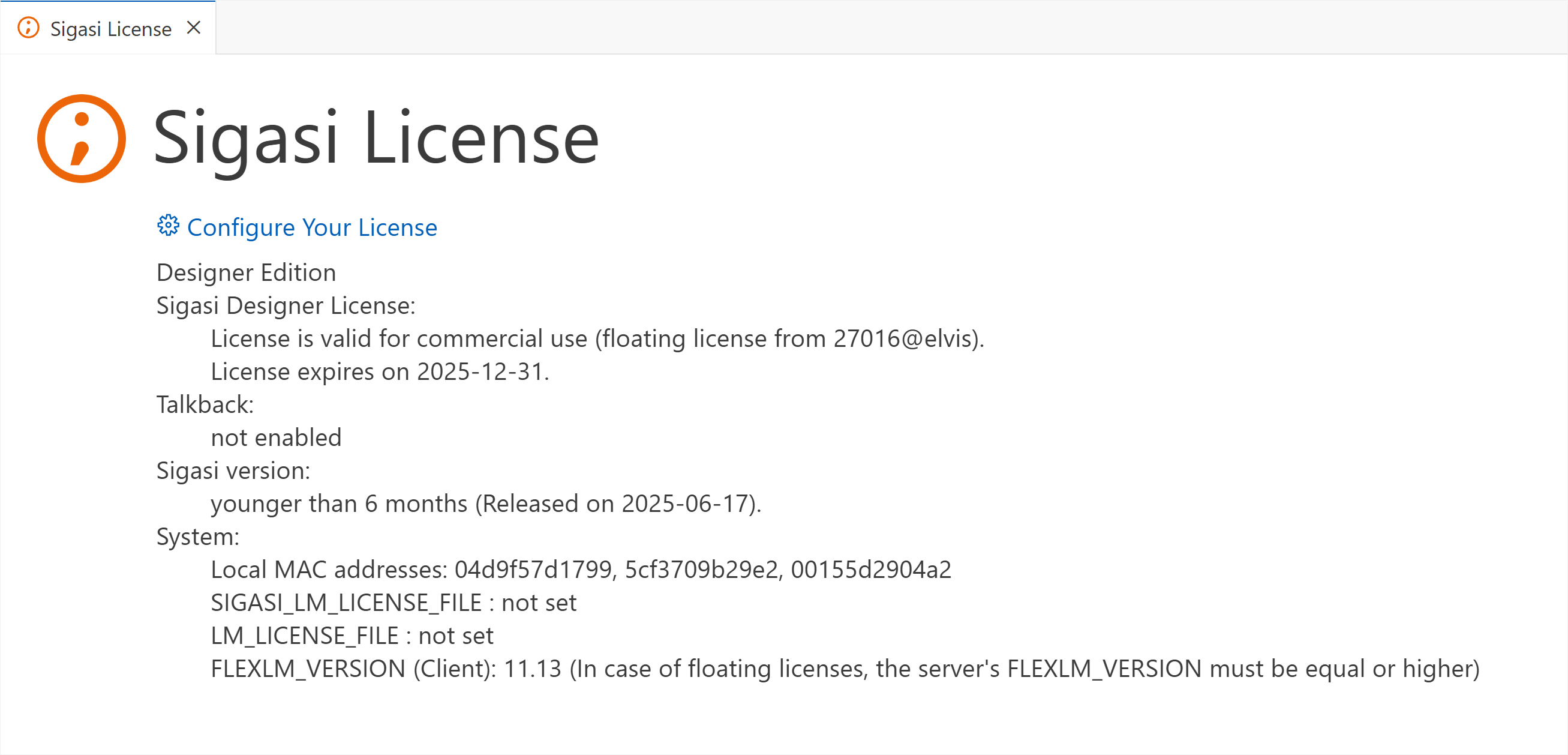
If you’re having trouble setting up your license, you can open the license diagnostic page. It can be opened by clicking on the license status bar item at the bottom of your window.

Troubleshooting your license configuration

1.3. Layout

The Sigasi extension is built on top of VS Code. It is useful to review the layout of a typical VS Code window before we zoom in on how Sigasi fits in.

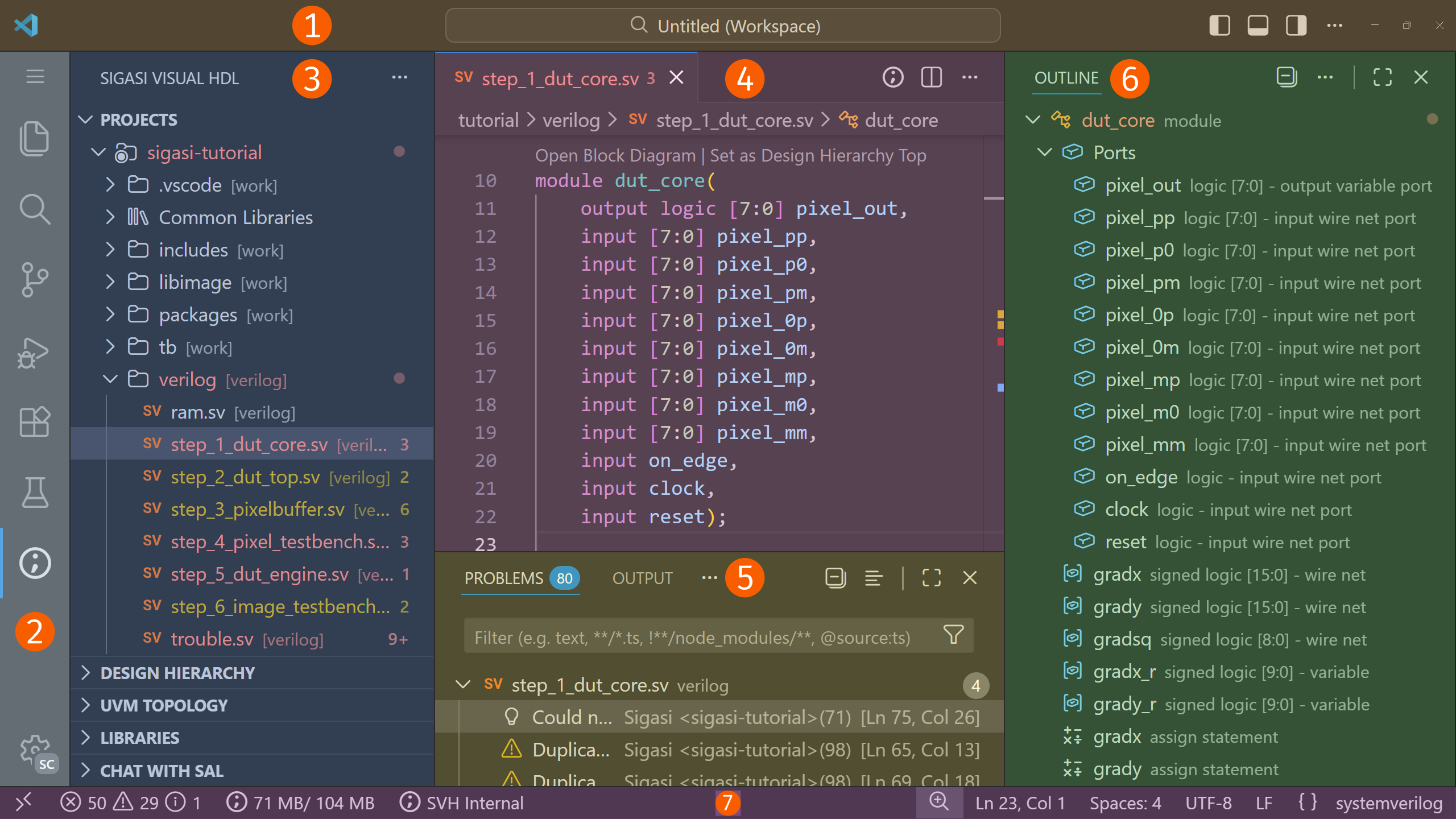
The screenshot below shows the different areas in a VS Code window. VS Code extensions can contribute items to every panel except the Title Bar. You can hide and show each of the areas.

The VS Code layout
  • Title Bar: The topmost bar. It contains layout controls and the command center to search and execute tasks.
  • Activity Bar: The leftmost bar. It contains activity items for installed extensions, including the Sigasi View Sigasi logo.
  • Primary Side Bar: The primary collapsible sidebar. It displays items depending on the activity that is selected in the Activity Bar. It contains items such as the Explorer, the Projects View, the Design Hierarchy, and the Libraries View.
  • Editor: The main editing area for your files.
  • Panel: The panel below the Editor area containing useful views such as the Problems and Terminal view.
  • Secondary Side Bar: A secondary collapsible sidebar. Its items are independent of any selection. It contains items such as the Copilot Chat and the Outline.
  • Status Bar: The bottommost bar. It shows the status of VS Code, Sigasi, and of other extensions.

Most items can be dragged and dropped between the Activity Bar, the Panel, and the two Side Bars.


1.4. Hello world project

Now that you have a working setup, let’s put Sigasi through its paces. We’ll start by creating a “Hello World” project to showcase the basics of project creation.

First, create a folder called hello-world in a location that suits you. Now, start VS Code and open the hello-world folder (File > Open Folder...).

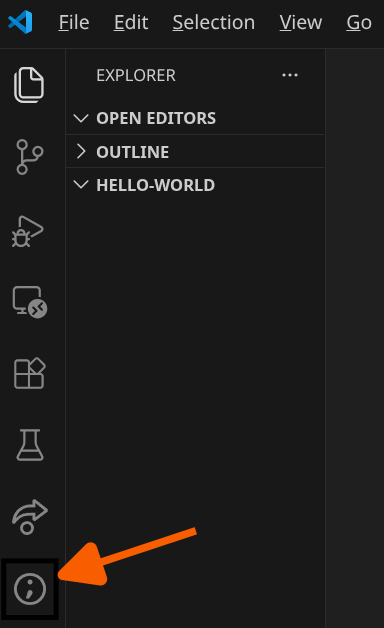
You should see an empty VS Code workspace focused on the Explorer Activity. The real action happens in the Sigasi Activity, indicated by the Sigasi logo, Sigasi logo.

VS Code Sigasi Activity

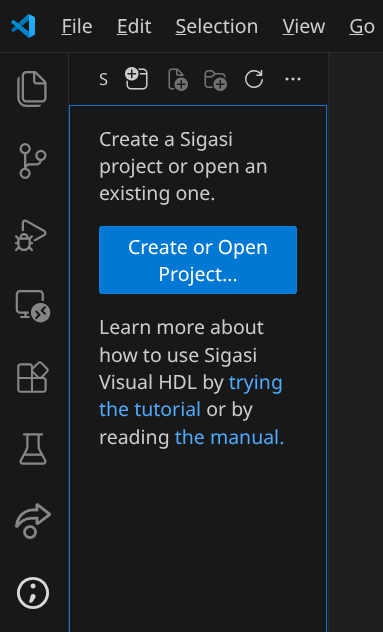
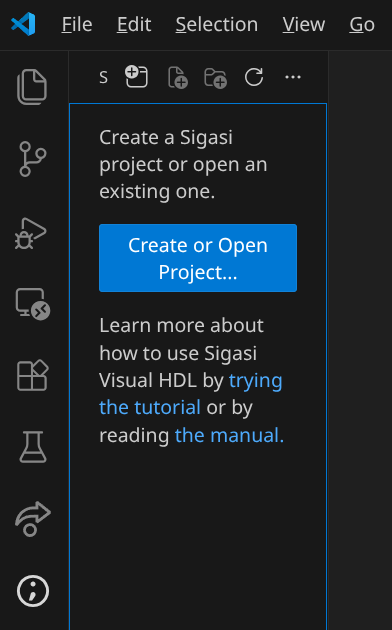
Here you are prompted to create or open a project. Click the Create or Open a Project button to initialize the project in the hello-world folder.

VS Code Create Or Open Project

If you switch to the Explorer, you will find that the hello-world folder now contains a .project file, a .library_mapping.xml file, and a .settings folder. This is where Sigasi stores project metadata. In general, when you open a folder containing a .project file, Sigasi will automatically initialize.

VS Code Empty Hello World Project

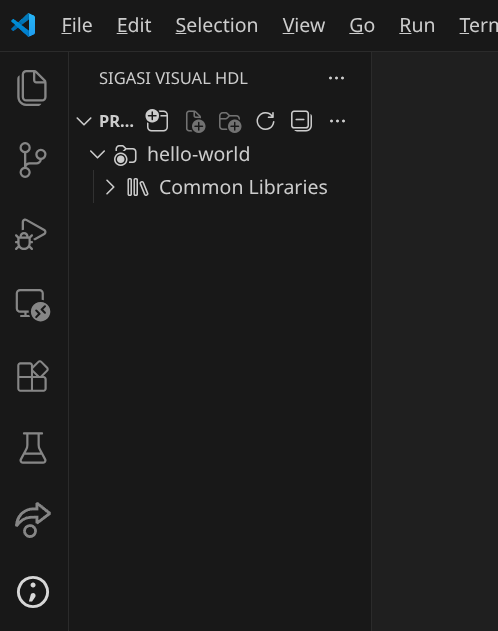
The hello-world project is now shown in the Projects View. Currently, it is empty except for the Common Libraries folder, which contains standard VHDL libraries such as standard.vhdl and textio.vhdl. These files are virtual and do not exist on your physical disk; they are provided so you can consult standard definitions when needed. Users working exclusively with Verilog can safely ignore this folder.

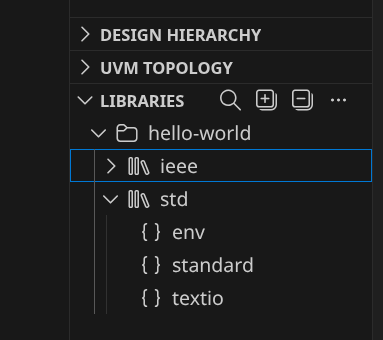
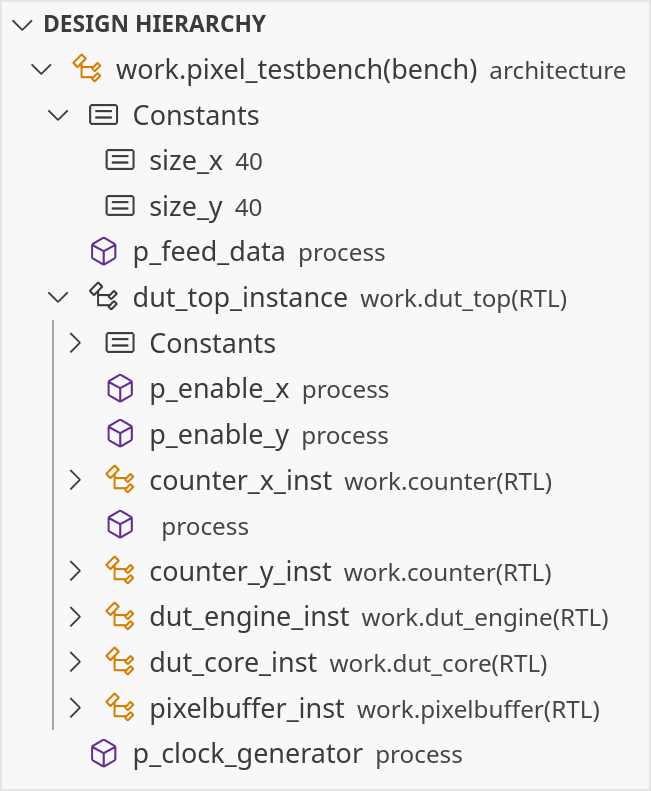
What else is there? There are also the Design Hierarchy, UVM Topology, and Libraries views. Let’s have a quick look at the Libraries View.

VS Code Empty Libraries View

At the moment, two libraries are listed: ieee and std. These contain the standard VHDL files. As you develop your project, you will populate this view with your own libraries and design units.

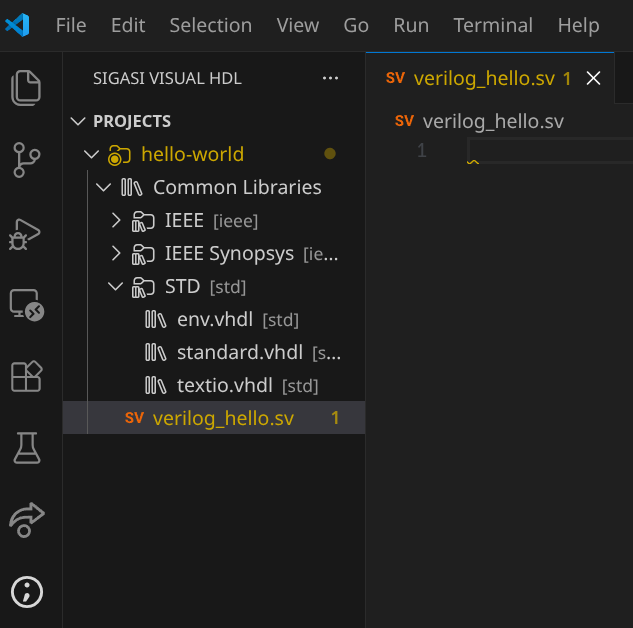
Now, let’s add some content. We’ll create one SystemVerilog file and one VHDL file to demonstrate the simplest use case. Right-click the hello-world node in the Projects View and select New File…. Name the file verilog_hello.sv. Because of the .sv extension, Sigasi recognizes it as a SystemVerilog file.

An unmapped SystemVerilog file

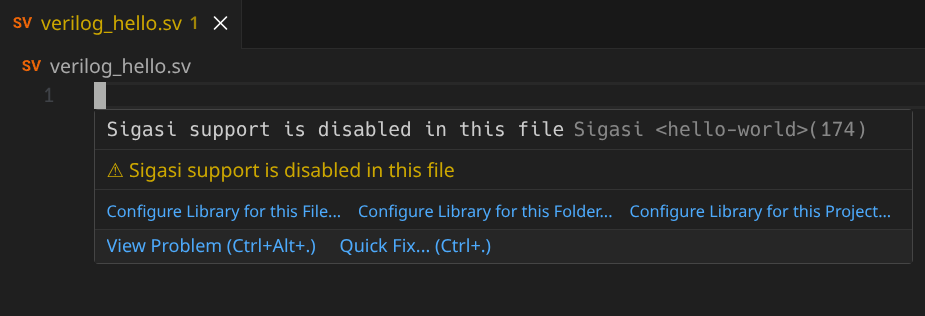
You will notice a small yellow squiggle at the top of the file. This is a warning from Sigasi. Hovering over the squiggle reveals a hint.

Hover suggesting to map to a library

It says “Sigasi support is disabled in this file”, indicating that the file is not yet being analyzed. To enable full support, the file must be assigned to a library.

You can also inspect these warnings in the Problems View (View > Problems).

The Problems View shows an unmapped file warning

To fix the problem, hover over the squiggle again and select Configure Library for this Project…. This allows you to set a default library for the entire project. Enter the library name hello_lib. The warning will disappear as Sigasi begins analyzing the file. Any new files added to the project will now be automatically assigned to hello_lib.

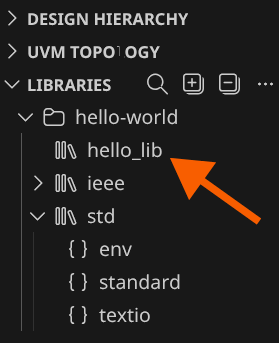
If you look at the Libraries View again, hello_lib will now be visible. The Libraries View only shows libraries that are currently in use.

The Library View show a new library

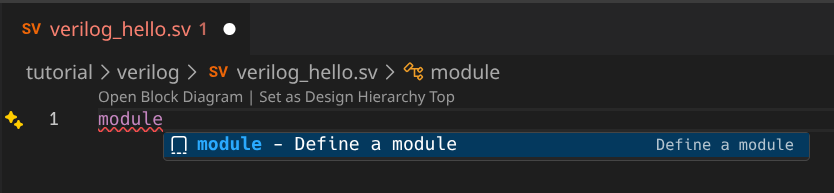
Next, let’s add a module declaration. Place your cursor in the editor and press to open Content Assist. Start typing module and press Enter when the module template is selected. Sigasi will insert a module skeleton for you.

Content assist for SystemVerilog

Note that Sigasi automatically names the module verilog_hello to match the filename. It also flags clk and rst as unused ports—a helpful linting feature we will explore later.

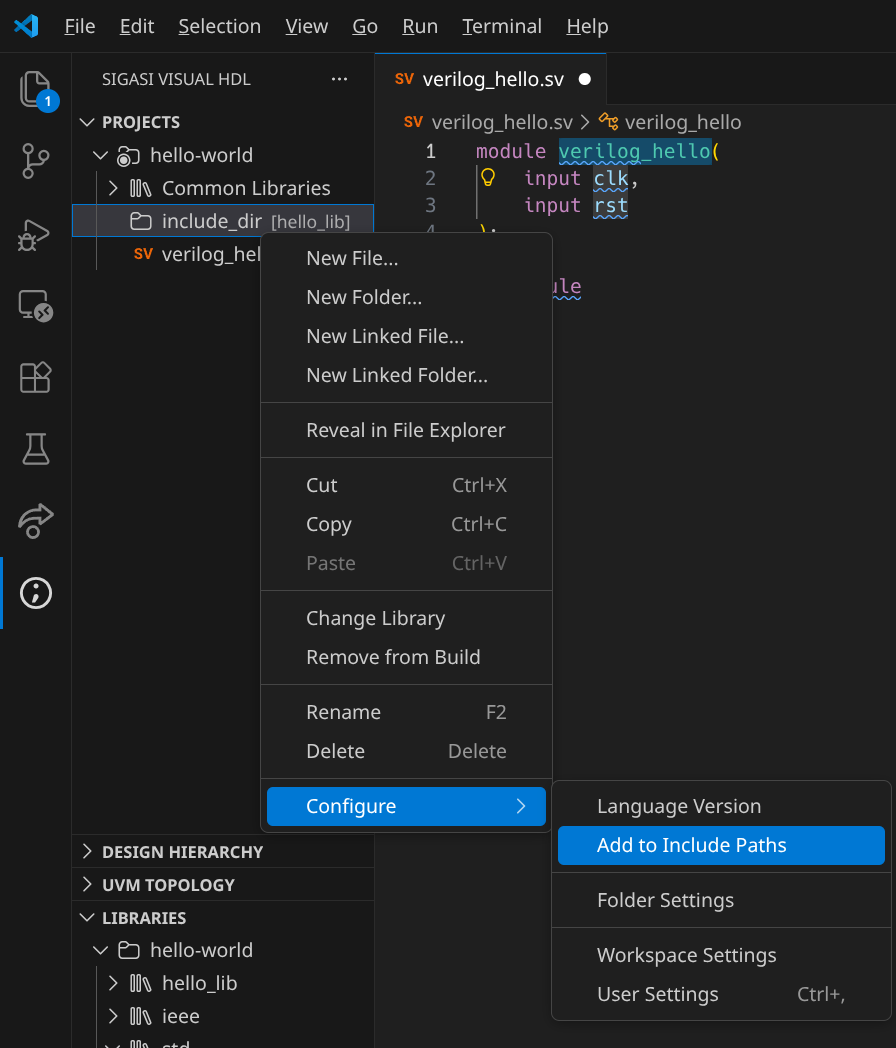
To properly set up Verilog projects, you often need to configure include paths. First, create a folder called include_dir by right-clicking the project node and selecting New Folder…. To tell Sigasi to use this folder for includes, right-click include_dir and select Configure > Add to Include Paths.

Setting the include path

Now, any files created in include_dir can be included in your Verilog files. For example, if you add my_include_file.svh to include_dir, typing `include "my_include_file.svh" will be correctly recognized.

Finally, let’s create a VHDL file. Right-click hello-world in the Projects View and select New File…. Name it vhdl_hello.vhd.

Adding an empty VHDL file

Notice that vhdl_hello.vhd is already mapped to hello_lib because we previously assigned the entire project to that library.

To add content, place your cursor in the empty file, press , and type entity/arch.... Select the entity/architecture pair template. Just like with SystemVerilog, Sigasi creates the boilerplate for you, naming the entity vhdl_hello.

When you are ready to share your hello-world project with colleagues, remember to check the project metadata into your version control system. For Sigasi, you should include the .project and .library_mapping.xml files, as well as the .settings folder.


1.5. Tutorial & demo

An excellent way to get started with Sigasi and getting the hang of its most essential features, is by going through the interactive tutorial or by playing around with a real-life demo project.

Tutorial project

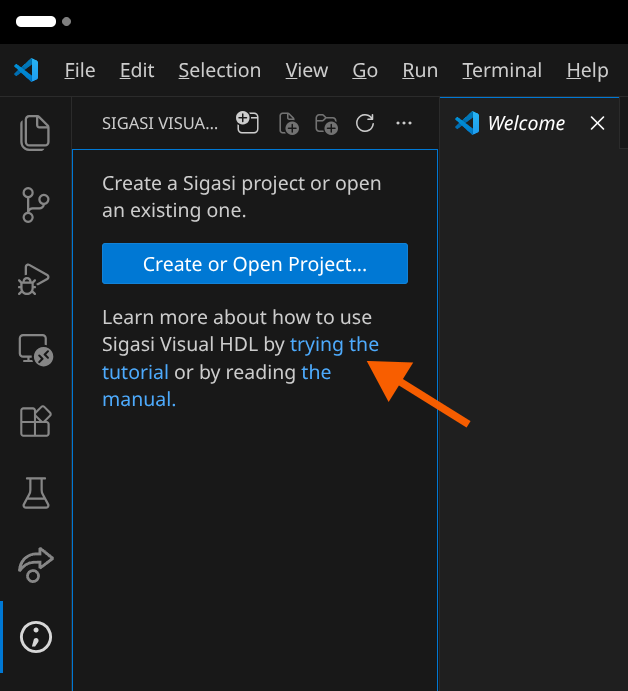
The Tutorial Project is a little project that has been handcrafted to showcase a number of Sigasi features. It’s not a real-life project. Even worse, we’ve inserted a number of serious issues (even syntax issues!) to show Sigasi in action. You can create the Tutorial Project straight from within VS Code. Go to the Sigasi logo Sigasi View. When no project is open yet, the tutorial can be created through the link shown below.

Create a Tutorial Project With No Folder Opened

Alternatively, the same can be achieved through the Sigasi: New Tutorial Project… command.

You will be prompted to type a name for your tutorial project, after which the tutorial will be opened in a new window.

Sigasi VS Code tutorial projects

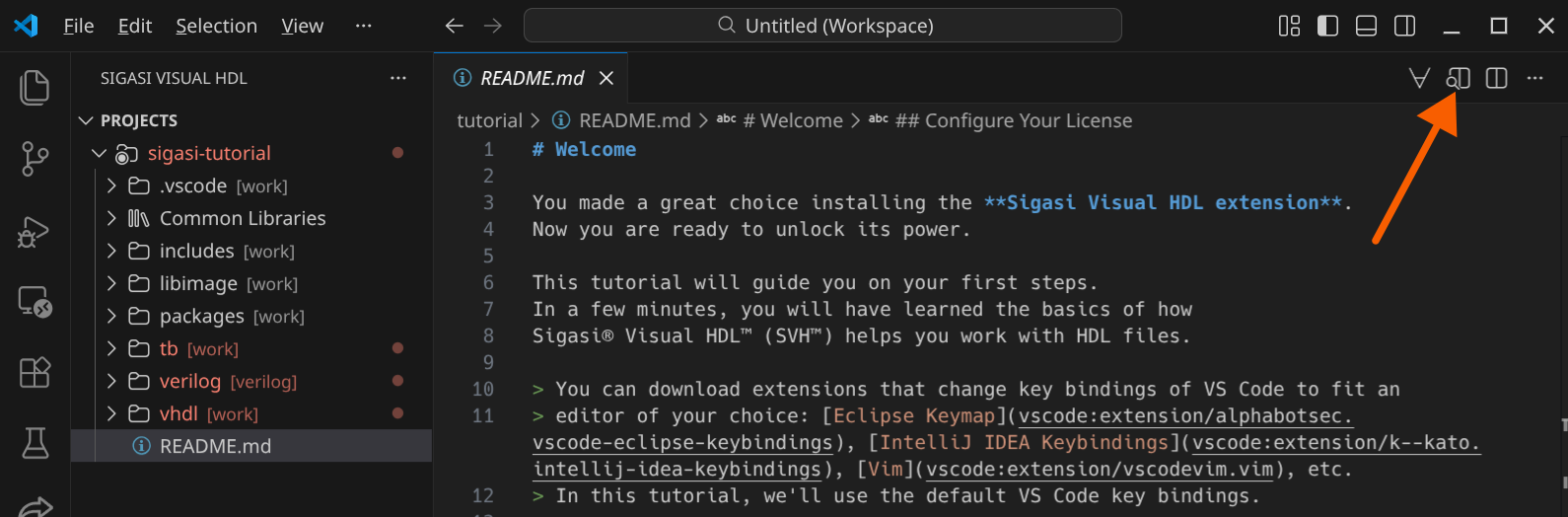
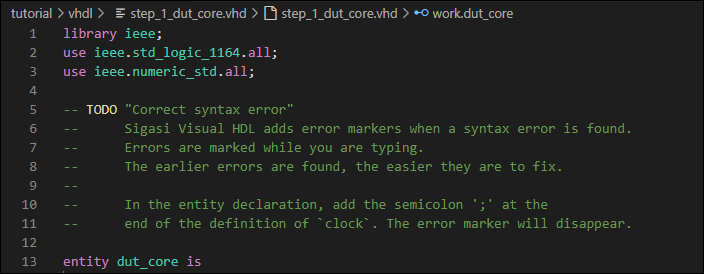
The tutorial is written in Markdown format. Push the Open the Preview to the Side button to get a nicely formatted version. Now go through the tutorial. You will find a number of TODO entries embedded in the HDL files. These will guide you to explore the many features of Sigasi.

Demo project

Maybe you’ve had enough of “toy” examples and instead want to see a real, industrial project? Enter the command Sigasi: Create Demo Project…. It will create for you a pre-configured version of the SweRV project , a real-world RISC-V core from Western Digital.


2. Projects

In Sigasi, a project is the fundamental unit used to define how your HDL code is analyzed and understood. While you can open individual files in VS Code, Sigasi works best when your files are part of a project.

Why do you need a project?

Projects are essential for effective design and collaboration:

  • Global Analysis: Sigasi analyzes how all your source files connect, enabling powerful features like project-wide reference tracking, navigation to declarations, and accurate type checking across your entire design.
  • SystemVerilog Preprocessing: SystemVerilog files often rely on macros and include files defined elsewhere. A project provides the necessary preprocessor environment (include paths and initial defines) for accurate analysis.
  • Scope Definition: A project defines exactly which files are relevant to your design and which should be ignored, preventing unnecessary analysis of unrelated files.
  • Shared Configuration: A project serves as a central location to store settings such as language versions, library mappings, and linting rules. Because these configuration files are stored on disk, they can be checked into your source control system (like Git) to ensure the entire team uses the exact same setup.

Project types: Classic Projects vs. Sigasi Projects

Sigasi currently supports two project formats.

Classic Projects

Classic projects use the .project and .library_mapping.xml files and a .settings folder to describe the project’s structure.

  • Why they exist: They provide an established, file-system-based mapping approach.
  • Who they are for: Use this format if you require a stable, time-tested environment or if your project structure maps easily to a single set of libraries.

Sigasi Projects (preview)

Introduced as the next generation of project setup, Sigasi projects use a project.sigasi (or .sigasi/project.sigasi) file to store their configuration.

  • Why they exist: To support complex modern workflows, such as scripted builds, multiple build targets, and advanced dependency management.
  • Key Features:
    • Multiple Build Targets: Unlike classic projects, Sigasi projects support multiple build targets (e.g., separate targets for RTL and testbenches) that can depend on each other. This allows a testbench target to “see” and use design units from an RTL target without duplicating configuration.
    • Scripted Targets: Large HDL projects often use dedicated build systems like Makefiles or Bazel. Through Scripted Targets, Sigasi can consume these descriptions to stay in sync with your external build environment as the project evolves.
  • Who they are for: This format is recommended for new projects with complex build systems or those that need to reuse information from existing EDA tool scripts.

Note: This feature is currently in Preview. While we strive for stability, backward compatibility may be impacted as the format evolves.


2.1. Classic Projects

Classic Projects (formerly known as Eclipse Projects) have been with us since the conception of Sigasi’s product line-up. They are the oldest, simplest and most mature type of projects that Sigasi supports. As you’ll see in the rest of this chapter, they allow you to gather HDL files into a project, assign them to libraries, configure their lintings, etc.

The new alternative, the Sigasi Projects are more powerful. In addition to the same capabilities as the Classic Projects, the Sigasi Projects can be created based on your existing project configuration (for example a makefile, a Bazel-script, etc.) and they support splitting up your project into reusable dependencies.

Sigasi Projects are already used by many customers, but they are still a preview feature since we are still making minor changes. In this section, we’ll focus on the trusted Classic Projects.


2.1.1. Creating Classic Projects

There are a number of ways to create a Classic Project:

  • Create a project from scratch: you start with an empty project and add items as you see fit.
  • Convert existing projects from other tool flows.
  • Import an existing code base.
  • Create a tutorial or demo project for you to play around with.

Creating a new Classic Project from scratch

To create a new, empty, Classic Project, use the Create or Open Project… button in the Sigasi Projects View.

VS Code Create Or Open Project

Alternatively, the command Sigasi: Create or Open Project… can be run from the command palette.

Creating a Classic Project from an existing code base

If you have an existing project and you want to import it by hand, open its root folder with VS Code: either through the Explorer View, through the command palette (File > Open > Folder...), or from the command line (type code path-to-project). If the folder contains SystemVerilog or VHDL files, a pop-up will appear, offering to create a Classic Project.

VS Code: Create a Classic Project through the pop-up

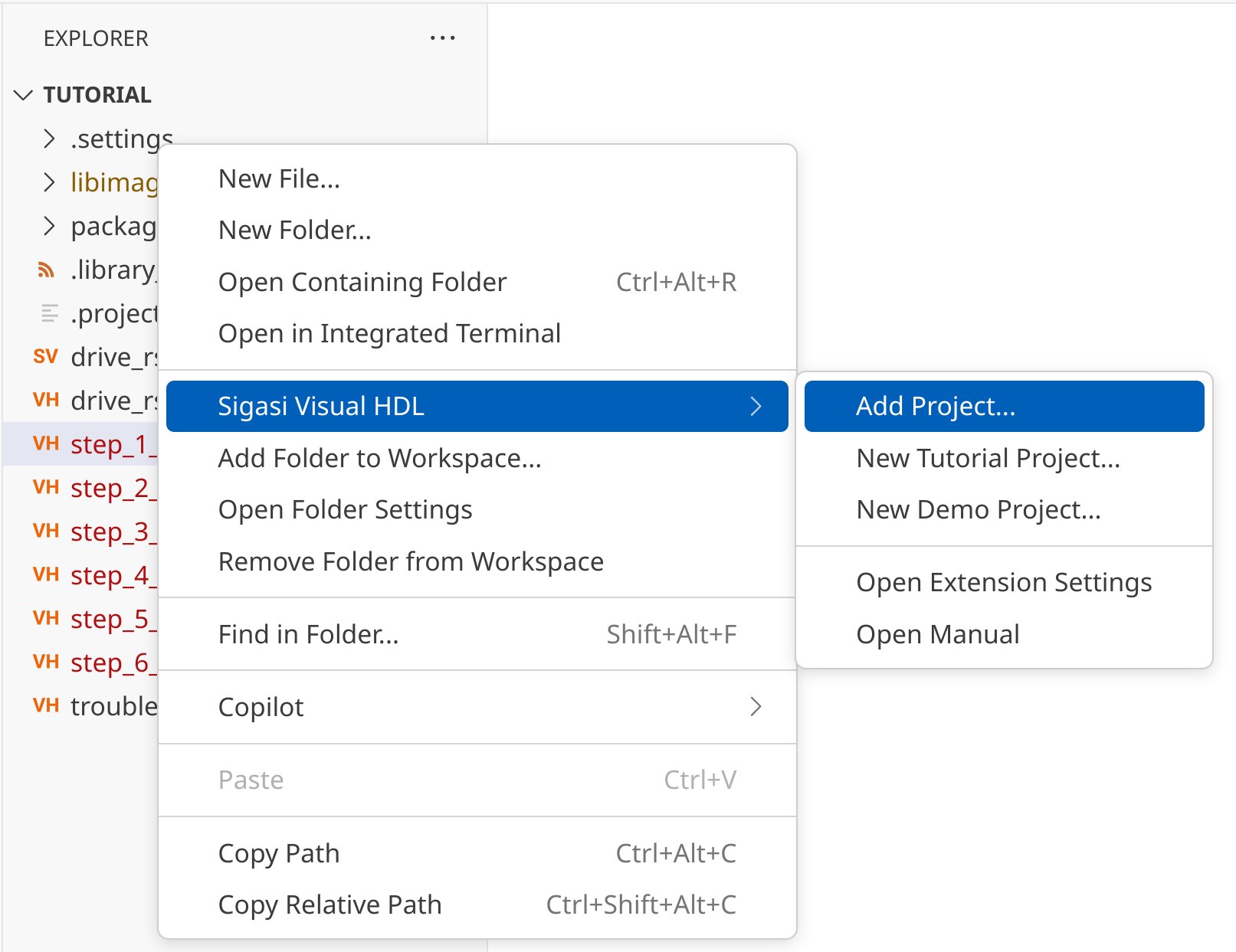
If you missed the pop-up, a project can also be created from the context menu in the explorer through Sigasi Visual HDL > Create or Open Project..., the same command used to create an empty project.

VS Code: Create a Classic Project through the Explorer View

The Sigasi: Create or Open Project… command can also be run from the command palette.

After you’ve created your project, all the HDL files in your project are unmapped. That is to say, they are not part of the design yet, and Sigasi is not analyzing them yet. Your next step is to add your files to a library. Once a library is assigned to a file, Sigasi will start to deeply analyze the file.

Importing external projects

You can import a project originating from another tool by first converting it into a Classic Project using our Sigasi Project Creator. Find it and its documentation on GitHub . Do note that the next generation of Sigasi Projects has a lot of additional capabilities to ingest external project definitions. You might want to explore this in the section on Sigasi Projects.

Tutorial and Demo Projects

Maybe you do not yet want to jump into the deep end and create your own project. In that case, the extension contains both a tutorial project and demo project. You can find more details in the Tutorial & demo section.

Opening projects

We’ve shown you a number of ways to create projects. But what about the basics: how do I open such a project? Simple, open the folder that contains the .project file that we’ve just created. You can do so by invoking VS Code from the command line, e.g., code /path/to/project, or by going through the VS Code menu File > Open Folder.... Sigasi will detect the .project file and will start analyzing the project.

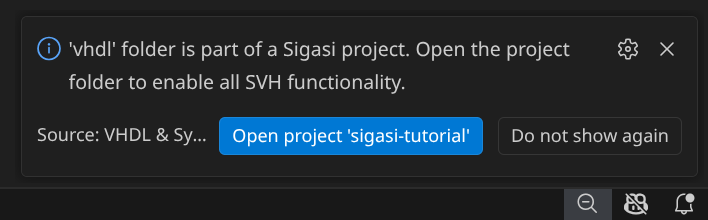
Even if you open a subfolder of your project, as long as it contains some HDL file, Sigasi will look for your project and suggest opening it.

Open a project from within a subfolder

Workspaces

In VS Code, a workspace allows you to work with multiple projects simultaneously. To add a new project to your workspace, select File > Add Folder to Workspace.... Ensure the folder you are adding contains a valid .project file.


2.1.2. Populating your project


2.1.2.1. Adding files to your project tree

When you created a Classic Project, a .project file was created. The folder containing this .project file is your project root. Any HDL files you create or copy into this folder (or its subfolders) will immediately appear in both the standard VS Code Explorer and the Sigasi Projects View.

You can manage your project files using standard file operations in the VS Code Explorer. Right-click in the explorer to create new files or folders, rename them, delete them, and so on. All changes will be reflected in the Sigasi Projects View.

For many self-contained projects, simply adding your files to the project folder is the only step you need to take to populate your project. After this, you can proceed directly to library mapping. The more advanced methods described in the following sections are only needed if you have to refer to files outside your project folder.


2.1.2.2. Linked resources

In Classic Projects, the main files of your project are all located in the same folder as your .project file. However, sometimes you want to refer to files that are somewhere else on the file system. That’s where linked resources and environment variables come in handy.

Suppose you have an existing project, but you want to extend it with an additional file or folder located outside of your regular project tree. You could copy the file or folder into your project tree. But that can be inconvenient as copying files can easily lead to files going out-of-sync. Another approach is to use symbolic links from your operating system. However, this is not always convenient because source code management systems don’t always handle symbolic links gracefully, and the behavior of symbolic links differs between operating systems like Linux and Windows. Sigasi offers Linked Resources to solve this.

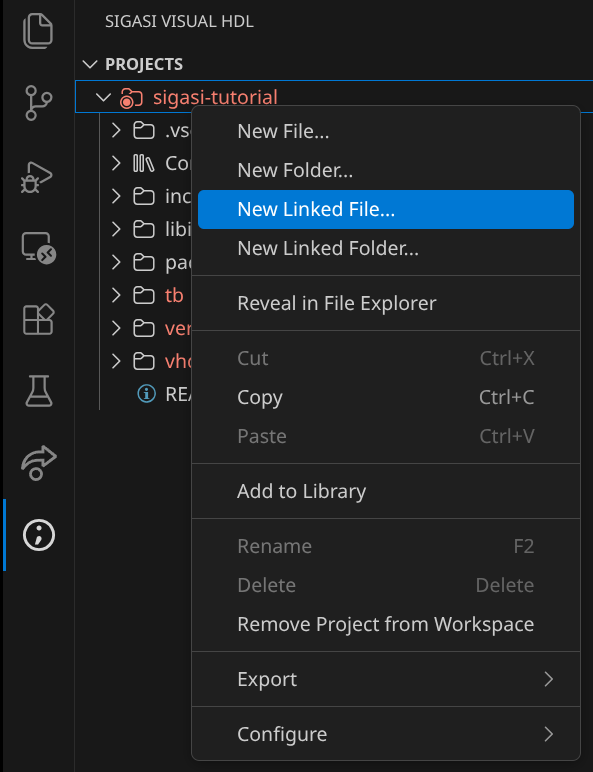
When adding a Linked Resource to your project, you are registering an external resource as being part of your project. The linked resource (a file or a folder) will appear as if it lives inside your project tree. To add a linked resource, you can right-click on the node where you want to add it, then click New Linked File… or New Linked Folder…. A dialog will pop up where you select the file/folder you want to link.

Adding a linked file

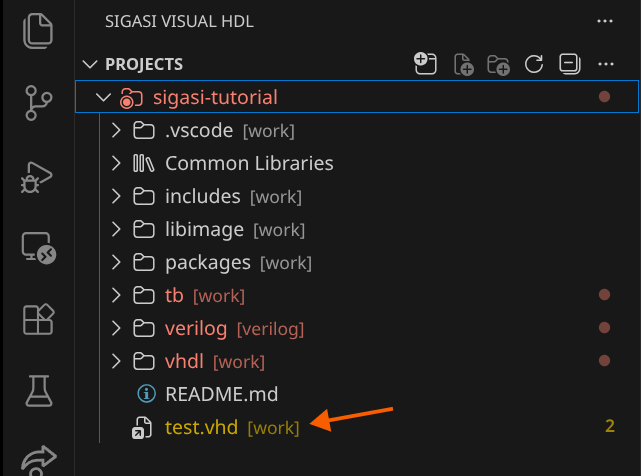
The linked file appears in your project tree with an icon , subtly indicating that it’s a link, not a regular file.

A linked file in the project view

From that point on, Sigasi processes the resource as if it were a regular part of your project.

Environment variables

Linked Resources offer a way to refer to files outside of your project location. But, they do introduce another challenge. Suppose you create a project with a linked resource on your development machine. Probably, you’ll want to share your work with your colleagues, so you check your project in to a source code management system. Imagine that on that second machine, the resource is stored in a different location: the net result is a broken, linked resource.

For this use case (and others), Sigasi supports environment variables as part of its project configuration. By using environment variables, Sigasi allows you to configure paths in your .project file that vary from one development machine to another.

In the above scenario, the author of the project would define their linked resource using an environment variable. On the first development machine, the variable would point to one location and on the second machine, it would point to another. The linked resource inside the .project file no longer needs to be modified.

Environment variables are a power feature for which you will need to edit the .project file directly. This is an example skeleton of a .project file.

<?xml version="1.0" encoding="UTF-8"?>
<projectDescription>
	<name>sigasi-tutorial</name>
    ...
	<linkedResources>
        ...
		<link>
			<name>test.vhd</name>
			<type>1</type>
			<location>//home/a_user/tmp/empty/test.vhd</location>
		</link>
        ...
	</linkedResources>
</projectDescription>

We’ve omitted the irrelevant parts from the .project XML file to focus on the Linked Resource called test.vhd. At the moment, the test.vhd resource points to an absolute path, //home/a_user/tmp/empty/test.vhd. This is not ideal because on your colleague’s development machine, this path may be different.

To resolve this, you can make use of environment variables like this:

<?xml version="1.0" encoding="UTF-8"?>
<projectDescription>
	<name>sigasi-tutorial</name>
    ...
	<linkedResources>
        ...
		<link>
			<name>test.vhd</name>
			<type>1</type>
			<locationURI>/ENV-HOME/tmp/empty/test.vhd</locationURI>
		</link>
        ...
	</linkedResources>
</projectDescription>

We’ve replaced the location tag with a locationURI tag and replaced the home directory with ENV-HOME. By following this approach, Sigasi will consult the HOME environment variable. Any environment variable can be used to define the location of a Linked Resource as long as you add the ENV- prefix.

For example, users of Vivado can define an environment variable pointing to the installation folder of Vivado. This could be a different location on different machines. Use the environment variable to automatically adapt your project setup to the machine on which you’re working.

Check the Advanced concepts section for more details on path variables and linked resource details.


2.1.2.3. Common libraries

In Classic Projects, the Common Libraries folder is a special virtual container for reusable HDL libraries, such as standard VHDL (STD, IEEE), vendor, or third-party IP libraries.

Key Characteristics

  • Virtual Folder: It does not exist on your physical disk; it only contains references to folders on your filesystem.
  • Superficial Analysis: To save compute and memory, Sigasi performs only essential analysis on files in this folder. Most linting checks are skipped, as these files are assumed to be “read-only” and error-free.
  • Efficient Workflow: It is recommended to add external dependencies here using the Linked Resource mechanism. This avoids copying large library trees into your project while significantly reducing the performance overhead of analyzing them.

2.1.2.4. Tools and libraries

Adding external libraries to your project requires creating linked resources, managing path variables, and correctly configuring library mappings and include paths. This manual process can be complex and time-consuming.

It is also inefficient, because the necessary configuration information is often already available at the source. For example, when adding Vivado’s unisim libraries, the destination unisim library is already known.

Sigasi simplifies configuring a number of well-known libraries. The following scenarios have dedicated support for an easy setup:

  • Libraries shipped with common tools such as Quartus and Vivado
  • Verification libraries such as UVVM and UVM
  • Your own Custom Library

The tools and libraries database

The Tools and Library Database stores HDL content that can be reused to populate your own projects. This HDL content is obtained by extracting it from other external sources like the aforementioned tools, verification libraries, and custom libraries. The extracted HDL content is copied (the original is left untouched) into a location dedicated to the Tools and Libraries Database.

All the HDL content stored in the Tools and Libraries Database can be introduced with a few clicks into your own Sigasi Project.

Populating the database

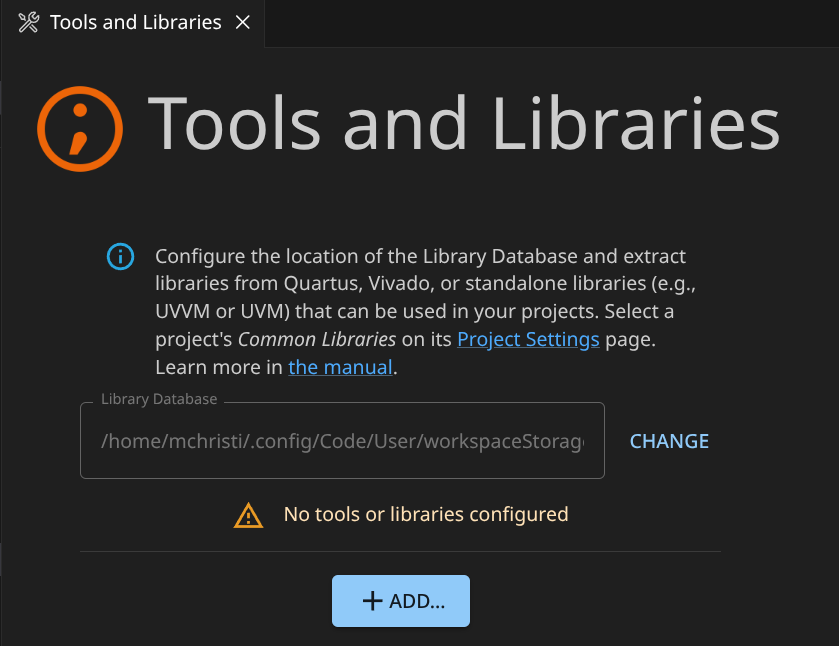
First, you need to add HDL content to the Tools and Libraries Database. To do so, let’s open the Tools and Libraries settings page using the Sigasi: Open Tools and Libraries Settings command from the command palette ( ). The first time you open this database, it will be empty.

Empty Tools and Libraries

At the moment, the only information here is the path where the database will be stored. If you plan to extract large amounts of HDL files into the database, you may want to point this path to a location with enough disk space.

Our next step is to populate the database. We go through 5 examples:

  • Extracting HDL files from a Vivado installation
  • Extracting HDL files from a Quartus installation
  • Importing a UVM library
  • Importing a UVVM library
  • Importing a custom library

When adding a new tool, you can find a list of detected toolpaths in the drop-down menu. Use BROWSE if your tool isn’t there.

Vivado

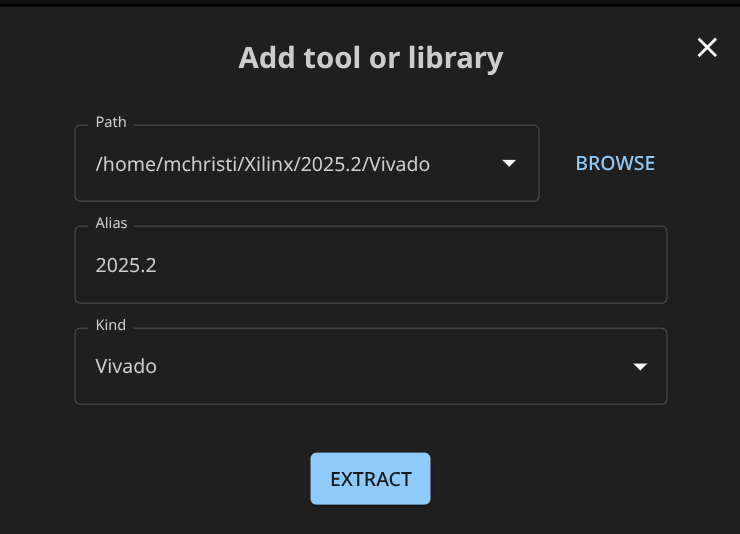
If you have a Vivado installation from which you want to use HDL content, click the Add button and complete this dialog.

Configure Vivado as a tool

You need to provide the following information:

  • Path: This is the path of your Vivado installation
  • Alias: This is the name under which this particular Vivado installation will be known to your VS Code environment. Note that you could have multiple Vivado installations (different versions) on your system. You can register each of them to your Tools and Libraries Database under a different name and use HDL files from any of them in your project.
  • Kind: Select Vivado to confirm to Sigasi that we are indeed dealing with an installation of Vivado.

Now, click EXTRACT. Sigasi will start analyzing your Vivado installation and extract useful HDL content. Have a cup of coffee: this may take 1-2 minutes. In the gutter of VS Code, you can see the message Extracting libraries .... If you click on it, a pop-up notification appears, where you can see extraction progress. Pressing the Cancel button will abort the extraction process.

Once the extraction is concluded, you see:

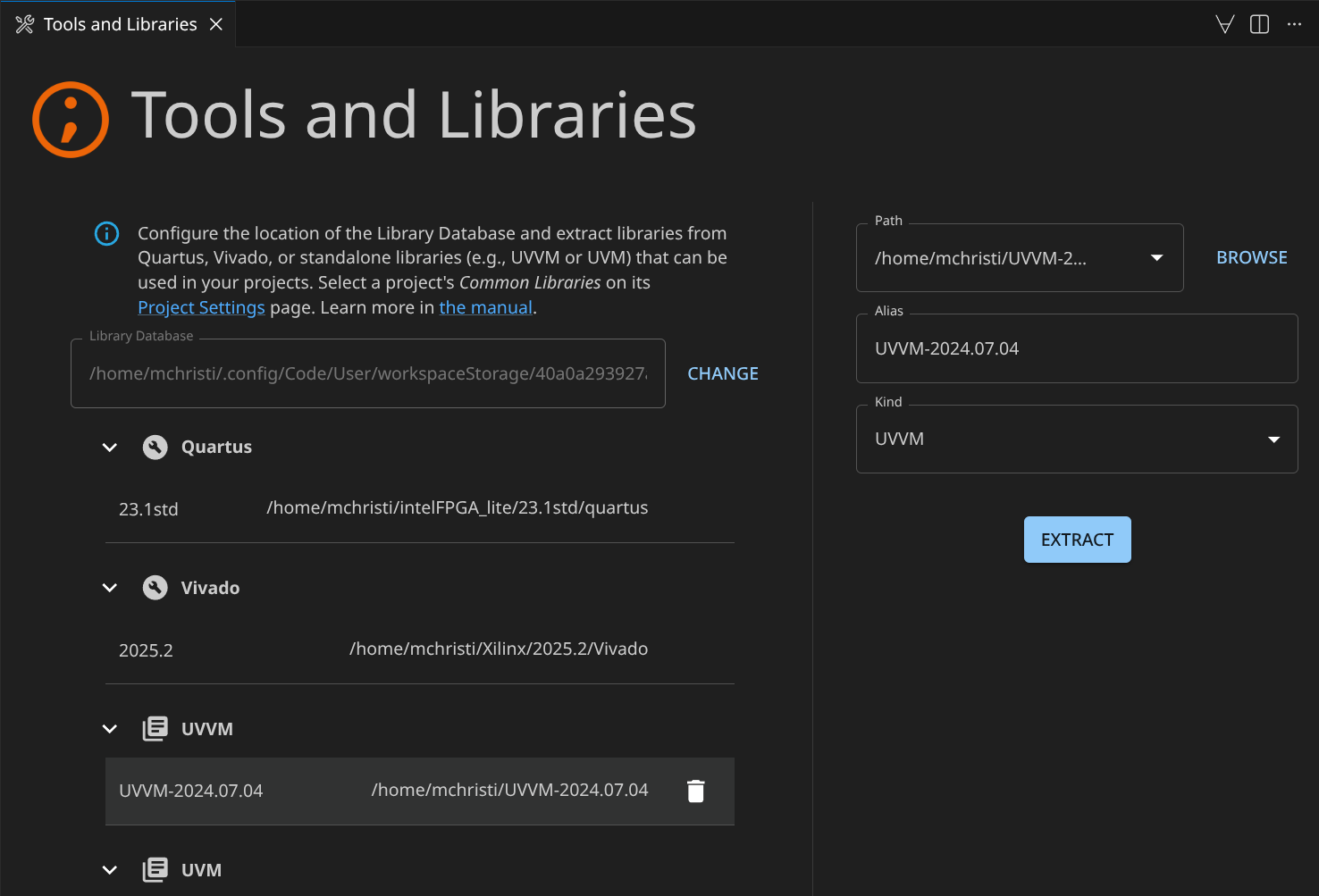
The extraction of HDL content from Vivado is done

Click on the Vivado entry that was added. You see the details of all the HDL content that was extracted from the Vivado installation under the Available libraries section:

The content extracted from Vivado

If you scroll through the list, you’ll find familiar content, for example, the unisim library.

Quartus

For Quartus, the same procedure can be followed as for Vivado. Add your Quartus installation to the library database.

Configure Quartus as a tool

Start extraction and this Quartus-related HDL content will become available under the Available libraries section:

The content extracted from Quartus

UVM

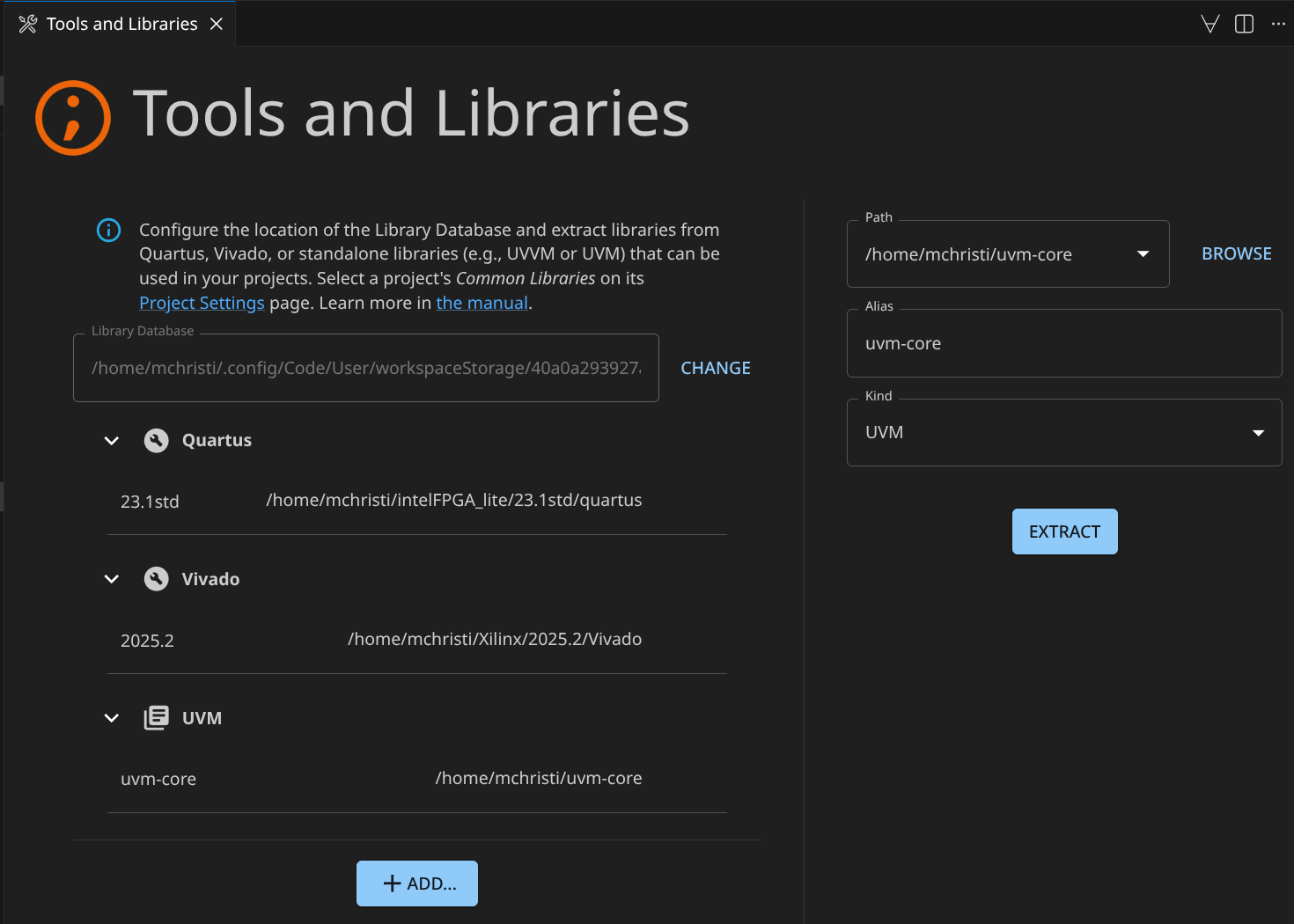
So far, we’ve extracted HDL content from two tools, Vivado and Quartus. Sigasi also has dedicated support for adding UVM libraries to your library database.

Suppose that you have a local copy of UVM. You will probably want to use that copy time and time again when you build UVM testbenches. Let’s register that copy with the library database.

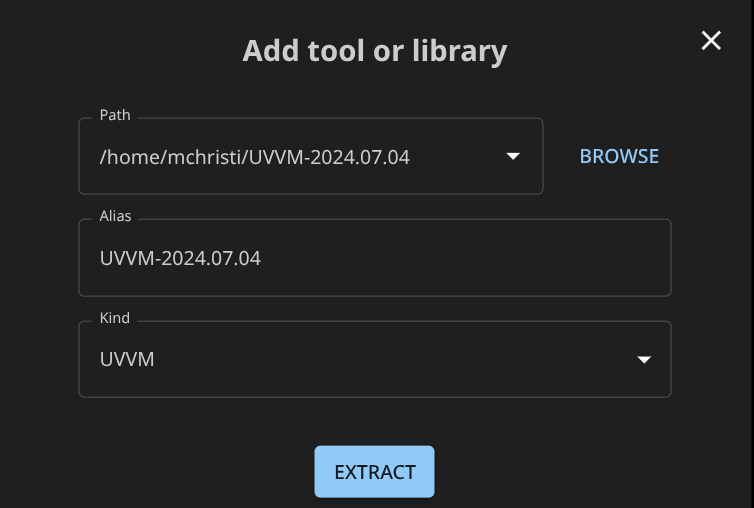
Configure UVM as a library

Start extraction and the UVM-library becomes available.

The content extracted from UVM

UVVM

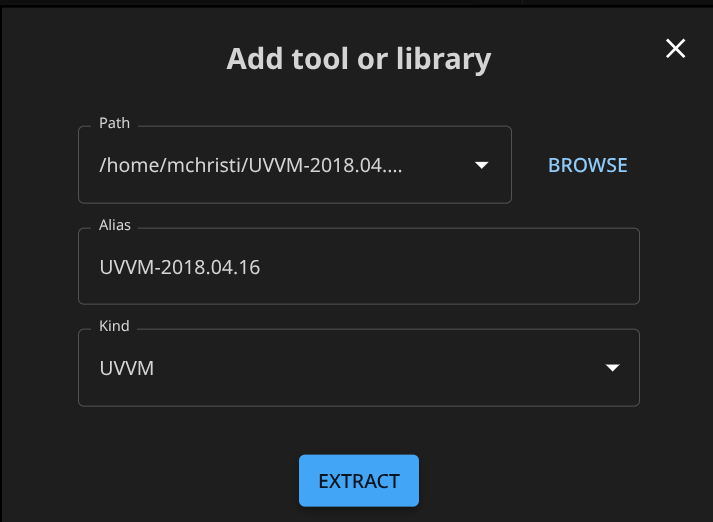
And similarly, Sigasi has support for adding UVVM libraries:

Configure UVVM as a library

Start extraction and the UVVM-library becomes available.

The content extracted from UVVM

Custom libraries

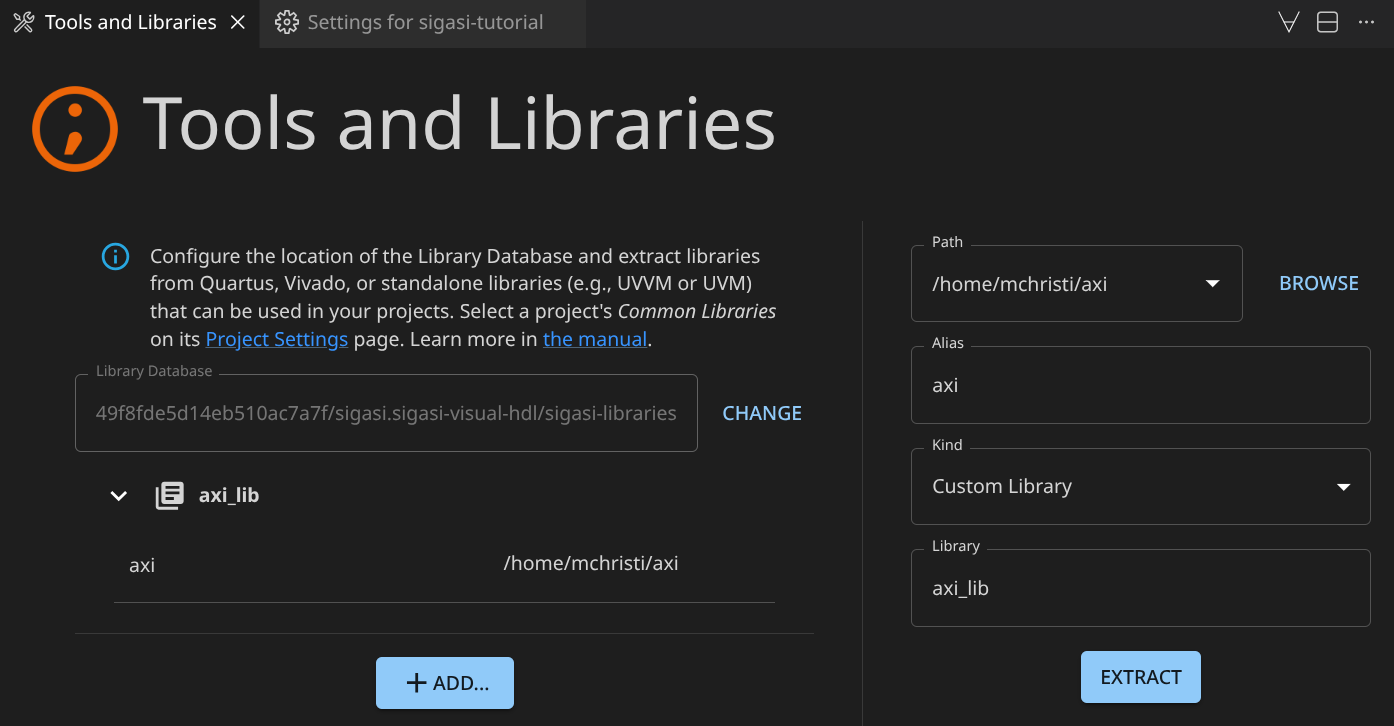
A final type of HDL content you can make available are Custom Libraries. Custom Libraries are typically HDL source trees that can be reused from one project to the next and whose HDL content all belong in the same HDL library. Take for example the PULP Platform AXI library . This repository provides modules to build on-chip communication networks adhering to the AXI4 or AXI4-Lite standards. You probably want to reuse this code in multiple projects. There is no specific support for this particular library in Sigasi, but still, you can register this code in your library database as a generic, Custom Library. This will make this HDL code available for easy reuse and will, upon import in a project, automatically configure the code to reside in the correct HDL library, called axi_lib.

This configuration of the HDL library is the main difference between importing a Custom Library and a library with built-in support like UVM or UVVM. For the latter, Sigasi automatically knows the correct HDL library. For a Custom Library, you have to provide the target HDL library yourself.

Configure a custom library

Once you’ve properly configured your custom library, push EXTRACT and the custom library becomes available:

After the extraction of a custom library

Adding multiple versions of tools and libraries

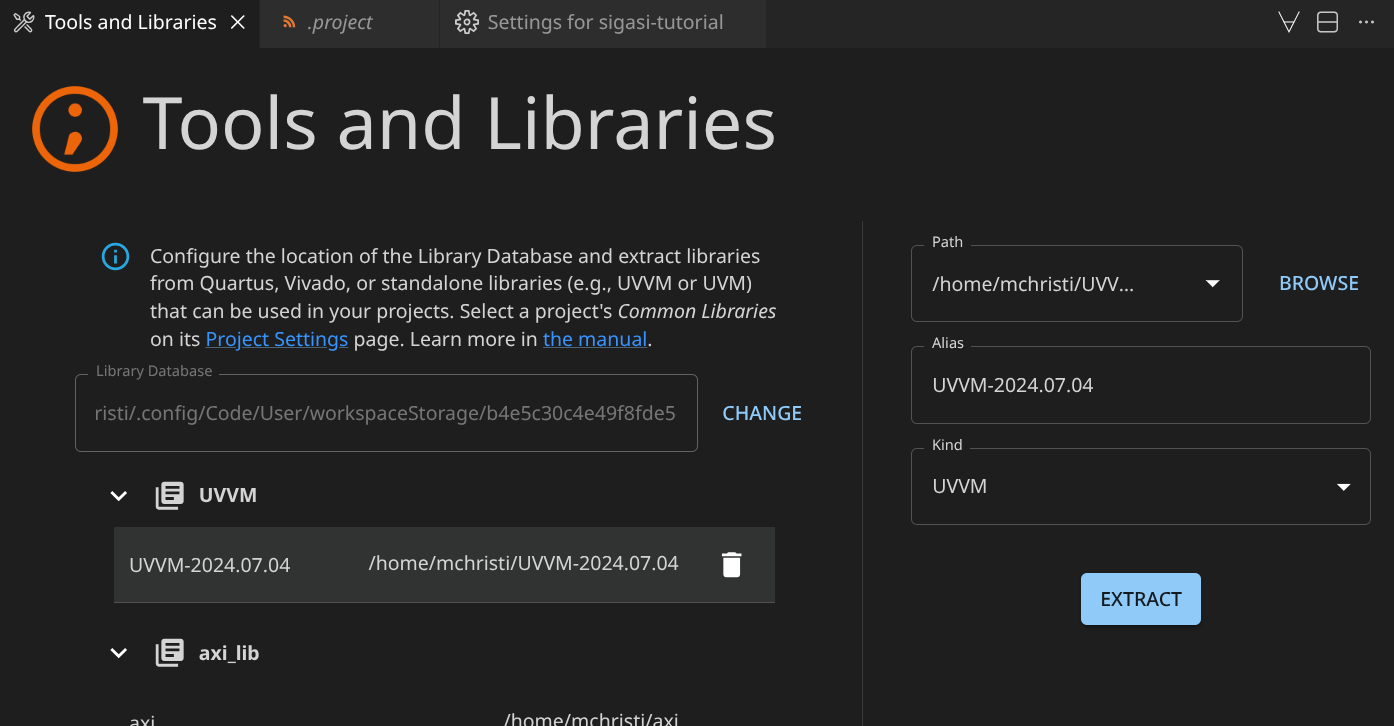
In the previous section, we illustrated how you can import tools and libraries in the Tools and Libraries Database. But what if you have multiple versions of, let’s say, UVVM that you want to use throughout your projects. That too is supported. Suppose you’ve already imported UVVM 2024:

Imported UVVM 2024

But, you also want to have UVVM 2018 available in your Tools and Libraries Database. Just add the second UVVM library as before:

Importing UVVM 2018

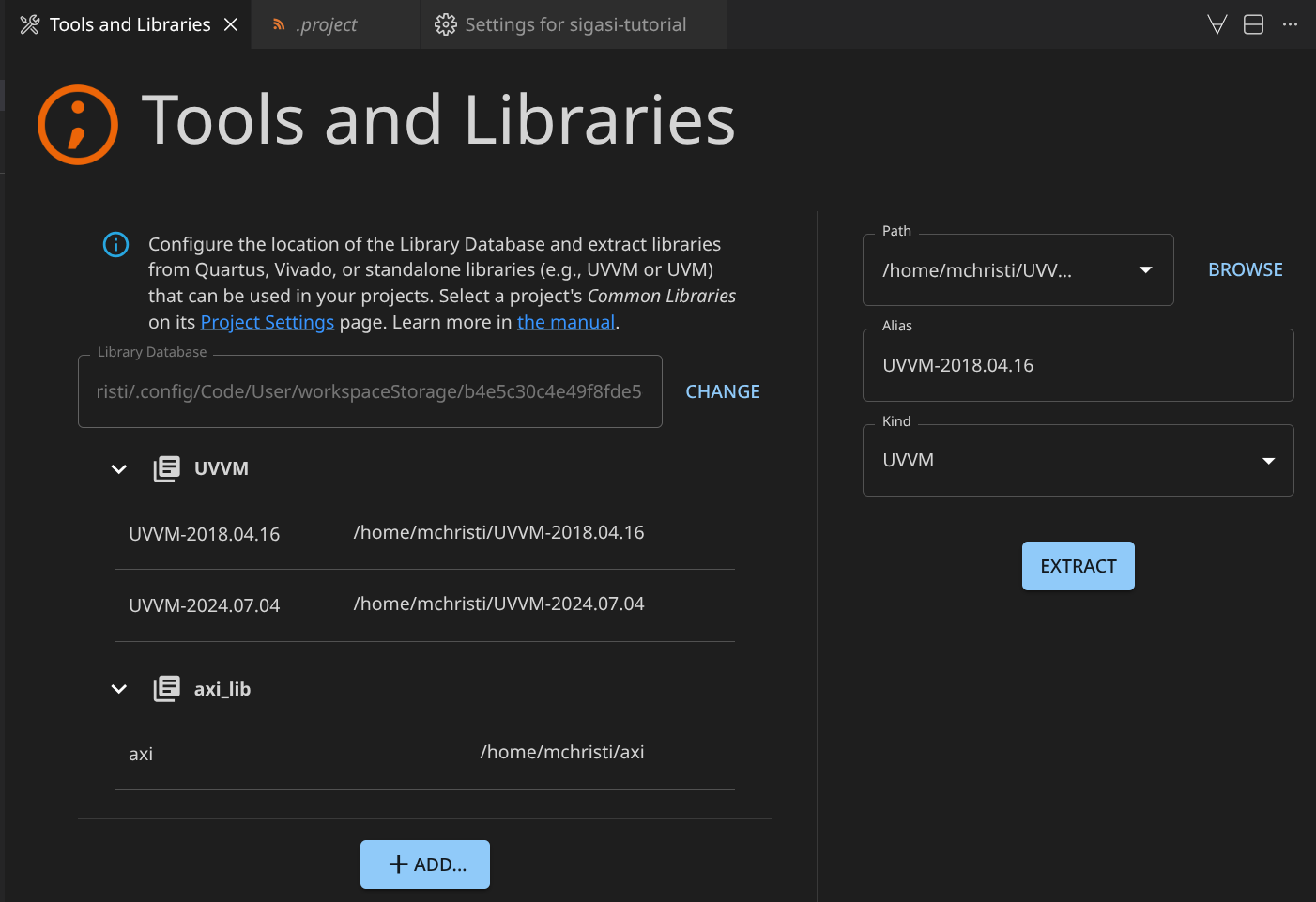
The net result is that there are two UVVM libraries available for you to add to your projects. It’s good practice to use a tool or library version as alias; however any identifying string can be used, e.g., latest, stable, etc.

Imported UVVM 2018

Using the imported HDL in your project

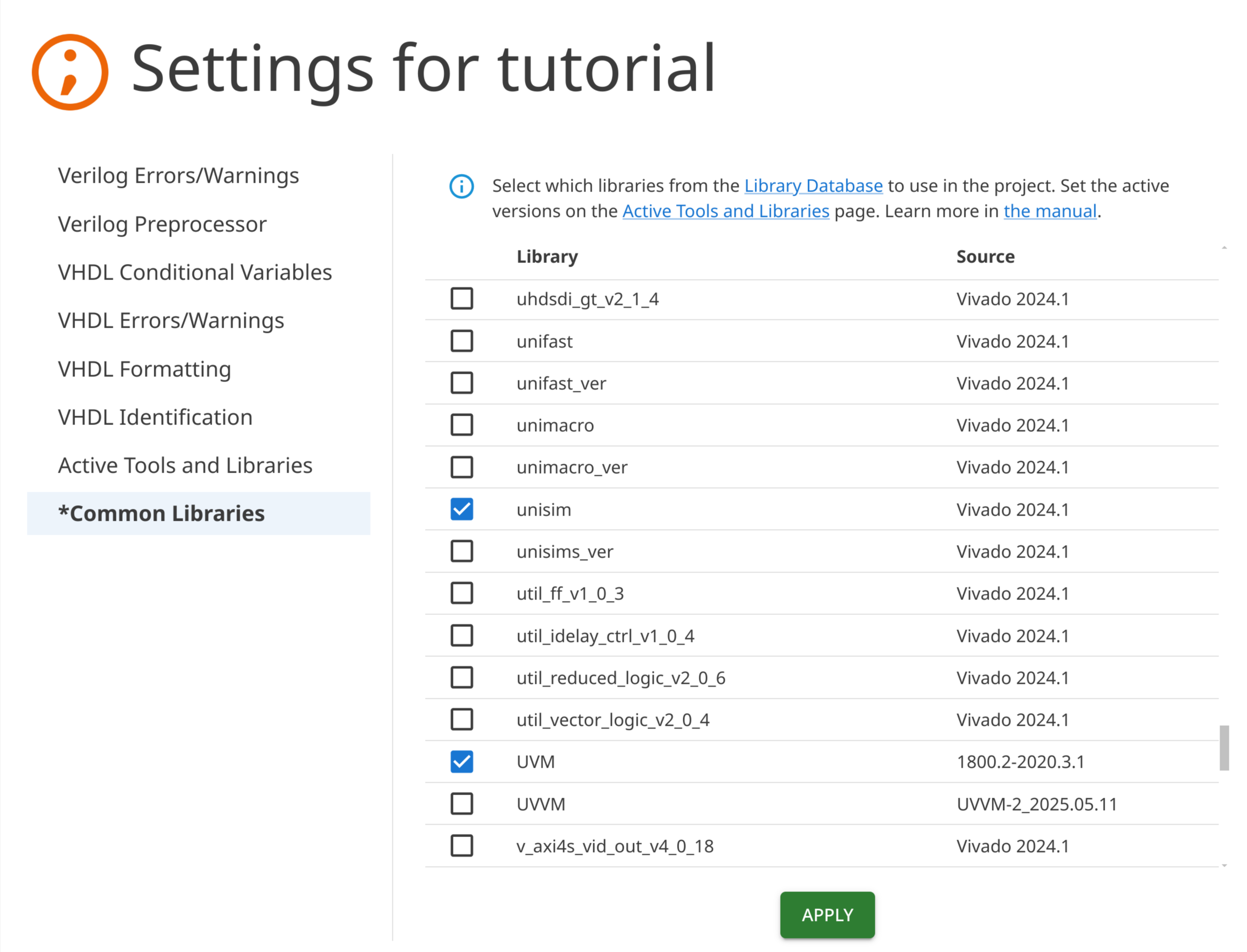
You’ve imported a number of tools and libraries into your database. To start using them in your own projects, right-click the project-node in the Sigasi Projects View and click Configure > Project Settings. Go to the Common Libraries tab and select what libraries you want to use in your project.

Common Libraries

After pressing the APPLY button, selected libraries will be linked to your project in the Common Libraries folder (while deselected libraries will be removed). In the Source column, you can see which library or tool version is used. It shows the alias we configured in the previous section.

If, later on, you notice you don’t need the libraries anymore, you can deselect them here as well.

What happened behind the scenes? Sigasi added a Linked Resource using a Path Variable to your .project file. The path variable points to the actual location of the HDL source that you’ve added to your project.

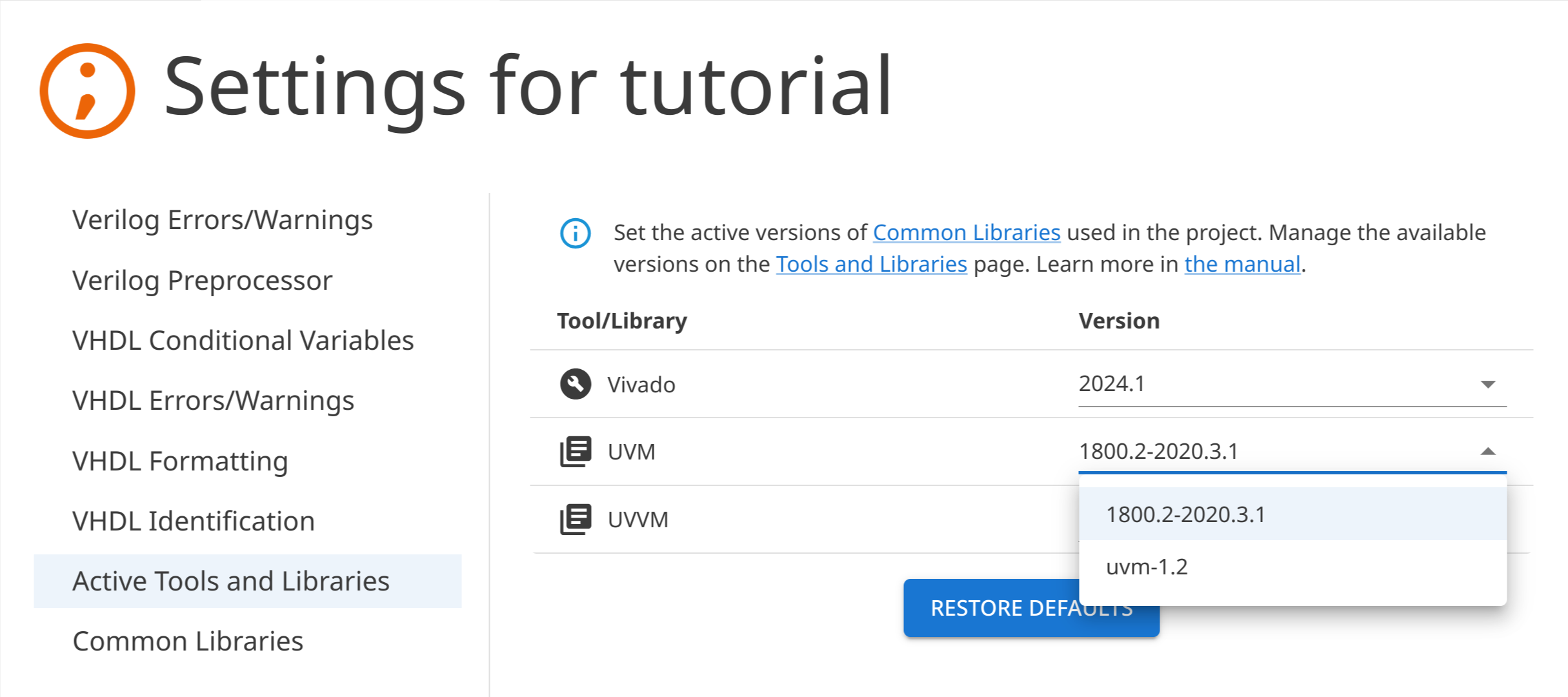
On the Active Tools and Libraries project settings page, you can see which versions of libraries and tools are currently being used by your project. If there are multiple versions of tools or libraries available in the Tools and Library Database, you can change the version that should be used by a project.

Active Tools and Libraries

Odds and ends

  • The Sigasi extension should be running in order to open the Tools and Libraries settings page. You can open or create a project to start the extension.
  • If the project configuration for a library is out-of-sync with an intended library layout (e.g., library files mapping was manually changed), this library will be marked as (out-of-sync) and the SYNCHRONIZE button will appear. Pressing this button will fix the configuration of all libraries that are out-of-sync.
  • The extracted HDL content is stored as a copy in your Tools and Libraries Database. As a consequence, when you update the original source of the HDL content, this update is not immediately reflected in your database. To update the content of your database, go to relevant content in the Tools and Libraries View and press the EXTRACT button. A new extraction of HDL content will be performed, bringing your database up to date.
  • By default, the Tools and Libraries Database will be located inside a workspace storage directory from VS Code. This is typically .config/Code/User/workspaceStorage on Linux or %APPDATA%\Code\User\workspaceStorage on Windows. You can choose a different location. When selecting a new, empty directory, you’ll be given the option to copy an existing database to this new location. Once copied, the new location is an independent copy: you are free to add more HDL content to it.
  • The Tools and Libraries Database is self-sufficient, so it’s possible to distribute it between Sigasi users to ensure everyone uses the same library versions. You can also share it between multiple Sigasi projects.

Note: A Tools and Libraries Database can also be created through CLI.


2.1.2.5. Advanced concepts

A linked resource is defined by three key elements:

  1. Name: The decoded relative path from the project’s root.
  2. Type: Use ‘1’ for files and ‘2’ for folders.
  3. Location URI: An encoded relative or absolute URI.

The location can be configured in various ways, depending on the project’s structure or workspace setup. When using relative paths, the path can begin with a variable that is subsequently resolved.

Some predefined variables are:

NameDescription
PROJECT_LOCThe path to your project
PARENT-<COUNT>-<VARIABLE>COUNT levels above the path of VARIABLE

For example, if your project is located in /design/projects/project1, then PARENT-2-PROJECT_LOC/companylibrary points to /design/companylibrary.

Beyond these predefined variables, you can use system environment variables prefixed with ENV-. Custom variables shared across a workspace offer additional flexibility, which is especially useful for teams using a mix of Eclipse, VS Code, and Sigasi CLI. This lets you define Eclipse variables in VS Code/Sigasi CLI and keep configurations consistent across tools.

The location can be any valid URI, including absolute paths. However, this is not recommended, because absolute paths are not portable. In a team working on the same project, they would require edits on every machine. If you decide to use absolute paths, make sure they are valid (encoded) URIs. For example, if your library resides in /design/custom library, enter file:///design/custom%20library.

Another attribute is location. It can be used instead of locationURI, but it can reference only a local file and must use a file path instead of a full URI.

For example, the following entries are equivalent:

Location URILocation (Path)
file:///path/to/file/path/to/file
file:///design/custom%20library/design/custom library
PARENT-2-PROJECT_LOC/companylibraryPARENT-2-PROJECT_LOC/companylibrary
PARENT-2-PROJECT_LOC/company%20libraryPARENT-2-PROJECT_LOC/company library
virtual:/virtual– (Not supported)

When manually editing linked resources, use the correct tag and, if needed, encode the URI. For example, the following two entries link to the same resource:

<link>
    <name>custom library</name>
    <type>2</type>
    <locationURI>file:///design/custom%20library</locationURI>
</link>
<link>
    <name>custom library</name>
    <type>2</type>
    <location>/design/custom library</location>
</link>

You can use either of these tags, but not both, for a linked resource.

Custom project variables

Some variables are automatically defined.

  • PROJECT_LOC, the path of your project
  • PARENT-<COUNT>-<VARIABLE>, which points to COUNT levels above the path of VARIABLE

For example, if your project lives in /design/projects/project1, then PARENT-2-PROJECT_LOC/companylibrary points to /design/companylibrary.

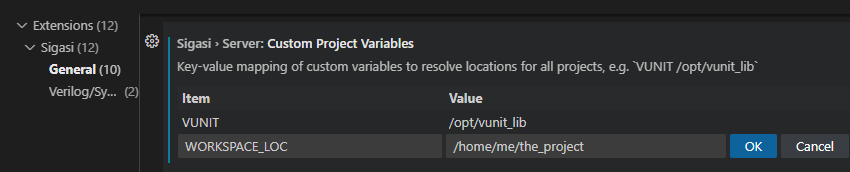
You can also use custom project variables, e.g., VUNIT, to point to your VUnit installation. You can configure these variables as follows:

  • Press to open the Command Palette
  • Select Preferences: Open Settings (UI)
  • In the Settings tab, navigate to Extensions > Sigasi for VHDL & SystemVerilog > General > Custom Project Variables
  • Add variables and their values as required
VS Code: custom project variables

Custom project variables can be set at the User level, per Remote, or for a specific Workspace.


2.1.3. Configuring your project

Once you have created and populated your Classic Project, you can fine-tune its behavior to match your design requirements. Sigasi offers various configuration options to optimize your development environment:

Read on to learn how to configure your project effectively.


2.1.3.1. Library mapping

Why do you need a library map?

Both in VHDL and SystemVerilog design units, functions, types, modules, etc. are stored in “libraries”. For example, VHDL makes information related to floating point available through the ieee.std_logic_1164 library. Or, for SystemVerilog, you would compile your files into a library like so: vlog -work my_lib_name source_file.sv.

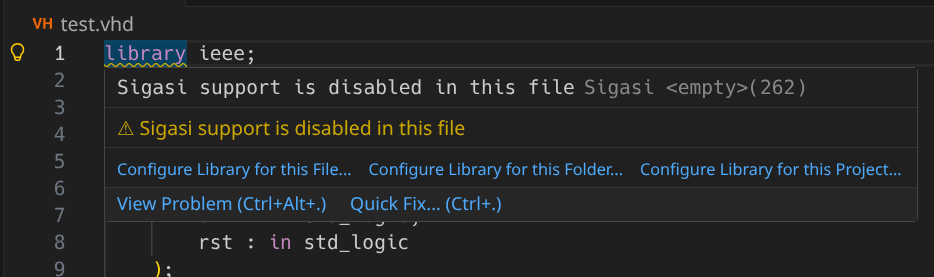
Whatever the mechanism, Sigasi will only consider your HDL files as being part of a project if they are assigned to a library. If HDL files are not assigned to a library, Sigasi’s functionality will be largely disabled. Only some syntax highlighting will be offered, and a hint will be provided to assign your file to a library.

VS Code: A hover suggesting to apply library mapping

We call the act of assigning an HDL file to a library “library mapping”.

Library mapping

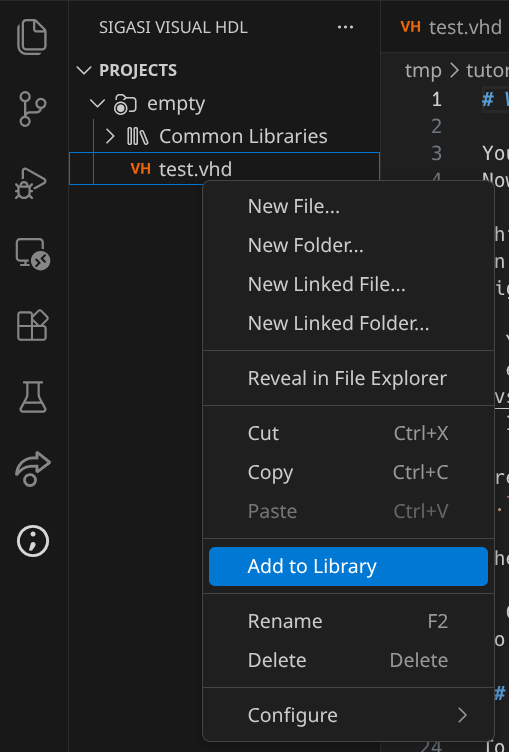
An HDL file can be mapped only to a single library. To map an unmapped HDL file to a library, right-click on a file-node in the Sigasi Projects View and select Add to Library as shown in the image below.

VS Code: Add to library

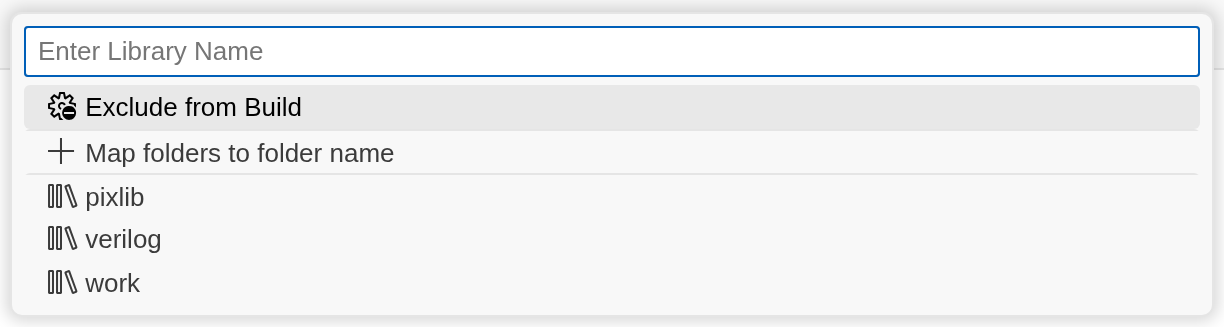
Select an existing library or type a new library name and confirm.

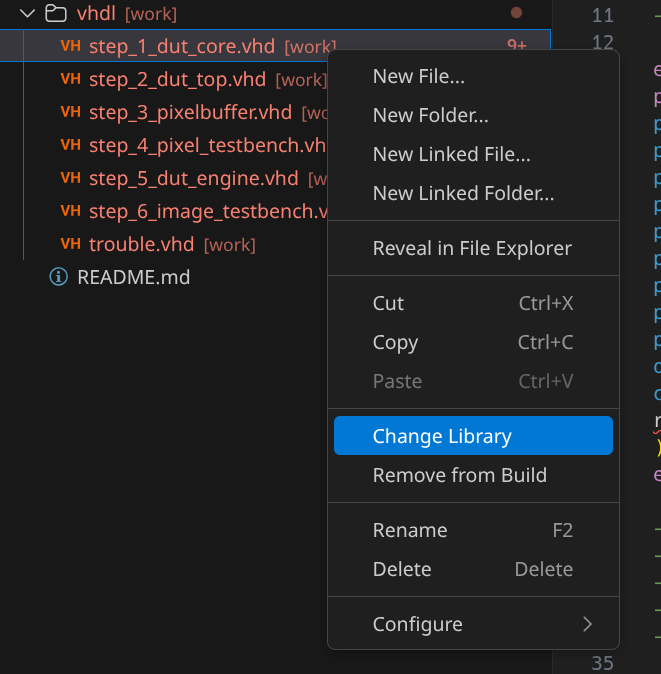
A file that is already mapped to a library can be switched to another library:

VS Code: Change library

In the context menu, right beneath Change Library, there’s Remove from Build. This actions removes your HDL file from its library, effectively stopping {{> project <}} from analysing the HDL file any further. Removed resource(s) will still be visible in the Sigasi Projects View, and later, you can add them again to the project (Change Library).

Bulk operations for adding, changing, and removing HDL files from libraries are also supported: you can change the library mapping of an entire folder, or project recursively. When you map a folder or project to a library, all existing library mappings relating to the contained files will be overwritten.

VS Code: Set Library

If you’ve applied a bulk operation, for example, if you’ve mapped your entire project to the same library, then any HDL files that are created in the project, will inherit the mapping of the surrounding folder or project.

Examining the library mapping

There are 2 locations where you can see the current library map: the Sigasi Project View and the Library View.

Sigasi Project View

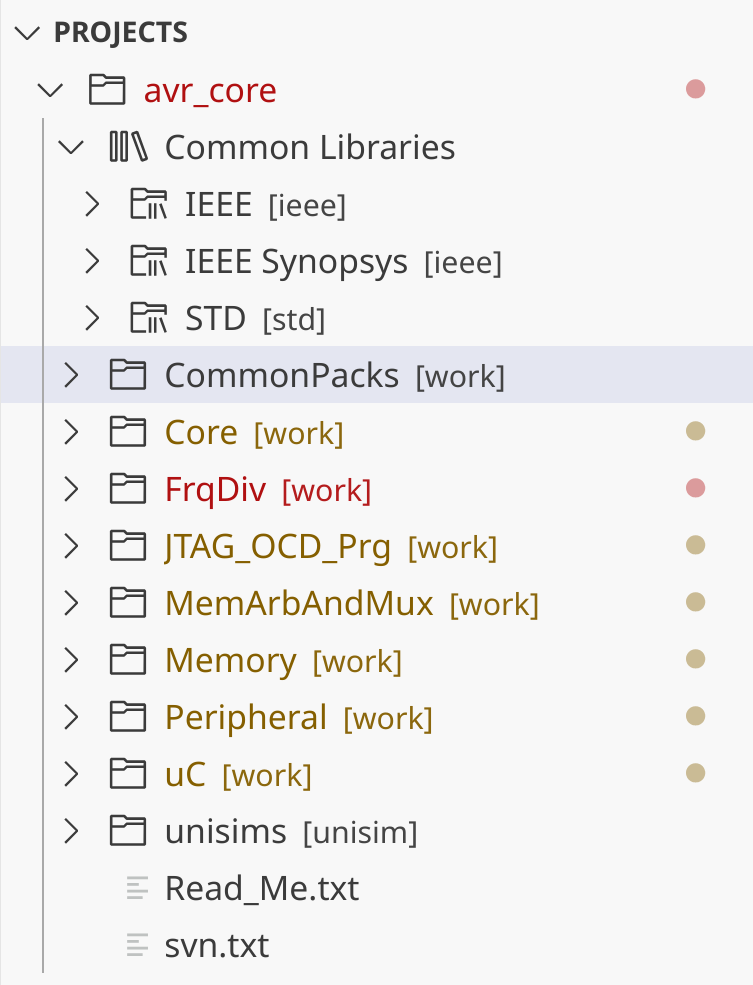
You can examine the library configuration in the Sigasi Projects View, which shows how VHDL or SystemVerilog files and folders are mapped.

Each physical file or folder is annotated with the library it belongs to between square brackets.

Library mapping in the Sigasi Project View

In the image above, you can see a mixed-language project called Sigasi-Demo, with a folder named Common Libraries. In that folder, you see the typical standard libraries (std and ieee) upon which all VHDL projects depend.

Lower down, you can see other folders, most of which are mapped to the library work. One of the folders (verilog) is mapped to the library verilog.

Library View

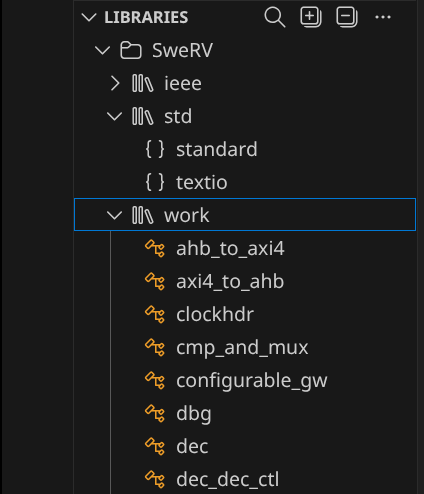
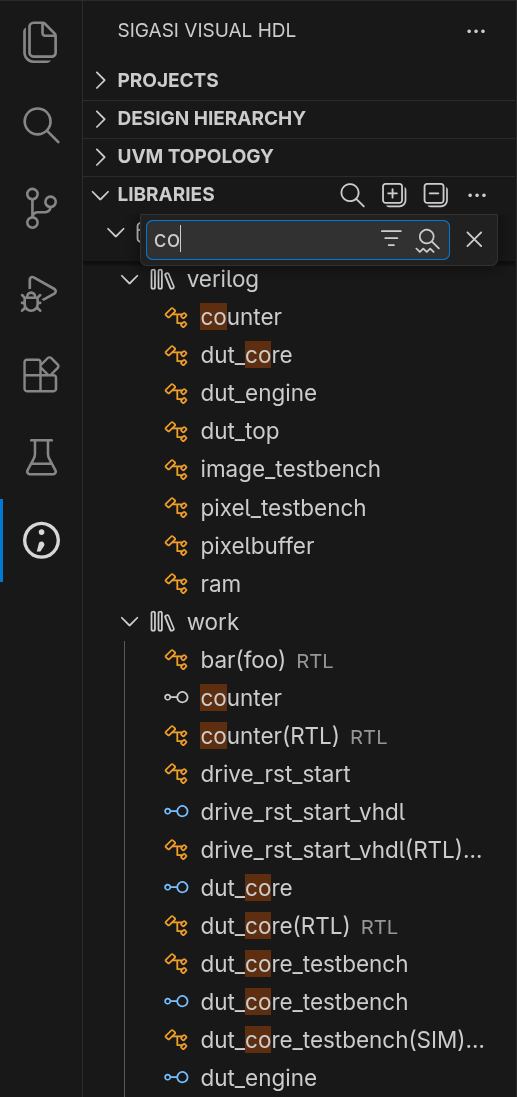
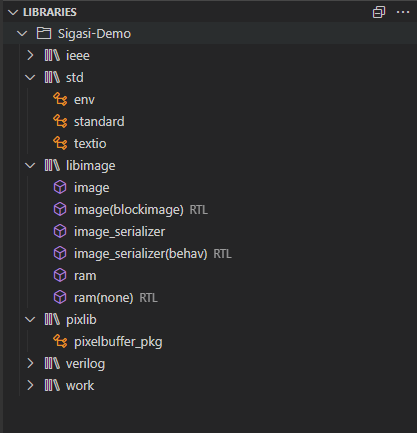
The library view shows a different perspective. Every time you map a file to a library, its content (e.g., design units, modules, etc.) becomes part of that library. In the Library View you see the libraries and their content.

Library mapping in the Library View

Configuration file

All library configuration information is stored in the .library_mapping.xml file in the root of your project. If you edit this file, the affected HDL files in your project will be rebuilt automatically. Note that .library_mapping.xml should be checked into your version control system.

Sigasi only writes changes to this configuration file when you modify the library configuration. When you do make changes, Sigasi first checks that all paths in the library configuration still exist. If a path no longer exists, it will be removed from the configuration file. Note that the library configuration file is case-sensitive, even on Windows.


2.1.3.2. Project settings

Sigasi Project Settings

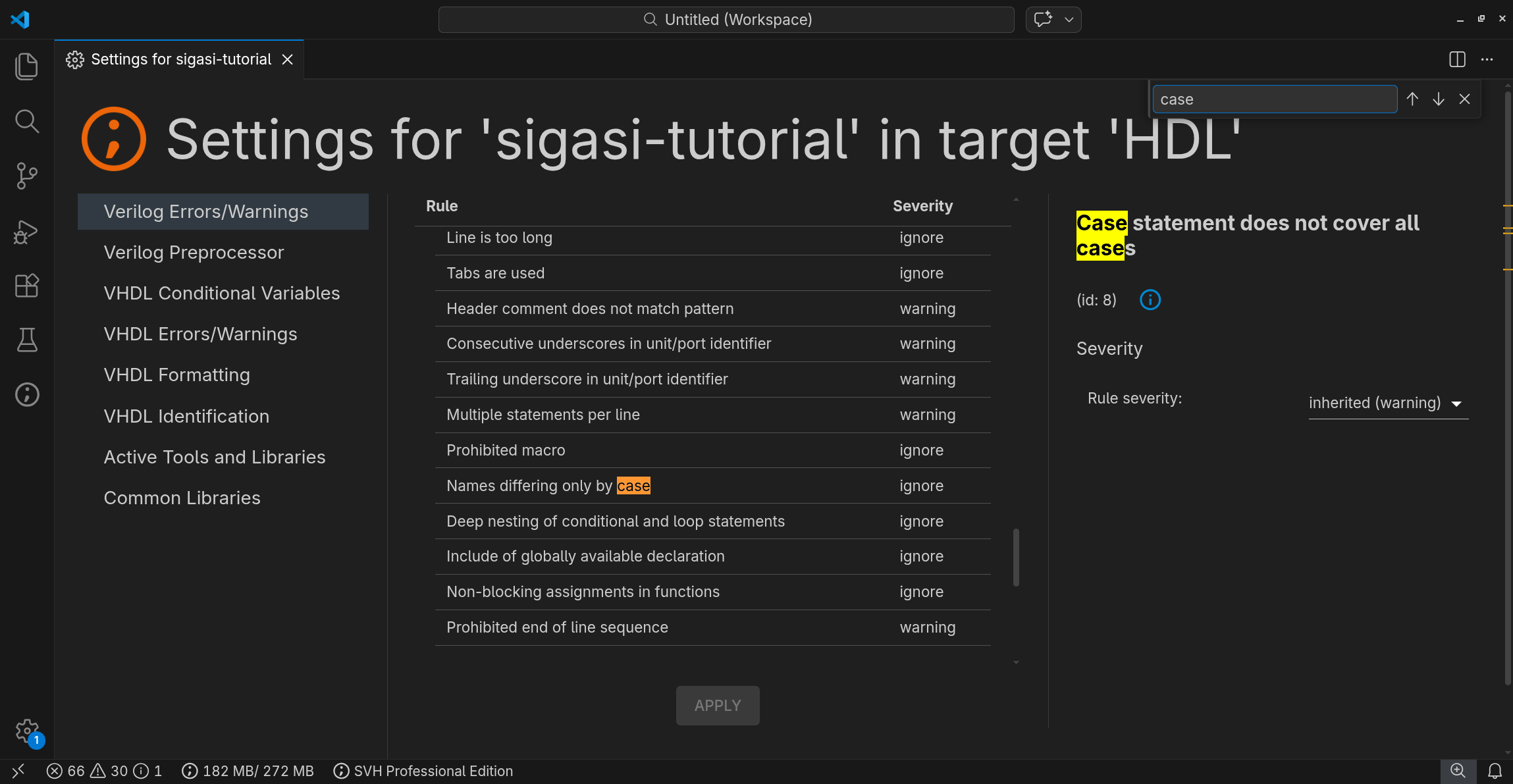
Project settings allow you to customize the behavior of the Sigasi engine for a specific project, folder, or file. These settings ensure that everyone on your team works with the same rules and parameters, preventing “it works on my machine” inconsistencies.

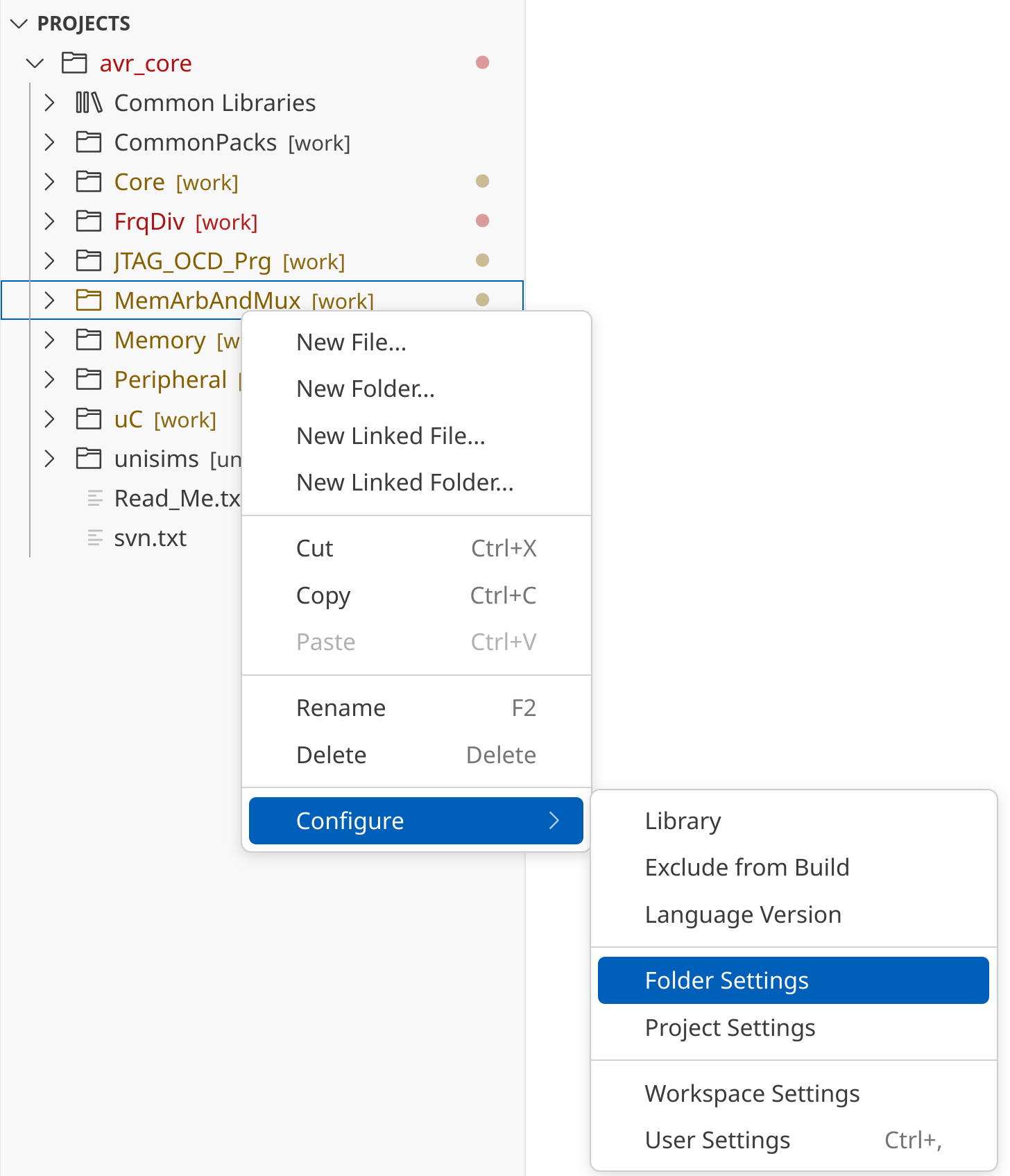
To open the settings, right-click a project, folder, or file in the Sigasi Projects View and select Configure > [Project/Folder/File] Settings. From this view, you can:

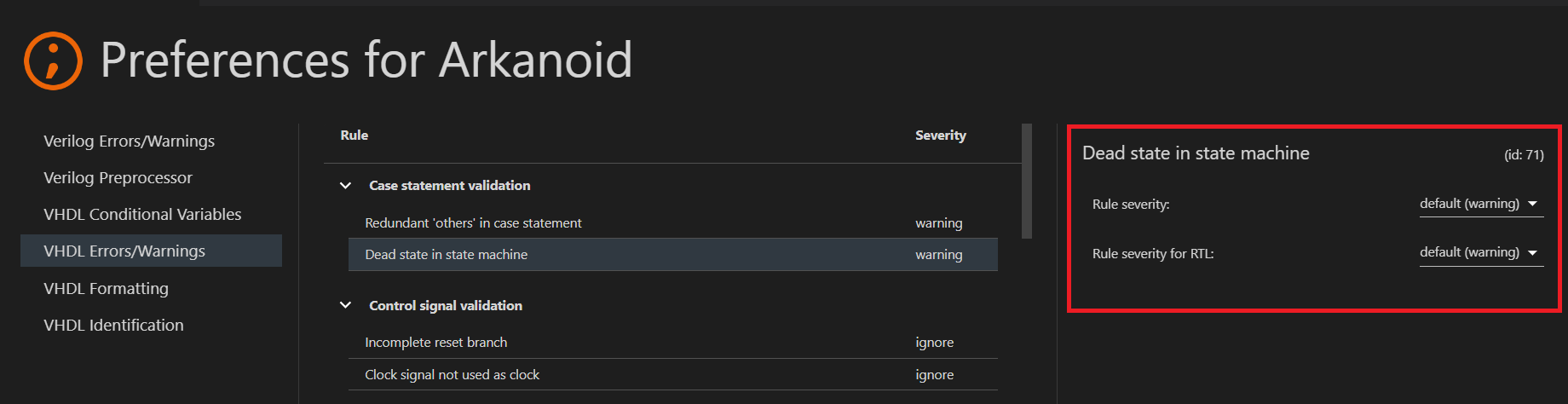
  • Change the severity of linting rules
  • Tweak validation and analysis parameters
  • Modify conditional variables for VHDL 2019 projects
  • Configure include paths and initial defines for the SystemVerilog preprocessor

After making changes, click the APPLY button in the top-right corner to save your configuration.

Persistence and sharing

Sigasi stores these configurations in the .settings/ folder within your project root. We recommend committing this folder to your version control system (e.g., Git) so that your team members automatically inherit the same project environment.

Note: Prior to version 2025.1, Project settings were referred to as Project preferences.


2.1.3.3. Language version

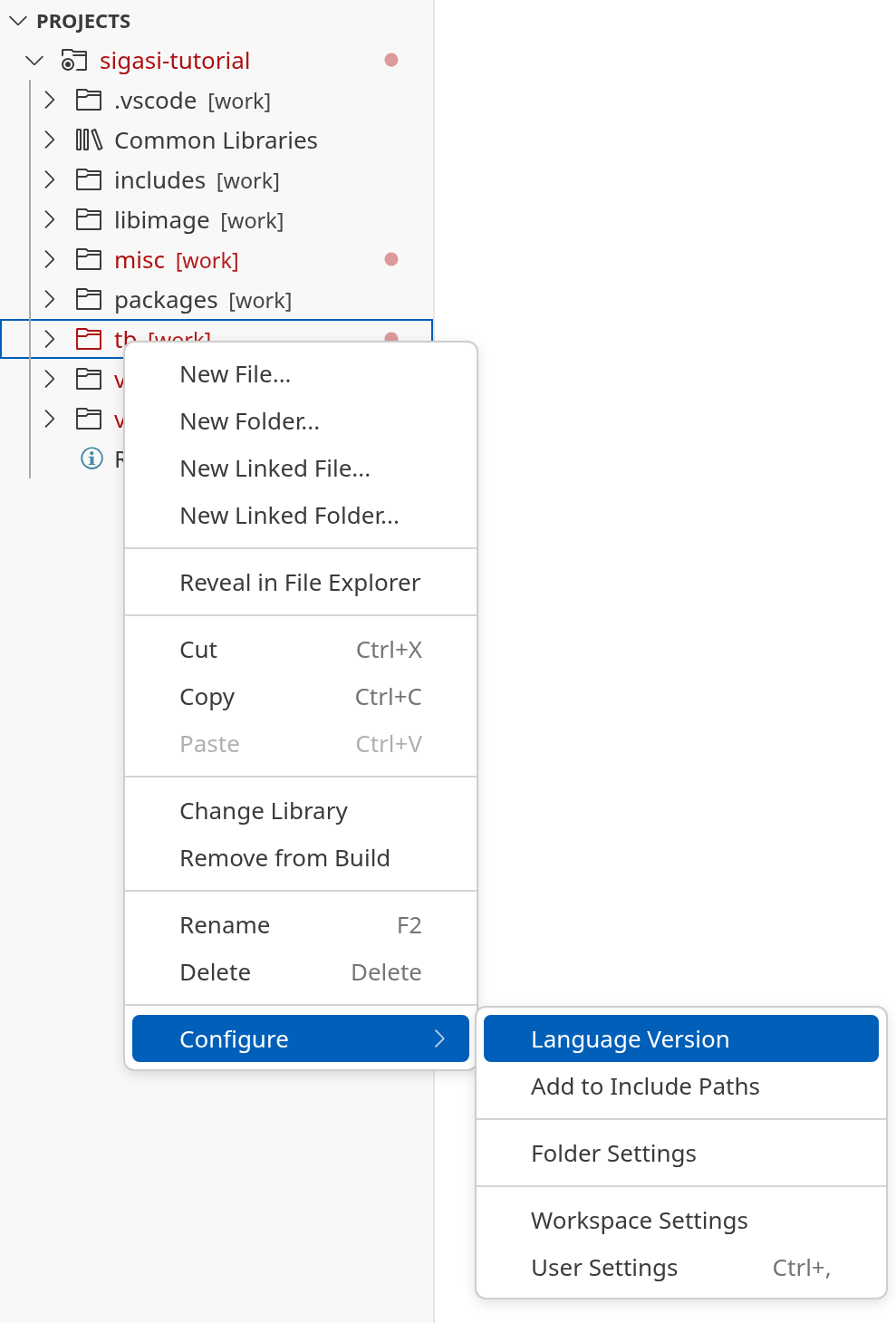
To change the VHDL or Verilog version, right-click on a project, folder, or file in the Sigasi Projects View and click Configure > Language Version. Then, select whether you want to set the VHDL or Verilog version. If you only see one of the two, you might need to add language support through Configure > Add [VHDL / Verilog/SystemVerilog] Support.

Note: the VHDL version of a folder or file must be greater or equal to the VHDL version of the project.

Note: Setting the Verilog version determines whether *.v files are treated as Verilog (IEEE 1364-2005) or SystemVerilog (IEEE 1800-2017). *.sv files are always treated as SystemVerilog.

VS Code: Change language version

2.1.3.4. SystemVerilog specific configuration

While Sigasi attempts to resolve missing include paths automatically, we recommend explicitly configuring them to ensure the search order is accurate and predictable.

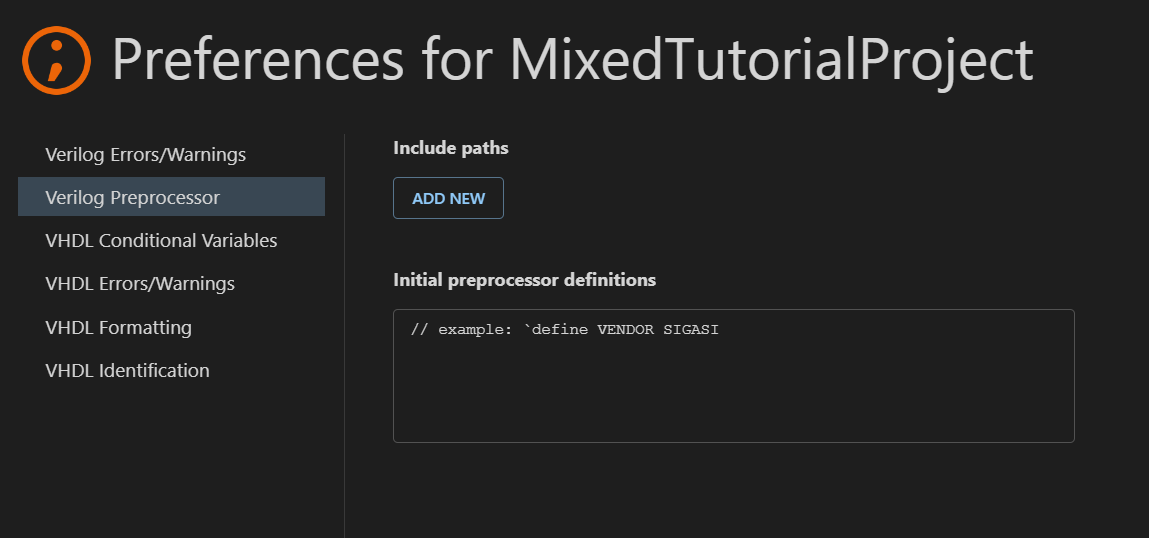
To configure include paths, open the Verilog Preprocessor page: right-click your project in the Sigasi Projects View and select Configure > Project Settings > Verilog Preprocessor.

Verilog Preprocessor Configuration in VS Code

Initial preprocessor definitions

In the Initial preprocessor definitions field, you can define macros that Sigasi should process before analyzing any design files. This allows you to set global defines across the entire project without using explicit `include statements in every source file.

Environment variables in include directives

Sigasi supports environment variable expansion within `include directives. You can reference variables from your system environment using the $VARIABLE or ${VARIABLE} syntax:

`include "${SOME_DIR}/shared/constants.sv"
`include "$IP_CORE_DIR/components/header.sv"

SystemVerilog include files

Sigasi automatically excludes SystemVerilog include files from the build. Any file referenced by another file via an `include directive is marked as an include file and removed from the independent compilation list, even if it uses a standard design file extension like .v or .sv. Because include files are intended to be analyzed only within the context of their parent files, independent compilation is typically unnecessary and could lead to analysis errors.


2.1.3.5. VHDL specific configuration


2.1.3.5.1. RTL, testbench, and behavioral code identification

The primary purpose of hardware description languages (HDLs) is to define designs for hardware synthesis and implementation. However, both VHDL and SystemVerilog include features specifically for verification. You can write testbenches to provide stimulus to DUTs and validate that their outputs match expected values. Because this verification code is typically non-synthesizable, it must be handled differently than RTL code.

Avoid using verification-specific language features in synthesizable designs. To improve synthesis Quality of Results (QoR), designs must follow strict coding rules. However, because these rules only apply to synthesizable logic, there is no need to enforce them in verification code.

To provide better feedback, Sigasi identifies which parts of your code are intended for synthesis and applies relevant rules. It classifies design units into one of the following description styles:

  • Testbench: A top-level verification module.
  • Behavioral: Design units intended for verification purposes (e.g., bus functional models).
  • RTL: Design units that are part of the actual design intended for synthesis.

Sigasi allows you to specify different rule severities for RTL and non-RTL code. You can also disable specific checks for either style by setting the severity to ignore.

VHDL

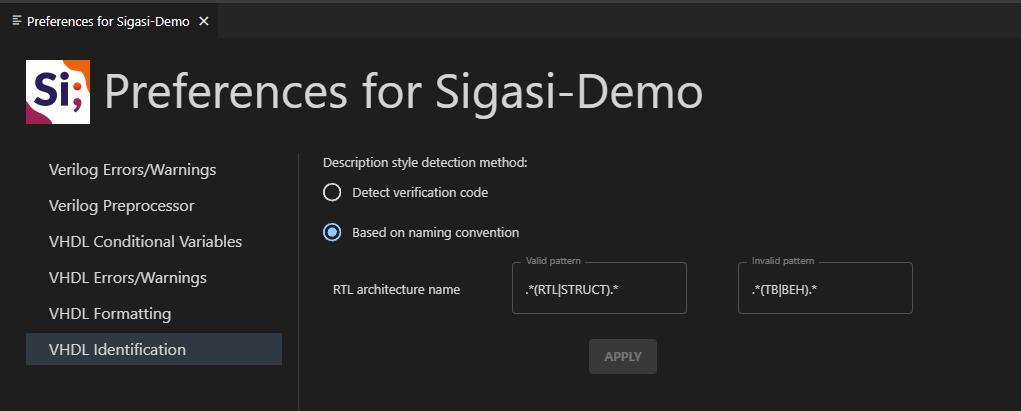
In VHDL, Sigasi detects the description style for every architecture, either by identifying verification-specific constructs or by analyzing architecture names.

Detection via constructs

This is the default method. Sigasi classifies an architecture as:

  • Testbench, if the corresponding entity has no ports.
  • Behavioral, if it contains non-synthesizable processes (e.g., processes with no sensitivity list or multiple wait statements) or if it uses the std.textio package or declares file types.
  • RTL, in all other cases.

Detection via naming patterns

If you require more fine-grained control, you can classify styles based on architecture names by specifying regex patterns in the settings.

  • RTL, if the name matches the valid pattern and does not match the invalid pattern.
  • Testbench, if the corresponding entity has no ports.
  • Behavioral, in all other cases.

SystemVerilog and Verilog

Currently, SystemVerilog and Verilog rules do not utilize description styles; therefore, style detection is not performed for these languages.


2.1.3.5.2. VHDL code formatting

Sigasi allows you to define project-specific VHDL formatting settings to ensure a consistent coding style across your team. SystemVerilog and Verilog formatting cannot be configured at this time.

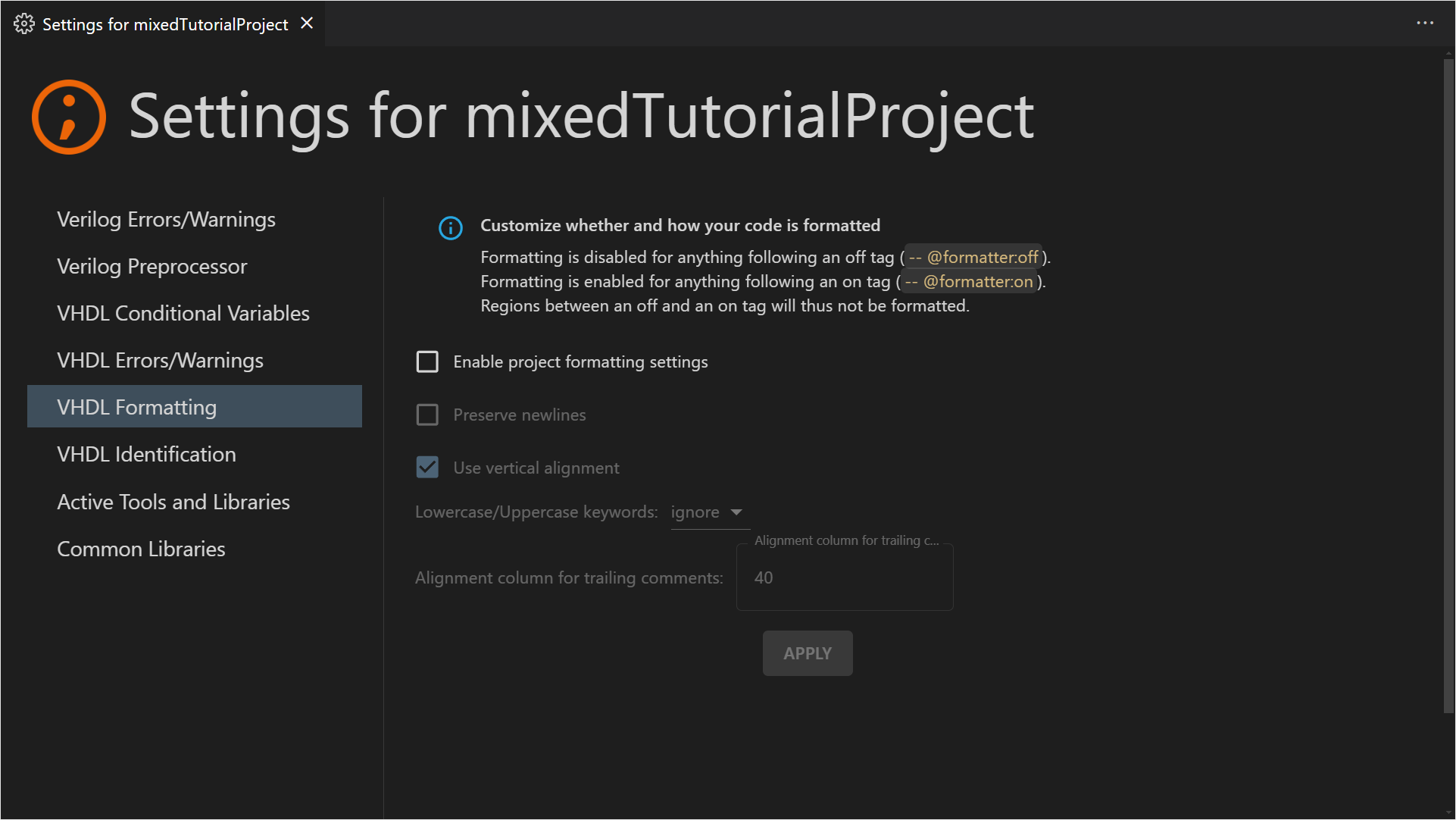
To modify your formatting settings, right-click your project in the Sigasi Projects View and select Configure > Project Settings. Navigate to VHDL Formatting and select Enable project formatting settings.

Properties

  • Enable project formatting settings: Specifies whether project-specific formatting settings are active.
  • Preserve newlines: The formatter respects existing newlines and will not add or remove them.
  • Use vertical alignment: Vertically aligns consecutive declarations and statements (e.g., <= or :).
  • Lowercase/Uppercase keywords: Controls how the formatter transforms keywords: lowercase, UPPERCASE, or ignore.
  • Alignment column for trailing comments: The column to which trailing comments are aligned. The default is 40; set to 0 to disable trailing comment alignment.

2.1.3.5.3. VHDL 2019 conditional variables

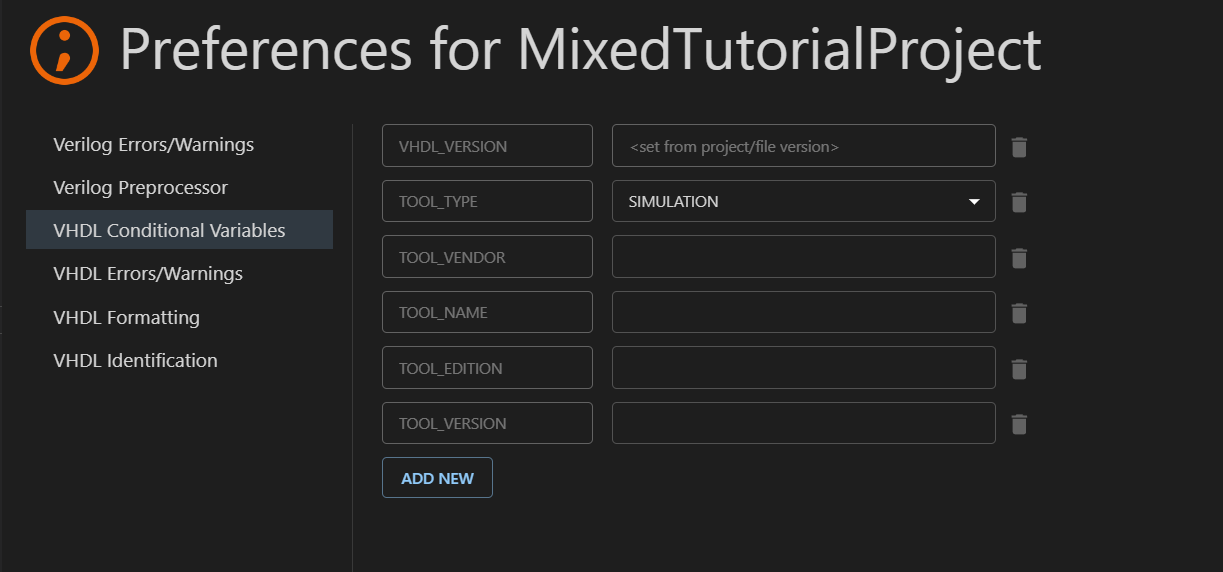
VHDL 2019 tool directives provide a streamlined conditional analysis mechanism, similar to the preprocessors found in SystemVerilog or C. These directives allow you to conditionally enable or disable code blocks based on tool type, debug modes, or custom variables.

To configure these variables, right-click your project in the Sigasi Projects View and select Configure > Project Settings. Navigate to VHDL Conditional Variables.

VHDL Tool Directives in VS Code

Note: Some keys are reserved and hardcoded as required by the VHDL Language Reference Manual.


2.2. Sigasi Projects


2.2.1. Sigasi Projects (Preview)

Sigasi offers a new and sophisticated workflow to improve re-usability of design build configurations. It is built on top of a new Sigasi Project format (project.sigasi) that replaces Classic Projects currently used by Sigasi (.project).

Sigasi Projects

A Sigasi Project consists of one or more build targets. Each target describes how to build an artifact of your project. An artifact could be a library, a synthesizable component, a testbench, etc. There are two types of project build targets, each providing a different way of specifying sources:

Sigasi project consists of one or more build targets. Each target describes how to build an artifact of your project. An artifact could be a library, a synthesizable component, a test-bench, etc. There are two types of project build targets, each provides a different way of specifying sources:

  1. Scripted targets: allow re-using existing compilation scripts.
  2. Manual targets: provide a declarative way to specify the sources that are part of the target and the libraries into which the sources are compiled.

You can also reuse libraries or components that are defined by targets by adding dependencies between them.

Scripted Targets

Many EDA projects have build scripts that start simulations. These build scripts already contain a detailed description of the designs your team is working on. Using Sigasi Project scripted targets, you can avoid duplicating the information already present in your build scripts: Sigasi will extract all relevant information from the build scripts itself.

Manual Targets

Manual targets can be used when you want Sigasi to be in the driver seat and be the main source of information on how to build a design. They provide control similar to Classic Projects, but allow specifying everything in a single place, and benefit from the dependencies mechanism provided by Sigasi Projects.

Dependencies

It’s possible to define dependencies between targets. Defining a dependency on another target makes HDL definitions from that target sources available in current target sources. It’s possible to define dependency on:

  • Another target of the same project
  • One or multiple targets of another project
  • Library from the Library Database

In addition, Sigasi now comes with a built-in UVM library. So adding UVM support to a Sigasi project is as easy as adding a single dependency to a project.

Refer to Sigasi Project Description File Reference for more details about Sigasi project, targets, and dependencies.

New Settings Format

When using Sigasi projects, a new settings format is available. It allows easier sharing of configuration between teams and projects, as well as more fine-grained control by allowing target-specific settings.

Refer to the Sigasi Settings File Reference for more details on this new settings format.

Using Sigasi Projects

Creating a Sigasi Project

You can create a new Sigasi Project by opening the Command Palette ( ) and typing to select Sigasi: Add Experimental Sigasi Project…

The wizard creates a new project.sigasi file, which looks something like this:

{
  "name": "MyProject",
  "targets": {
    // define targets
    "hdl": {
      "libraryMapping": {
        "": "work"
      }
    }
  }
}

This file should be either in the root folder of the project, or inside a .sigasi folder in the root of that project.

Sigasi Project Example

Let’s look at a simple project example that illustrates some of the Sigasi Project concepts:

{
  "name": "MyProject",
  "targets": {
    "rtl": {
      "environment": {
        "VARIABLE_A": "value",
        "VARIABLE_B": "${VARIABLE_A}"
      },
      "command": ["vcs -f ip/list.f", "vcs -f src/list.f"],
      "ignoreReturnCode": false
    },
    "tb": {
      "dependencies": ["rtl", { "UVM": "1.2" }],
      "libraryMapping": {
        "testbench/src": "testbench"
      },
      "ignore": ["**/sim/*"]
    }
  }
}

From top to bottom, the following configuration is deduced from the JSON:

  1. A Sigasi project has a name. In the example, the project’s name is MyProject.
  2. Two targets are listed to assemble the contents of the project. A target comprises a self-contained set of files that are compiled together. You can give a target a logical name. The first target in the example above is called rtl, the second one is called tb.
    1. The scripted rtl target runs two simulator commands to compile the RTL code of the project. The argument files ip/list.f and src/list.f are maintained as part of the project’s build system and can be reused directly. This target also defines custom environment variables.
    2. The manual tb target instructs to compile all HDL sources in testbench/src directory into a testbench library. At the same time, all files generated by a simulator in sim directories should be ignored. This target also defines a dependency on the rtl target (making all the design units compiled there available for the testbench code), as well as a dependency on the UVM 1.2 library shipped with Sigasi.
Sigasi Projects View

Refer to the Sigasi Project Description File Reference for more details on Sigasi Projects, targets, and dependencies.

Projects View

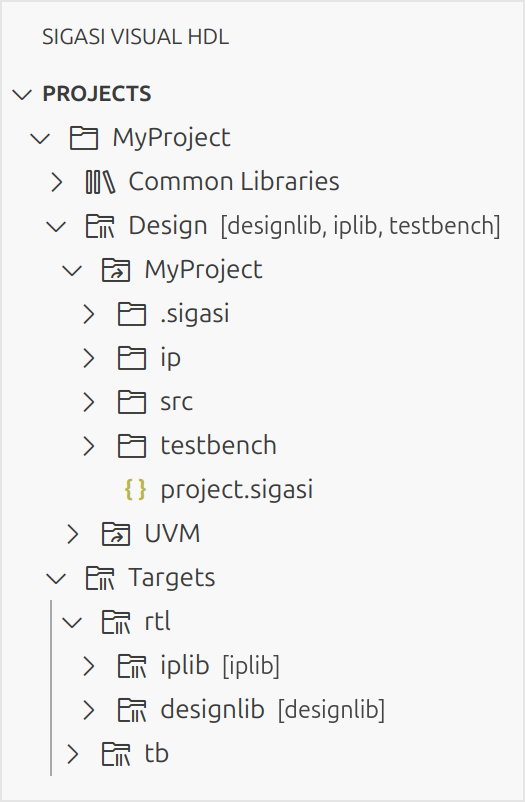
To accommodate new Sigasi project concepts, the Sigasi Projects View represents such projects differently. The structure of the captured project is visualized in two different forms: as a filesystem centric Design perspective and as a logical Targets perspective.

The Design perspective allows navigating the structure of all directories that contribute to the project. The captured information from the build script might refer to files from various locations on disk, configure include paths, or rely on files that are located on shared drives. All the directories are accessible in the Design folder.

The Targets perspective reveals the logical structure of the project. For each defined target, a folder represents the libraries and their associated files. The files are rendered in the order of compilation wherever possible. This view will also reveal if some files are mentioned in the build scripts but are missing on disk.

You can open source file in the Targets perspective from the Code Lens at the top of the file.

Manual Target Configuration

Library Configuration

VHDL libraries are fully supported. For Verilog/SystemVerilog, Sigasi reuses the VHDL library concept (just work in practice) to distinguish between design files that should and shouldn’t be analyzed.

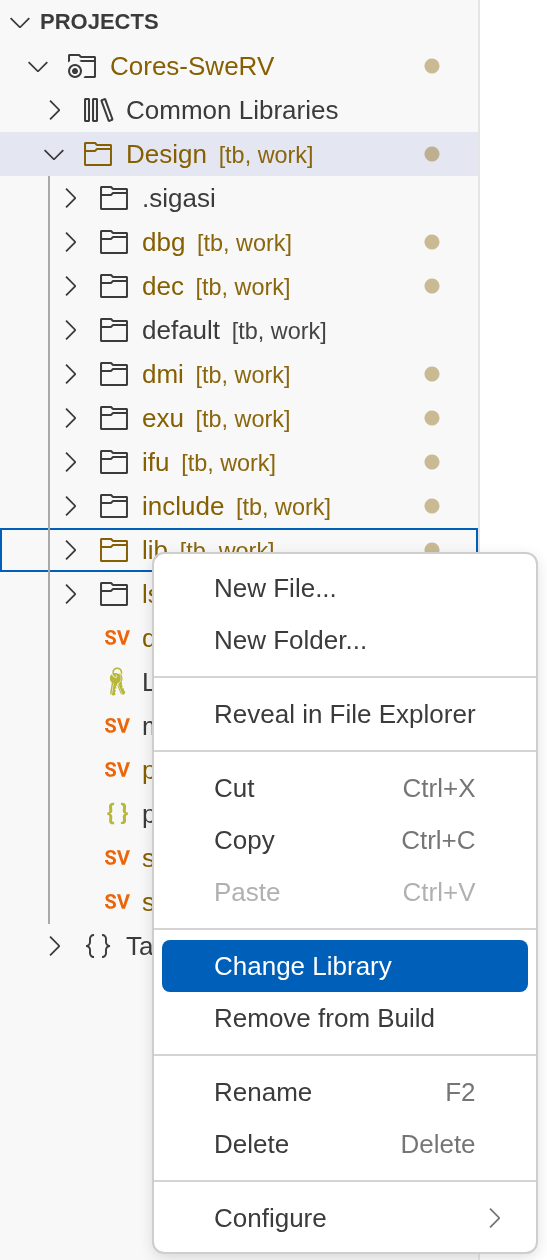
To change library mappings, you can use the right-click menu in the Sigasi Projects View and select Change Library as shown in the image below.

VS Code: Set Library

You can right-click on individual files, folders, or a selection containing multiple files and/or folders, as well as the entire project or the Design folder, to change library mappings. If multiple targets are available, a dialog will prompt you to select one.

VS Code: Pick Target for Library

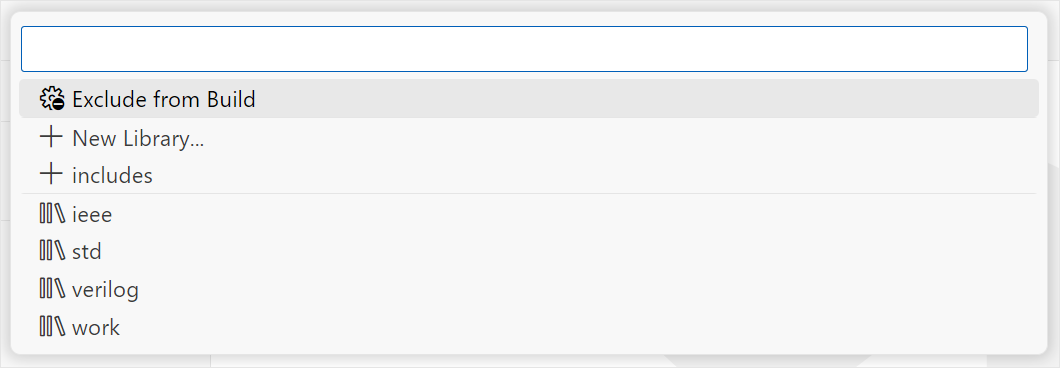
This step will be skipped if there’s only one target available, such as when right-clicking on items in the Targets perspective. Then, you can either select an existing library or type a new library name.

  • If you type a new name, a new library will be created and the selected items will be added to it.
  • To use an existing library, simply pick one from the list (for example, work)
VS Code: Set Library

If you want to remove files/folders from a target, select Remove from Build. Note that the removed resource(s) will still be visible in the Sigasi Projects View, and you can still add them (Change Library) to the project.

Creating new libraries, adding a file/folder to an existing library, or excluding files/folders from the build will modify your project’s project.sigasi file.

VHDL Version

To change the VHDL version, right-click on a project, folder, or file in the Sigasi Projects View and click Configure > Language Version. If there is more than one target available, you will be prompted to select one.

VS Code: Pick Target for Language Version

Then, you can select a VHDL version for your project, folder or file.

VS Code: Change language version

Target Settings Page

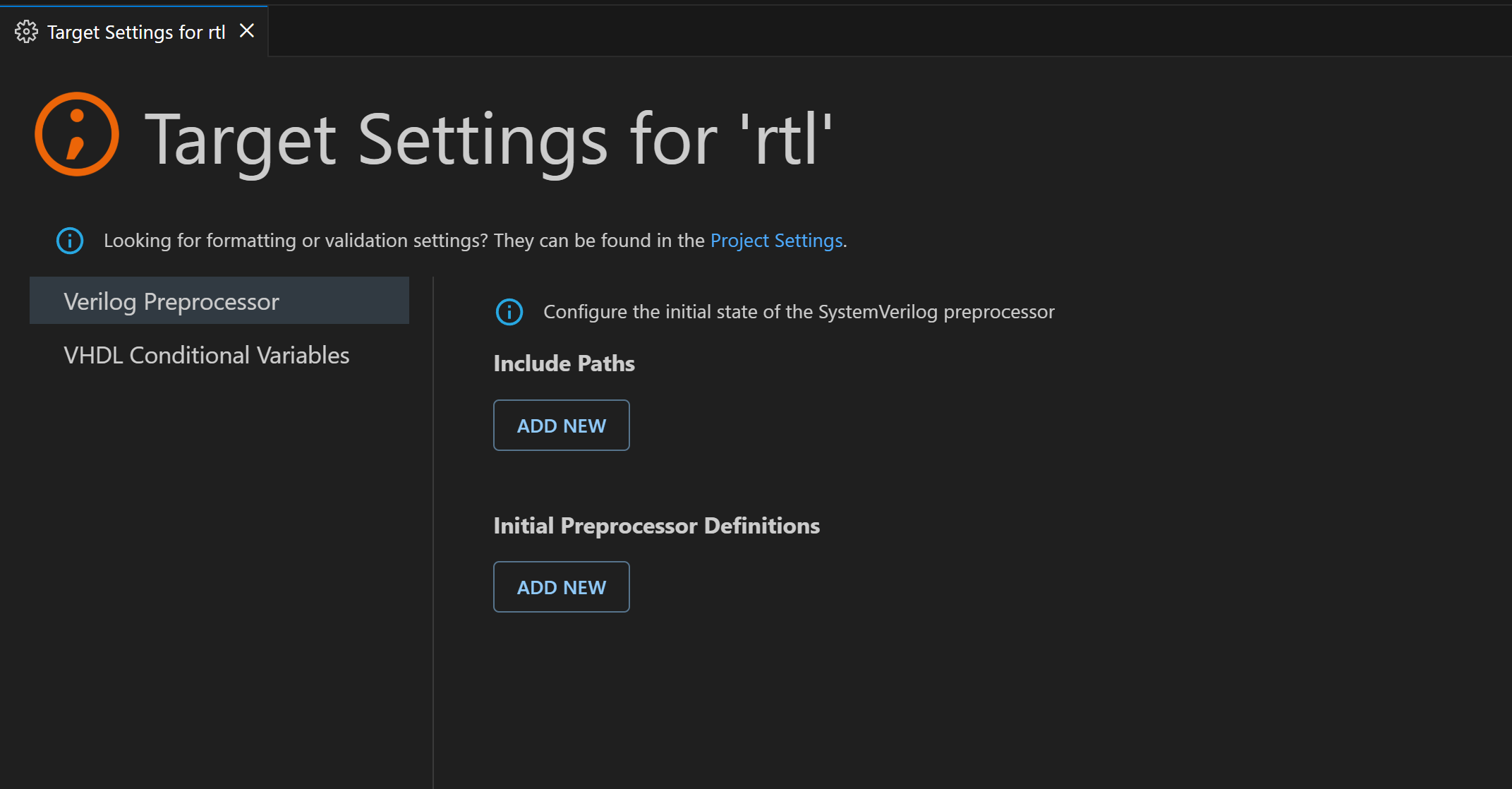
The Target Settings page provides a convenient way to modify the initial state of the Verilog/SystemVerilog preprocessor and to add or remove VHDL conditional variables for VHDL 2019. To access it, right-click any target in the Targets section of the Projects View, then select Target Settings. Note that Verilog/SystemVerilog include paths must be relative to the Target Directory field, or to the project location if this field is not specified.

VS Code: Target Settings page

How Do Scripted Targets Work?

To capture and record the semantics of the build scripts specified in scripted targets, Sigasi executes them in a prepared shell environment. There, the simulators or compilers (the tools) are shadowed by so-called stub implementations. These stubs capture the command invocations and their execution context as a compilation log. Subsequently, the captured compilation log is interpreted and converted into a detailed compilation plan that contains all participating files and directories in the order of their appearance. The compilation plan is used to derive the underlying logical structure of the target.

The mechanism is generally agnostic to the chosen build technology, as long as it launches the supported tools as external processes from a regular shell environment by their simple executable name.

Supported Compilers

The list of tools that are natively supported and can be introspected on Linux and Windows can be found here.

It should be noted that the tool stubs do not call the original tool. They do not create any artifacts besides adding information to the compilation log. That is why the project structure can be captured on any machine, even if the simulators or compilers are unavailable. The utilities that are used to run the build scripts are required though, e.g., make, perl, python, or any other command line based build technology that is used. Some compiler options may need environment variables to be interpreted correctly.

Predefined Environment Variables

Sigasi launches the build in a prepared environment, where the PATH variable is prefixed with a directory that contains the stub executables. In addition, Sigasi sets additional environment variables. They allow Sigasi specific augmentation of the build scripts.

Caveats and Troubleshooting

Capturing the project structure works best if the build scripts respect the following rules:

  1. The configured commands should not cause side effects. If code generation is necessary for a project to work, it is best if the generation step is either not part of the build or repeated runs of the build do not regenerate from scratch but keep the existing generated files untouched.

  2. When your build script is triggered from within Sigasi, ensure that your build script builds all your artifacts from scratch. Avoid triggering an incremental build. An incremental build will not reveal to Sigasi all build operations and artifacts. This will result in an incomplete Sigasi Project being captured. For example, make --always-make should be used to ensure that subsequent builds still run the entire pipeline.

  3. The build might still have accidental side effects. Since Sigasi attempts to capture targets automatically if some meaningful change on disk is detected, it might go into a build loop. Although this situation will be detected by the tool, the build script should be adjusted to avoid side effects. The automatic refresh of targets can be disabled by the sigasi.project.enableAutomaticTargetRefresh setting:

    VS Code: Enable Automatic Target Refresh

    After disabling automatic refresh, you can refresh targets manually by using Code Lenses in the project.sigasi file.

If you encounter any problems with compilation scripts, you can check a few log files that can help you debug the issue. In a project directory, Sigasi creates a .sigasi/targets/generated/<target name> directory for every scripted target. It contains the following files:

  • compilation.log – contains all intercepted compiler invocations with arguments, working directory, and environment variable values they were invoked with
  • compilation.out – standard output stream (stdout) of compilation process
  • compilation.err – standard error stream (stderr) of compilation process
  • compilation.plan – structured information about files that are compiled as well as how they are compiled

Code Lenses in the project.sigasi file allow you to quickly open some of these files.


3. Creating, editing & exploring code

Sigasi offers a large amount of productivity features allowing you to create, edit & explore code easier than ever before.


3.1. Code highlighting

Sigasi extension supports syntax- and semantic code highlighting, sometimes called syntax- and semantic coloring, even though it can also apply styling (cursive, bold, etc).

  • Syntax highlighting: colors and styles code according to lexical classification (such as keyword or string). Always present, event for HDL files outside of projects.
  • Semantic highlighting: colors and styles code according to meaning (different colors for constants and signals). Only activate for HDL files in projects.

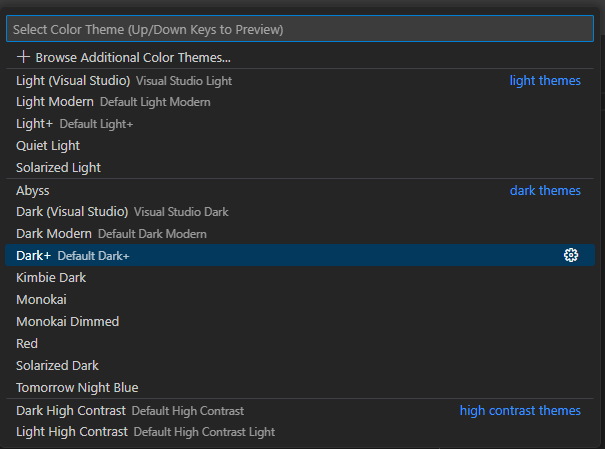
Note that some VS Code themes might not support semantic highlighting. If you appear to be missing this feature, ensure you’re using one of the default VS Code themes.

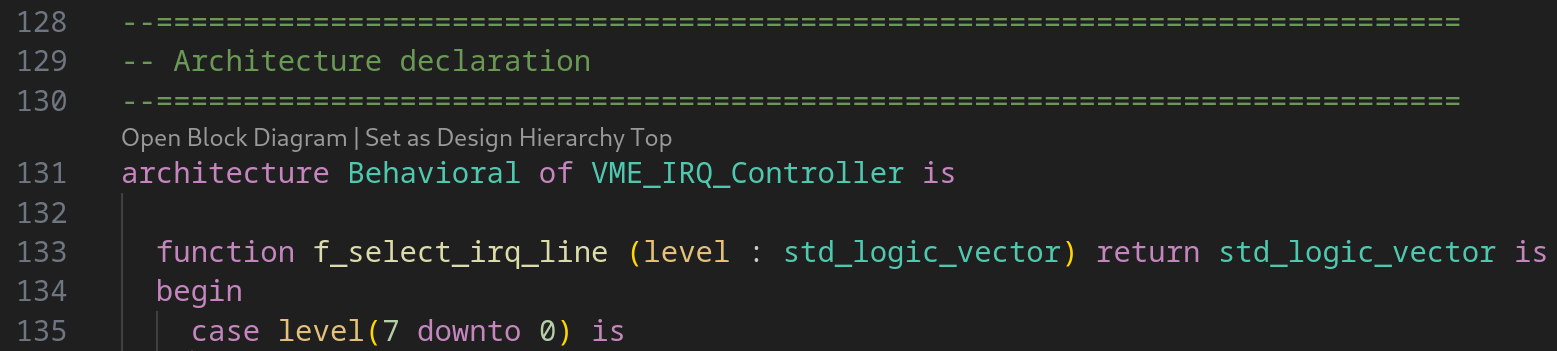
  • In themes that support semantic highlighting, you’ll see that names like those of a port, signal, or type are a different color (light blue) from language keywords (purple).
  • In themes that do not support semantic highlighting, names like those of a port, signal, or type will have the default text color (white).

Customizing your setup

Semantic highlighting colors—as well as font style—can be customized to your wishes as follows:

  1. Open VS Code Settings: Navigate to File > Preferences > Settings and search for editor.semanticTokenColorCustomizations.
  2. Edit or add your rules: Modify the existing rules or add new ones based on the semantic tokens below. You can use the examples provided below as a starting point.
  3. Save your changes: Once you’ve made your customizations, save the settings file. The new semantic coloring will be applied immediately.

Example settings

Below is an example of a semantic coloring configuration.

Dark theme

{
  "editor.semanticTokenColorCustomizations": {
    "[Name of theme 1]": {
      "enabled": true,
      "rules": {
        // Verilog and SystemVerilog
        "sigasiCoverageGroup:systemverilog": "#4EC9B0",
        "sigasiCoveragePoint:systemverilog": "#71CBFC",
        "sigasiCoverageCross:systemverilog": "#49B8F4",
        "sigasiCoverageBin:systemverilog": "#71CBFC",
        "sigasiNamedSequence:systemverilog": "#D0D092",
        "sigasiNamedProperty:systemverilog": "#C5C57B",
        "sigasiClockingBlock:systemverilog": "#49B8F4",
        "sigasiConstraint:systemverilog": "#4FC1FF",
        "sigasiRandsequenceProduction:systemverilog": "#D0D092",
        "sigasiAssertion:systemverilog": "#2ABEA1",

        // VHDL
        "sigasiPort:vhdl": "#3f9acc",
        "sigasiConditionalProcessingVariable:vhdl": "#457dab",
        "sigasiSignal:vhdl": "#4FC1FF",
        "sigasiSubprogramParameterVariable:vhdl": "#9CDCFE",
        "sigasiSubprogramParameterSignal:vhdl": "#4FC1FF",
        "sigasiSubprogramParameterConstant:vhdl": "#E5C07B",
        "sigasiConstant:vhdl": "#E5C07B",
        "sigasiAttribute:vhdl": "#eacd95",
        "sigasiGenericConstant:vhdl": {
          "italic": true,
          "foreground": "#E5C07B"
        },
        "sigasiGenericType:vhdl": {
          "italic": true,
          "foreground": "#E5C07B"
        },
        "sigasiGenericSubprogram:vhdl": {
          "italic": true,
          "foreground": "#DCDCAA"
        }
      }
    }
  }
}

Light theme

{
  "editor.semanticTokenColorCustomizations": {
    "[Name of theme 1]": {
      "enabled": true,
      "rules": {
        // Verilog and SystemVerilog
        "sigasiCoverageGroup:systemverilog": "#4EC9B0",
        "sigasiCoveragePoint:systemverilog": "#00139F",
        "sigasiCoverageCross:systemverilog": "#0119CE",
        "sigasiCoverageBin:systemverilog": "#00139F",
        "sigasiNamedSequence:systemverilog": "#806733",
        "sigasiNamedProperty:systemverilog": "#857045",
        "sigasiClockingBlock:systemverilog": "#0119CE",
        "sigasiConstraint:systemverilog": "#0070C1",
        "sigasiRandsequenceProduction:systemverilog": "#806733",
        "sigasiAssertion:systemverilog": "#448DA1",

        // VHDL
        "sigasiPort:vhdl": "#004e87",
        "sigasiConditionalProcessingVariable:vhdl": "#4d4dff",
        "sigasiSignal:vhdl": "#0070C1",
        "sigasiSubprogramParameterVariable:vhdl": "#001080",
        "sigasiSubprogramParameterSignal:vhdl": "#0070C1",
        "sigasiSubprogramParameterConstant:vhdl": "#b78b12",
        "sigasiConstant:vhdl": "#b78b12",
        "sigasiAttribute:vhdl": "#926f0e",
        "sigasiGenericConstant:vhdl": {
          "italic": true,
          "foreground": "#b78b12"
        },
        "sigasiGenericType:vhdl": {
          "italic": true,
          "foreground": "#b78b12"
        },
        "sigasiGenericSubprogram:vhdl": {
          "italic": true,
          "foreground": "#795E26"
        }
      }
    }
  }
}

Token descriptions

The token keywords below are used to configure the styling of SystemVerilog and VHDL constructs.

TokenConstruct
sigasiCoverageGroupA SystemVerilog coverage group
sigasiCoveragePointA SystemVerilog coverage point
sigasiCoverageCrossA SystemVerilog coverage cross
sigasiCoverageBinA SystemVerilog coverage bin
sigasiNamedSequenceA SystemVerilog named sequence
sigasiNamedPropertyA SystemVerilog named property
sigasiClockingBlockA SystemVerilog clocking block
sigasiConstraintA SystemVerilog constraint
sigasiRandsequenceProductionA SystemVerilog randsequence production
sigasiAssertionA SystemVerilog assertion
sigasiPortA VHDL port
sigasiPort.sigasiInputPortA VHDL input port
sigasiPort.sigasiOutputPortA VHDL output port
sigasiPort.sigasiInoutPortA VHDL inout port
sigasiConditionalProcessingVariableA VHDL conditional processing variable
sigasiSignalA VHDL signal
sigasiSubprogramParameterVariableA VHDL variable parameter of a task or function
sigasiSubprogramParameterSignalA VHDL signal parameter of a task or function
sigasiSubprogramParameterConstantA VHDL constant parameter of a task or function
sigasiConstantA VHDL constant or enumeration literal
sigasiAttributeA VHDL attribute
sigasiGenericConstantA VHDL generic constant value
sigasiGenericTypeA VHDL generic type declaration
sigasiGenericSubprogramA VHDL generic function or task

Navigation is crucial to explore new and unknown projects but also to move even quicker in projects under your control. Sigasi offers various ways of exploring and navigating, letting you jump across and within files with ease. Whether you’re the visual type or keyboard-only, Sigasi’s got you covered.


3.2.1. Projects view

The Projects View offers a file browser for your projects, including external folders that are not physically part of your project. This can be useful for including external IP in your projects.

The Projects View also offers a lot of custom Sigasi functionality, such as library mapping, version setting, and project settings.

Sigasi Projects View

Buttons in the projects view

  • Create a new file
  • Create a new folder
  • Refresh
  • Collapse all folders in the projects view
  • More Actions
    • Follow Cursor: links the projects view with the editor
    • Hide Excluded Files: toggles whether excluded files should be hidden
    • Configure Excluded Files: opens settings to configure file exclusions

VS Code and Sigasi offer many ways of searching in the workspace, projects, files, and views.

Searching in the workspace

You can perform a text search in the entire workspace by going to the VS Code Search activity. This feature has a few options:

  • Match Case: matches the exact casing you entered
  • Match Whole Word: matches the entire word exactly
  • Use Regular Expression: allows to search for advanced patterns
Text search in the entire workspace

Pressing the icon shows the Replace field. The search results can then be replaced, one by one (by hovering over a result) or all at once. Pressing the button opens up the field to include and exclude certain file patterns.
Learn more 

Text search and replace in the entire workspace

Note that this is a text search. It will find all occurrences of the given text in code, comments, HDL files, and non-HDL files. As Sigasi has profound knowledge of your project, it also offers a semantic search called Find References. If you’re looking for an HDL construct with a name, such as a clock, module, variable, or wire, Find References will likely serve you better by not returning any false positives, e.g., unrelated text occurrences in comments.

If all you’re looking for is a quick text search, you can open the Quick Search by opening the Quick Open ( ) and typing %, followed by your search term.

Quick search in the workspace

Search in views

Search in the Sigasi Libraries View

Many Sigasi and VS Code tree views show a icon. When you click it or hit , a search box shows up. This search looks for exact matches.

It has two options:

  • Filter: don’t highlight matches; instead, filter out (= hide) any item not matching the search term
  • Fuzzy Match: don’t look for exact matches; instead, do fuzzy matching

Learn more 

Of course, you can also hit in any editor. This has many of the same options as the Search Activity.

Search in the Editor

Search in Sigasi settings pages

On any Sigasi settings page, you can perform simple text searches by hitting .

Search in Sigasi settings

3.2.3. Quick open

VS Code uses the Quick Open menu as its “find everything” dashboard. It can be used to find and open files, commands, views, and more. You open it by pressing . By typing a prefix, different functionality is enabled. For example, typing > gives you the familiar Command Palette as when you press . When you type ?, the Quick Open lists all its features. You can type additional characters to filter down the list.

Quick open help

You can find a list of the most used features below:

PrefixFunction
NoneOpen file
?Show all available functions
:<x>Go to line x
:<x>:<y>Go to line x, column y
@Go to symbol in file
#Open design unit
%Quick search
>Command palette
viewOpen a VS Code view

Open file

The feature you’ll likely use the most, is Open file: open the Quick Open and start typing to find and open any file. You can append : or @ to immediately open a line or symbol in said file, e.g, dut.sv:16 opens line 16 of dut.sv while dut.sv@clk_gen opens the clk_gen module in dut.sv.

Quick open help

3.2.4. Open design unit

To open a design unit in your project, press , filter the list by typing, and select the design unit that you want to open from the list. This is like a superpowered text search: it only opens the actual declaration of constructs.

Open Design Unit in VS Code

3.2.5. Go to definition

You can easily navigate to the declaration of any port, signal, entity, etc. Place the cursor on the identifier, right-click, and select Go to Definition. The editor immediately jumps to the declaration.

You can also navigate your code like a web browser by clicking hyperlinks. If you press and hold the key, hyperlinks will appear in your editor. If you click a link (while holding that key), you will navigate to the target of the link.

Hyperlinks in VS Code

3.2.6. Go to implementation

[Only for VHDL]

In VHDL many declarations are split between declaration and implementation. For example, package and package body or components and entities. Navigating between these is often done through text searches, but since Sigasi understands your entire design, you can simply hover over the name of the declaration and click Find All Implementations. To go from the implementation to the declaration, simply use Go to Definition.

Supported constructs

DeclarationImplementation
EntityArchitecture
PackagePackage body
Package constantPackage body constant
Subprogram prototypeSubprogram body
Protected typeProtected type body

3.2.7. Occurrence highlighting

Clicking on an identifier highlights it and all other occurrences of the identifier that refer to the same object. Note that this occurrence highlighting is intelligent: it is not based on the identifier’s string value but on the object to which the identifier refers. Only true references will be highlighted, not occurrences in strings, comments, or other such instances.

Mark Occurrences in VS Code

3.2.8. Find references

To look for occurrences of a given identifier throughout your design, place your cursor on the identifier and right-click. Then select Go to References.

An inline window will be shown, displaying all occurrences of the selected identifier. You can easily navigate through all occurrences by clicking the items in the list. Note that all occurrences are also highlighted in the editor, making them easily recognizable.


3.2.9. Go to symbol

For a quick outline of the objects in a file in the editor, press , and type @. You can also type : when opening the Quick Outline to group the items by category.

Quick Outline in VS Code

[Only for VHDL]

With Net Search, you can find a net’s loads and drivers. A net is defined as a signal or port and all other signals and ports that are directly connected to it. The loads are where you read the value of a net, and the drivers are where you write to it.

To find the entire signal or port net, place your cursor on the identifier and right-click, then select Find Net. Alternatively, you can press .

The Net Search View will appear. For big designs, it might take a while before the results appear.

Net Search View

From the Net Search View, you can navigate to the code by either double-clicking a search result or using the keyboard shortcuts. Press to move to the next entry and to go to the previous one, assuming the default keybindings are in place.


3.3. Code assist

Once you’re done exploring a project, you’ll likely want to make some edits. Sigasi offers many features that let you consult context and help you write pesky syntax. Let Sigasi worry about the syntax so that you can focus on the big picture: the design.


3.3.1. Hover

To learn more about the declaration of a given identifier, you can hold your mouse over it. After a short time, a pop-up will show you the name and data type of the signal. This technique is called hovering.

Hover pop-ups can show different kinds of information:

  • data type
  • comments: inline documentation written for the declaration (association rules)
  • value: the value of constants
  • errors or warnings: a description of the problem, if the given identifier has an error or warning associated with it
  • binary/decimal conversion: for hexadecimal, octal, or binary values, the decimal equivalent
Hover Documentation in VS Code

SystemVerilog

When you hover over a SystemVerilog preprocessor directive (e.g. include ...), Sigasi shows the preprocessed text.

Include Hovers in VS Code

In the Preprocessor View, you can preview the expanded version of your preprocessed SystemVerilog source files.

Preprocessor View Defines in VS Code

VHDL

Sigasi propagates the values of VHDL constants to the expressions where they are used.

VHDL Constant Propagation in VS Code

3.3.2. Quick fixes

Problems that have markers can be resolved automatically through a Quick Fix. To see whether a Quick Fix is available, hover over a problem underline.

Quick Fix Pop-up in VS Code

Then click Quick Fix… and select one of the Quick Fixes from the list.

Quick Fix List from Tooltip in VS Code

You can also click on the problem marker to make a lightbulb icon appear at the beginning of that line. Clicking the lightbulb will make the Quick Fix list appear. You can then select one of the Quick Fixes from the list.

Quick Fix List from Lightbulb in VS Code

Finally, you can also trigger Quick Fixes from the Problems View by hovering over a problem and clicking the lightbulb icon that appears.

Quick Fix List from Problems View in VS Code

3.3.3. Autocomplete

Sigasi provides powerful autocompletion capabilities. This means that the tool can help you complete identifiers and constructs as you are working on the code. Like other tools, it provides syntax-based autocompletion depending on the HDL language you’re using. However, it goes much further: it can also provide autocompletion based on the design context because it knows everything that has been declared in the design.

Autocompletion interface

Autocompletion can come from different sources, as discussed in the following sections. However, the user interface to initiate it is always the same. Sigasi will suggest appropriate autocompletion options at any point as you enter code.

Autocomplete List in VS Code

You can also trigger autocompletion suggestions by first placing your cursor where you want to autocomplete and then pressing .

Based on the design context

Sigasi uses its knowledge of designs to provide intelligent autocompletion that boosts your productivity tremendously.

The tool understands the current context, which identifiers are visible, and which constructs are legal at any given point in the code. As you start typing and ask for autocompletion, it will suggest appropriate identifiers as autocompletion candidates.

Sigasi provides autocomplete suggestions for:

  • component declarations
  • component instantiations
  • entity instantiations
  • module instantiations
  • case statements (based on variables/signals with an enumeration type)
  • SystemVerilog preprocessor/macro directives, e.g., `define or `ifndef
  • SystemVerilog include paths ( `include ""): triggering autocomplete between the double quotes will present a list of files and folders. If you select a folder, trigger autocomplete again to get completions in this folder.

Based on templates

Sigasi can help you declare HDL constructs, using autocomplete based on templates. Sigasi comes preconfigured with templates for all common declarations and statements. For VHDL, this includes:

  • function, procedure
  • process
  • type: enum, file, range, array, record
  • signal, constant, variable
  • component
  • entity
  • architecture
  • entity/architecture pair
  • package/package body pair
  • and much more

Some autocompletions are templates that require further user input. In such a case, the editor window will go into a special template editing mode after performing an autocomplete. Use TAB to go through the items that have to be modified or completed. When done, press ENTER to return to normal editing mode. The cursor will be placed at an appropriate position to continue working.

User-defined code snippets

VS Code supports user-defined code snippets, as explained here . To add snippets yourself, follow the steps below.

  • Open the Command Palette ( ) and type Snippets.
  • Select Snippets: Configure User Snippets.
  • Type vhdl or systemverilog to open the corresponding JSON file where you can add your snippet. See the examples below.

SystemVerilog snippet example

{
    "always posedge clk": {
        "prefix": "always",
        "body": [
            "always @(posedge ${1:clk}) begin",
            "\t$0",
            "end"
        ],
        "description": "Insert an always block with posedge clock"
    }
}

VHDL snippet example

{
    "package declaration": {
        "prefix": "package",
        "body": [
            "package ${1:name} is",
            "\t$0",
            "end package $1;"
        ],
        "description": "Insert package declaration"
    }
}

Instantiating a design unit

Note: In other tools, this feature may be known as paste as instantiation or port translation.

Sigasi knows all design units (entities, components, and modules) in a design and their ports and parameters or generic interfaces, and can therefore automate much of the instantiation process. At the point in the code where you normally enter a design unit’s name, use autocompletion instead to suggest a list of possible design units. Upon selection, the tool will complete the instantiation with a generic or parameter list, and a port list with named associations. As an initial suggestion, each actual parameter will have the same name as its formal parameter. Of course, the actual parameter names need to be reviewed and edited by the user. Therefore, the editor will go into template editing mode after the autocompletion.

Note that design units will only be shown if they are visible in the current scope.

Inserting an include file

[Only for Verilog]

Making a typo in the filename of an `include causes swarms of errors. To prevent this, you can simply press between the double quotation marks of an include directive. You’ll be presented with all the files reachable from your current include path.

Insert Include in VS Code

Declaring a component

[Only for VHDL]

If you want to create an instantiation based on a component (as opposed to a direct entity instantiation), you need to associate an entity with a component. Sigasi can automatically declare a component for an existing entity. In the place where you would normally enter the component name, use autocomplete instead to show the list of available entities. Upon selection, the tool will automatically complete the component declaration.

Autocomplete suggestions automatically appear and are updated as you type.

Type conversion

[Only for VHDL]

In VHDL design, you need to do a lot of type conversions, and Sigasi’s autocomplete functionality can help you here. Put a period (.) after the element you want to convert and the autocomplete suggestions will appear with descriptions like convert type.

VHDL Type Conversion in VS Code

Once you select the desired conversion function, Sigasi will insert the code.

VHDL Type Converted in VS Code

3.3.4. Signature helper

When you invoke a function in VHDL or Verilog, Sigasi will list that function’s arguments in a pop-up window that will appear once you type an open parenthesis.

Signature Helper in VS Code

The Signature Helper also activates when instantiating a VHDL entity or a Verilog module by listing the ports or generics of that entity or module.


3.3.5. Sticky scroll

You can use sticky scroll to navigate through your HDL code more easily. The stickiness is based on the code folding regions. You can configure this feature with the editor.stickyScroll.enabled setting.


3.3.6. Smart indentation

Sigasi offers Smart Indentation for both VHDL and Verilog. When enabled, the indentation level is automatically adjusted based on the context and the code being written.

When you press enter, Sigasi automatically adjusts the indentation of the current and the new line. Depending on the content of the preceding line, Sigasi will automatically increase or decrease the indentation level. For example, it may add an extra indent after a module or an entity and remove an indent for the matching endmodule or end entity.

See also:

Configuration

To make use of Sigasi’s Smart Indentation, make sure the editor.autoIndent setting is set to full. To further configure the inserted indentation, the following settings can be used:

  • editor.insertSpaces: To insert spaces rather than tabs.
  • editor.indentSize: To configure the size of the indentation.
  • editor.detectIndentation: To dynamically adjust the previous two settings based on the indentation style used in the current file.

3.3.7. Preprocessor view

[Only for SystemVerilog]

You can open the Preprocessor View by clicking the Sigasi logo Sigasi logo in the editor toolbar (top right) and selecting Open Preprocessor View. Alternatively, you can open the view using the command palette and typing Sigasi: Open Preprocessor View.

Preprocessor View Defines in VS Code

3.3.8. Folding

If you work with large files, you might want to hide certain pieces of your code. This can be done with code folding. Certain constructs, such as if-statements or process-statements, can be folded so that they are displayed as a single line in the editor view. You can do this by clicking the little arrow symbols next to the statement or declaration.

Code Folding in VS Code

3.3.9. Stuttering

[Only for VHDL]

Stuttering is an editing technique popularized by Emacs that lets you type certain things really fast. You activate it by tapping a certain key twice which will expand it to something more complex. For example, press the period key . twice, and the editor will expand it to a right arrow =>. Stuttering works like double-clicking: if you type keys slowly, the stuttering mechanism will not be triggered.

The following stuttering keys are available:

KeysEffect
,,<=
..=>
;;:=

Stuttering is enabled by default but can be toggled with the sigasi.vhdl.stuttering setting.


3.3.10. Editor features

The VS Code Editor shows the content of files and allows you to edit them. It has a tabbed view such that multiple files can be opened simultaneously. The active file is the one currently selected. VS Code offers a lot of features out of the box.

Multi-cursor support

VS Code supports multiple cursors for simultaneous edits. Cursors can be added using . If you prefer using Ctrl+Click, open the Command Palette via , type multi, and select Toggle Multi-Cursor Modifier from the list to quickly toggle the modifier. This can also be changed in the settings.

Add parentheses or create a string

If you select a region and press ( or [, the tool will enclose the selected region with the matching closing parenthesis, ) or ].

If you select a region and press ( or [, the tool will enclose the selected region with the matching closing parenthesis, ) or ]. This works for both regular and multi-line strings and with either single or double quotation marks.

You can configure this feature with the editor.autoClosingQuotes setting.

Split editor

The VS Code editor can be split into independent viewports that access the same file buffer. To split the editor, go to View > Editor Layout and select the desired action.

Editor Layout in VS Code

There can be more than two horizontal or vertical splits within an editor.

Side-by-side comparison

With Sigasi, you can compare two files side-by-side.

  • Previous versions: local history or version control
  • Comparing two files: the editor tabs you want to compare, right-click one of the tabs, and press Compare Selected.
Compare Side by Side in VS Code

3.3.11. AI assistant

SAL (Sigasi AI Layer, in case you’re wondering) is the name of the integrated AI chatbot in Sigasi. There are three ways to get a conversation with SAL started:

  • Open Chat with SAL in the Sigasi View
  • Toggle the Command Palette ( ) and choose Sigasi Visual HDL: Focus on Chat with SAL View
  • Right-click anywhere in the editor and select SAL > Explain This Code

Note: Through SAL, you can connect to a remote model using the OpenAI API, such as OpenAI’s GPT 4 model, or a local AI model of your choice via LM Studio.

Configuring your AI model

SAL is configured using up to four environment variables. Be sure to set them before starting Sigasi so they get picked up correctly. The easiest way to get started is by connecting to the OpenAI servers, as detailed below. If you prefer to use a model made by another company, or you’re working on an air-gapped machine, you’ll have to set up a local model.

Connecting to remote OpenAI services

If you have a working internet connection and an OpenAI API key, configuring the backend for SAL is as easy as setting the environment variable SIGASI_AI_API_KEY to your API key. By default, this will use the GPT 3.5 Turbo model.

export SIGASI_AI_API_KEY="your-openai-api-key"

You can use a different model by setting the SIGASI_AI_MODEL to e.g. gpt-4-turbo.

export SIGASI_AI_MODEL="gpt-4-turbo"           # with the GPT 4 model
export SIGASI_AI_API_KEY="your-openai-api-key" # with this API key

For more details on setting environment variables, refer to this guide.

Connecting to a local model

This guide will help you use LM Studio to host a local Large Language Model (LLM) to work with SAL. Currently, SAL supports the OpenAI integration API, and any deployed server utilizing this API can interface with SAL. You need to set the correct URL endpoint and model name, and optionally provide the API key if required by the endpoint.

  1. Download the latest version of LM Studio .

  2. Open the LM models search engine by clicking this search icon from the top left pane.

  3. Search for an LLM of your choice, e.g., DeepSeek Coder V2 Lite, and click download.

  4. Once the download is over, a pop-up window will show up offering to load the model directly.

  5. LM Studio automatically switches to Chat mode once the model is loaded. Switch to developer mode.

  6. Double-check that the DeepSeek model is loaded and displayed on the “Loaded models” tab. Click Start Server (Ctrl + R).

    After a successful run, the following messages should be displayed in the “Developer Logs” tab.

    2024-11-26 15:32:24 [INFO] Server started.
    2024-11-26 15:32:24 [INFO] Just-in-time model loading active.
    
  7. (Optional) Configure local server parameters, such as the Context overflow policy, the server port, and Cross-Origin-Resource-Sharing (CORS).

  8. Set the following environment variables:

    • SIGASI_AI_API_URL
    • SIGASI_AI_MODEL
    • SIGASI_AI_API_KEY
      to the following values respectively:
    • The specified URL as shown in this image
    • The specified model as shown in this image
    • The string value: “lm-studio”
      In this example:
    export SIGASI_AI_MODEL="deepseek-coder-v2-lite-instruct"
    export SIGASI_AI_API_URL="http://127.0.0.1:1234/v1/"
    export SIGASI_AI_API_KEY="lm-studio"
    
  9. Launch Sigasi and start a conversation using your configured local LLM.


3.4. Formatting

Automated consistent code formatting makes code more readable and understandable for developers, whether working on their own code or when cooperating with colleagues. In order to format your code, right-click in the editor and select Format Document. For Verilog, only indentation is applied. For VHDL, Sigasi formatting handles indentation, spacing between keywords and references, vertically aligning symbols like <=, keyword casing and comment alignment. All of these can be configured.

Sigasi’s formatter is context-based and tries to respect the author’s style. So depending on your source style, the formatter might make different choices.

One example of this is the decision to format a conditional signal assignment on one or more lines. Sigasi decides based on the position of the first else keyword. If you put the else keyword on the first line, the formatter will keep everything on one line. If you put the else keyword on a new line, the formatter will use multiple lines for the assignment.

  demo <= (others => '0') when enable = '1'
     else (others => '1') when input  = '1' -- else on new line
     else (others => 'X');

When your source file contains syntactical errors, the formatter cannot always figure out appropriate formatting. For this reason, the formatter is programmed to stop applying whitespace changes beyond unsupported syntax errors.

Format on save

You can use auto-formatting whenever you save a file. This feature can be enabled with the editor.formatOnSave setting.

Disable formatting in defined regions

You can disable the formatter for defined regions in your VHDL source files by adding off and on tags:

  • off tag: -- @formatter:off
    • Turns off the formatter until the end of the file or until an on tag is encountered
  • on tag: -- @formatter:on
    • Reenables the formatter following an off tag
Disable Formatting in VS Code

Indentation and whitespace

You can access the spaces customization controls at the bottom-right of the VS Code window.

Tab Size in VS Code

If you click Spaces, a dialog box appears at the top-middle of the window.

Space Control Menu in VS Code

The options in this menu are only valid for the file in the editor. Before using these actions, make sure your file has been saved.


3.5. Linting

Sigasi checks your code for common errors and style violations as you type. This process is called linting. Many linting rule violations also offer a Quick Fix, allowing you to fix the issue with a simple click.

Problems view

The Problems view in Sigasi provides a centralized list of all linting issues found in your project. Each entry includes a description of the issue, filename, and line number where it was detected.

VS Code problems view

You can open the Problems view from the status bar or by using the View > Problems menu.

Clicking on a problem in the list will automatically open the corresponding file and navigate to the line where the issue was found. When right-clicking on a problem, Sigasi often offers quick-fixes that can automatically resolve the problem.

Naming conventions and header comment checks

Sigasi can check whether all sorts of names in the design (entities, instances, modules, signals, variables, etc.) follow particular patterns. This may help designers follow their company’s or team’s coding rules. For example, coding rules may prescribe that signal names must have a s_ prefix, that generic names must be written in capitals, or that variable names must use CamelCase. A naming convention rule is empty by default, which means that the particular rule is not checked.

In addition, Sigasi can also check for header comments of files, design units, subprograms, etc. This could, for instance, be used to check whether a copyright notice or disclaimer has been included in a file header comment.

Naming conventions configuration can be found in the Style Validation rule category.

Naming Conventions in VS Code

At the top-right, you can set the severity of naming convention non-conformities. Below the severity settings, you can enter validation patterns. Patterns use the RE2/J  regular expression syntax.

Note that names are not validated if the corresponding validation pattern is empty.

You can add two patterns per name: a valid pattern that the name must match (a marker will appear if it does not match) and an invalid pattern that the name must not match (a marker will appear if it does). You can set either or both patterns per name.

Similarly, you can also find header comment configuration in the Style Validation rule category.

Header Comments in VS Code

3.5.1. Verilog linting rules

Sigasi provides a robust set of linting rules for Verilog and SystemVerilog, helping you identify potential issues, improve code quality, and ensure compliance with industry standards. These rules are applied in real-time as you type, providing immediate feedback during the design process.

To browse all linting rules, please refer to Licensing of Verilog linting rules.


3.5.1.1. Licensing of Verilog linting rules

Configurable designer edition linting rules

Designer Edition linting rules are available for all editions.

DescriptionID
warningEmpty loops and conditional branches1
warningCheck naming conventions2
ignore with lightbulbDisallow reg datatype3
errorNamed and positional port connections cannot be mixed5
errorThe packed keyword is required in packed structs and unions6
infoThe module name is a keyword in VHDL and may cause problems in mixed language projects7
warningCase statement does not cover all cases8
error with lightbulbThe for loop statement misses mandatory part (Verilog)9
warning with lightbulbFunction prototype has implicit return type10
errorParameter port list cannot be empty11
error with lightbulbNo semicolon expected at this point (Verilog)12
error with lightbulbVerilog disallows empty assignments of ordered parameters (Verilog)13
info with lightbulbImplicit subprogram port direction14
warningDefault clause has to be the last item in a case statement15
errorCase statement has multiple default clauses, but only one default clause is allowed16
warningFile name does not match design unit17
warningFile contains multiple design units18
infoParameters must have a default value19
ignoreVerilog code line too long20
ignoreTabs are not allowed21
ignoreFile header comment does not match required pattern22
warningNamed port connections have to be used for all instances with many ports24
errorNamed and positional parameter overrides cannot be mixed25
warningNamed parameter overrides have to be used for all instantiations with many parameters26
warningNo event control at the top of always construct27
warningDefault member must be last in assignment pattern28
errorOnly one default member expression is allowed per assignment pattern29
warningOverwritten type key in assignment pattern30
errorDuplicate member key in structure assignment pattern31
warningMixed named and ordered notation in assignment pattern32
errorOnly variable output ports can have a default value in non-ANSI notation33
errorOnly input or variable output ports can have a default value in ANSI notation34
warningRegister initialization in declarations35
errorDuplicate formal item within the instantiated unit37
warningMissing actuals for formals that have no default value38
errorExcessive number of actuals in ordered notation39
warningDefault clause missing from case statement40
errorNon-blocking assignments are not allowed in functions41
warningConsecutive underscores in unit / port identifier42
warningUnderscores at end of unit / port identifier43
ignoreReport encrypted regions44
errorTiming controls are not allowed in functions46
warningMultiple statements per line47
warningMissing bit width for parameters wider than 32 bits48
errorNet data types must be 4-state50
errorNet data types integral51
errorEmpty parameters53, 54
errorInvalid package item55
warningNamed connections are not allowed with blank ports56
errorUnexpected preprocessor directive inside design elements57
errorNon-packed member in packed structure59
errorIllegal type in untagged union60
errorIllegal class member access61
errorOverridden method signature mismatch62-68
errorLocal parameter has to be initialized69
errorLocal parameter cannot be overridden70
errorDeclaration not found71
errorAttempted implicit declaration with default nettype none73
errorInvalid enumeration element range format74
errorRange of enumeration element is too large75
errorInvalid construct76
errorInvalid randomize argument77
errorType checking78, 79, 94, 100, 131
errorConstraint class scope missing80
errorConstraint class with packed dimensions81
errorOut-of-bound method signature mismatch82-92
warningAmbiguous reference93
errorDuplicate declaration95
errorInvalid UDP initial value96
warningImplicit net97
warningDuplicate conditions98
warningUpward reference99
warningDuplicate continuous assignments101
errorDifferent file encoding for including file and included file102
errorMissing macro identifier103
errorUndefined macro104
errorForbidden macro identifier105
errorMissing `endif106
errorMissing identifier following expansion107
error with lightbulbFailed include108
errorMacro expansion depth limit reached109
errorInclusion loop110
errorIssues found while expanding macro111
errorMissing macro argument list112
errorMismatched number of arguments113
errorUnexpected directive operand114
errorIdentifier expansion with an invalid sequence of tokens115
errorUnexpected conditional compiler directive116
warningWhitespace following a backtick117
errorUnknown time literal118
errorUnexpected operand119
errorMissing operand120
warningInvalid preprocessor syntax121
errorUnsupported include path122
errorSyntax error123, 124
errorInvalid macro argument list125
errorUnbalanced expression126
errorUnbalanced directive invocation127
warningUnused macros128
ignoreProhibited macro129
warningUnused declaration130
warningHidden non-virtual methods132
errorUnexpected empty concatenation133
errorUnexpected empty assignment pattern134
errorIncorrect port declaration135-139
warningDuplicate port140
errorEmpty port in ANSI port list141
warningEmpty port142
warningVector as edge event expression143
ignoreImplicit vector to boolean conversion144
warning with lightbulbMissing include path in preprocessor configuration155
warningUnexpected content following directive156
error with lightbulbEnd name does not match declaration name158
error with lightbulbEnd name not allowed159
warningDuplicate signal in sensitivity list160
errorCyclic class inheritance162
ignoreOrder of named declaration list does not match163
error with lightbulbEnd name without begin name164
error with lightbulbMixing statement and block name165
ignoreNames differing only by case166
ignoreDeep nesting of conditional and loop statements167
ignoreInclude of globally available declaration168
ignoreLocally unused port, argument or parameter declaration169
warning with lightbulbAvoid using general purpose ‘always’170
ignoreNon-blocking assignments in functions171
warning with lightbulbProhibited end of line sequence172
warningNon-standard streaming concatenation conversion173
warning with lightbulbSigasi support is disabled in this file174
warningCombining unary and increment/decrement operators175
warningNon-standard conversion from integral to enum176
warningConditionally instantiated design unit not found177
errorDeclaration not found in scope178
errorInvalid digits in integer literals179
errorInvalid meta values in decimal integer literals180
errorNumber literal cannot consist solely of underscores181
warningTruncation in integer literals182
warning with lightbulbNon-standard cross item declaration183
warningNon-standard covergroup option184
warning with lightbulbNon-standard assignment patterns186

UVM linting rules

UVM linting rules require a Sigasi Visual HDL Professional Edition or a Sigasi Visual HDL Enterprise Edition license.

You need to explicitly enable UVM linting.

DescriptionID
warningUnregistered UVM object145
warning with lightbulbIncorrect utility macro146
warningType argument value does not match containing class147
warningIncorrect UVM object instantiation148
ignoreUVM object name does not match variable name149
ignoreUnexpected output system task150
warningIncorrect override of UVM object151
warningDeprecated UVM API152
warningUVM phase method does not call superclass method153
warningIncorrect constructor for UVM object or component154

Deprecated linting rules

Deprecated linting rules were used by Sigasi at some point, but they’ve been removed or superseded in the most recent version.

DescriptionReasonID
A Verilog net type keyword cannot be followed directly by the reg keywordSuperseded by a syntax error4
Formal item not found within the instantiated unitSuperseded by a syntax error36
Unexpected trailing , in parameter listSuperseded by the Empty parameters rule (rule 53)52
Regular expressions (RE2/J) compatibility checkSuperseded by checks in the settings58
Ambiguous design unit referenceSuperseded by the more general Ambiguous reference (rule 93)72

3.5.1.2. Abstract classes cannot be instantiated

In Verilog, abstract (virtual) classes cannot be directly instantiated.

module main_test;
    virtual class A;
        pure virtual function real getData();
    endclass;
    class B extends A;
        virtual function real getData();
            return 3.1415;
        endfunction
    endclass;
    A a;
    initial begin
        a = new;
        a = B::new;
    end
endmodule

3.5.1.3. Avoid using general purpose 'always'

SystemVerilog has three specific always procedures: always_comb, always_latch and always_ff. These should be used in favor of general purpose always in synthesizable designs because:

  • they describe the intent of the always procedure
  • they provide semantics that improve readability
  • tools can additionally check for correctness concerning their behavior

Sigasi reports generic always procedures as a warning.

module m (input clk);
    always @(clk) begin
    end
endmodule

Sigasi offers Quick Fixes to use a specific always procedure instead.

Rule configuration

This rule can be disabled for your project, or its severity and parameters can be modified in the project linting settings. Alternatively, it can be manually configured with the following template:

170/severity/${path}={error|warning|info|ignore}

3.5.1.4. Combining unary and increment/decrement operators

Some tools allow combinations of unary operators with increment/decrement operators (for example, ~retries++), while others reject this syntax. This combination is not standard-compliant and is not portable across simulators.

Sigasi reports this portability issue as a warning (rule 175).

module test;
    int retries = 3;

    always begin
        if (~retries--) begin
            $display("retry");
        end else begin
            $finish;
        end
    end
endmodule

To resolve this issue, add parentheses so the increment/decrement operation is explicitly applied first.

module test;
    int retries = 3;

    always begin
        if (~(retries--)) begin
            $display("retry");
        end else begin
            $finish;
        end
    end
endmodule

Rule configuration

This rule can be disabled for your project, or its severity and parameters can be modified in the project linting settings. Alternatively, it can be manually configured with the following template:

175/severity/${path}={error|warning|info|ignore}

3.5.1.5. Conditionally instantiated design unit not found

When working on a specific design configuration, designers often exclude design units that are not used in that configuration. However, Sigasi verifies all conditional generate branches. If a disabled branch instantiates a design unit missing from the library, it reports a warning. You can change the severity of this rule or disable it completely if you don’t want to add all potential design units to Sigasi.

module top#(bit InclUART = 1);
    if (InclUART) begin : gen_uart
       // ...
    end else begin
        missing_mock_uart i_mock_uart (.*);
    end
endmodule

Rule configuration

This rule can be disabled for your project, or its severity and parameters can be modified in the project linting settings. Alternatively, it can be manually configured with the following template:

177/severity/${path}={error|warning|info|ignore}

3.5.1.6. Cyclic class inheritance

You cannot have inheritance cycles with class declarations:

class A extends B; endclass
class B extends A; endclass
// this would introduce an infinite loop: A -> B -> A -> B ...
class A#(type T=int) extends T; endclass
class B extends A#(A#(B)); endclass
// this would introduce an infinite loop: B -> A#(A#(B)) -> A#(B) -> B ...

3.5.1.7. Deep nesting of conditional and loop statements

Deeply nested conditional and loop statements reduce readability. Restructuring code or extracting logic into functions helps maintainability.

Another problem is that deep nesting can result in complicated prioritized logic being synthesized, increasing circuit size significantly.

Sigasi can report deeply nested sequential loops and conditions. Note that this rule has the maximum nested depth set to 5 and is ignored by default. You can enable it in the Verilog Errors/Warnings settings page (Style Validation > Deep Nesting of Conditional and Loop Statements).

Example with a nesting limit of 2:

module m;
    int x;
    task foo();
        x = 5;
        if (x > 0) begin
            if (x > 1) begin
                if (x > 2) begin // nesting depth 2
                    if (x > 3) begin
                        $display("x is greater than 3");
                    end
                end
            end
        end
    endtask
endmodule

Example of conditional generate constructs with a nesting limit of 1:

module m;
    if (0)
        if (1)
            begin
                // do something
            end
        else if (2)
            begin
                // do something
            end
        else ; // empty
endmodule

Example A long chain of else-if constructs does not count as nesting even though it technically is, because it’s very readable and commonly used:

module m;
    always_comb
    begin
        if (1) $display(1);
        else if (2) $display(2);
        else if (3) $display(3);
        else if (4) $display(4);
        else if (5) $display(5);
        else if (6) $display(6);
        else if (7) $display(7);
    end
endmodule

Rule configuration

This rule can be disabled for your project, or its severity and parameters can be modified in the project linting settings. Alternatively, it can be manually configured with the following template:

167/severity/${path}={error|warning|info|ignore}
167/params/limit/${path}=${integer}
167/params/check_conditional_generate_constructs/${path}={true|false}

3.5.1.8. Deprecated UVM API

The UVM library evolves and while new features are added to its API, some other features are marked as deprecated. Using deprecated features is discouraged as they are supposed to be removed in future UVM versions. Sigasi marks all usages of deprecated API: macros, classes, methods, public fields, etc:

class my_sequence extends uvm_sequence #(my_sequence_item);
    `uvm_object_utils(my_sequence)

    function new(string name = "my_sequence");
        super.new(name);
        do_not_randomize = 1; // UVM declaration 'uvm_pkg::uvm_sequence_base::do_not_randomize' is deprecated
    endfunction

    task body();
        `uvm_do_with(req, {req.size < 32;}) // UVM macro 'uvm_do_with' is deprecated
    endtask
endclass

By default, API features deprecated in the UVM library version you are using are reported. However, it’s possible to configure the rule to report features deprecated in future UVM versions as well.

Rule configuration

This rule can be disabled for your project, or its severity and parameters can be modified in the project linting settings. Alternatively, it can be manually configured with the following template:

152/severity/${path}={error|warning|info|ignore}
152/params/up_to_version/${path}={current|uvm_1_2|uvm_2017|uvm_2020}

3.5.1.9. Duplicate signal in sensitivity list

Verilog allows specifying the same signal multiple times in a sensitivity list, but in most cases this is an oversight and the duplicate should be removed.

always @(clk,  clk ,  clk )
always @(edge clk, negedge  clk , posedge  clk )
always @(edge  clk , clk)

Rule configuration

This rule can be disabled for your project, or its severity and parameters can be modified in the project linting settings. Alternatively, it can be manually configured with the following template:

160/severity/${path}={error|warning|info|ignore}

3.5.1.10. End name does not match declaration name

In Verilog, if an end name is provided for a code block, it must match the declaration name.

class SomeClass;
endclass : SomeOtherClass;
class SomeClass;
endclass : SomeClass;

Sigasi offers a Quick Fix for this issue. In the above example, it would replace SomeOtherClass with SomeClass.


3.5.1.11. End name not allowed

End names are a feature introduced with SystemVerilog. In Verilog files (files that have a .v suffix or that are explicitly configured to be treated as Verilog), using end names is not allowed.

In a Verilog file:

module main;

endmodule : main

A Quick Fix is offered for this error which can remove the illegal end name.


3.5.1.12. End name without begin name

In Verilog, you cannot have an end name without a begin name.

always begin
end : alw
always begin  : alw
end : alw

Sigasi offers a Quick Fix for this issue. In the above example, it would add the name ‘alw’ after the ‘begin’.


3.5.1.13. Function prototype has implicit return type

SystemVerilog function prototypes (pure virtual functions) should have a return type. Sigasi warns for function prototypes without return type (rule 10).

virtual class badclass;
    pure virtual function myfunc(input bit[31:0] data);           // return type missing
endclass

virtual class goodclass;
    pure virtual function integer myfunc(input bit[31:0] data);
endclass

Rule configuration

These rules can be disabled for your project, or their severity and parameters can be modified in the project linting settings. Alternatively, they can be manually configured with the following template:

10/severity/${path}={error|warning|info|ignore} # Function prototype with implicit return type

3.5.1.14. Implicit vector to boolean conversion

When a vector signal is used as a conditional expression or as an argument to logical operators (e.g. &&, ||, !) it’s implicitly converted to scalar value 0 (false) if all vector bits are zero or to 1 (true) otherwise. It’s not clear in this case if such conversion was intentional or by mistake, and a scalar type or bitwise operator, such as &, |, or ~ was expected.

module ff(input clk, [7:0] d, rst, output [7:0] q);
    always_ff @(posedge clk) begin
        if (rst)                   // Implicit conversion of 'logic [7:0]' to boolean
            q <= 0;
        else
            q <= !d;               // Implicit conversion of 'logic [7:0]' to boolean
    end
endmodule

It may be better to explicitly compare the vector with zero (vec == 0 or vec != 0) if that’s your intent.

Note that this rule is disabled (set to IGNORE) by default.

Rule configuration

This rule can be disabled for your project, or its severity and parameters can be modified in the project linting settings. Alternatively, it can be manually configured with the following template:

144/severity/${path}={error|warning|info|ignore}

3.5.1.15. Include of globally available declaration

In Verilog, it is discouraged to include files that have globally scoped top-level declarations (e.g. modules, user-defined primitives).

Given the files f1.sv and f2.sv, whose content is, respectively, as follows:

module f1();
endmodule : f1
class f2;
endclass : f2

Includes of f1.sv would be marked.

 `include "f1.sv" 
`include "f2.sv"

Transitive includes are not highlighted. If there is a file f3.sv that includes f1.sv, the include of f1.sv in f3.sv would be highlighted, but includes of f3.sv would show no warnings.

By default, included files that contain top level packages are not reported. However, it’s possible to configure the rule to report such include statements.

Rule configuration

This rule can be disabled for your project, or its severity and parameters can be modified in the project linting settings. Alternatively, it can be manually configured with the following template:

168/severity/${path}={error|warning|info|ignore}
168/params/report_packages_in_include_files/${path}={true|false}

3.5.1.16. Incorrect constructor for UVM object or component

UVM objects and components must declare an explicit constructor that follows a certain format:

  • for UVM objects the first argument of the constructor must be string name, and all arguments must be optional.
  • for UVM components the first two arguments of the constructor must be string name and uvm_component parent, and all additional arguments must be optional.
class my_uvm_component extends uvm_component;
    `uvm_component_utils(my_uvm_component)

    // The following incorrect constructor will be implied:
    // function new();
    //      super.new();
    // endfunction
endclass
class my_uvm_component extends uvm_component;
    `uvm_component_utils(my_uvm_component)  

    // The constructor does not have the correct arguments
    function new(int parent, string name);
        super.new(name, parent);
    endfunction
endclass
class my_uvm_component extends uvm_component;
    `uvm_component_utils(my_uvm_component)  

    // The additional argument is not optional
    function new(string name, uvm_object parent, int i);
        super.new(name, parent);
    endfunction
endclass
class my_uvm_component extends uvm_component;
    `uvm_component_utils(my_uvm_component)  

    function new(string name, uvm_object parent, int i = 0);
        super.new(name, parent);
    endfunction
endclass

Rule configuration

This rule can be disabled for your project, or its severity and parameters can be modified in the project linting settings. Alternatively, it can be manually configured with the following template:

154/severity/${path}={error|warning|info|ignore}

3.5.1.17. Incorrect override of UVM object

When overriding UVM objects or components, the original type shall be a superclass of the override type. Sigasi warns you on attempts to override UVM objects by type when this condition is not met:

class base_object extends uvm_object;
	`uvm_object_utils(base_object);
	// ...
endclass

class my_object extends base_object;
	`uvm_object_utils(my_object);
	// ...
endclass

class my_component extends uvm_component;
	`uvm_component_utils(my_component)
	
	virtual function void build_phase(input uvm_phase phase);
		// Incorrect override of UVM object 'class base_object': expected derived class but was 'class my_component'
		uvm_factory::get().set_type_override_by_type(base_object::get_type(), my_component::get_type());
		
		uvm_factory::get().set_type_override_by_type(base_object::get_type(), my_object::get_type());
		
		// Incorrect override of UVM object 'class my_object': expected derived class but was 'class base_object'
		my_object::type_id::set_type_override(base_object::get_type());

		base_object::type_id::set_type_override(my_object::get_type());
	endfunction
endclass

Note, that overrides by name (e.g. set_type_override("packet", "huge_packet")) are not checked by this rule

Rule configuration

This rule can be disabled for your project, or its severity and parameters can be modified in the project linting settings. Alternatively, it can be manually configured with the following template:

151/severity/${path}={error|warning|info|ignore}

3.5.1.18. Incorrect utility macro

There are multiple variants of the UVM utility macros, each one used to register a different kind of UVM object class:

  • UVM components must use the component variants, all other UVM objects must use the object variants
  • Parameterized classes must use the param variants
  • Virtual classes must use the abstract variants (UVM 2017 or higher)
class my_uvm_component#(type type_param) extends uvm_component;
    `uvm_object_utils(my_uvm_component#(type_param))

    function new(string name, uvm_component parent);
        super.new(name, parent);
    endfunction
endclass
class my_uvm_component#(type type_param) extends uvm_component;
    `uvm_component_param_utils(my_uvm_component#(type_param))

    function new(string name, uvm_component parent);
        super.new(name, parent);
    endfunction
endclass

Rule configuration

This rule can be disabled for your project, or its severity and parameters can be modified in the project linting settings. Alternatively, it can be manually configured with the following template:

146/severity/${path}={error|warning|info|ignore}

3.5.1.19. Incorrect UVM object instantiation

Using the factory to create UVM objects and components—instead of allocating them directly via new—allows the type of an object to be determined at run time rather than at compile time. Hence it can to be overridden without modifying the requesting class.

Instantiations should take the form:

my_obj = my_type::type_id::create("my_obj");

This increases the reusability of your verification components:

class my_agent extends uvm_agent;
	`uvm_component_utils(my_agent)

	my_sequencer  m_sequencer;
	my_driver     m_driver;
	my_monitor    m_monitor;

	function void build_phase(uvm_phase phase);
		// Incorrect instantiation of UVM object 'my_sequencer', use the factory instead
		m_sequencer = new("m_sequencer", this);
		// Incorrect instantiation of UVM object 'my_driver', use the factory instead
		m_driver    = my_driver::new("m_driver", this);
		m_monitor   = my_monitor::type_id::create("m_monitor", this);
	endfunction

endclass

Rule configuration

This rule can be disabled for your project, or its severity and parameters can be modified in the project linting settings. Alternatively, it can be manually configured with the following template:

148/severity/${path}={error|warning|info|ignore}

3.5.1.20. Locally unused port, argument or parameter declaration

A port, parameter or argument declaration that is never used locally, does not contribute anything to a design and can be an indication of a coding error.

module my_module#(parameter A = 10, B = 20)(logic input unused_port, logic input used_port);
    initial $display(B);
    wire logic p = (used_port);
endmodule
function f(int x, y);
    int a = (y);
endfunction

Rule configuration

This rule can be disabled for your project, or its severity and parameters can be modified in the project linting settings. Alternatively, it can be manually configured with the following template:

169/severity/${path}={error|warning|info|ignore}
/params/check_unused_ports/${path}={true|false}
/params/check_unused_arguments/${path}={true|false}
/params/check_unused_virtual_method_arguments/${path}={true|false}
/params/check_unused_parameters/${path}={true|false}

3.5.1.21. Missing include path in preprocessor configuration

Sigasi attempts to automatically resolve missing Include Paths. The `include directives that include files that are not explicitly in the Include Paths are marked with a warning.

module hello_world;
    import uvm_pkg::*;
    `include "uvm_macros.svh" // Preprocessor include paths are not configured correctly

    class packet extends uvm_transaction;
        int addr;

        `uvm_object_utils_begin(packet)
            `uvm_field_int(addr, UVM_ALL_ON)
        `uvm_object_utils_end

        constraint c { addr >= 0 && addr < 'h100; }

        function new(string name="packet");
            super.new(name);
        endfunction
    endclass
endmodule

It is highly recommended that you fix these problems to ensure a correct include path order. This can easily be done by the accompanying Quick Fix Add include path '[...]' to configuration.

Rule configuration

This rule can be disabled for your project, or its severity and parameters can be modified in the project linting settings. Alternatively, it can be manually configured with the following template:

155/severity/${path}={error|warning|info|ignore}

3.5.1.22. Mixing statement and block name

In Verilog, you cannot use both a statement label and a block name.

always : alw_stmt begin : alw_block
end : alw_block
always begin : alw_block
end : alw_block

Sigasi offers a quick fix for this issue. In the above example, it would remove ‘alw_stmt’.


3.5.1.23. Names differing only by case

Using names that differ only by case is not desirable, even if this is valid in Verilog. This can be confusing, or it may have been a mistake on the part of the original developer.

Avoiding such mistakes improves readability, prevents potential issues, and encourages a good style.

Sigasi can report this as a warning.

class my_class;
    // class definition
endclass

class MY_CLASS;
    // class definition
endclass
module m;
    int abc = 1;
    int Abc = 1;
    int ABC = 1;
    int s = abc + Abc + ABC;
    $display("Sum = %0d", s);
endmodule

Rule configuration

This rule can be disabled for your project, or its severity and parameters can be modified in the project linting settings. Alternatively, it can be manually configured with the following template:

166/severity/${path}={error|warning|info|ignore}

3.5.1.24. Non-blocking assignments are not allowed in functions

A non-blocking assignment (<=) is not allowed in Verilog (2005) functions. SystemVerilog (2017) does allow non-blocking assignments in functions, but only in specific contexts. A function with non-blocking assignments can only be called in initial procedures, always procedures, and in a context where a side effect is allowed. Ensuring these conditions are met is not straightforward. On top of this, they can make the design harder to understand. Sigasi flags an error if a non-blocking assignment is used in a Verilog function (rule 41) and can optionally flag a problem for the same issue in SystemVerilog functions (rule 171, disabled by default).

A good fix to resolve the problem is to replace non-blocking assignments (<=) with blocking assignments (=)

module badcode;
	function plus_one;
		input integer a;
		begin
			plus_one <= a + 1;  // Incorrect: non-blocking assignment
		end
	endfunction
endmodule

module goodcode;
	function plus_one;
		input integer a;
		begin
			plus_one = a + 1;   // Correct: blocking assignment
		end
	endfunction
endmodule

Rule configuration

These rules can be disabled for your project, or their severity and parameters can be modified in the project linting settings. Alternatively, they can be manually configured with the following template:

171/severity/${path}={error|warning|info|ignore} # Non-blocking assignments in functions

3.5.1.25. Non-standard assignment patterns

Some tools accept assignment patterns without the leading apostrophe ('). This syntax is not LRM compliant and is not portable across simulators.

Sigasi accepts this syntax for compatibility and reports it as a warning (rule 186), so you can migrate to portable syntax.

A Quick Fix to add the missing leading apostrophe is offered for this rule.

module top;
    // Non-standard form (accepted by some tools, rejected by others)
    int priorities_non_standard[string] = {"high": 3, "low": 1};

    // Standard, portable form
    int priorities_standard[string] = '{"high": 3, "low": 1};
endmodule

Rule configuration

This rule can be disabled for your project, or its severity and parameters can be modified in the project linting settings. Alternatively, it can be manually configured with the following template:

186/severity/${path}={error|warning|info|ignore}

3.5.1.26. Non-standard covergroup option

Accellera’s SystemVerilog 3.1a extension to the Verilog standard defined the cross_auto_bin_max coverage option for covergroups and crosses to set the maximum number of automatically created cross product bins for a cross. This option, however, did not make it to an IEEE Standard for SystemVerilog, and thus not every EDA tool supports it. Sigasi marks usages of this option as warnings.

covergroup cg(byte a, b);
	cross a, b {
		bins a0_any_b = binsof(a) intersect {0} && binsof(b);
		bins a1_b1    = binsof(a) intersect {1} && binsof(b) intersect {1};
		option.cross_auto_bin_max = 0;
	}
endgroup

Rule configuration

This rule can be disabled for your project, or its severity and parameters can be modified in the project linting settings. Alternatively, it can be manually configured with the following template:

184/severity/${path}={error|warning|info|ignore}

3.5.1.27. Non-standard cross item declaration

Some tools accept non-standard compliant cross item declarations that are not resolved to coverpoint or variable identifiers. Defining cross items based on complex expressions is not LRM compliant and is not accepted by all toolchains.

Sigasi warns whenever the non-standard syntax is used (rule 183) and offers a Quick Fix to introduce an explicit coverpoint which resolves the compatibility problem.

nonStandardCross : cross item.x, item.y {
  option.at_least = 5;
}

x : coverpoint item.x;
y : coverpoint item.y;
compliantCross : cross x, y {
  option.at_least = 5;
}

Rule configuration

This rule can be disabled for your project, or its severity and parameters can be modified in the project linting settings. Alternatively, it can be manually configured with the following template:

183/severity/${path}={error|warning|info|ignore}

3.5.1.28. Non-standard implicit type conversions

Some tools permit implicit type conversions that are not specified by the Verilog or SystemVerilog standards. Making use of such non-standard conversions will reduce the portability of the design. Sigasi will mark non-standard implicit conversions as warnings.

Streaming concatenations

The SystemVerilog standard does not allow streaming concatenations to be used as expression operands without an explicit type cast. However, certain tools allow it and will perform an implicit type cast. Sigasi will mark these implicit conversions as warnings (rule 173).

module top;
	logic [31:0] a = '0, b = '0;
	initial begin
		b = 32'h12345678;
		a = cond ? {<<4 {b}} : b;
	end
endmodule

Integral to enum conversion

Many tools will allow implicit conversions from integral to enum types. Such implicit conversions are not supported by the SystemVerilog standard and will be marked as a warning by Sigasi (rule 176).

module top;
	enum {RED, YELLOW, GREEN} light;
	initial begin
		light = 2;
	end
endmodule

Rule configuration

This rule can be disabled for your project, or its severity and parameters can be modified in the project linting settings. Alternatively, it can be manually configured with the following template:

173/severity/${path}={error|warning|info|ignore}
176/severity/${path}={error|warning|info|ignore}

3.5.1.29. Order of named declaration list does not match

This style validation checks whether the relative order of the port connection, argument, or parameter list matches the order used in the declaration.

Port connections

module top(input a, output b, inout c);
endmodule

module example();
    logic a, b, c;
    top explicit_named_ordered(.a(a), .b(b), .c(c));
    top explicit_named_unordered(.a(a), .c(c), .b(b));

    top implicit_named_ordered(.a, .b, .c);
    top implicit_named_unordered(.a, .c, .b);
endmodule

Arguments

task tsk(input logic a, output b, output c);
endtask : tsk

function func(input logic a, output b, output c);
endfunction : func

class Cls;
    function new(input logic a, output b, output c);
    endfunction
endclass

module test();
    logic a, b, c;
    Cls inst = new(.a(a), .c(c), .b(b));
    initial begin
        tsk(.b(b), .c(c), .a(a));
        func(.a,.b, .c);
    end
endmodule : test

Parameters

module top#(type A, B)();
endmodule

class Cls#(type A, B);
endclass

module test();
    Cls#(.A(logic), .B(5)) inst = new();
    top#(.B(5), .A(logic)) top_instance();
endmodule : test

Rule configuration

This rule can be disabled for your project, or its severity and parameters can be modified in the project linting settings. Alternatively, it can be manually configured with the following template:

163/severity/${path}={error|warning|info|ignore}
163/params/check_port_connections/${path}={true|false}
163/params/check_arguments/${path}={true|false}
163/params/check_parameters/${path}={true|false}

3.5.1.30. Prohibited end of line sequence

When using both Linux and Windows for design development, it’s easy to end up with files that have different end of line sequences:

  • CRLF in HDL files created on Windows
  • LF in HDL files created on Linux

You can change the configuration of this rule to enforce a style throughout your Verilog code base. A similar rule exists for VHDL files as well.

Whenever Sigasi detects a file with line endings that are not allowed by this rule, a corresponding issue is reported. Sigasi also provides a Quick Fix to change end of line sequences in this file, or in all Verilog files in the project.

Rule configuration

This rule can be disabled for your project, or its severity and parameters can be modified in the project linting settings. Alternatively, it can be manually configured with the following template:

172/severity/${path}={error|warning|info|ignore}
172/params/allowed_sequences/${path}={crlf_and_lf|crlf_only|lf_only}

3.5.1.31. Prohibited macro

Some macros might be deprecated, or their use might be discouraged by certain guidelines. This check can be configured with a list of prohibited macros, all uses of these macros will be flagged as a warning.

For example, if the size macro is configured to be prohibited:

// Deprecated
`define size 42

...

module my_module(input logic clk, rst);
   logic [`size : 0] data;
   ...
endmodule

Rule configuration

This rule can be disabled for your project, or its severity and parameters can be modified in the project linting settings. Alternatively, it can be manually configured with the following template:

129/severity/${path}={error|warning|info|ignore}
/params/prohibited_macros/${path}=[macro...]

3.5.1.32. Sigasi support is disabled in this file

This warning is reported when you open an HDL file that is not part of any library. In this case, Sigasi functionality will be largely disabled. Only basic syntax highlighting will be available.

To enable all Sigasi functionality for such a file, you can configure its library by using one of the actions available from Quick Fixes, Hover Actions, or Content Assist proposals:

  • Configure Library for this File…
  • Configure Library for this Folder…
  • Configure Library for this Project…

Or by using other project library configuration mechanisms provided by Sigasi:


3.5.1.33. Tool compatibility rules

Different EDA tools have extended the Verilog and SystemVerilog standard in diverging ways. To maximize tool compatibility, Sigasi allows some constructs not included in the standards. The linting rules listed below mark the usage of such constructs as a warning, which can be disabled individually if you use a tool that allows a particular construct.

Whitespace following a backtick

Some tools allow additional whitespace following the backtick of a preprocessor directive.

`define A 1
` define B 2 /* unexpected whitespace following the backtick */

Invalid preprocessor syntax

Some directives and escape sequences such as `` and `" can only be used inside the body of a macro definition. Some tools are however more lenient, allowing them also elsewhere.

var asdf = `"asdf"; // Unexpected `" directive outside macro body

Rule configuration

These rules can be disabled for your project, or their severity and parameters can be modified in the project linting settings. Alternatively, they can be manually configured with the following template:

117/severity/${path}={error|warning|info|ignore} # Whitespace following a backtick
121/severity/${path}={error|warning|info|ignore} # Invalid preprocessor syntax

3.5.1.34. Truncation in integer literals

Sigasi validates sized integer literals and warns when the specified size is too small to represent the value (rule 182).

module test;
    // 5 is 3'b101, so it requires 3 bits.
    // With size 2, the value is truncated to 2'b01.
    int retry_limit = 2'd5;

    // Correct: size matches the number of bits required.
    int safe_retry_limit = 3'd5;
endmodule

Rule configuration

This rule can be disabled for your project, or its severity and parameters can be modified in the project linting settings. Alternatively, it can be manually configured with the following template:

182/severity/${path}={error|warning|info|ignore}

3.5.1.35. Type argument value does not match containing class

There are several UVM macros for which the first argument must be the equal to containing class. These macros are:

  • All UVM object and component utility macros
  • uvm_field_utils_begin
  • uvm_sequence_library_utils
  • uvm_add_to_seq_lib
  • uvm_set_super_type
  • uvm_register_cb
class my_uvm_component extends uvm_component;

    `uvm_component_utils(some_other_class)

    ...

endclass
class my_uvm_component extends uvm_component;

    `uvm_component_utils(my_uvm_component)

    ...

endclass

If the containing class is parameterized, the parameters must also be passed to the macro:

class my_uvm_component#(int size_param = 8) extends uvm_component;

    `uvm_component_param_utils(my_uvm_component)

    ...

endclass
class my_uvm_component#(int size_param = 8) extends uvm_component;

    `uvm_component_param_utils(my_uvm_component#(size_param))

    ...

endclass

Rule configuration

This rule can be disabled for your project, or its severity and parameters can be modified in the project linting settings. Alternatively, it can be manually configured with the following template:

147/severity/${path}={error|warning|info|ignore}

3.5.1.36. Unexpected content following directive

Even though the Verilog specification does not allow additional trailing content on lines with preprocessor directives, many tools allow this. The non-standard compliant content is marked with a warning.

`include "warning.svh"; // Trailing content in directive line
`include "ok.svh"
; // Insert a newline after the directive to comply with the specification

It is recommended that you fix these problems since they are not covered by the Verilog standard.

Rule configuration

This rule can be disabled for your project, or its severity and parameters can be modified in the project linting settings. Alternatively, it can be manually configured with the following template:

156/severity/${path}={error|warning|info|ignore}

3.5.1.37. Unexpected output system task

Reporting in UVM classes should always be done with one of the eight standard reporting macros, `uvm_info, `uvm_info_context, and so forth, rather than ad hoc $display statements or similar. Simulation run time can be dominated by I/O operations, so it is important to use the reporting features of UVM, such as message verbosity, to control the number of messages being generated.

class my_driver extends uvm_driver#(my_item);
	`uvm_component_utils(my_driver)

	task read(my_item req);
		// ...
		// Unexpected invocation of '$display', use UVM reporting macros instead
		$display("read: %s", req.convert2string());
	endtask

	task write(my_item req);
		// ...
		`uvm_info("write", req.convert2string(), UVM_HIGH)
	endtask
endclass

This rule can be configured to report file output system tasks ($fdisplay, $fwrite, …) too:

class my_test extends uvm_test;
  `uvm_component_utils(my_test)

  task run_phase(uvm_phase phase);
    int fd = $fopen("my_test.log", "w");
    repeat (1000) begin
      my_instr instr = my_instr::generate_random();
      // ...
      // Unexpected invocation of '$fwrite', use UVM reporting macros instead
      $fwrite(fd, {instr.convert2string(),"\n"});
    end
    $fclose(fd);
  endtask
endclass

Rule configuration

This rule can be disabled for your project, or its severity and parameters can be modified in the project linting settings. Alternatively, it can be manually configured with the following template:

150/severity/${path}={error|warning|info|ignore}
150/params/report_file_output_system_tasks/${path}={true|false}

3.5.1.38. Unregistered UVM object

UVM objects and components must be registered with the factory using one of the UVM utility macros.

class my_uvm_component extends uvm_component;
    function new(string name, uvm_component parent);
        super.new(name, parent);
    endfunction
endclass
class my_uvm_component extends uvm_component;

    `uvm_component_utils(my_uvm_component)

    function new(string name, uvm_component parent);
        super.new(name, parent);
    endfunction
endclass

Rule configuration

This rule can be disabled for your project, or its severity and parameters can be modified in the project linting settings. Alternatively, it can be manually configured with the following template:

145/severity/${path}={error|warning|info|ignore}
145/params/allow_unregistered_virtual_uvm_objects/${path}={true|false}

3.5.1.39. UVM object name does not match variable name

In general, the name of the UVM object should be the same as the variable name it’s assigned to. This makes it easier to associate UVM object path names with SystemVerilog variables names while debugging.

class my_agent extends uvm_agent;
	`uvm_component_utils(my_agent)

	my_sequencer  m_sequencer;
	my_driver     m_driver;
	my_monitor    m_monitor;

	function void build_phase(uvm_phase phase);
		// UVM object name 'my_sequencer' does not match variable name 'm_sequencer'
		m_sequencer = my_sequencer::type_id::create("my_sequencer", this);
		// UVM object name 'bus_driver' does not match variable name 'm_driver'
		m_driver    = my_driver::type_id::create("bus_driver", this);
		m_monitor   = my_monitor::type_id::create("m_monitor", this);
	endfunction

endclass

Rule configuration

This rule can be disabled for your project, or its severity and parameters can be modified in the project linting settings. Alternatively, it can be manually configured with the following template:

149/severity/${path}={error|warning|info|ignore}

3.5.1.40. UVM phase method does not call superclass method

When overriding a phase method of a user-defined UVM component, the superclass method must be called.

class parent_comp extends uvm_component;
    ...

    function void build_phase(uvm_phase phase);
        ...
    endfunction

    function void connect_phase(uvm_phase phase);
        ...
    endfunction
endclass

class child_comp extends parent_comp;
    ...

    function void build_phase(uvm_phase phase);
        // no super call
        ...
    endfunction

    function void connect_phase(uvm_phase phase);
        super.connect_phase(phase);
        ...
    endfunction
endclass

Rule configuration

This rule can be disabled for your project, or its severity and parameters can be modified in the project linting settings. Alternatively, it can be manually configured with the following template:

153/severity/${path}={error|warning|info|ignore}

3.5.1.41. Vector as edge event expression

SystemVerilog allows the use of vector types as edge event expressions. However, in this case, the transition would be detected only for the least significant bit of the vector. Edge detection is usually used for clocks and asynchronous reset signals which are supposed to be scalar. Sigasi reports usages of vectors in edge event controls, as they’re most likely an indication of signal name typo or an incorrect data type of a control signal.

module ff(input [7:0] d, clk, output [7:0] q);
    always_ff @(posedge clk) begin // Edge event detection on 'logic [7:0]'. Only changes to the LSB of the vector will be detected
        q <= d;
    end
endmodule

If detecting the edge on a single bit of the vector signal is intentional, using bit-selection can show this decision explicitly:

module ffs#(WIDTH = 8) (input [WIDTH-1:0] d, clk, output [WIDTH-1:0] q);
    for (genvar i = 0; i < WIDTH; i++) begin
        always_ff @(posedge clk[i]) begin
            q[i] <= d[i];
        end
    end
endmodule

Rule configuration

This rule can be disabled for your project, or its severity and parameters can be modified in the project linting settings. Alternatively, it can be manually configured with the following template:

143/severity/${path}={error|warning|info|ignore}

3.5.1.42. Verilog ambiguous reference

In Verilog, it is possible to reference identifiers from different files. However, if multiple files are declaring the same identifier, there is no way to know which one should be used. Such cases will be marked as ambiguous references (rule 93). If you’re using Sigasi Projects and the identifier is contributed by multiple targets, the message will mention the relevant targets to help you debug your project configuration.

You may see these warnings if your project defines multiple design units mapped to the same library. More information about library mappings can be found here.

module inner;
    ...
endmodule
module inner(input x, y);
    ...
endmodule
module bad_code;
    inner inner_inst();
endmodule

Rule configuration

This rule can be disabled for your project, or its severity and parameters can be modified in the project linting settings. Alternatively, it can be manually configured with the following template:

93/severity/${path}={error|warning|info|ignore}

3.5.1.43. Verilog assignment patterns

Sigasi has several checks on Verilog assignment patterns.

Default member must be last

Concrete assignments must precede more general assignments; otherwise, some assignments may be ignored (rule 28). In particular:

  • for arrays, default must be at the end of the list
  • for structures, default must be at the end, but type-default must be after the particular member assignments
module badcode;
    int a[3:0] = '{0: 5, default: 0, 3: 1};
   
    typedef struct {
        int x;
        int y;
        real radius;
    } circle_t;
   
    circle_t b = '{default: 0, x:1};
   
    circle_t c = '{default: 0, real: 0.0};
   
endmodule

module goodcode;
   
    int a[3:0] = '{0: 5, 3: 1, default: 0};
   
    typedef struct {
        int x;
        int y;
        real radius;
    } circle_t;
   
    circle_t b = '{x:1, default: 0};
   
    circle_t c = '{real: 0.0, default: 0};
endmodule

Only one default member expression is allowed

Sigasi flags an error when expressions have multiple default assignments (rule 29). In particular:

  • arrays cannot have multiple default assignments
  • structures cannot have multiple default assignments or multiple type-default assignments
module badcode;
    int a[3:0] = '{default: 1, 0: 2, default: 3};        // multiple default assignments
    
    typedef struct {
        int x;
        int y;
        real radius;
    } circle_t;
    
    circle_t b = '{default: 0, radius: 1.0, default: 0}; // multiple default assignments
    
    circle_t c = '{int: 0, radius: 1.0, int: 0};         // multiple *type*-default assignments
endmodule

module goodcode;
    int a[3:0] = '{0: 2, default: 3};
    
    typedef struct {
        int x;
        int y;
        real radius;
    } circle_t;
    
    circle_t b = '{radius: 1.0, default: 0};
    
    circle_t c = '{radius: 1.0, int: 0};
endmodule

Overwritten type key in assignment pattern

Sigasi warns about duplicate type member keys in assignment patterns (rule 30). This is not an error according to the language reference manual, but the last used type key overwrites previously matched members, making the code confusing and hard to maintain.

module uglycode;
    struct { int x, y; } a = '{int: 0, int: 1};
    int b[10] = '{int: 0, int: 1};
endmodule

module goodcode;
    struct { int x, y; } a = '{int: 1};
    int b[10] = '{int: 1};
endmodule

Duplicate member key in structure assignment pattern

Sigasi flags an error for duplicate members/index keys in assignment patterns (rule 31). Each member/index key can occur only once.

module badcode;
	struct { int x, y; } a = '{x: 0, y: 0, x: 0};
	int b[10] = '{5: 1, 5: 2, default: 0};
endmodule

module goodcode;
	struct { int x, y; } a = '{x: 0, y: 0};
	int b[10] = '{5: 1, default:0};
endmodule

Mixed named and ordered notation in assignment pattern

Sigasi flags an error when an assignment contains a mix of ordered and named elements (rule 32).

module badcode;
    // Mix of ordered and named associations: not correct
    struct { int x, y; } a = '{0, y: 1};
    int b[4] = '{0, 1, 2:5, 3:7};
endmodule
module ok_code;
    // Place binding: correct but may be harder to read, particularly with many elements
    struct { int x, y; } a = '{0, 1};
    int b[4] = '{0, 1, 5, 7};
endmodule
module goodcode;
    // Name binding: esay to understand and maintain
    struct { int x, y; } a = '{x: 0, y: 1};
    int b[4] = '{0: 0, 1: 1, 2: 5, 3: 7};
endmodule

Rule configuration

These rules can be disabled for your project, or their severity and parameters can be modified in the project linting settings. Alternatively, they can be manually configured with the following template:

28/severity/${path}={error|warning|info|ignore} # default member must be last
30/severity/${path}={error|warning|info|ignore} # overwritten type key in assignment pattern
31/severity/${path}={error|warning|info|ignore} # duplicate member key in structure assignment pattern
32/severity/${path}={error|warning|info|ignore} # mixed named and ordered notation in assignment pattern

3.5.1.44. Verilog case statements

Sigasi has a number of checks on Verilog case statements.

Case statement does not cover all cases

A case statement must cover all possible values, either by enumerating them explicitly or by providing a default clause (rule 8). This rule is checked for enum types only, not for scalar or vector types.

module badcode(input clk);
    typedef enum {INIT, IDLE, START, READY} t_state;
    t_state state;

    always @(posedge clk) begin
        case (state)                      // Error: case `INIT` is missing
            IDLE    : state = START;
            START   : state = READY;
            READY   : state = IDLE ;
        endcase
    end
endmodule

module bettercode(input clk);
    typedef enum {INIT, IDLE, START, READY} t_state;
    t_state state;

    always @(posedge clk) begin
        case (state)
            INIT    : state = IDLE ;
            IDLE    : state = START;
            START   : state = READY;
            READY   : state = IDLE ;
        endcase
    end
endmodule

Note that Sigasi also warns for case statements without a default clause

Default clause has to be the last item in a case statement

The default clause should be at the end after all the other options (rule 15). Sigasi warns if that is not the case.

module badcode(input clk);
    typedef enum {INIT, IDLE, START, READY} t_state;
    t_state state;

    always @(posedge clk) begin
        case (state)
            IDLE    : state = START;
            START   : state = READY;
            default : state = IDLE ;      // The `default` clause must be at the end
            READY   : state = IDLE ;
        endcase
    end
endmodule

module goodcode(input clk);
    typedef enum {INIT, IDLE, START, READY} t_state;
    t_state state;

    always @(posedge clk) begin
        case (state)
            IDLE    : state = START;
            START   : state = READY;
            READY   : state = IDLE ;
            default : state = IDLE ;
        endcase
    end
endmodule

This rule also applies to generate case statements, e.g.

module bad_example#(parameter WIDTH=8);

    generate
    case (WIDTH)
        default:  // The `default` clause must be at the end
            begin // others - carry look-ahead adder
                adder_cla #(WIDTH) x3(co, sum, a, b, ci);
            end
        1: begin // 1-bit adder implementation
            adder_1bit x1(co, sum, a, b, ci);
        end
        // other cases
    endcase
    endgenerate

endmodule

Case statement can only have one default clause

A case statement can only have one default clause (rule 16). A warning is flagged if more than one default clause is present.

module badcode(input clk);
    typedef enum {INIT, IDLE, START, READY} t_state;
    t_state state;

    always @(posedge clk) begin
        case (state)
            IDLE    : state = START;
            START   : state = READY;
            READY   : state = IDLE ;
            default : state = IDLE ;      // Error: two `default` clauses
            default : state = START;
        endcase
    end
endmodule

module goodcode(input clk);
    typedef enum {INIT, IDLE, START, READY} t_state;
    t_state state;

    always @(posedge clk) begin
        case (state)
            IDLE    : state = START;
            START   : state = READY;
            READY   : state = IDLE ;
            default : state = IDLE ;
        endcase
    end
endmodule

This rule also applies to generate case statements, e.g.

module bad_example#(parameter WIDTH=8);

    generate
    case (WIDTH)
        default:  // Error: two `default` clauses
            begin // others - carry look-ahead adder
                adder_cla #(WIDTH) x3(co, sum, a, b, ci);
            end
        1: begin // 1-bit adder implementation
            adder_1bit x1(co, sum, a, b, ci);
        end
        // other cases
        default:  // Error: two `default` clauses
            begin // others - carry look-ahead adder
                adder_cla #(WIDTH) x3(co, sum, a, b, ci);
            end
    endcase
    endgenerate

endmodule

Default clause missing from case statement

Sigasi warns for case statements without a default clause (rule 40). While a case statement without a default branch is syntactically correct, many guidelines recommend attaching a default branch, even if the case statement is completely defined. This ensures no latch would be inferred during synthesis if the case is incomplete (sometimes difficult to judge, esp with casex/casez semantics or larger widths).

module rather_ok_code(input clk);
    typedef enum {INIT, IDLE, START, READY} t_state;
    t_state state;

    always @(posedge clk) begin
        case (state)
            INIT    : state = IDLE ;
            IDLE    : state = START;
            START   : state = READY;
            READY   : state = IDLE ;
            // no default branch
        endcase
    end
endmodule

module goodcode(input clk);
    typedef enum {INIT, IDLE, START, READY} t_state;
    t_state state;

    always @(posedge clk) begin
        case (state)
            INIT    : state = IDLE ;
            IDLE    : state = START;
            START   : state = READY;
            READY   : state = IDLE ;
            default : state = IDLE ;
        endcase
    end
endmodule

Rule configuration

These rules can be disabled for your project, or their severity and parameters can be modified in the project linting settings. Alternatively, they can be manually configured with the following template:

8/severity/${path}={error|warning|info|ignore} # Missing cases
15/severity/${path}={error|warning|info|ignore} # Default clause must be last
16/severity/${path}={error|warning|info|ignore} # Multiple default clauses
40/severity/${path}={error|warning|info|ignore} # Missing default clause

3.5.1.45. Verilog checks on initialization

Initializing registers at the point of declaration may be tricky. If your (System)Verilog code is not going to be synthesized (e.g. testbench), it is completely acceptable. FPGA synthesis tools may also take initialization into account, so depending on your FPGA project, initializing registers when they are declared in the code may be a viable (or even preferred) option.

ASIC synthesis tools however will ignore initialization as in the first example, which may lead to a mismatch between synthesis and simulation. In such a case, initialization should be done using resets, as in the second example.

By default, Sigasi warns for register initialization at the point of the declaration. For FPGA projects it may be desirable to turn the warning off, whereas for ASIC projects one may want to raise the severity to error.

module fpga_only(input clk, input rst, input ii, output logic oo = 1'b0);
    logic sig = 1'b0;

    // ...
endmodule
module asic_fpga(input clk, input rst, input ii, output logic oo);
    logic sig;

    always @(posedge clk) begin
        if (rst == 1) begin
            sig = 1'b0;
            oo  = 1'b0;
        end
        else begin
            // ...
        end
    end
endmodule

Rule configuration

This rule can be disabled for your project, or its severity and parameters can be modified in the project linting settings. Alternatively, it can be manually configured with the following template:

35/severity/${path}={error|warning|info|ignore}

3.5.1.46. Verilog class item visibility

In Verilog class methods and class properties can be declared as local or protected to restrict their access. Sigasi will flag attempted accesses that violate these restrictions as errors (rule 61).

Local

local methods and properties can only be accessed from within the class itself.

class my_class;
    
    local int secret = 42;
    
    function int get_secret();
        return secret;
    endfunction
    
endclass

module bad_code;
    
    my_class inst = new();
    int x = inst.secret;
    
endmodule

Protected

protected methods and properties can only be accessed from within the class itself, or from any of its subclasses.

class my_class;
    
    protected int secret = 42;
    
endclass

class my_sub_class extends my_class;
    
    function int get_secret();
        return secret;
    endfunction
    
endclass


module bad_code;
    
    my_sub_class inst = new();
    int x = inst.secret;
    
endmodule

3.5.1.47. Verilog coding style

Sigasi has a number of checks on Verilog and SystemVerilog coding style.

Empty loops and conditional branches

While occasionally intended, this construction is confusing, and often the result of a typo. Sigasi will flag a warning if an empty block is found (rule 1). In RTL code for synthesis, empty conditional branches in sequential code can cause unwanted latch generation. There may be a couple of reasons why an empty block is present in your code:

  • It is an unintentional omission and should be fixed to prevent unexpected behavior.
  • Some functionality is not yet, or never will be, supported. In this case, a $fatal (or similar) system task should be called.
  • It is intentionally blank. In this case, a comment should clarify the reason why.

File name does not match design unit

It is recommended that the base name of the filename is the same as the name of the design unit (e.g. module) in the file (rule 17). Sigasi warns if that is not the case.

For example, module my_module should be in a file named my_module.v or my_module.sv .

In a file with multiple design units (which is not recommended), this rule is not active.

File contains multiple design unit

It is recommended that a Verilog file contains only one design unit (rule 18). Sigasi warns if that is not the case.

module foo;
endmodule

module bar;
endmodule

Verilog code line too long

For legibility, it is recommended to keep lines of code short (rule 20). Sigasi warns if a code line is longer than a certain length. The maximum length is set to 120 characters by default, but this can be changed in the project linting settings.

Tabs are not allowed

While this may potentially be controversial, TABs are forbidden in the majority of coding standards in the HDL domain with the motivation of code not looking the same regardless of the editor/settings used. This check is set to ignore ignore by default but it can be enabled in the workspace or project linting settings (rule 21).

Report encrypted regions

Starting with Verilog 2005, regions of Verilog and SystemVerilog files may be encrypted to protect intellectual property. Sigasi obviously won’t check the content of these regions. Optionally, Sigasi can flag the presence of encrypted regions in your code (rule 44). This rule is off by default (i.e. set to IGNORE) but can be enabled (as info, warning, or error) as required.

Multiple statements per line

For readability, each statement should be on a separate line. Sigasi will flag a warning if a line of code contains multiple statements (rule 47).

module rule47;
    reg A, B, C, D, K, M;
    reg EN;

    assign A = B & C, D = K & M;    // multiple statements in one line: less readable

    assign A = B & C;               // one statement per line: more readable
    assign D = K & M;

    always@(*)
        if(EN==1'b1) begin
            A = B & C; D = K & M;   // multiple statements in one line: less readable

            A = B & C;              // one statement per line: more readable
            D = K & M;
        end
endmodule

Rule configuration

These rules can be disabled for your project, or their severity and parameters can be modified in the project linting settings. Alternatively, they can be manually configured with the following template:

1/severity/${path}={error|warning|info|ignore} # Empty loops and conditional branches
17/severity/${path}={error|warning|info|ignore} # File name does not match design unit
18/severity/${path}={error|warning|info|ignore} # File contains multiple design unit

# Verilog code line too long
20/severity/${path}={error|warning|info|ignore}
20/params/max_line_length/${path}=${integer} # at least 1

21/severity/${path}={error|warning|info|ignore} # Tabs are not allowed
44/severity/${path}={error|warning|info|ignore} # Report encrypted regions
47/severity/${path}={error|warning|info|ignore} # Multiple statements per line
58/severity/${path}={error|warning|info|ignore} # Regular expressions compatibility

3.5.1.48. Verilog duplicate conditions

Duplicate conditions decrease readability and could lead to unused code. Duplicate conditions are often an unintended result of copy-pasting. Sigasi marks these duplicates as warnings (rule 98).

module bad_code(input clk);
    if(clk && clk) begin
        // Do something
    end
endmodule
module good_code(input clk);
    if(clk) begin
        // Do something
    end
endmodule

This is also the case for if-else chains or switch cases.

module bad_code(input clk);
    if(clk) begin
        // Do something
    end else if(clk) begin
        // Never called
    end

    typedef enum {INIT, IDLE, START, READY} t_state;
    t_state state;

    always @(posedge clk) begin
        case (state)
            IDLE    : state = START;
            IDLE    : state = READY; // Never called
            READY   : state = IDLE ;
        endcase
    end
endmodule

Rule configuration

This rule can be disabled for your project, or its severity and parameters can be modified in the project linting settings. Alternatively, it can be manually configured with the following template:

98/severity/${path}={error|warning|info|ignore}

3.5.1.49. Verilog duplicate continuous assignments

Sigasi warns if a signal is assigned a value in multiple continuous assignments (rule 101). Duplicate continuous assignments are optimized away during synthesis. Having duplicates decreases the readability of the code and may lead to mistakes.

module bad_sumff(input clk, rst_n, logic[31:0] d1, d2, output logic[31:0] q);
    wire logic[31:0] sum = d1 + d2;

    assign sum = d1 + d2;

    always @(posedge clk or negedge rst_n)
    if (~rst_n)
        q <= 32'b0;
    else
        q <= sum;

    assign sum = d1 + d2;
endmodule
module sumff(input clk, rst_n, logic[31:0] d1, d2, output logic[31:0] q);
    wire logic[31:0] sum;

    assign sum = d1 + d2;

    always @(posedge clk or negedge rst_n)
    if (~rst_n)
        q <= 32'b0;
    else
        q <= sum;
endmodule

Rule configuration

This rule can be disabled for your project, or its severity and parameters can be modified in the project linting settings. Alternatively, it can be manually configured with the following template:

101/severity/${path}={error|warning|info|ignore}

3.5.1.50. Verilog duplicate declaration

In Verilog and SystemVerilog, you are not allowed to declare the same identifier multiple times within the same scope. All duplicate declarations are marked as errors (rule 95).

module bad_code;
    parameter p = 0;
    parameter p = 1;
endmodule
parameter p = 0;

module good_code;
    parameter p = 1;
endmodule

3.5.1.51. Verilog duplicate port

When using the non-ANSI style, it is legal to have duplicate ports in the port list. However, such duplicate ports are often the result of a coding error and can cause unintended behavior. Duplicate ports are marked as warnings by Sigasi (rule 140).

module discouraged_code(
    a,
    a,
    b
);
    input a;
    output b;
    ...
endmodule

Rule configuration

This rule can be disabled for your project, or its severity and parameters can be modified in the project linting settings. Alternatively, it can be manually configured with the following template:

140/severity/${path}={error|warning|info|ignore}

3.5.1.52. Verilog empty assignment pattern

A SystemVerilog queue or dynamic array can be initialized by using an empty assignment pattern. Though other constructs, such as structs and associative arrays, cannot be initialized this way.

module empty_assignment_pattern;
    int    waiting[$];
    int    clients[];
    string names[int];
    typedef struct { int fruit; } fruit_basket;
    fruit_basket basket;

    initial begin
        waiting = '{};
        clients = '{};
        names   = '{};
        basket  = '{};
    end
endmodule

3.5.1.53. Verilog empty concatenation

A SystemVerilog queue or dynamic array can be initialized by using an empty queue concatenation. Though other constructs, such as structs and associative arrays, cannot be initialized this way.

module empty_concatenations;
    int    waiting[$];
    int    clients[];
    string names[int];
    typedef struct { int fruit; } fruit_basket;
    fruit_basket basket;

    initial begin
        waiting = {};
        clients = {};
        names   = {};
        basket  = {};
    end
endmodule

3.5.1.54. Verilog empty parameters

In Verilog and SystemVerilog, it is legal to have empty ports or port connections to indicate unused ports. However, this is not allowed for parameters or parameter overrides. Such errors are detected and marked by Sigasi (rules 53 and 54).

module parameterized#(
    parameter p = 10,
    ,
    parameter q = 20
);
    ...
endmodule
module inner#(
    parameter p = 10,
    parameter q = 20,
    parameter r = 30
)
    ...
endmodule

module outer;
    inner#(
        25,
        ,
        50
    ) inner_inst();
endmodule

3.5.1.55. Verilog empty port

When using the non-ANSI style, it is legal to have empty ports in the port list. An empty port will be translated to an anonymous port that nullifies anything connected to it. Such empty ports are usually the result of superfluous commas and rarely reflect the intended design. Empty ports are marked as warnings by Sigasi (rule 142).

module discouraged_code(
    a,
    ,
    b
);
    input a;
    output b;
endmodule

Rule configuration

This rule can be disabled for your project, or its severity and parameters can be modified in the project linting settings. Alternatively, it can be manually configured with the following template:

142/severity/${path}={error|warning|info|ignore}

3.5.1.56. Verilog empty port in ANSI port list

When using the ANSI style, it is not legal to declare empty ports in the port list. Such empty ports will be flagged as errors by Sigasi (rule 141).

module empty_ansi_port(
    input a,
    ,
    output b
);
endmodule

3.5.1.57. Verilog hiding non-virtual methods

For a class method to override a method, the corresponding method in the superclass must be virtual. If the method in the superclass is not virtual, it will be hidden instead. Hiding methods instead of overriding them is often unintentional and may indicate a missing virtual keyword (rule 132).

class Parent;
    function void f();
        ...
    endfunction

    virtual function void g();
        ...
    endfunction
endclass

class Child extends Parent;
    function void f();
        ...
    endfunction

    function void g();
        ...
    endfunction
endclass

Rule configuration

These rules can be disabled for your project, or their severity and parameters can be modified in the project linting settings. Alternatively, they can be manually configured with the following template:

132/severity/${path}={error|warning|info|ignore}

3.5.1.58. Verilog identifiers and data types

VHDL keywords as module name

The use of VHDL keywords as a (System)Verilog module name is not recommended. In mixed-language projects in particular it could lead to unexpected results. Sigasi warns when a VHDL keyword is used as a module name (rule 7).

module entity;
endmodule

module my_module;
endmodule

Underscores in identifier names

The following naming cases should be avoided in Verilog identifiers:

  • module or port name ending with an underscore: bad_
  • any name having consecutive underscores: very__bad

The recommendation is mainly based on tool and library compatibility issues. This is a typical unofficial convention to reserve those types of names as internal to tools.

Sigasi warns for consecutive underscores (rule 42) and trailing underscores (rule 43) in module and port names.

module bad__code(input clk_);
endmodule

module goodcode(input clk);
endmodule

Non-packed member in packed struct or union

Packed structures and unions can only contain members of packed data types and integer data types (rule 59).

class AClass; endclass

typedef struct packed { int a;    } intstruct;
typedef struct packed { real a;   } realstruct;
typedef struct packed { AClass a; } classstruct;

Illegal type in untagged union

Dynamic types and chandle types can not be used in untagged unions (rule 60).

class AClass; endclass

typedef union { int a;    } intunion;
typedef union { string a; } stringunion;
typedef union { AClass a; } classunion;

Rule configuration

These rules can be disabled for your project, or their severity and parameters can be modified in the project linting settings. Alternatively, they can be manually configured with the following template:

7/severity/${path}={error|warning|info|ignore} # VHDL keywords as module name
42/severity/${path}={error|warning|info|ignore} # Consecutive underscores
43/severity/${path}={error|warning|info|ignore} # Trailing underscores

3.5.1.59. Verilog implicit net

When a previously undeclared name is used in a port connection, a continuous assignment, or an alias, it will be implicitly declared as a scalar net of the default nettype. Such implicit declarations often arise from coding errors, such as a typo in the name or an attempt to reference something that is not available in the current scope. For this reason, all implicit net declarations will be marked as warnings.

module inner(input wire logic x, y);
    ...
endmodule

module error_prone_code;
    wire logic declared_net = 0;

    inner inner_inst(declared_net, implicit_net);
endmodule

Rule configuration

This rule can be disabled for your project, or its severity and parameters can be modified in the project linting settings. Alternatively, it can be manually configured with the following template:

97/severity/${path}={error|warning|info|ignore}

3.5.1.60. Verilog incorrect port declaration

In Verilog, there are two ways to declare a port list:

  • ANSI style: The ports are fully declared in the port list.
  • Non-ANSI style: The declarations of the ports are placed inside the body of the design unit.
module correct_ansi(input a, b, output c);
endmodule

module correct_non_ansi(a, b, c);
    input a, b;
    output c;
endmodule

When using the ANSI style, the first port of the port list must have either a direction, port type, or data type. If none of these are provided, the code is invalid (rule 135).

module missing_direction_ansi(a, input b, output c);
endmodule

When using the non-ANSI style, all ports in the port list must be declared in the body of the design unit and vice versa (rule 136 and 137).

module missing_port_non_ansi_136(a, b, c);
    input b;
    output c;
endmodule

module missing_port_non_ansi_137(b, c);
    input a, b;
    output c;
endmodule

It is not legal to mix ANSI style port declarations and non-ANSI style port declarations within a single port list (rule 138).

module ansi_style_mixing(input a, b, c);
    output c;
endmodule

3.5.1.61. Verilog inputs

Although the input direction is taken by default, it is preferable to explicitly specify the direction to improve readability and make the code self-documenting.

module bad_example;

	function int my_func(int a, b);          // bad: direction of a and b omitted
		return a+b;
	endfunction
	
	task my_task(int a, b);                 // bad: direction of a and b omitted
	begin
		$display(a);
		$display(b);
	end
	endtask
	
endmodule
module good_example;

	function int my_func(input int a, b);   // good: direction of a and b specified
		return a+b;
	endfunction
	
	task my_task(input int a, b);          // good: direction of a and b specified
	begin
		$display(a);
		$display(b);
	end
	endtask
	
endmodule

Rule configuration

This rule can be disabled for your project, or its severity and parameters can be modified in the project linting settings. Alternatively, it can be manually configured with the following template:

14/severity/${path}={error|warning|info|ignore}

3.5.1.62. Verilog out-of-bound method declarations

An out-of-block method declaration signature should match its prototype declaration’s signature. Sigasi flags an error if the prototype and the implementation signatures have a:

  • different subroutine form (task or function)
  • different return type, if it is a function
  • different arity or any argument has a:
    • different name
    • different direction
    • mismatched type

If an argument default value is present in an out-of-block method declaration but is missing in the prototype, or default values are not syntactically identical, a warning message is reported (rules 90, 91).

Errors are also reported for a missing prototype for out-of-bound definitions and missing or duplicated definitions for an extern method prototype.

class C;
    extern task proto_only();       // missing definition
    extern task who_am_i();
    extern function bit bad(input int a, b, c, d, e = 2 + 3);

    extern function int good(input int a, output string b);
endclass

function C::who_am_i();             // should be a task
    // ...
endfunction

function C::no_proto();             // missing prototype
    // ...
endfunction

function logic C::bad(              // should return bit
    output int a,                   // should be input
    input integer b,                // should be int
    input int si,                   // should be 'c'
    input int d = 4,                // should have no default value
    input int e = 5                 // should be same value as prototype: 2 + 3
);
    // ...
endfunction

function bit C::bad(ref x, y);      // completely different signature, duplicate definition
    // ...
endfunction

function int C::good(input int a, output string b);
    // ...
endfunction

Rule configuration

These rules can be disabled for your project, or their severity and parameters can be modified in the project linting settings. Alternatively, they can be manually configured with the following template:

90/severity/${path}={error|warning|info|ignore}
91/severity/${path}={error|warning|info|ignore}

3.5.1.63. Verilog overridden method signatures

A virtual method signature should match the overridden method signature in the superclass. Sigasi flags an error if the signatures have a:

  • different subroutine form (task or function)
  • different return type, if it’s a function
  • different arity or any argument with a:
    • different name
    • different direction
    • mismatched type

If an argument default value is present in one method and is missing in the other one, an info message is reported (rule 67).

interface class A;
    pure virtual task who_am_i();
    pure virtual function bit bad(input int a, b, c, d);
    pure virtual task too_bad(input int a, b, c, d);

    pure virtual function A good(input int a, output string b);
endclass

class B implements A;
    virtual function who_am_i();      // should be a task
        // ...
    endfunction

    virtual function logic bad(       // should return bit
        output int a,                 // should be input
        input integer b,              // should be int
        input int si,                 // should be 'c'
        input int d = 4               // should have no default value

    );
        // ...
    endfunction

    virtual task too_bad(ref x, y);   // completely different signature
        // ...
    endtask

    virtual function B good(input int a, output string b);
        // ...
    endfunction
endclass

Rule configuration

This rule can be disabled for your project, or its severity and parameters can be modified in the project linting settings. Alternatively, it can be manually configured with the following template:

67/severity/${path}={error|warning|info|ignore}

3.5.1.64. Verilog parameters

Sigasi validates the use of parameters in (System)Verilog.

Parameters without a default value

Sigasi warns if a parameter is declared without a default value (rule 19). Syntactically this is allowed since the instantiating modules should provide the value to the instance parameter. However, it is undesirable since it makes the definition dependent on a particular hierarchy and limits code reusability. In addition, it is creating elaboration errors when attempting to use such modules as a top-level.

module badcode;
	parameter P;
	initial
	    $display(P);
endmodule

module goodcode;
	parameter P = 0;
	initial
	    $display(P);
endmodule

Parameters width mismatch

Sigasi flags an error if a parameter with a defined width is declared is assigned a value of differing width (rule 48).

parameter int         p = 'h764321098;   // Number of bits set a04a (35) wider than the expected bit width (32)

parameter signed [36] q = 'h764321098;

Local parameter has to be initialized

The Verilog standard requires that local parameters are initialized (rule 69).

localparam p;             // initialization missing

localparam p = 1;

Local parameter cannot be overridden

The Verilog standard does not allow the overriding of local parameters (rule 70).

module name(
    input clk,
    input rst
);
    localparam int test = 42;

    defparam test = 0;    // override not allowed
endmodule : name

Rule configuration

These rules can be disabled for your project, or their severity and parameters can be modified in the project linting settings. Alternatively, they can be manually configured with the following template:

19/severity/${path}={error|warning|info|ignore} # parameter without default value
48/severity/${path}={error|warning|info|ignore} # parameter width mismatch
69/severity/${path}={error|warning|info|ignore} # local parameter not initialized
70/severity/${path}={error|warning|info|ignore} # local parameter overridden

3.5.1.65. Verilog port and parameter associations

Sigasi has several checks on Verilog port and parameter associations.

Named parameter and port connections for instances with many parameters or ports

A long list of positional parameters or port connections is difficult to read and maintain. Therefore, Sigasi warns if a list of positional connections is longer than 3 items (rules 24 and 26). If the number of associations is larger than 3, named connections should be used.

module sub(input clk, arst, enable, data, output reg data_out);
    always @(posedge clk or negedge arst)
    if (~arst)
        data_out <= 1'b0;
    else if (enable)
        data_out <= data;
endmodule

module badtop;
    logic clk, arst, en, a, b;
    sub sub_inst(clk, arst, en, a, b); // 5 ordered associations: difficult to read and maintain
endmodule

module goodtop;
    logic clk, arst, en, a, b;
    sub sub_instance (
        .clk(clk),
        .arst(arst),
        .enable(enable),
        .data(a),
        .data_out(b)
    );
endmodule

Named and positional associations cannot be mixed

Sigasi flags an error when attempting to mix named and positional port or parameter associations (rule 25).

module sub#(PARAM_1=2, PARAM_2=3) ();
endmodule

module badtop;
    // Syntax error: mix of named (`PARAM_1`) and positional (`3`) association
    sub#(.PARAM_1(2), 3) sub_inst();
endmodule

module ok_top;
    // All associations are positional: OK but harder to understand and maintain
    sub#(2, 3) sub_inst();
endmodule

module goodtop;
    // All associations are named: best practice
    sub#(.PARAM_1(2), .PARAM_2(3)) sub_inst();
endmodule

Unresolved formal names

Sigasi flags an error for named port and parameter connections if the instantiated module doesn’t have ports or parameters with these names (rule 178).

module sub(i1, i2, o1);
    parameter WIDTH = 8;
    input[WIDTH-1:0] i1, i2;
    output[WIDTH-1:0] o1;
endmodule

module badtop;
    logic aa, bb, cc;
    // parameter `HEIGHT` and ports `a`, `b`, `cc` do not exists in module `sub`
    sub#(.HEIGHT(4)) sub_inst(
        .a(aa),
        .b(bb),
        .cc
    );
endmodule

module goodtop;
    logic aa, bb, cc;
    sub#(.WIDTH(4)) sub_inst(
        .i1(aa),
        .i2(bb),
        .o1(cc)
    );
endmodule

Duplicate port and parameter connections

Sigasi flags an error for duplicate named port and parameter connections (rule 37).

module sub#(WIDTH=8) (input[WIDTH-1:0] i1=1'b0, i2, output[WIDTH-1:0] o1);
endmodule

module badtop;
    logic a, b, c;
    // parameter `WIDTH` and port `i1` are connected twice
    sub#(.WIDTH(4), .WIDTH(6)) sub_inst(
        .i1(a),
        .i1(b),
        .o1(c)
    );
endmodule

module goodtop;
    logic a, b, c;
    // parameter `WIDTH` and port `i1` are connected once
    sub#(.WIDTH(4)) sub_inst(
        .i1(a),
        .o1(c)
    );
endmodule

Missing actuals for formals that have no default value

Sigasi warns about missing port or parameter connections if the ports or parameters don’t have a default value (rule 38).

module sub
 #(LHS, RHS=0)
 (input[LHS:RHS] i1=1'b0, i2, output[LHS:RHS] o1);
endmodule

module badtop;
    logic[7:0] x;
    // parameter `LHS` and port `i2` don't have a default value so they must be connected
    sub sub_inst(.o1(x));
endmodule

module goodtop;
    logic[7:0] x;
    wire[7:0] y;
    sub#(.LHS(7)) sub_inst(
         .i2(y),
         .o1(x)
    );
endmodule

Excessive number of actuals in ordered notation

Sigasi flags an error if the number of positional parameters or port connections is larger than the number of parameters or ports of the instantiated module (rule 39).

module sub#(WIDTH=8) (input[WIDTH-1:0] i1=1'b0, i2, output[WIDTH-1:0] o1);
endmodule

module badtop;
    logic a, b, c, d;
    // Expecting 1 parameter connection and 3 port connections instead of 2 and 4
    sub#(4, 6) sub_inst(a, b, c, d);
endmodule

module goodtop;
    logic a, b, c;
    sub#(4) sub_inst(a, b, c);
endmodule

Note that if there are too few positional parameters or port connections, an error for missing connections will be flagged.

Named connections are not allowed with blank ports

If an instantiated module contains a null port, the instantiation must use port association by order and not by name (rule 56).

module sub(
	input clk,
	,             // this is a *null port*
	input rst
);
endmodule

module badtop;
    sub sub_instance(
        .clk(clk),
        .rst(rst)
    );
endmodule

module goodtop1;
    sub sub_instance(
        ,clk
        ,
        rst
    );
endmodule

module goodtop2;
    sub sub_instance(
        clk,
        foo,
        rst
    );
endmodule

Rule configuration

These rules can be disabled for your project, or their severity and parameters can be modified in the project linting settings. Alternatively, they can be manually configured with the following template:

# Whitespace following a backtick
24/severity/${path}={error|warning|info|ignore}
24/params/max_ordered_port_connections/${path}=${integer}

# Invalid preprocessor syntax
26/severity/${path}={error|warning|info|ignore}
26/params/max_ordered_parameter_overrides/${path}=${integer}

3.5.1.66. Verilog processes

Verilog and SystemVerilog always constructs without an event control statement at the top cannot be synthesized. Additionally, they would activate in random order at the moment 0 at the beginning of a simulation.

Sigasi warns about always blocks without an event control statement at the start.

A good way to correct this description is to place the timing control statement at the top.

module test(clk, data_in, data_out);
    input clk;
    input[3:0] data_in;
    output reg[3:0] data_out;

    always
    begin
        data_out <= data_in;
        @(posedge clk); // Timing control not at the top of 'always'
    end
endmodule

module test(clk, data_in, data_out);
    input clk;
    input[3:0] data_in;
    output reg[3:0] data_out;

    always @(posedge clk)
       data_out <= data_in;

endmodule

Rule configuration

This rule can be disabled for your project, or its severity and parameters can be modified in the project linting settings. Alternatively, it can be manually configured with the following template:

27/severity/${path}={error|warning|info|ignore}

3.5.1.67. Verilog reg and logic datatype

In SystemVerilog, the reg datatype is deprecated. It is recommended to use the logic datatype instead.

Sigasi warns when the reg datatype is used in SystemVerilog.

A Quick Fix is available to convert reg into logic.

module my_module;
    reg   deprecated;
    logic good;
endmodule

Rule configuration

This rule can be disabled for your project, or its severity and parameters can be modified in the project linting settings. Alternatively, it can be manually configured with the following template:

3/severity/${path}={error|warning|info|ignore}

3.5.1.68. Verilog type checking

Expression type requirements in different contexts

In Verilog and SystemVerilog there are dozens of places where an expression or identifier of a specific type is required, e.g., operators have expectations on operand types, there are limitations on what a class can extend or implement, etc. It may not be obvious at first glance if a variable or net type complies with these requirements. Such non-compliances will be detected and marked by Sigasi (rules 78, 79, 100, and 131).

Extending and implementing

Interface classes can only extend other interface classes, while classes can only extend classes and only implement interface classes:

class Foo;
endclass

interface class Bar extends Foo; // Expected interface class but got 'class Foo'
endclass

class Baz
    extends Bar                  // Expected class but got 'interface class Bar'
    implements Foo;              // Expected interface class but got 'class Foo'
endclass

Types vs value expressions

While let declarations are advertised as a replacement to preprocessor macros and they can have untyped arguments, you still cannot pass types as arguments (unlike selected system functions):

module test;
    let my_typename(expr) = {$typename(expr), "!"};
    initial $display(
        "my: %s\nsys: %s",
        my_typename(int),        // Expected value expression but got type: int
        $typename(int)
    );
endmodule

Operand data types

Unary logical reduction operators expect integral operands:

function logic parity(input real data);
    parity = ^data;              // Expected integral expression but got 'real'
    parity = ^$realtobits(data);
endfunction

Bit-stream types

You can unpack a stream of bits into an unpacked struct if all its fields are of bit-stream types. Here, one of the struct fields is shortreal which makes the whole struct non-streamable:

package pkg;
    typedef struct {
        shortreal data;          // shortreal is not a bit-stream type
        logic [6:0] unused;
        logic parity;
    } real_payload;
endpackage

module test (logic [39:0] data);
    pkg::real_payload payload;
    assign {>>{payload}} = data; // Expected bit-stream data expression but got 'struct pkg::real_payload'
endmodule

These are but a few examples. Sigasi checks numerous other expression expectations in different contexts in SystemVerilog, immediately showing incorrect types and variables usages.

Type compatibility

Verilog and SystemVerilog’s type compatibility rules can be obscure, especially considering implicit type conversion and complex expression evaluation rules. To help you avoid any pitfalls, the type checker ensures that assigning ports, nets, or variables is done safely. Here are a few examples where Sigasi would report an error:

Unions and structs

Even though these two unions and structs have the same signature, they implicitly define two anonymous types; they are thus not assignment compatible.

String variables and literals

string variables and literals behave differently.

  • null cannot be assigned to string variables.
  • String variables cannot be assigned to int variables because they are dynamically sized ordered collections of characters that are not assignment compatible to int.
  • However, string literals can be used to initialize ints as they are treated as unsigned integer constants.

Syntax confusion and implicit casting

  • The concatenation and assignment pattern syntax confusingly resemble each other a lot.
  • It is not always clear what assignments will be implicitly cast. enums are implicitly cast to ints, but not the other way around.

Classes

Subclasses can be assigned to superclasses, but not vice-versa. Every Apple is a fruit, but not every Fruit is an Apple. Similarly, classes unrelated to one another (Fruit and Vegetable) are not assignment compatible.

Ref ports

The type of the actual value should be equivalent to the formal ref port type (rule 94).

module test;
    task automatic inc(ref [3:0] value, input [3:0] amount);
        value += amount;
    endtask

    bit [3:0] value = 10;
    initial begin
        // Expected expression type to be equivalent to target type 'logic [3:0]' but got 'bit [3:0]'
        inc(value, 5);
        $display(value);
    end
endmodule

Non-standard implicit type conversions

Some tools permit implicit type conversions that are not specified by the Verilog or SystemVerilog standards. Sigasi will mark such non-standard implicit conversions as warnings. The associated validations and information about how to configure them can be found here.


3.5.1.69. Verilog unused declaration

A declaration that is never used does not contribute anything to a design and can be an indication of a coding error. Unused declarations will be marked as warnings.

module code;
    logic var1 = 0;
    logic var2 = 1;

    initial $display(var2);
endmodule

Rule configuration

This rule can be disabled for your project, or its severity and parameters can be modified in the project linting settings. Alternatively, it can be manually configured with the following template:

130/severity/${path}={error|warning|info|ignore}

3.5.1.70. Verilog unused macros

Sigasi warns about unused macros. Unused macros are often a side effect of code modifications. They can be safely removed.

`define UNUSED_MACRO(a) $display(a)
module sumff(input clk, rst_n, logic[31:0] d1, d2, output logic[31:0] q);
    wire logic[31:0] sum;

    assign sum = d1 + d2;

    always @(posedge clk or negedge rst_n)
    if (~rst_n)
        q <= 32'b0;
    else
        q <= sum;
endmodule

Rule configuration

This rule can be disabled for your project, or its severity and parameters can be modified in the project linting settings. Alternatively, it can be manually configured with the following template:

128/severity/${path}={error|warning|info|ignore}

3.5.1.71. Verilog upward reference

When talking about hierarchy, references can be divided into three groups:

  • Downward references, starting from current module items;
  • Hierarchical references, starting from the top level; and
  • Upward references, starting from some module in between the top level and the current module.

Upward references can make code difficult to understand, debug, and maintain. Sigasi warns against their use (rule 99).

module top(input i1, i2, output o1, o2);
	mid mid1_inst(.i(i1), .o(o1));
	mid mid2_inst(.i(i2), .o(o2));
endmodule

module mid(input i, output o);
	int x;
	assign x <= 3 * i;
	assign o <= 3 * x;
	bottom bottom_inst();
endmodule

module bottom();
	initial $display(mid.x); // whichever mid's x could it be?
endmodule

Rule configuration

This rule can be disabled for your project, or its severity and parameters can be modified in the project linting settings. Alternatively, it can be manually configured with the following template:

99/severity/${path}={error|warning|info|ignore}

3.5.2. VHDL linting rules

Sigasi offers a sophisticated VHDL linting engine that analyzes your code in real-time, identifying potential bugs, style violations, and synthesis issues as you write. This immediate feedback helps you maintain high code quality and adhere to industry best practices throughout the development lifecycle.

To browse all linting rules, please refer to Licensing of VHDL linting rules.


3.5.2.1. Licensing of VHDL linting rules

Designer edition linting rules

Designer Edition linting rules are available for all editions.

DescriptionID
warningNull range: The left argument is strictly larger than the right1
errorPositional associations order2
error‘Others’ position in associations3
errorMultiple others in associations4
errorInput port cannot be assigned5
errorSubprogram parameter cannot be assigned6
errorConstant cannot be assigned7
error‘others’ has to be the last alternative in a case statement9
warning with lightbulbDeprecated IEEE packages8
errorOnly one ‘others’ choice is allowed10
error with lightbulbCase statement does not cover all cases11
error with lightbulbCannot combine ‘others’ with other choices12
warning with lightbulbConsistent use of ‘others’ in case statements13
errorCase alternative contains duplicate choices14
error with lightbulbC style equality operator15
error with lightbulbC style inequality operator16
error with lightbulbIncomplete associations17
errorDuplicate associations18
errorInvalid character literal19
warningInfinite loop. Loop is missing a wait, return or exit statement20
errorFunction declarations in a package cannot have a function body21
errorMissing function body22
errorInvalid bit string literal23
warningNull range: The left argument is strictly smaller than the right26
errorDuplicate named associations27
errorDuplicate ‘all’ -style binding for component declaration28
errorDuplicate component instantiation binding29, 30
errorIncorrect number of associations found in mapping32
errorA positional association cannot follow after a named association33
error with lightbulbA signal cannot be the target of a variable assignment34
error with lightbulbA port cannot be the target of a variable assignment35
error with lightbulbA variable cannot be the target of a signal assignment36
info with lightbulbNon-standard packages37
warning with lightbulbA process must either have a sensitivity list or contain one or more wait statements38
errorA process with a sensitivity list cannot contain any wait statements39
errorProcedure declarations in a package cannot have a procedure body40
errorProcedure declarations in a package body must have a procedure body41
errorGenerate statements must have a label42
errorInstantiation statements must have a label43
errorBlock statements must have a label44
infoThere has to be a whitespace before physical units47
ignoreUnbound component instantiation48
warningSuperfluous library clause49
warning with lightbulbLibrary is not available50
errorMatching case statement51
errorExternal name alias52
error with lightbulbVHDL version check53
errorDuplicate declaration54
warning with lightbulbFind unused declarations55
warningBitstrings may only contain std_logic metavalues57
errorA unary condition operator parentheses58
warningDuplicate design units64
warningFind unused ports67
warningFind unused generics68
errorDuplicate enum literal69
errorInvalid identifier70
warningFind dead states in state machines71
warning with lightbulbFind incomplete sensitivity lists72
warningFind superfluous signals in sensitivity lists73
errorFunction pureness validation76
warningFind dead code79
errorMissing implementation80
error with lightbulbIncorrect attribute class81
errorInvalid variable assignment82
errorInvalid signal assignment83
ignoreEncrypted file is used84
warningFind duplicate signals in sensitivity lists85
errorA subprogram call cannot have an empty parameter lis86
warningDetect signals and variables that are never written88
warningDetect signals and variables that are never read89
warningNone or multiple matching entities for component90
errorUnexpected tokens91
ignoreCheck naming conventions92
ignore with lightbulbIncomplete port map or generic map: using defaults94
ignoreCheck line length97
ignoreTabs are used99
warningArray assignment validation144
ignore with lightbulbAll references must have the same capitalization as their declaration163
ignore with lightbulbCheck for positional associations in instantiations164
errorProtected type bodies are not allowed in a package168
errorInvalid port associations169
errorVHDL version mismatch170
errorInvalid use of ‘bus’ keyword171
errorInvalid function parameter mode172
errorInvalid variable parameter in function173
errorInvalid function return type174
errorInvalid deferred constant declaration175
errorThis declaration is not allowed in the current declarative region176
ignore with lightbulbOrder of generic and port associations177
error with lightbulbName mismatch178
errorUnexpected return type179
errorConfiguration issue: Incorrect component name180
errorConfiguration issue: Incorrect instantiation statement label181
warningConfiguration issue: Missing or incorrect binding indication182
errorConfiguration issue: Incorrect name in binding indication183
errorIncorrect use of keyword all184
warningRedundant boolean equality check with true185
ignoreBoolean equality check with false186
warning with lightbulbCheck for component/entity mismatch187
ignoreHeader comment does not match pattern188
ignoreFilename must contain primary unit name189
warningEmpty loop statement190
errorVHDL 87 file declarations191
infoEntity name is a keyword in Verilog and may cause problems in mixed projects192
errorConcatenation of unconstrained aggregate194
error with lightbulbEmpty sensitivity list197
error with lightbulbInstantiation mismatch198
errorRange wrapped inside parentheses199
errorIncomplete record aggregate200
errorNo elements in a list201
error with lightbulbTrailing separator in a list202
errorCannot case on a type declaration209
warningIndex out of range210
warningSlice has wrong direction211
error with lightbulbVHDL version check212
error with lightbulbInvalid use of return type identifiers213
error with lightbulbConditional return statements214
errorString literal is not properly closed215
errorAn exponent for an integer literal shall not be negative218
errorDeclaring the library ‘work’ is not allowed inside a context declaration219
errorReferencing the library ‘work’ is not allowed inside a context declaration220, 221
error with lightbulbCommon Libraries version mismatch222
error with lightbulbVHDL version check223
ignoreCheck case of non-keywords224
errorType validation226
errorLoop variables cannot be assigned227
infoWhitespace in extended identifier228
errorDeclaration not found229
ignoreSequence of operators without parentheses230
ignoreConstant width vector assigned to signal231
warningComparison of vectors with different sizes232
errorMissing full constant declaration233
errorIncorrect full constant subtype234
ignoreMagic number, bitstring, or string in statement235
ignoreUnconstrained signal or variable of integer type236
ignoreUnexpected FSM state type237
ignoreIncomplete reset branch238
ignoreDeep nesting of conditional and loop statements239
ignoreUnexpected keyword capitalization240
ignoreIncorrect vector range direction241
ignoreFile contains multiple primary units242
ignoreSecondary unit in unexpected file243
ignoreProhibited attribute244
ignoreProhibited keyword or operator245
ignoreProhibited package246
ignoreProhibited pragma247
ignoreProhibited library248
ignoreClock signal not used as clock249
ignoreUnexpected clock edge specification250
ignoreMissing label251
ignoreInconsistent reset style252
ignoreMultiple objects in one declaration253
ignoreInconsistent clock edge usage254
errorIllegal mode view element mode256
error with lightbulbMissing mode for record element in mode view257
ignoreSuperfluous reset258
warning with lightbulbProhibited end of line sequence260
warning with lightbulbSigasi support is disabled in this file262

Deprecated linting rules

Deprecated linting rules were used by Sigasi at some point, but they’ve been removed or superseded in the most recent version.

DescriptionReasonID
Invalid generic listSuperseded by 20224
Invalid generic mapSuperseded by 20225
Duplicate architecture for entitySuperseded by 6431
Port map lists cannot be terminated with a ,Superseded by 20245
Port lists cannot be terminated with a ,Superseded by 20246
Library is not availableSuperseded by checks in the settings50
Signal declarations are not allowed in a process statementSuperseded by 17656
End clause validationSuperseded by 5159
Duplicate entity for librarySuperseded by 6460
Duplicate package for librarySuperseded by 6461
Duplicate configuration for librarySuperseded by 6462
Invalid use clauseRemoved as it was invalid63
Duplicate design unit in IEEERemoved as it was invalid65
Find unregistered output portsRemoved as it was invalid75
Undefined identifierSuperseded by the linker87
RE2/J compatibility checkSuperseded by checks in the settings225

3.5.2.2. Bitstring contains non-std_logic metavalue

VHDL bit strings include a base specifier followed by a string value. The characters allowed in the value depend on the base specifier, with only a specific set permitted. This linting rule detects string literals that are incorrectly defined. The example below shows an incorrect value, the decimal bit string can only contain numerical characters.

entity alu is
    port (
        op     : in  std_logic_vector(3 downto 0) := D"1_1";
        A, B   : in  std_logic_vector(3 downto 0);
        result : out std_logic_vector(3 downto 0)
    );
end alu;

Rule configuration

This rule can be disabled for your project, or its severity and parameters can be modified in the project linting settings. Alternatively, it can be manually configured with the following template:

57/severity/${path}={error|warning|info|ignore}

3.5.2.3. Capitalization of identifiers

Although VHDL is not case-sensitive, it is recommended to always use the same capitalization when referring to the same declaration. Sigasi warns when the capitalization of a reference differs from the capitalization of the declaration. Because external libraries can have different code styles, this linting only checks references in the same library as its declaration.

Capitalization can easily be fixed with a Quick Fix. All capitalization issues in a file can be fixed in one click.

Rule configuration

This rule can be disabled for your project, or its severity and parameters can be modified in the project linting settings. Alternatively, it can be manually configured with the following template:

163/severity/${path}={error|warning|info|ignore}

3.5.2.4. Case alternative contains duplicate choices

Sigasi can check that each choice is specified only once in case and case generate statements as well as selected signal and variable assignments.

process is
  variable state : std_logic_vector(2 downto 0)   := "000";
  constant IDLE  : std_logic_vector               := "110";

begin
  case state is
    when "000" => state := IDLE;
    when "110" => state := "000";
    when IDLE  => state := "100";
  end case;

end process;

3.5.2.5. Check for component/entity mismatch

Sigasi gives a warning if a component declaration is not equal to its matching entity. You can easily fix this by applying the Quick Fix.

entity dut is
    port(
        clk : in std_logic;
        rst : in std_logic
    );
end entity;

architecture RTL of dut is
    component dut
        port(
            clk : in std_logic;
            rst : in std_logic;
            dbg : in std_logic
        );
    end component;
begin
end architecture;
component dut
    port(
        clk : in std_logic;
        rst : in std_logic
    );
end component;

Rule configuration

This rule can be disabled for your project, or its severity and parameters can be modified in the project linting settings. Alternatively, it can be manually configured with the following template:

187/severity/${path}={error|warning|info|ignore}

3.5.2.6. Clock signal not used as clock

To prevent issues during synthesis or static timing analysis, it’s important to use a signal that is used as a clock exclusively for that purpose, and not as e.g. reset or data. Sigasi will mark all instances where a clock signal is incorrectly used in this manner.

p : process (clk) is
    variable data : std_logic_vector(15 downto 0);
begin
    if rising_edge(clk) then
        if rst = '1' then
            ...
        else
            data(8) := clk;
        end if;
    end if;
end process p;

Rule configuration

This rule can be disabled for your project, or its severity and parameters can be modified in the project linting settings. Alternatively, it can be manually configured with the following template:

249/severity/${path}={error|warning|info|ignore}

3.5.2.7. Comparison of vectors with different sizes

Comparing vectors of different sizes can result in unexpected behavior, and should therefore be avoided. Sigasi will flag all comparisons of vectors whose ranges do not match. Note that potential mismatches will also be flagged when generics are used in one or both of the ranges, more information about such cases can be found in this article.

...
s_in : in std_logic_vector(WIDTH downto 0);
s_out : out std_logic_vector(7 downto 0);
...
if (s_in > s_out) then
...
...
s_in : in std_logic_vector(WIDTH downto 0);
s_out : out std_logic_vector(WIDTH downto 0);
...
if (s_in > s_out) then
...

Rule configuration

This rule can be disabled for your project, or its severity and parameters can be modified in the project linting settings. Alternatively, it can be manually configured with the following template:

232/severity/${path}={error|warning|info|ignore}

3.5.2.8. Dead code linting rule

Dead code is code that does not have any effect on your simulation or synthesis. Examples of dead code are signals that are never used or conditions that are never triggered.

Dead code does not bother the simulator or the synthesis tool. However, it consumes mental energy of anybody reading the code. People will try to figure out the purpose of a given statement and it may take a while before they realize that they are dealing with dead code. This makes it more expensive to review code and reuse code. In general, dead code is a form of technical debt that should be avoided.

Sigasi flags some kinds of dead code:

  • Unused declarations (signals, constants …):

    architecture RTL of empty is
        signal   unused_s : bit;
        constant unused_c : bit := '0';
    begin end;
    

    A Quick Fix is available to help you remove unused declarations fast.

  • Unused ports and generics:

    entity empty is
        generic(unused_g : bit);
        port   (unused_p : in bit);
    end entity;
    
    architecture RTL of empty is begin end;
    
  • Unreachable statements: if the Sigasi analyzer can determine that a condition is always false, it will mark the if-statement because it contains dead code:

    if true then
        v := v + 1;
    else
        v := v - 1;
    end if;
    
  • Dead states in a state machine: a state is considered dead if it has no outgoing transitions:

    type t_state is (IDLE, START, RUN, DONE);
    signal state: t_state;
      -- [omitted code]
      case state is
        when IDLE   => -- do something
            state <= RUN;
        when RUN    => -- do something
            state <= DONE;
        when DONE   => -- do something
            state <= IDLE;
        when others => -- do nothing
      end case;
    

Rule configuration

These rules can be disabled for your project, or their severity and parameters can be modified in the project linting settings. Alternatively, they can be manually configured with the following template:

55/severity/${path}={error|warning|info|ignore} # Unused declaration
67/severity/${path}={error|warning|info|ignore} # Unused ports
68/severity/${path}={error|warning|info|ignore} # Unused generics
71/severity/${path}={error|warning|info|ignore} # Dead states
79/severity/${path}={error|warning|info|ignore} # Dead code

3.5.2.9. Deep nesting of conditional and loop statements

Deeply nested conditional and loop statements reduce code readability. Restructuring code or extracting logic to functions can help to keep code in a maintainable state.

Another problem is that deep nesting can result in complicated prioritized logic being synthesized increasing circuit size significantly.

Sigasi can report deeply nested sequential loops and conditions. Note that this rule has the maximum nested depth set to 5 and is ignored by default. You can enable it in the VHDL Errors/Warnings settings page (Style Validation > Deep Nesting of Conditional and Loop Statements).

Example with a nesting limit of 2:

procedure nested(a : natural) is
begin
    if a >= 1 then -- nesting depth 0
        if a < 42 then -- nesting depth 1
            for I in 0 to 1 loop -- nesting depth 2
                case a is -- Statement exceeds conditional and loop nesting limit of 2
                    when 21 => report integer'image(a) severity note;
                    when others => null;
                end case;
            end loop;
        end if;
    end if;
end procedure nested;

Rule configuration

This rule can be disabled for your project, or its severity and parameters can be modified in the project linting settings. Alternatively, it can be manually configured with the following template:

239/severity/${path}={error|warning|info|ignore}
239/params/limit/${path}=${integer} # at least 1

3.5.2.10. Deprecated IEEE packages and non-standard packages

Some packages are widely spread but were never standardized by IEEE. Different vendors have shipped different versions, with incompatible implementations. These packages should not be used and are flagged as Deprecated IEEE packages.

use ieee.std_logic_arith.all
use ieee.std_logic_signed.all
use ieee.std_logic_unsigned.all

Instead, use the standard ieee.numeric_std package.

use ieee.numeric_std.all

The package ieee.std_logic_misc has the same problem of not being standardized by IEEE. Contrary to the packages above, there is no consensus on how to replace this package. Sigasi flags this package as Non-standard package.

use ieee.std_logic_misc.all

Read more on IEEE packages in Deprecated IEEE Libraries.

Rule configuration

These rules can be disabled for your project, or their severity and parameters can be modified in the project linting settings. Alternatively, they can be manually configured with the following template:

# For deprecated IEEE packages
8/severity/${path}={error|warning|info|ignore}
# For Non-standard packages
37/severity/${path}={error|warning|info|ignore}

3.5.2.11. Duplicate design units

When multiple files that contain design units with the same names are compiled to the same library, simulators and synthesis tools would use the design unit that is compiled last. However, it might not be a good idea to rely on compilation order in such cases. Thus, Sigasi reports a warning for each duplicate design unit.

  • print.vhd:

    library ieee;
    use ieee.std_logic_1164.all;
    use ieee.numeric_std.all;
    
    -- Duplicate design unit 'work.print_result', also declared in file 'out_result.vhd'
    entity print_result is
          port(clock, op : in std_logic;
               result    : in std_logic_vector(31 downto 0));
    end print_result;
    
  • out_result.vhd:

    library ieee;
    use ieee.std_logic_1164.all;
    use ieee.numeric_std.all;
    
    -- Duplicate design unit 'work.print_result', also declared in file 'print.vhd'
    entity print_result is
          port(clock, op : in  std_logic;
               fin_res   : out std_logic_vector(31 downto 0);
               result    : in  std_logic_vector(31 downto 0));
    end print_result;
    

Rule configuration

This rule can be disabled for your project, or its severity and parameters can be modified in the project linting settings. Alternatively, it can be manually configured with the following template:

64/severity/${path}={error|warning|info|ignore}

3.5.2.12. Encrypted file is used

When Sigasi encounters encrypted regions or files, they are ignored. An optional linting rule can warn about this.

Rule configuration

This rule can be disabled for your project, or its severity and parameters can be modified in the project linting settings. Alternatively, it can be manually configured with the following template:

84/severity/${path}={error|warning|info|ignore}

3.5.2.13. Filename contains primary unit name

Sigasi can check that the filename contains the name of at least one of the design unit names inside that file. Note that this check is ignored by default. You can enable it in the VHDL Errors/Warnings settings page (Style Validation > Filename Must Contain Primary Name).

Rule configuration

This rule can be disabled for your project, or its severity and parameters can be modified in the project linting settings. Alternatively, it can be manually configured with the following template:

189/severity/${path}={error|warning|info|ignore}

3.5.2.14. Illegal mode view element mode

The linkage mode cannot be used for elements of a mode view, Sigasi will flag this as an error (rule 256).

view io_view of data_record is
    input_data  : in;
    output_data : out;
    other_data  : linkage;
end view io_view;

3.5.2.15. Incomplete port maps and generic maps

Sigasi warns about incomplete port maps, generic maps, and parameters in an argument list: Port map uses default values. Missing optional actuals: yourport

Input ports, generics and parameters need to be assigned in your instantiation statement if they don’t already have a default value. If you don’t do this, you are writing illegal VHDL. Sigasi will mark an error, and so will all other tools.

Input ports, generics and parameters with a default value, as well as output ports, do not need to be assigned explicitly. However, this is often not intended. For that reason, Sigasi can warn you about this.

Rule configuration

This rule can be disabled for your project, or its severity and parameters can be modified in the project linting settings. Alternatively, it can be manually configured with the following template:

94/severity/${path}={error|warning|info|ignore}

3.5.2.16. Incomplete reset branch

A reset branch should always reset all registers modified by the corresponding clocked block. An incomplete reset branch could cause unexpected enable or clock gating logic to be synthesized for the registers that were not reset. Sigasi will let you know if a reset branch is incomplete, and what registers are missing.

p : process (clk) is
    variable a: integer;
    variable b: integer;
    variable c: integer;
begin
    if rising_edge(clk) then
        if rst = '1' then -- c is not reset
            a := 0;
            b := 0;
        else
            a := a + 1;
            b := b + 2;
            c := c + 3;
        end if;
    end if;
end process p;

Rule configuration

This rule can be disabled for your project, or its severity and parameters can be modified in the project linting settings. Alternatively, it can be manually configured with the following template:

238/severity/${path}={error|warning|info|ignore}

3.5.2.17. Inconsistent clock edge usage

Sigasi can check that the same clock edge is used throughout the entire design. It provides a clean coding style simplifying maintainability and enhancing safety. If using a single edge is too restrictive, this rule can be configured to check the clock edge usage consistency for each design file. This rule consists of three check types:

  • rising, ensures that all clock edges are rising edges
  • falling, ensures that all clock edges are falling edges
  • consistent, adapts the rule to the most used edge per design file. If there are equal amounts of rising and falling edges, the first encountered edge will be chosen

The default configured type is consistent, but this can be changed in the Errors/Warnings project settings.

Example with rising edge selected

process(clk) is
    variable count : natural := 0;
begin
    if rising_edge(clk) then
        count := count + 1;
    end if;

    if falling_edge(clk) then -- Inconsistent!
        count := count - 1;
    end if;
end process;

Note that this rule also works with the old-school clock edge condition:

process(clk) is
    variable count : natural := 0;
begin
    if clk'event and clk = '1' then
        count := count + 1;
    end if;

    if clk'event and clk = '0' then -- Inconsistent!
        count := count - 1;
    end if;
end process;

Rule configuration

This rule can be disabled for your project, or its severity and parameters can be modified in the project linting settings. Alternatively, it can be manually configured with the following template:

254/severity/${path}={error|warning|info|ignore}
254/params/expected_edge/${path}={consistent|rising|falling}

3.5.2.18. Inconsistent reset style

There are two types of resets for a synchronous design, synchronous resets and asynchronous resets. It can be good practice to consistently use only one of these throughout a project. This rule can be configured to prefer either a synchronous or asynchronous reset style and will mark all reset branches that do not follow the selected style.

For example, if the validation is configured to prefer a synchronous reset style:

async_p : process (clk, rst) is
begin
    if rst = '1' then
        ...
    elsif rising_edge(clk) then
        ...
    end if;
end process async_p;
sync_p : process (clk) is
begin
    if rising_edge(clk) then
        if rst = '1' then
            ...
        else
            ...
        end if;
    end if;
end process sync_p;

Rule configuration

This rule can be disabled for your project, or its severity and parameters can be modified in the project linting settings. Alternatively, it can be manually configured with the following template:

252/severity/${path}={error|warning|info|ignore}
252/params/reset_style/${path}={asynchronous|synchronous}

3.5.2.19. Incorrect vector range direction

VHDL allows arrays with both ascending (to) and descending ranges (downto). For vectors (one-dimensional arrays of scalars, e.g. bit or (u)logic) using a descending range is recommended. In this case leftmost bit is the MSB and the rightmost bit is the LSB, and that is what is assumed by the VHDL standard library’s arithmetic operators. Using an ascending range for vectors is also possible, however, it’s recommended to use a consistent style.

entity Downto_vectors is
   port(
       G0_g    : bit_vector(0 to 7);
       G1_g    : bit_vector(7 downto 0);
   );
end entity Downto_vectors;

This rule can be configured by setting the desired vector range direction, either ascending or descending.

Note that this rule is set to ignore ignore by default.

Rule configuration

This rule can be disabled for your project, or its severity and parameters can be modified in the project linting settings. Alternatively, it can be manually configured with the following template:

241/severity/${path}={error|warning|info|ignore}
241/params/direction/${path}={downto|to}

3.5.2.20. Language feature restrictions

Sigasi lets users restrict the usage of language features.

Prohibited keyword or operator

Keywords and operators can be restricted using a list of keywords and operators that cannot be used (rule 245). For example:

Following keywords and operators are not allowed: **, after

if a**2=4 then            -- Operator '**' is prohibited
    a <= 8 after 5 ns;    -- Keyword 'after' is prohibited
end if;

Prohibited attribute

Attributes can be restricted using a list of attributes that cannot be used (rule 244). These attributes can be configured in two modes: deny and allow, and can also include checks for user-defined attributes. For example:

  • Check attributes in deny mode (event and value denied)
architecture RTL of prohibited_attribute is
begin
    a : process is
        type myEnum is (a, b, c, d);
        constant constB : myEnum  := myEnum'value("b");    -- Attribute 'value' is prohibited
    begin
        if clk'event then                                  -- Attribute 'event' is prohibited
            report "event" severity note;
        end if;

        if clk'low = '1' then                              -- Attribute 'low' is allowed
            report "low" severity note;
        end if;

    end process a;
end architecture RTL;
  • Check attributes in allow mode (event allowed)
architecture RTL of allowed_attribute is
begin
    a : process is
        type myEnum is (a, b, c, d);
        constant constB : myEnum  := myEnum'value("b");    -- Attribute 'value' is prohibited
    begin
        if clk'event then                                  -- Attribute 'event' is allowed
            report "event" severity note;
        end if;

    end process a;
end architecture RTL;

Prohibited library

Libraries can be restricted using a list of denied or allowed libraries that will be reported in the use clause (rule 248). Using the current work library is always allowed regardless of configuration. For example:

  • Library abc denied
library abc;    -- Library 'abc' is prohibited
  • Library ieee allowed
library abc;    -- Only library 'ieee' is allowed

Prohibited package

Packages can be restricted using a list of denied or allowed packages that will be reported in the use clause (rule 246). Using packages from the work library or the current work library is always allowed regardless of configuration. For example:

  • Check packages in deny mode (ieee.numeric_std and work.user_package denied)
library ieee;
use ieee.std_logic_1164.all;
use ieee.numeric_std.all;       -- Package 'numeric_std' is prohibited
use work.user_package.all;      -- Ignored because work
  • Check packages in allow mode (ieee.numeric_std and work.user_package allowed)
library ieee;
use ieee.std_logic_1164.all;    -- Package 'std_logic_1164' is prohibited
use ieee.numeric_std.all;
use work.user_package.all;      -- Ignored because work
  • Check packages in denied mode, with the current file mapped to the library memory (memory.ram_cell denied)
library ieee, memory;
use ieee.std_logic_1164.all;
use ieee.numeric_std.all;
use memory.ram_cell.all;        -- Ignored because mapped to the same library

Prohibited pragma

Pragmas can be restricted using a list of pragmas that will be reported when they are used (rule 247). For example:

The following pragma is not allowed: vhdl_comp_off

-- vhdl_comp_off    -- Pragma 'vhdl_comp_off' is prohibited
assert (rst_lvl = 0) or (rst_lvl = 1)
    report "rst_lvl should be 0 or 1"
    severity failure;
-- vhdl_comp_on

Rule configuration

These rules can be disabled for your project, or their severity and parameters can be modified in the project linting settings. Alternatively, they can be manually configured with the following template:

244/severity/${path}={error|warning|info|ignore}
244/params/check_mode/${path}={deny|allow}
244/params/attributes/${path}=[attribute...]
244/params/user_attributes/${path}={true|false}

245/severity/${path}={error|warning|info|ignore}
245/params/keywords_and_operators/${path}=[keyword...]

246/severity/${path}={error|warning|info|ignore}
246/params/check_mode/${path}={deny|allow}
246/params/packages/${path}=[package...]

247/severity/${path}={error|warning|info|ignore}
247/params/pragmas/${path}=[pragma...]

248/severity/${path}={error|warning|info|ignore}
248/params/check_mode/${path}={deny|allow}
248/params/libraries/${path}=[library...]

3.5.2.21. Library is not available

When Sigasi encounters a reference to a library that is not available in the working environment, perhaps owing to a typo in the library name or a missing configuration, a problem is reported.

library ieee;
library DOES_NOT_EXIST;

Note that this rule is set to warning warning by default.

Rule configuration

This rule can be disabled for your project, or its severity and parameters can be modified in the project linting settings. Alternatively, it can be manually configured with the following template:

50/severity/${path}={error|warning|info|ignore}

3.5.2.22. Linting rules for arrays

Sigasi can check for a number of array / vector index-related problems:

  • Index out of range (rule 210).
architecture RTL of array_range_check is
    signal foo: bit_vector(7 downto 0);
    signal bar, baz: bit;
begin
    bar <= foo(8);   -- 8 is out of range "7 downto 0"
    baz <= foo(7);
end architecture RTL;
  • Slice has wrong direction (rule 211).

Slice ranges must use the same direction as the vector.

architecture RTL of array_range_check is
    constant iterations : integer := 8;
    signal foo: bit_vector(7 downto 0);
    signal bar, baz: bit_vector(0 to 7);
begin
    bar <= foo(0 to 7);   -- foo has a downto range
    baz <= foo;
end architecture RTL;

Rule configuration

These rules can be disabled for your project, or their severity and parameters can be modified in the project linting settings. Alternatively, they can be manually configured with the following template:

210/severity/${path}={error|warning|info|ignore}
211/severity/${path}={error|warning|info|ignore}

3.5.2.23. Linting rules for deferred constants

Sigasi can check for a number of problems related to deferred constants that the VHDL language reference mandates:

Duplicate declaration

A deferred constant cannot reassign its initial value to a different value (rule 54).

package pkg is
    constant foo : integer := 2;
    constant bar : boolean;
end package;

package body pkg is
    constant foo : integer := 3;    -- foo was already assigned a value
    constant bar : boolean := false;
end package body;

Missing full constant declaration

If a constant declaration in a package has no initial value, it shall have a deferred constant declaration in the package body with a matching initial value (rule 233).

package pkg is
    constant a : integer;
    constant b, c : boolean;
end package;

package body pkg is
    constant a : integer := 3;
    constant b : boolean := false;    -- c was not assigned a value
end package body;

Incorrect full constant declaration subtype

The type of a deferred constant declaration in the package body must match the type of the constant declaration in the package (rule 234).

package pkg is
    constant foo : boolean;
    constant bar : integer;
end package;

package body pkg is
    constant foo : integer := 8;   -- foo was declared as a boolean in the package
    constant bar : integer := 7;
end package body;

3.5.2.24. Linting rules for design unit locations

It can be good practice to separate the primary units in a design and declare them in separate files. Similarly, guidelines exist for where secondary units should be declared in relation to other secondary units or to their corresponding primary unit. Sigasi can enforce where design units are defined in relation to other design units.

File contains multiple primary units

Every primary unit should live in a separate file.

package pkg1 is
end package;

package pkg2 is    -- more than 1 primary unit in the file
end package;

Secondary unit in unexpected file

Secondary units are more flexible. Sigasi can suggest to put them either in the same file as their corresponding primary unit, or in a separate file (or not check them at all). You can configure this separately for the architecture of entities with a single architecture, for the architectures of an entity with multiple architectures, and for package bodies.

Rule configuration

These rules can be disabled for your project, or their severity and parameters can be modified in the project linting settings. Alternatively, they can be manually configured with the following template:

# Primary unit location
242/severity/${path}={error|warning|info|ignore}
# Secondary unit location
243/severity/${path}={error|warning|info|ignore}
243/params/single_architecture/${path}={same_file_as_primary|separate_file|ignore}
243/params/multiple_architectures/${path}={separate_file|same_file_as_primary|ignore}
243/params/package_body/${path}={separate_file|same_file_as_primary|ignore}

3.5.2.25. Linting rules for instances

Sigasi flags an error if the entity keyword is omitted in the instantiation of an entity (rule 198).

Note that when instantiating a component, the keyword entity and the library name are not used.

architecture RTL of bar is
    component foo
        port(
            clk : in std_logic;
            rst : in std_logic
        );
    end component foo;
begin
    foo_inst_bad : work.foo              -- instance of entity foo requires keyword "entity"
        port map(
            clk => clk,
            rst => rst
        );

    foo_inst_correct : entity work.foo   -- correct instance of entity foo
        port map(
            clk => clk,
            rst => rst
        );

    foo_inst_comp : foo                  -- instance of **component** foo
        port map(
            clk => clk,
            rst => rst
        );
end architecture RTL;

3.5.2.26. Linting rules for loops

Sigasi can check for a number of loop-related problems:

  • Infinite loop missing a wait (rule 20). Note that infinite while and for loops will not be checked by this rule.
process
begin
   loop
      -- statements go here
   end loop;
end process;

process
begin
   loop
      -- statements go here
      wait for 1 ns;
   end loop;
end process;
  • Empty loop statement (rule 190): the loop body doesn’t contain any statements
for loopvar in  loop
   -- nothing going on here...
end loop;
  • for loops that will not execute due to a loop variable with a null range will be flagged with the Null range linting rule.

Rule configuration

These rules can be disabled for your project, or their severity and parameters can be modified in the project linting settings. Alternatively, they can be manually configured with the following template:

20/severity/${path}={error|warning|info|ignore}
190/severity/${path}={error|warning|info|ignore}

3.5.2.27. Missing label

Sigasi can check the presence of labels, end names, and end labels in the code for all kinds of statements. While labels add a distinctive identity to statements and improve readability, end names and end labels make it easier to determine which declaration or statement is closed when bodies are long or when multiple nested constructs are ending simultaneously.

Example with a small register bank where every statement needs a label, end name, and end label

library ieee;
use ieee.std_logic_1164.all;
use ieee.numeric_std.all;

entity register_bank is
    port(
        clk      : in  std_logic;
        write    : in  std_logic;
        reg_addr : in  natural;
        reg_load : in  std_logic_vector(7 downto 0);
        reg_out  : out std_logic_vector(7 downto 0)
    );
end entity; -- Missing end name

architecture RTL of register_bank is
    type reg_bank_t is array (15 downto 0) of std_logic_vector(7 downto 0);
    signal reg_bank : reg_bank_t;
begin
    process(clk) is -- Missing label (and end label)
    begin
        if rising_edge(clk) and write = '1' then -- Missing label (and end label)
            reg_bank(reg_addr) <= reg_load;      -- Missing label
        end if;
    end process;

    reg_out <= reg_bank(reg_addr); -- Missing label
end architecture;                  -- Missing end name
library ieee;
use ieee.std_logic_1164.all;
use ieee.numeric_std.all;

entity register_bank is
    port(
        clk      : in  std_logic;
        write    : in  std_logic;
        reg_addr : in  natural;
        reg_load : in  std_logic_vector(7 downto 0);
        reg_out  : out std_logic_vector(7 downto 0)
    );
end entity register_bank;

architecture RTL of register_bank is
    type reg_bank_t is array (15 downto 0) of std_logic_vector(7 downto 0);
    signal reg_bank : reg_bank_t;
begin
    reg_write : process(clk) is
    begin
        check_clk_write : if rising_edge(clk) and write = '1' then
            write_reg : reg_bank(reg_addr) <= reg_load;
        end if check_clk_write;
    end process reg_write;

    read_reg : reg_out <= reg_bank(reg_addr);
end architecture RTL;

Rule configuration

This rule can be disabled for your project, or its severity and parameters can be modified in the project linting settings. Alternatively, it can be manually configured with the following template:

251/severity/${path}={error|warning|info|ignore}
251/params/entity_end_name/${path}={true|false}
251/params/architecture_end_name/${path}={true|false}
251/params/configuration_end_name/${path}={true|false}
251/params/package_end_name/${path}={true|false}
251/params/package_body_end_name/${path}={true|false}
251/params/context_end_name/${path}={true|false}
251/params/component_end_name/${path}={true|false}
251/params/function_end_name/${path}={true|false}
251/params/procedure_end_name/${path}={true|false}
251/params/record_type_end_name/${path}={true|false}
251/params/physical_type_end_name/${path}={true|false}
251/params/protected_type_end_name/${path}={true|false}
251/params/protected_type_body_end_name/${path}={true|false}
251/params/for_generate_end_label/${path}={true|false}
251/params/if_generate_end_label/${path}={true|false}
251/params/case_generate_end_label/${path}={true|false}
251/params/if_generate_alternative_labels/${path}={ignore|start_label|start_and_end_labels}
251/params/case_generate_alternative_labels/${path}={ignore|start_label|start_and_end_labels}
251/params/process_labels/${path}={ignore|start_label|start_and_end_labels}
251/params/concurrent_block_end_label/${path}={true|false}
251/params/concurrent_procedure_call_label/${path}={true|false}
251/params/concurrent_assertion_label/${path}={true|false}
251/params/concurrent_signal_assignment_label/${path}={true|false}
251/params/if_labels/${path}={ignore|start_label|start_and_end_labels}
251/params/case_labels/${path}={ignore|start_label|start_and_end_labels}
251/params/loop_labels/${path}={ignore|start_label|start_and_end_labels}
251/params/sequential_block_labels/${path}={ignore|start_label|start_and_end_labels}
251/params/sequential_procedure_call_label/${path}={true|false}
251/params/sequential_assertion_label/${path}={true|false}
251/params/sequential_signal_assignment_label/${path}={true|false}
251/params/variable_assignment_label/${path}={true|false}
251/params/wait_label/${path}={true|false}
251/params/report_label/${path}={true|false}
251/params/next_label/${path}={true|false}
251/params/exit_label/${path}={true|false}
251/params/return_label/${path}={true|false}
251/params/null_label/${path}={true|false}

3.5.2.28. Missing mode for record element in mode view

When declaring a mode view, all elements of the associated record must be given a mode. If any are missing, Sigasi will flag this as an error (rule 257). A quickfix will be offered to add the missing elements as in, out, or inout.

type data_record is record
    data_a : std_logic_vector(1 downto 0);
    data_b : std_logic_vector(3 downto 0);
    data_c : std_logic_vector(7 downto 0);
end record data_record;

view incomplete_view of data_record is
    data_a : in;
    data_b : out;
    -- no mode for data_c
end view incomplete_view;

view complete_view of data_record is
    data_a : in;
    data_b : out;
    data_c : out;
end view complete_view;

3.5.2.29. Multiple objects in one declaration

It is advised not to use multiple-object declarations. It’s better to split declared objects into an equivalent sequence of single-object declarations instead. This practice enhances readability and makes it easier to manage and maintain your code. Sigasi warns the user when multiple objects are declared within a single declaration.

entity t is
    generic(
        DATA_WIDTH, ADDR_WIDTH: integer
    );
    port(
        a: in std_logic(DATA_WIDTH - 1 downto 0); -- first operand
        b: in std_logic(DATA_WIDTH - 1 downto 0)  -- second operand
    );
end entity t;

Rule configuration

This rule can be disabled for your project, or its severity and parameters can be modified in the project linting settings. Alternatively, it can be manually configured with the following template:

253/severity/${path}={error|warning|info|ignore}

3.5.2.30. None or multiple matching entities for component

Each VHDL component must be matched with a corresponding entity, either based on its name and interface or through a configuration. When Sigasi encounters a component that cannot be linked to any entity or a component that is linked to multiple entities, an issue is reported.

Rule configuration

This rule can be disabled for your project, or its severity and parameters can be modified in the project linting settings. Alternatively, it can be manually configured with the following template:

90/severity/${path}={error|warning|info|ignore}

3.5.2.31. Null or empty range

In VHDL, you can use ranges with to and downto. But, if you use the wrong direction, you get an empty range, which is usually not what you want.

signal foo: std_logic_vector(7 downto 0)  -- range of 8;
signal foo: std_logic_vector(7 to 0)      -- null range;

We have a lint check that warns about this, even if you use constants or some simple arithmetic.

Rule configuration

These rules can be disabled for your project, or their severity and parameters can be modified in the project linting settings. Alternatively, they can be manually configured with the following template:

# For ascending ranges
1/severity/${path}={error|warning|info|ignore}
# For descending ranges
26/severity/${path}={error|warning|info|ignore}

3.5.2.32. Order of associations

Sigasi gives a warning when the order of generics, ports, or parameters in a map or subprogram argument list differs from their original declaration order.

architecture RTL of dut is

   component my_comp port (
      clk  : in  std_logic;
      rst  : in  std_logic;
      inp  : in  std_logic;
      outp : out std_logic);
   end component;

begin
   assert iterations <= MAX_COUNT;

   i_comp_1: my_comp port map( -- associations should be kept in the same order as the declaration
      rst  => rst,
      clk  => clk,
      inp  => data_in(0),
      outp => open
   );

   i_comp_1: my_comp port map(
      clk  => clk,
      rst  => rst,
      inp  => data_in(0),
      outp => open
   );

Rule configuration

This rule can be disabled for your project, or its severity and parameters can be modified in the project linting settings. Alternatively, it can be manually configured with the following template:

177/severity/${path}={error|warning|info|ignore}

3.5.2.33. Positional association in instantiations

Most VHDL designers prefer using named associations in port maps, generic maps, and parameter lists in instantiations. This makes it a lot easier to spot wrong connections. Sigasi provides a linting rule that checks whether positional associations are used. This rule is disabled by default, but you can change the severity of this check on the Errors/Warnings settings page in the Style validation section.

architecture RTL of dut is

   component my_comp port (
      clk  : in  std_logic;
      rst  : in  std_logic;
      inp  : in  std_logic;
      outp : out std_logic);
   end component;

begin
   i_comp_1: my_comp port map( -- positional associations not recommended
      clk,
      rst,
      data_in(0),
      open
   );

   i_comp_2: my_comp port map( -- named associations recommended
      clk  => clk,
      rst  => rst,
      inp  => data_in(0),
      outp => open
   );
end architecture RTL;

Rule configuration

This rule can be disabled for your project, or its severity and parameters can be modified in the project linting settings. Alternatively, it can be manually configured with the following template:

164/severity/${path}={error|warning|info|ignore}

3.5.2.34. Prohibited end of line sequence

When using both Linux and Windows for design development, it’s easy to end up with files that have different end of line sequences:

  • CRLF in HDL files created on Windows
  • LF in HDL files created on Linux

You can change the configuration of this rule to enforce a style throughout your VHDL code base. A similar rule exists for Verilog files as well.

Whenever Sigasi detects a file with line endings that are not allowed by this rule, a corresponding issue is reported. Sigasi also provides a Quick Fix to change end of line sequences in this file, or in all VHDL files in the project.

Rule configuration

This rule can be disabled for your project, or its severity and parameters can be modified in the project linting settings. Alternatively, it can be manually configured with the following template:

260/severity/${path}={error|warning|info|ignore}
260/params/allowed_sequences/${path}={crlf_and_lf|crlf_only|lf_only}

3.5.2.35. Redundant "others"

If a case statement contains all the possible choices (usually in an enumerated datatype), you can safely remove the when others clause. Sigasi warns about this:

Unexpected ‘others’ choice, case statement covers all choices explicitly

case bits is
  when "00" => -- code
  when "01" => -- code
  when "10" => -- code
  when "11" => -- code
  when others => -- never reached: all cases are covered
end case;

There is some debate on this coding rule. However, the vast majority of synthesis tools do not take the others into account if all choices are enumerated. If the synthesis tool is set up to generate fault-tolerant hardware, the fallback state is the same as the reset state (for most synthesis tools). Check the manual of your synthesis tools and run some experiments. For more information, see VHDL case statements can do without the “others”.

If you still prefer to always have an others choice for case statements, the validation can be configured to Always require 'others' choice. When configured this way, there will be warnings on all case statements that do not have an others choice, even if that choice would be redundant.

Rule configuration

This rule can be disabled for your project, or its severity and parameters can be modified in the project linting settings. Alternatively, it can be manually configured with the following template:

13/severity/${path}={error|warning|info|ignore}
13/params/style/${path}={disallow_redundant_others_choices|always_require_others_choice}

3.5.2.36. Sensitivity list

Sigasi can warn about problems with your sensitivity list:

Presence of either a sensitivity list or one or more wait statements in a process

VHDL requires a sensitivity list for each process or wait statements in the process body.

Incomplete sensitivity list

A sensitivity list should contain all signals the process is sensitive to.

process(a)
begin
   c <= a and b;
end process;

Superfluous signals in sensitivity list

A sensitivity list should only contain signals the process is sensitive to. Adding more signals will only slow down your simulations.

process(a, b, c)
begin
   c <= a and b;
end process;

Duplicate signals in sensitivity list

A sensitivity list should only contain signals the process is sensitive to. Adding duplicate signals is likely a typo and doesn’t have any practical effect.

process(a, b, b)
begin
   c <= a and b;
end process;

A sensitivity list should contain all signals that are read asynchronously in the process. For a combinatorial process, all signals read by the process should be in the sensitivity list. For a synchronous or clocked process, only the clock signal and an asynchronous reset signal (if present) should be in the sensitivity list. In synthesizable code, an incomplete sensitivity list will likely cause a synthesis-simulation mismatch. Even in test benches and purely behavioral code, an incomplete sensitivity list is often unintended and may lead to an unexpected simulation result. Most synthesis tools ignore the sensitivity list. In traditional workflows, only the synthesis warnings will give you a hint that your sensitivity list is incomplete. This report will be available only hours or even days after you have finished typing your code. Flagging this problem early can save a lot of time.

Since VHDL-2008, you can write process (all) to make sure you have all the necessary signals in the sensitivity list.

process(a, b)
begin
   c <= a and b;
end process;
process(clk)
begin
   if rising_edge(clk) then
      -- code
   end if;
end process;
process(clk, rst)
begin
   if rst = '1' then
      -- reset code
   elsif rising_edge(clk) then
      -- code
   end if;
end process;
process(all)
begin
   c <= a and b;
end process;

Rule configuration

These rules can be disabled for your project, or their severity and parameters can be modified in the project linting settings. Alternatively, they can be manually configured with the following template:

38/severity/${path}={error|warning|info|ignore} # Neither sensitivity nor wait
72/severity/${path}={error|warning|info|ignore} # Incomplete sensitivity list
73/severity/${path}={error|warning|info|ignore} # Superfluous signals
85/severity/${path}={error|warning|info|ignore} # Duplicate signals

3.5.2.37. Signal or variable is never read

Signals and variables that are written but never read are indicative of redundant code, potential logic errors, or inefficiencies in the design. This linting rule detects signals or variables that are never read, as illustrated in the example below.

architecture rtl of example is
    signal unread_signal : std_logic;
begin
    process (clk)
    begin
        if rising_edge(clk) then
            unread_signal <= '1'; -- Written, but never read
        end if;
    end process;
end architecture;
architecture rtl of example is
begin
    process (clk)
        variable unread_variable : integer := 0;
    begin
        if rising_edge(clk) then
            unread_variable := 42; -- Assigned, but never used
        end if;
    end process;
end architecture;

Note that this rule is set to warning warning by default.

Rule configuration

This rule can be disabled for your project, or its severity and parameters can be modified in the project linting settings. Alternatively, it can be manually configured with the following template:

89/severity/${path}={error|warning|info|ignore}

3.5.2.38. Signal or variable is never written

Signals and variables that are read but never assigned a value are indicative of bugs, incomplete logic, or inefficiencies in the implementation. This linting rule detects signals or variables that are never written, as illustrated in the example below.

architecture rtl of example is
    signal unwritten_signal : std_logic;
begin
    process(unwritten_signal)
    begin
        if unwritten_signal = '1' then  -- Read but never assigned
            report "Signal is high";
        end if;
    end process;
end architecture;
architecture rtl of example is
begin
    process (clk)
    variable unwritten_variable : integer;'
    begin
        if rising_edge(clk) then
            if unwritten_variable = 10 then  -- Read but never assigned
                report "Variable is 10";
            end if;
        end if;
    end process;
end architecture;

Note that this rule is set to warning warning by default.

Rule configuration

This rule can be disabled for your project, or its severity and parameters can be modified in the project linting settings. Alternatively, it can be manually configured with the following template:

88/severity/${path}={error|warning|info|ignore}

3.5.2.39. Space before the physical unit

If you type a numeric literal with a physical unit, there should be a space between the number and the unit.

T := 25ns;  -- ILLEGAL, but accepted by ModelSim
T := 25 ns; -- OK; according to VHDL language standard

Mentor Graphics’ ModelSim and QuestaSim accept the former (illegal) version. As a result, some VHDL designers got used to writing the incorrect version, producing code that is not portable to other simulators. Sigasi accepts the ModelSim-style physical literals but warns about this (rule 47).

Rule configuration

This rule can be disabled for your project, or its severity and parameters can be modified in the project linting settings. Alternatively, it can be manually configured with the following template:

47/severity/${path}={error|warning|info|ignore}

3.5.2.40. Superfluous library clause

The VHDL language reference manual states that:

Every design unit except package STANDARD is assumed to contain the following implicit context items as part of its context clause:

    library STD, WORK;
    use STD.STANDARD.all;

Hence, any extra library statement in your VHDL code that includes STD or WORK is pointless, as is any use clause that includes std.standard.all. Hardly anybody would type the use clause, but quite some people start all of their files with two extra library clauses.

It is good practice not to include use clauses for libraries STD and WORK. Sigasi flags a warning if they appear.

library IEEE, STD, WORK;

Rule configuration

This rule can be disabled for your project, or its severity and parameters can be modified in the project linting settings. Alternatively, it can be manually configured with the following template:

49/severity/${path}={error|warning|info|ignore}

3.5.2.41. Superfluous reset

Clocked processes in VHDL are primarily used to describe registers. However, it’s also possible to describe combinational logic in front of these registers. While it is beneficial to reset registers, there is no need to reset signals and variables that describe combinational logic. By default, Sigasi reports superfluous resets in RTL code only.

In the following example, the combinational variable nd is reset together with reg register:

inv : process(clk, rst) is
    variable d_reg, nd : std_logic;
begin
    if rst = '1' then
        reg := '0';
        nd  := '0';
    else
        if rising_edge(clk) then
            nd  := not d;
            reg := nd;
        end if;
    end if;
    q <= reg;
end process inv;

Rule configuration

This rule can be disabled for your project, or its severity and parameters can be modified in the project linting settings. Alternatively, it can be manually configured with the following template:

258/severity/${path}={error|warning|info|ignore}

3.5.2.42. Tabs are used

Using tab characters (\t) for indentation or spacing in source files can cause inconsistency in the style of formatting. When enabled, this linting rule reports the use of tab characters.

entity example is
	port(
        clk : in std_logic;
        rst : in std_logic
    );
end entity example;

Note that this rule is set to ignore ignore by default.

Rule configuration

This rule can be disabled for your project, or its severity and parameters can be modified in the project linting settings. Alternatively, it can be manually configured with the following template:

99/severity/${path}={error|warning|info|ignore}

3.5.2.43. Testing equality of booleans to true or false

When using booleans, it is unnecessary to test whether they’re equal to true (rule 185) or false (rule 186). Simply testing the boolean results in cleaner code.

signal valid: boolean;
-- some code omitted
if valid then
   -- ...
end if;

if valid = true then
   -- ...
end if;

if not valid then
   -- ...
end if;

if valid = false then
   -- ...
end if;

if valid /= true then
   -- ...
end if;

Note that the equals-false rule (186) is disabled (set to IGNORE) by default.

Rule configuration

These rules can be disabled for your project, or their severity and parameters can be modified in the project linting settings. Alternatively, they can be manually configured with the following template:

185/severity/${path}={error|warning|info|ignore}
186/severity/${path}={error|warning|info|ignore}

3.5.2.44. Types in expressions

Sigasi flags an error if a type is used in an expression (rule 209).

architecture RTL of type_in_expr is
    type t_foo is (one, two);
begin
    p : process is
    begin
        case t_foo is   -- a type cannot be used in an expression e.g. a case expression
            when one =>
        end case;
    end process p;
end architecture RTL;
architecture RTL of type_in_expr is
    type t_foo is (one, two);
    signal s_foo: t_foo;
begin
    p : process is
    begin
        case s_foo is   -- use a signal or variable of the required type in expressions
            when one =>
        end case;
    end process p;
end architecture RTL;

3.5.2.45. Unbound component instantiation

Omitting explicit bindings for component instantiations in VHDL configurations can introduce ambiguity and errors into your design, making the source code harder to read and maintain. Explicitly binding component instantiations clarifies the intended design hierarchy and helps ensure correct component usage.

This linting rule identifies component instantiations in VHDL configurations that do not have explicit bindings.

architecture rtl of processor is
    component alu is
        port (
            op     : in  std_logic_vector(1 downto 0);
            A, B   : in  std_logic_vector(7 downto 0);
            result : out std_logic_vector(7 downto 0)
        );
    end component;
begin
    U1: alu port map (
        op     => op,
        A      => A,
        B      => B,
        result => result
    );
end rtl;

configuration cfg_processor_behavioral of processor is
    for rtl
    end for;
end cfg_processor_behavioral;

Rule configuration

This rule can be disabled for your project, or its severity and parameters can be modified in the project linting settings. Alternatively, it can be manually configured with the following template:

48/severity/${path}={error|warning|info|ignore}

3.5.2.46. Unconstrained signal or variable of integer type

In VHDL, it is good practice to constrain integer types (or types derived from integer types) when they are used for signals. Doing so will allow the synthesis tool to optimize the number of bits used for this signal. If this rule is enabled, Sigasi will report all unconstrained integer types used for signals.

...
signal sig_a : integer;
signal sig_b : integer range 0 to 100;
...

Rule configuration

This rule can be disabled for your project, or its severity and parameters can be modified in the project linting settings. Alternatively, it can be manually configured with the following template:

236/severity/${path}={error|warning|info|ignore}

3.5.2.47. Unexpected clock edge specification

Sigasi can check that the same clock edge specification style is used throughout the entire design. This standard rule provides a clean coding style guaranteeing consistency in clock checks. This rule consists of three configurable options:

  • event attribute, ensures that all clock conditions are using the event attribute, for example, clk'event and clk = '1'
  • stable attribute, ensures that all clock conditions are using the stable attribute, for example, not clk'stable and clk = '1'
  • edge function (the default), ensures that all clock conditions are using an edge function, for example, rising_edge(clk) falling_edge(clk)

Example with “edge function” selected

process(clk) is
    variable count : natural := 0;
begin
    if clk'event and clk='0' then -- Wrong clock style!
        count := count + 1;
    end if;
end process;
process(clk) is
    variable count : natural := 0;
begin
    if falling_edge(clk) then
        count := count - 1;
    end if;
end process;

Note that using clock attributes is deprecated since VHDL 93 by the IEEE 1164 standard, use edge functions instead.

Rule configuration

This rule can be disabled for your project, or its severity and parameters can be modified in the project linting settings. Alternatively, it can be manually configured with the following template:

250/severity/${path}={error|warning|info|ignore}
250/params/style/${path}={edge_function|stable_attribute|event_attribute}

3.5.2.48. Unexpected FSM state type

It is recommended to declare the FSM states as enumerated data types. Enumerated state types make HDL code generally more readable. It also facilitates increased flexibility in the synthesis implementation as you can select the encoding style used without modifying the HDL code. These aspects support greater design portability and support FSM error detection and recovery. In safety-critical designs though, std_logic_vector can still be preferred.

Sigasi can ensure one of the following types is used for FSM state signals or variables:

  • enumeration
  • arrays of (u)logic, e.g., std_logic_vector
  • arrays of bit, e.g., bit_vector

The type that is configured by default is “enumeration”.

Example with “array of logic” as expected FSM state type:

process is
    variable state  : bit_vector(1 downto 0) := "00"; -- Unexpected FSM state type: expected array of (u)logic but was 'bit_vector'
    variable state2 : std_logic_vector(1 downto 0) := "00";
begin
    case state is
        when "00" => state := "11";
        when "11" => state := "00";
    end case;
end process;

Note that this rule is set to ignore ignore by default. You can enable it in the VHDL Errors/Warnings settings page (Style Validation > Unexpected FSM State Type). You can also configure the FSM state type that is checked on this page.

Rule configuration

This rule can be disabled for your project, or its severity and parameters can be modified in the project linting settings. Alternatively, it can be manually configured with the following template:

237/severity/${path}={error|warning|info|ignore}
237/params/fsm_state_type/${path}={enumeration|bit_vector|std_logic_vector}

3.5.2.49. Unexpected keyword capitalization

VHDL is mostly a case-insensitive language, so keywords can be written in any case: lowercase, uppercase, or any combination of those. Using a consistent casing for keywords throughout the project may improve readability. We recommend synchronizing this setting with the VHDL Lowercase/Uppercase keywords formatting option.

signal lower: boolean;
Signal mixed: boolean;
SIGNAL upper: boolean;

This rule can be configured by setting the desired default capitalization: either lowercase, uppercase, or consistent in file. The latter will look at the majority of casing in the file. Some specific keyword capitalization exceptions can also be added.

Note that this rule is set to ignore ignore by default.

Rule configuration

This rule can be disabled for your project, or its severity and parameters can be modified in the project linting settings. Alternatively, it can be manually configured with the following template:

240/severity/${path}={error|warning|info|ignore}
240/params/style/${path}={consistent_in_file|uppercase|lowercase}
240/params/overrides/${path}=[keyword...]

3.5.2.50. Vector width in assignments and port maps

Sigasi checks the vector size in assignments and port maps. This check works at type-time and takes the (symbolic) value of generics into account.

Sigasi will not take into account the value assigned to a generic in instantiations. The reasoning behind this is explained here.

Rule configuration

This rule can be disabled for your project, or its severity and parameters can be modified in the project linting settings. Alternatively, it can be manually configured with the following template:

144/severity/${path}={error|warning|info|ignore}

3.5.2.51. Verilog keywords in VHDL

When choosing entity and port names in VHDL, it is recommended not to use (System)Verilog keywords. This will prevent problems if the VHDL entity ever has to be integrated into a mixed VHDL/Verilog project. Sigasi will warn if a (System)Verilog keyword is used as an entity name.

entity always is port( -- always is a Verilog keyword: not recommended!

Rule configuration

This rule can be disabled for your project, or its severity and parameters can be modified in the project linting settings. Alternatively, it can be manually configured with the following template:

192/severity/${path}={error|warning|info|ignore}

3.5.2.52. VHDL coding style rules

Sigasi has a number of checks on VHDL coding style.

Extended identifier contains whitespace

Sigasi flags an info message when using extended identifiers that contain whitespace. Particularly in mixed-language designs, these identifiers may cause problems in Verilog and SystemVerilog as they use whitespace to mark the end of an extended identifier.

signal \foo bar\ : std_logic  -- identifier with spaces: not recommended!

Line is too long

For legibility, it is recommended to keep lines of code short. Sigasi warns if a code line is longer than a certain length. The maximum length is set to 120 characters by default, but this can be configured on the Errors/warnings page of the project settings.

Magic number, bitstring, or string in statement

A design often requires certain constant numbers, bitstrings, or string literals. To optimize code maintainability, it is recommended to use generics or define such literals in constants rather than hardcoding them directly into statements. If this rule is enabled, Sigasi will flag all magic numbers, bitstrings, and strings used in statements.

The rule can be configured to work on numbers, bitstrings, and/or strings. It is also possible to configure a set of literal values that are allowed in statements, this is done using a regular expression .

...
s_output <= func(s_input, 4032);
...
...
constant Size : integer := 4032;
...
s_output <= func(s_input, Size);
...

Sequence of operators without parentheses

When writing an expression containing a sequence of operators the order of execution might not always be obvious. For this reason, it is recommended to add sufficient parentheses to expressions that include multiple non-associative operators. If this rule is enabled, Sigasi will flag all such expressions.

s_output <= s_input mod 4 + 3;
s_output <= (s_input mod 4) + 3;

Constant width vector assigned to signal

To optimize code maintainability and portability, it is not recommended to assign vectors of constant width to signals. If this rule is enabled, Sigasi will flag all signal assignments that use constant width vector literals.

s_output <= "00000000";
s_output <= (others => '0');

Rule configuration

These rules can be disabled for your project, or their severity and parameters can be modified in the project linting settings. Alternatively, they can be manually configured with the following template:

# Extended identifier contains whitespace
228/severity/${path}={error|warning|info|ignore}

# Line is too long
97/severity/${path}={error|warning|info|ignore}
97/params/max_line_length/${path}=${integer} # at least 1

# Magic number, bitstring, or string
235/severity/${path}={error|warning|info|ignore}
235/params/check_number/${path}={true|false}
235/params/check_bitstring/${path}={true|false}
235/params/check_string/${path}={true|false}
235/params/allow_literal_pattern/${path}=${regex}

# Sequence of operators without parentheses
230/severity/${path}={error|warning|info|ignore}

# Constant width vector assigned to signal
231/severity/${path}={error|warning|info|ignore}

3.5.2.53. VHDL language version

Sigasi flags an error if a mismatch exists between the selected VHDL language versions of a project, VHDL common libraries, and individual design files (rule 170).

Applying the associated Quick Fix will upgrade the version of the project, or - if it’s already set up correctly - it’ll upgrade the version of the file with the outdated version. The Common Libraries will automatically be updated to the upgraded version.

In Sigasi, you can set the version of the VHDL language for your project and individual files. The setting for individual files is only intended for compatibility with legacy code. Setting a higher VHDL version on a design file than the VHDL version of the project is not supported and will cause this error to appear.


3.5.3. Common linting rules

The following linting rules apply to VHDL, Verilog, and SystemVerilog alike.


3.5.3.1. Check header comment

Sigasi can check that header comments match specified patterns. A header comment is a comment associated with a declaration or file. A file header comment starts at the first character of the file (no leading whitespace). Documentation generation details how comments are associated with declarations. For VHDL, Sigasi supports checking header comments on files, architectures, concurrent blocks, configurations, contexts, entities, functions, package bodies, packages, package instantiations, procedures, and processes. For Verilog and SystemVerilog, only header comments on files are currently supported.

More information on header comment checking and naming conventions is available on the general Linting page.

Note that the entire comment is checked, including comment characters (-- or /* */). Your patterns must also handle these characters.

Since Sigasi Studio 4.4, the raw string of the header comment is checked to allow for maximum compliance checking. This means that when a new line is matched, users should use \r?\n or the newly introduced \R to make sure the naming conventions work on all platforms.

Rule configuration

These rules can be disabled for your project, or their severity and parameters can be modified in the project linting settings. Alternatively, they can be manually configured with the following template:

# Note: two patterns can be specified. These patterns are separated by a tab
# character. The first pattern specifies a *valid* pattern (something that must
# match), and the second pattern specifies an *invalid* pattern (something that
# can not match). If only a valid pattern is required, the tab character can
# be left out. If only an invalid pattern is required, the pattern should be
# specified after a (backslash-escaped) tab character.

# In the VHDL linting preferences file
188/severity/${path}={error|warning|info|ignore}
188/params/architecture_header_comment/${path}=${regex}	${regex}
188/params/comment_header/${path}=${regex}	${regex}
188/params/configuration_header_comment/${path}=${regex}	${regex}
188/params/context_header_comment/${path}=${regex}	${regex}
188/params/entity_header_comment/${path}=${regex}	${regex}
188/params/function_header_comment/${path}=${regex}	${regex}
188/params/package_body_header_comment/${path}=${regex}	${regex}
188/params/package_header_comment/${path}=${regex}	${regex}
188/params/package_instantiation_header_comment/${path}=${regex}	${regex}
188/params/procedure_header_comment/${path}=${regex}	${regex}
188/params/process_header_comment/${path}=${regex}	${regex}
188/params/concurrent_block_header_comment/${path}=${regex}	${regex}

# In the Verilog/SystemVerilog linting preferences file
22/severity/${path}={error|warning|info|ignore}
22/params/comment_header/${path}=${regex}	${regex}

3.5.3.2. Declaration not found

A “declaration not found” error is shown when Sigasi encounters a name (such as a signal, port, variable, or package) that has not been formally introduced or declared in the current scope or any accessible scope.

When using Sigasi Projects, a Quick Fix is offered for design units such as VHDL entities or Verilog/SystemVerilog modules that are being instantiated but cannot be found. When applying this Quick Fix, Sigasi will search for other projects that declare this missing unit. It will then suggest adding the appropriate dependency to your project setup to make the missing unit visible and resolve the compilation error.


3.5.3.3. Naming conventions

Naming Conventions allow you to configure patterns to check the correct naming of your VHDL, Verilog, and SystemVerilog identifiers. You can set two patterns for an identifier: a valid pattern that the identifier name must match and an invalid pattern that it must not match. An identifier name is invalid if it matches both patterns or fails to match the valid pattern. Patterns are configured using regex syntax .

Only names with a specified pattern are checked. Empty patterns are omitted.

Example: To enforce a style where all variables have a _v suffix and don’t contain numbers, you would specify .*_v for the valid pattern and .*[0-9].* for the invalid pattern in the Variable name field.

Rule configuration

These rules can be disabled for your project, or their severity and parameters can be modified in the project linting settings. Alternatively, they can be manually configured with the following template:

# Note: two patterns can be specified. These patterns are separated by a tab
# character. The first pattern specifies a *valid* pattern (something that must
# match), and the second pattern specifies an *invalid* pattern (something that
# can not match). If only a valid pattern is required, the tab character can
# be left out. If only an invalid pattern is required, the pattern should be
# specified after a (backslash-escaped) tab character.

# In the VHDL linting preferences file
92/severity/${path}={error|warning|info|ignore}
92/params/alias_name/${path}=${regex}	${regex}
92/params/architecture_name/${path}=${regex}	${regex}
92/params/comment_header/${path}=${regex}	${regex}
92/params/concurrent_assignment_name/${path}=${regex}	${regex}
92/params/configuration_name/${path}=${regex}	${regex}
92/params/constant_name/${path}=${regex}	${regex}
92/params/context_declaration/${path}=${regex}	${regex}
92/params/entity_name/${path}=${regex}	${regex}
92/params/enumeration_literal_name/${path}=${regex}	${regex}
92/params/file_name/${path}=${regex}	${regex}
92/params/fsm_enumeration_literal_name/${path}=${regex}	${regex}
92/params/fsm_state_name/${path}=${regex}	${regex}
92/params/function_name/${path}=${regex}	${regex}
92/params/generate_statement_name/${path}=${regex}	${regex}
92/params/generic_name/${path}=${regex}	${regex}
92/params/instantiation_statement_name/${path}=${regex}	${regex}
92/params/label/${path}=${regex}	${regex}
92/params/package_name/${path}=${regex}	${regex}
92/params/procedure_name/${path}=${regex}	${regex}
92/params/port_name/${path}=${regex}	${regex}
92/params/input_port_name/${path}=${regex}	${regex}
92/params/output_port_name/${path}=${regex}	${regex}
92/params/inout_port_name/${path}=${regex}	${regex}
92/params/process_statement_name/${path}=${regex}	${regex}
92/params/signal_name/${path}=${regex}	${regex}
92/params/type_name/${path}=${regex}	${regex}
92/params/variable_name/${path}=${regex}	${regex}

# In the Verilog linting preferences file
2/severity/${path}={error|warning|info|ignore}
2/params/class_name/${path}=${regex}	${regex}
2/params/comment_header/${path}=${regex}	${regex}
2/params/macro_name/${path}=${regex}	${regex}
2/params/instantiation/${path}=${regex}	${regex}
2/params/interface_class_name/${path}=${regex}	${regex}
2/params/interface_name/${path}=${regex}	${regex}
2/params/module_name/${path}=${regex}	${regex}
2/params/package_name/${path}=${regex}	${regex}
2/params/program_name/${path}=${regex}	${regex}
2/params/subprogram_name/${path}=${regex}	${regex}
2/params/function_name/${path}=${regex}	${regex}
2/params/task_name/${path}=${regex}	${regex}
2/params/port_name/${path}=${regex}	${regex}
2/params/input_name/${path}=${regex}	${regex}
2/params/output_name/${path}=${regex}	${regex}
2/params/inout_name/${path}=${regex}	${regex}
2/params/parameter_name/${path}=${regex}	${regex}
2/params/parameter_type_name/${path}=${regex}	${regex}
2/params/struct_name/${path}=${regex}	${regex}
2/params/union_name/${path}=${regex}	${regex}
2/params/net_name/${path}=${regex}	${regex}
2/params/var_name/${path}=${regex}	${regex}
2/params/ud_nettype_name/${path}=${regex}	${regex}
2/params/typedef_name/${path}=${regex}	${regex}
2/params/enum_typedef_name/${path}=${regex}	${regex}
2/params/enum_member_name/${path}=${regex}	${regex}
2/params/generate_block_name/${path}=${regex}	${regex}
2/params/fsm_state_name/${path}=${regex}	${regex}
2/params/constraint_name/${path}=${regex}	${regex}

Example

A manual VHDL configuration where all ports must start with p_ except inout ports, which must start with b_, and where input ports cannot contain numbers. We mark the ports with error markers if they don’t comply.

92/severity//<project>=ERROR
92/params/port_name=p_.*
92/params/input_port_name=\	.*[0-9].*
92/params/inout_port_name=b_.*
eclipse.preferences.version=1
isEnabled=true

3.5.4. Functional safety

Modern digital design requires rigorous adherence to functional safety standards to ensure reliability and predictability in complex electronic systems. Sigasi provides a comprehensive suite of linting rules mapped to industry-standard guidelines, such as STARC (Semiconductor Technology Academic Research Center) and DO-254 (Design Assurance Guidance for Airborne Electronic Hardware).

STARC

The STARC guidelines provide a set of design rules for VHDL and Verilog to ensure design quality and reusability. Adhering to these rules helps maintain a consistent coding style and prevents common design pitfalls.

VHDL STARC mapping

Documentation on configuring STARC rules in Sigasi.

STARC ruleRule nameSigasi Rule
1.1.1.1.File names should be as follows: <entity name>.vhd.189
1.1.1.2.Only alphanumeric characters and the underscore _ should be used, and the first character should be a letter of the alphabet.92
1.1.1.3.Reserved words in Verilog (IEEE1364), EDIF, and SDF must not be used.192 ((System)Verilog only)
1.1.1.4.Names beginning with VDD, VSS, VCC, GND or VREF must not be used (uppercase or lowercase).92
1.1.1.5.Do not distinguish names by using upper or lower case English letters (Abc, abc).163
1.1.1.6.Entity name and component name should be the same.90
1.1.1.9.At the top level, entity names and port names should consist of 16 or fewer characters and should not be distinguished by upper or lower case alphabet letters.92
1.1.2.1.Entity names and instance names should be between 2 and 32 characters in length.92
1.1.2.5.Naming conventions for input port names and output port names for each block should be different from those for internal signal names.92
1.1.3.1.Naming conventions for internal signal names of blocks should be different from those for input and output ports.92
1.1.3.3.Signal names, variable names, type names, label names and function names should be between 2 and 40 characters in length.92
1.1.4.1.Use <name> + pac.vhd for package files198
1.1.4.2.For constant declarations, names should start with C_ or P_ and all characters of the names should be in upper case letters92
1.1.6.1.The architecture name in RTL description should be RTL92
1.1.6.2.The architecture name in behavior description should be BEH92
1.1.6.3.The architecture name in test bench description should be SIM or TB92
1.1.6.4.The entity description and RTL architecture description should be made in the same file243
1.3.1.6.Do not have both asynchronous reset and synchronous reset on the same reset line252
1.4.3.1.Avoid inverting logic on the same clock line. Also avoid using gated clocks and using FFs with different edges.254
1.4.3.4.Do not supply clock signals to pins other than FF clock input pins (such as D input)249
1.4.3.6.Do not use FFs with inverted edges254
2.1.2.3.Specify range when using integer236
2.1.2.5.Do not use attribute enum_encoding244
2.1.6.1.Specification of a range should be downto, if it is one-dimensional211, 241
2.1.8.8.Do not use procedure in RTL description245
2.1.9.1.Use attributes with array; range, length, left, right, high, low, and reverse_range244
2.1.9.2.Attribute to signal, event, is used for FF inference description244
2.1.9.3.Do not infer FF by using stable244
2.1.9.4.Do not use embedded attributes other than the above244
2.1.9.5.Do not use user-defined attributes244
2.1.10.1.Do not use block statement245
2.1.10.2.Do not use record type245
2.1.10.3.Do not use shared variable245
2.1.10.4.Do not use while loop245
2.1.10.5.Do not use procedure245
2.1.10.6.Do not use with -select245
2.1.10.7.Do not use configuration245
2.1.10.8.Do not use synopsys attribute245
2.1.10.9.Do not use access type245
2.1.10.10.Do not use alias245
2.1.10.11.Do not use bus and register245
2.1.10.12.Do not use disconnect245
2.1.10.13.Do not use waveform245
2.2.1.1.Latches are generated unless all conditions have been described11
2.2.2.1.All signals at the right of the conditional expression and the assignment statement in the process statement of the combinational circuit must be defined in the sensitivity list.72
2.2.2.2.Do not define constants and unnecessary signals in the sensitivity list73
2.2.2.3.Do not use wait statement in process statement (Sensitivity list is required)39
2.2.2.4.The sensitivity list should be verified with a RTL check tool rather than a logic synthesis tool38, 39, 72, 73, 85, 197
2.3.1.2.Do not use unsynthesizable FF inference styles250, 252, 254
2.3.2.2.Do not use variable in process statement245
2.3.6.1.Do not mix FF inferences with and without asynchronous resets in the same process statement238
2.7.2.2.Avoid describing conditions that will not be executed79
2.7.3.1.The number of nests for if-if and elsif is best at five or less239
2.8.1.3.Avoid the overlapping of case items14
2.8.1.4.Always add others choices13
2.8.3.4.A syntax error does not occur even if there is no others choice when using integral or enumeration types, however it is better to use others choices13
2.9.3.1.Do not use exit and next in for-loop statement245
2.10.3.1.Match the bit width of relational operator232
3.1.2.1.Follow the basic naming conventions92
3.1.3.4.Define one signal per line in I/O and declaration statement. Always add comments253
3.1.4.3.Replace tabs with spaces after editing99
3.1.4.5.The maximum number of characters in one line should be about 11097
3.2.2.1.Describe constants by constants as much as possible235
3.2.3.1.For component instantiations, connect ports by name connections, not by ordered list164
3.2.3.2.Match the bit width of the component port and the bit width of the net to be connected144
3.3.3.1.A clock must not be connected to the D input of a FF249
3.3.6.2.Do not mix clock lines and reset lines249
3.5.2.2.The file name of a RTL description should consist of <entity name> + .vhd189
3.5.3.1.Indicate the circuit name, circuit function, author, and creation date in the file header188
3.5.3.2.Indicate who made changes and which item was modified in the case of reuse188
3.5.3.3.Standardize file headers188

Verilog STARC mapping

Documentation on configuring STARC rules in Sigasi.

STARC ruleRule nameSigasi Rule
1.1.1.1.File names should be as follows: <module name>.v or <module name>.sv.17
1.1.1.2.Only alphanumeric characters and the underscore _ should be used, and the first character should be a letter of the alphabet.2
1.1.1.3.Reserved words in Verilog HDL (IEEE 1364) SystemVerilog (IEEE 1800) and VHDL (IEEE 1076.X) must not be used.7 (VHDL only)
1.1.1.4.Names beginning with VDD, VSS, VCC, GND or VREF must not be used (uppercase or lowercase).2
1.1.1.5.Do not distinguish names by using upper or lower case English letters (Abc, abc).166
1.1.1.6.Do not use an _ (underscore) at the end of the primary port name or module name, and do not use _ consecutively.2
1.1.1.9.At the top level, module names and port names should consist of 16 or fewer characters and should not be distinguished by upper or lower case alphabet letters.2
1.1.2.1.Module names and instance names should be between 2 and 32 characters in length.2
1.1.2.5.Naming conventions for input port names and output port names for each block should be different from those for internal signal names.2
1.1.3.1.Naming conventions for internal signal names of blocks should be different from those for input and output ports.2
1.1.3.3.Signal names, port names, parameter names, ```define` names and function names should be between 2 and 40 characters in length.2
1.1.4.2.Parameter names should have a different naming convention.2
2.1.1.2.Describe every case statement expressions in a function statement8
2.1.2.2.A non-blocking assignment <= should not be used in function statements41
2.1.4.5.Logical operators should not be used for vectors144
2.1.5.3.In the conditional expression of an if statement or the conditional operator (?) the result should not be a vector144
2.2.1.1.Latches are generated unless all conditions have been described8
2.2.2.2.Do not define constants and unnecessary signals in the sensitivity list160
2.7.3.1.The nesting level for if-if and else if should seven or less.167
2.8.1.4.Always add default clauses.40
2.8.3.5.Describe a default clause at the end of a case statement40, 15
2.10.2.2.Results of logical operation will be 1 bit144
3.1.2.1.Follow the basic naming conventions2
3.1.3.1.Standardize the description order of the port declaration, port list and module instantiation port lists defined in the modules163
3.1.4.4.Do not describe multiple assignments in one line47
3.1.4.5.The maximum number of characters in one line should be about 11020
3.1.5.3.Set parameter default values19
3.2.3.1For component instantiations, connect ports by name connections, not by ordered list24
3.5.2.2.The file name of a RTL description should consist of <module name>.v or <module name>.sv17
3.5.3.1.Indicate the circuit name, circuit function, author, and creation date in the file header22
3.5.3.2.Indicate who made changes and which item was modified in the case of reuse22
3.5.3.3.Standardize file headers22

DO-254

The DO-254 standard (Design Assurance Guidance for Airborne Electronic Hardware) provides guidance for the development of airborne electronic hardware.

VHDL DO-254 mapping

Documentation on configuring DO-254 rules in Sigasi.

DO-254 ruleRule nameSigasi Rule
CP1Avoid Incorrect VHDL Type Usage144
CP3Avoid Hard-Coded Numeric Values235
CP5Ensure Consistent FSM State Encoding Style237, 71
CP7Avoid Mismatching Ranges1, 26
CP8Ensure Complete Sensitivity List72, 73
CP9Ensure Proper Sub-Program Body76
CP11Avoid Unconnected Input Ports17
CP12Avoid Unconnected Output Ports94
CP14Avoid Unused Declarations88, 89, 55, 67, 68
SS2Ensure Proper Case Statement Specification11, 13, 14
SS7Avoid Uninitialized VHDL Deferred Constants175
SS8Avoid Clock Used as Data249
SS9Avoid Shared Clock and Reset Signal249
SS10Avoid Gated Clocks249
SS13Avoid Mixed Polarity Reset252
SS21Ensure Consistent Vector Order211, 241
DR1Use Statement Labels42, 43, 44
DR2Avoid Mixed Case Naming for Differentiation163
DR4Use Separate Declaration Style253
DR7Avoid Using Tabs99
DR10Ensure Consistent File Header188
DR13Ensure Company Specific Naming Standards92

Verilog DO-254 mapping

Documentation on configuring DO-254 rules in Sigasi.

DO-254 ruleRule nameSigasi Rule
CP1Avoid Incorrect VHDL Type Usage78, 79, 94, 100, 131
CP8Ensure Complete Sensitivity List27, 160
CP14Avoid Unused Declarations128, 130, 169
SS2Ensure Proper Case Statement Specification8, 16, 40
SS4Avoid Latch Inference8
SS20Ensure Nesting Limits167
DR2Avoid Mixed Case Naming for Differentiation166
DR5Use Separate Statement Style47
DR7Avoid Using Tabs21
DR10Ensure Consistent File Header22
DR13Ensure Company Specific Naming Standards2

3.5.5. Rule configuration

The Sigasi linter has reasonable defaults for the configuration of reported problems, but the severity level of certain linting rules is configurable for additional flexibility. Furthermore, some linting rules, such as the VHDL maximum line width rule, are parameterized and can be tweaked to your preference.

For each linting rule, you can set the severity of non-conformities in all code or RTL-specific code. For some linting rules, more configuration options are available in the sidebar of the settings page. Look into the documentation of a specific rule for more details on its effect.

Linting rules can be configured per project, folder, or file by right-clicking a project, folder, or file in the Sigasi Projects View, selecting Configure > [Project/Folder/File] Settings, and clicking VHDL Errors/Warnings or Verilog Errors/Warnings.

Open Project Settings

You will then be able to change the linting rule configurations.

Configure Linting Rule in VS Code

All configurable linting rule violations will also offer configure rule Quick Fixes. These can be used to quickly open the settings page corresponding to a specific linting rule.

Suppressing problems

You can suppress specific problems in your code by adding a @suppress comment (-- @suppress for VHDL and // @suppress for SystemVerilog) on the same line as the problem.

You can limit the suppression to a specific problem by adding a prefix of the problem message between quotes after @suppress. Sigasi also recommends adding a reason why the problem was suppressed by adding an extra comment after @suppress:

<line with problem> // @suppress "Problem message prefix" Reason why problem is suppressed

Manual configuration

Note: we discourage manual configuration, especially for rule parameters other than severity because it’s easy to get the syntax wrong.

To configure the severity of rules, add a line using this template:

${rule id}/severity/${path}={error|warning|info|ignore}

To configure a parameter of a rule, add a line using this template:

${rule id}/params/${parameter}/${path}=${value}
  • Where ${rule id} can be the number of the rule (e.g., 140) or all to specify settings for all rule IDs at once. Rule IDs can be found in the Errors/Warnings settings page in the right panel of each rule. They are also included in the list of VHDL linting rules and the list of Verilog/SystemVerilog linting rules.
  • Where ${path} can be <project> (literally, with brackets!) to set the severity of the entire project, /path/to/folder to set the severity of an entire folder, or /path/to/file.vhd to set the severity of a specific file.

The valid values for the parameters are documented on the individual linting rule pages. They are described using the following notation:

NotationConstraint
{value1|value2}Either value1 or value2 must be used.
${integer}Must be an integral number, e.g., 5. If the number must fall within a range, it is specified in a comment.
[keyword...]Any number of keywords (or other strings) separated by tab characters, e.g.
ENTITY   PACKAGE
If any of the strings must contain a tab character or a single quote, escape it using a single quote. For example, below is a list of 2 items, the first a<Tab>tab and the second a'quote.
a’       tab     a’‘quote
${regex}A RE2/J  regular expression, e.g., 0|1.

3.6. Rename

Right-click on any identifier (VHDL or SystemVerilog) and select Rename Symbol to change the name of the associated declaration and all its references. Once you select Rename Symbol a little dialog box will pop up.

Rename Symbol in VS Code

At this point, you can type the new name and press . This will rename the declaration of that symbol and all its references. Before renaming, you can also press to see a preview before making changes across your files.

Rename Preview in VS Code

At the bottom, a Refactor Preview tab appears and lists the summary of the changes to be made. Clicking any of the items in the list visualizes all changes side-by-side.

Rename Preview Side by Side in VS Code

You can then click the APPLY button to accept the changes or click the DISCARD button to cancel the renaming action. Note that this feature does not rename references in comments.

When a rename action affects a read-only file, a preview will automatically be shown. In this preview, changes to read-only files are shown, but not selected by default, ensuring that they won’t be applied unless explicitly confirmed.

Rename Preview Read-Only File Changes in VS Code

You can disable this preview behavior by toggling the sigasi.editor.previewReadonlyFileOperations setting. This can be particularly useful if you’re working with a pessimistic version control system like Perforce, where you may prefer that changes to read-only files are applied immediately without requiring additional confirmation.


3.7. Code lenses

Code lenses provide you with shortcuts to contextual actions, right inside the editor. For example, instead of going through the context menu to set an architecture as Design Hierarchy Top, you can now simply click Set as Design Hierarchy Top.

Code Lens in VS Code

Every code lens can be toggled on or off individually by changing one of the following settings:

Code LensSettingDefault
Export Compilation Ordersigasi.editor.codeLens.exportCompilationOrder
Export Documentationsigasi.editor.codeLens.exportDocumentation
File is not part of any librarysigasi.editor.codeLens.fileIsNotPartOfAnyLibrary
Open Block Diagramsigasi.editor.codeLens.openBlockDiagram
Open Class Hierarchysigasi.editor.codeLens.openClassHierarchy
Open State Machines Diagramsigasi.editor.codeLens.openStateMachinesDiagram
Open UVM Diagramsigasi.editor.codeLens.openUvmDiagram
Set as Design Hierarchy Topsigasi.editor.codeLens.setAsDesignHierarchyTop
Set as UVM Topology Rootsigasi.editor.codeLens.setAsUvmTopologyRoot

Code lenses can also be disabled entirely by toggling the editor.codeLens setting.


4. Inspecting your design

Once you’ve created, edited, and explored your code, it’s time to inspect the design as a whole. This section goes into how to inspect your design hierarchy, libraries and their contents, and your class hierarchies.


4.1. Design hierarchy view

Design Hierarchy View

The Design Hierarchy View shows the hierarchy tree of the design. Initially, the Design Hierarchy View will be empty. To populate it, click on the Select Top Level Design Unit button that is shown to select a top level design unit in your project. This button is also available in the toolbar (Select Top Level Design Unit). A Quick Pick will be shown that lists all the available top level design unit candidates. After picking a design unit from this list, the view will be populated with the structure of your top level.

If you want the selection in the Design Hierarchy View to follow your position in the editor, make sure to enable Follow Cursor from the More Actions menu.

Buttons in the Design Hierarchy View

These buttons are available in the Design Hierarchy View:

  • Select Top Level Design Unit Select Top Level Design Unit
  • Only show Instantiations (enabled)
  • Only show Instantiations (disabled)
  • Refresh the Design Hierarchy View
  • Search the Design Hierarchy View
  • Expand the full Design Hierarchy View
  • Collapse the Design Hierarchy View
  • More Actions
    • Follow Cursor: links the Design Hierarchy View with the editor
    • Auto Refresh
    • Sort by: Position
    • Sort by: Name
    • Sort by: Category

4.2. Libraries view

The Libraries View shows the library mapping as well as the description style of the design units in all projects.
You can use it to navigate to a particular design unit in your project. When you click on a file, it will open in the editor.

Buttons in the Libraries View

These buttons are available in the Libraries View:

  • Search the Libraries View
  • Expand the Libraries View
  • Collapse the Libraries View
  • More Actions
    • Follow Cursor: links the Libraries View with the editor

4.3. Class hierarchy view

[Only for SystemVerilog]

Class Hierarchy View

The Class Hierarchy View displays more information about the hierarchy of a class. It consists of a hierarchy tree and a list of its class members. To open the Class Hierarchy of a class, right-click the class name, and select Show Class Hierarchy (or press F4).

Show class Hierarchy

Class Hierarchy Tree

The class hierarchy tree displays the superclasses, subclasses, or both.

IconCommandDescription
Class HierarchyDisplays all superclasses and subclasses.
Superclass HierarchyDisplays all superclasses and implemented interface classes.
Subclass HierarchyDisplays all subclasses that extend or implement the selected (interface) class.
SearchSearches the Class Hierarchy.
Expand AllExpand the Class Hierarchy.
Collapse AllCollapse the Class Hierarchy.
Toggle Show Qualified Class NamesShows the qualified name next to each class.

Member List

The member list shows all members (fields, functions, tasks, and constructors) of a selected class in the class hierarchy tree.

The icon shown in the view describes the current active state of the members list options.

IconCommandDescription
show inherited members iconShow Inherited MembersShows members inherited from superclasses.
hide inherited members iconHide Inherited MembersHides members inherited from superclasses.
show fields iconShow FieldsShows fields in the members list.
hide fields iconHide FieldsHides fields in the members list.
SearchSearches the Members.
Toggle Sort By Defining ClassSorts members by the class in which they are defined.

5. Visualizing your design

Sigasi can help you visualize your mental model of your design. This lets you focus on the design and gives you visual feedback to double-check your code does what it should. Furthermore, you can use the diagrams to navigate through your design and code.

You can visualize the interconnections within a block, state machines, compile dependencies between files, and preview your inline code documentation.


5.1. Block diagram

Sigasi Visual HDL Professional Edition or Sigasi Visual HDL Enterprise Edition

The Block Diagram displays a graphical view of all architectures, modules, their instantiations, and generate constructs in your selected editor’s VHDL or SystemVerilog code. VHDL processes and SystemVerilog always blocks are also shown in the block diagram.

This view automatically updates while you are editing your code and offers a convenient way to visually inspect and navigate your code, even when it’s unfinished or broken.

Block Diagram

You can open the Block Diagram by clicking the Sigasi logo Sigasi logo in the editor toolbar (top right) and selecting Open Block Diagram. Alternatively, you can open the view using the command palette and typing Sigasi: Open Block Diagram.

You can double-click blocks, ports, or wires to navigate to the corresponding HDL code. If you want to go into a block, you right-click it, and select Open Entity Declaration, Open Architecture, or Open Module.

You can also navigate from your code to the Block Diagram. To reveal a specific signal, port, process, generate, or instantiation: right-click it, select Show In… in the context menu, then select Block Diagram in the pop-up menu. Show In… can also be accessed directly from the hover of an applicable code element.

You can export the Block Diagram to an SVG with the save button on the toolbar.


5.2. Working with state machines

Whenever a state machine is detected in your code, Sigasi will annotate the state transitions with Inlay Hints for easier navigation. Additionally, you can open the state machine diagram and Transitions View to visually explore the state machine.


5.2.1. Diagram

Sigasi Visual HDL Professional Edition or Sigasi Visual HDL Enterprise Edition

The State Machines Diagram displays a graphical (bubble diagram) view of all state machines in your current VHDL or SystemVerilog editor. This viewer automatically updates while you are editing your code and offers a convenient way to visually inspect and navigate your code, even when your code is unfinished or broken.

  1. Reset state (dashed arrow): The state that will be assigned when the state machine is reset
  2. Unresolved state (dashed arrow to a ?): Sigasi found a state transition but cannot determine the end state
  3. Dead state (red outline): States that do not have any outgoing transitions
  4. State names: When a constant name is consistently used to refer to a state, its name will also be used in the diagram
  5. Unused state (red): States that are fully isolated and have no transitions

State Machines Diagram 1-4
State Machines Diagram 5

You can open the State Machines Diagram by clicking the Sigasi logo Sigasi logo in the editor toolbar (top right) and selecting Open State Machines Diagram. Alternatively, you can open the view using the command palette and typing Sigasi: Open State Machines Diagram.

If you have documented your state transitions (i.e., the assignments), the comments will be added as text to the transitions in the view.

You can double-click nodes or transitions to navigate to the corresponding HDL code.

With the hide comments button, you can toggle the display of comments on edge labels.
With the hide conditions button, you can toggle the display of comments on edge labels. These labels show the code comments of the transition statements.
You also have the option to Zoom In, Zoom Out, or Zoom to Fit.

The State Machines Diagram can be exported to an SVG using the save button.


5.2.2. Transitions view

The State Machine Transitions view shows a table of all transitions in any state machine found in the active editor. If multiple state machines are present, each is listed on a separate tab below the table.

To open the view, you can either use the Open SVH view dropdown in the top-right corner of the editor, or use the Command Palette ( ) and type to select the Sigasi: Open State Machines Transitions command.

Sigasi State Machine Transitions View

The table can be sorted by source state, target state, condition, and comment. Each source and target entry includes a link to the corresponding state definition in the diagram. Double-clicking a transition navigates directly to its definition in the editor.

When the State Machines view and the State Machine Transitions view are open at the same time, any transition selected in one view is also selected in the other. This makes it easy to keep track of the transition you are inspecting.

Sigasi State Machine Transitions View Linking

5.2.3. Inlay hints

Similar to code lenses , inlay hints provide you with useful shortcuts right inside the editor. Code lenses take up a separate line, while inlay hints are displayed inline. You can use inlay hints to navigate between the states in a state machine.

Inlay Hints in VS Code

Inlay hints can be toggled on or off by changing the editor.inlayHints.enabled setting.


5.3. Compile dependencies

The Dependencies Diagram visualizes the dependencies of your VHDL, SystemVerilog, or mixed-language projects. This view shows the relationships between your source files and makes it easy to see top levels and important packages. The Dependencies Diagram also makes it easy to detect orphaned files.

The view is automatically updated each time you save your files.

Dependencies Diagram

You can open the Dependencies Diagram by clicking the Sigasi logo Sigasi logo in the editor toolbar (top right) and selecting Open Dependencies Diagram. Alternatively, you can open the view using the command palette and typing Sigasi: Open Dependencies Diagram.

The Dependencies Diagram has the following options:

  • open folder icon SiStVSC shows dependencies of the entire project, which you can uncheck to focus on the active editor dependencies only
  • library icon SiStVSC groups design files per library
  • units icon SiStVSC shows design units inside design files prefixed with an abbreviation of their kind architecture, module, package, etc.

The Dependencies Diagram can help you navigate, too. Double-click a filename in the diagram to open the corresponding editor.

You can also navigate from your code to the Dependencies Diagram. To reveal a specific design unit: right-click it, select Show In… in the context menu, then select Dependencies Diagram in the pop-up menu. Show In… can also be accessed directly from the hover of an applicable code element.

You can export this diagram for documentation by clicking the save button.


5.4. Previewing documentation

The Documentation View gives you a live preview of the automatic documentation Sigasi can generate for your project.

You can open the Documentation View by clicking the Sigasi logo Sigasi logo in the editor toolbar (top right) and selecting Open Documentation View. Alternatively, you can open the view using the command palette and typing Sigasi: Open Documentation View.

Sigasi Documentation View

6. Verifying your design

Once you’ve finished a new part of your design, next up is verification. Sigasi supports the entirety of the SystemVerilog—including SystemVerilog assertions—and VHDL grammar and integrates with any library, such as UVM, UVVM, and OSVVM.

Such libraries need a little bit of setup first, though. Sigasi also includes UVM-specific features. Read on to learn all about UVM setup and support.


6.1. UVM

As one of the best-established verification frameworks, Sigasi provides linting rules specifically for UVM, as well as the two views to visualize the hierarchy of your UVM components and the connections between them.


6.1.1. Setup

Sigasi provides several features that help write UVM testbenches. However, you first have to set up a project with a UVM library to use these features.

This page describes how to set up a UVM project in Sigasi. The instructions described here are general; refer to the Project Setup section for details on project setup.

  1. Open the folder of your UVM project and add Sigasi support to the project. The project will have a lot of errors at this point, indicating missing declarations and undefined macros as shown in the image below.
    Erroneous UVM project due to missing UVM library
  2. Make sure that UVM is added to Sigasi Tools and Libraries as explained in Adding Third-Party Libraries to a Project. If you don’t have UVM source files on your system yet, you can download them here .
  3. Use the UVM library inside your new project by opening the Project Settings, selecting UVM, and clicking the APPLY button as shown below.
    Use the extracted UVM library inside the new project
    At this point, most of the errors should be gone. The image below shows the linked UVM folder inside the Common Libraries in the Sigasi Projects view. You should now see UVM in your Common Libraries.
    UVM is added to the Common Libraries folder

After completing the steps above, all of the problems related to UVM configuration should be gone as shown below.

UVM errors are gone
You can now use all the UVM features, such as the UVM Diagram, UVM Topology View, and Preprocessor view. The latter resolves any includes automatically and allows you to view the entire UVM code after preprocessing.


6.1.2. UVM Linting

Sigasi Visual HDL Professional Edition or Sigasi Visual HDL Enterprise Edition
[Only for SystemVerilog]

Sigasi includes many UVM-specific linting rules. To ensure you’re making full use of this functionality, you need to enable this linting functionality explicitly.

Enabling UVM Linting Rules

For UVM linting rules, there is no automatic license upgrading. To activate and use UVM linting rules, you need to explicitly enable them, even if you’ve already checked out the required license. UVM linting rules can be enabled through the sigasi.enableUvmLinting setting.

When enabled, a Sigasi Visual HDL Professional Edition license will be checked out and held on to while using Sigasi, unless you’re using Sigasi Visual HDL Community Edition.

  • ⚠️ For Sigasi 2024.1
    When using Sigasi 2024.1, 2024.1.1, 2024.1.2, or 2024.1.3, the UVM linting rules can be enabled by configuring the sigasi.licenseToCheckOut setting to either Professional or Enterprise. When you configure a license to check out, Sigasi will immediately check out that license on startup. Note that we might still upgrade the license to a higher edition; for example, when a Sigasi Visual HDL Professional Edition license is configured as the license to check out, but a documentation export is performed, Sigasi will upgrade to an Sigasi Visual HDL Enterprise Edition license.

UVM linting rules

DescriptionID
warningUnregistered UVM object145
warning with lightbulbIncorrect utility macro146
warningType argument value does not match containing class147
warningIncorrect UVM object instantiation148
ignoreUVM object name does not match variable name149
ignoreUnexpected output system task150
warningIncorrect override of UVM object151
warningDeprecated UVM API152
warningUVM phase method does not call superclass method153
warningIncorrect constructor for UVM object or component154

6.1.3. UVM topology view

Sigasi Visual HDL Professional Edition or Sigasi Visual HDL Enterprise Edition
[Only for SystemVerilog]

Sigasi UVM Topology View

The UVM Topology View shows the verification environment’s component topology. When the view is empty, a button is shown that lets you set the root UVM component. This button is also available in the toolbar (Select Root UVM Component). After selecting a root UVM component, the view will be populated with the structure of the selected component and its children, including their ports and virtual interfaces.

As you make changes to the design, the UVM Topology View will automatically refresh.

You can navigate to a topology element in an editor by double-clicking it. Right-clicking an element opens a context menu with more navigation options: you can open the type, declaration, or instantiation of a selected element in an editor.

If you want the selection in the UVM Topology View to follow your position in the editor, make sure to enable Follow Cursor from the More Actions menu. Otherwise, you can explicitly right-click and select Show In > UVM Topology on a UVM component class, a declaration of a component property, an instantiation assignment to this property, or a port connection statement to select the corresponding element in the UVM Topology View.

Buttons in the UVM Topology View

These buttons are available in the UVM Topology View:

  • Select Root UVM Component Select Root UVM Component
  • Search the UVM Topology View
  • Expand all components
  • Collapse all components
  • More Actions
    • Follow Cursor: links the UVM Topology View with the editor
    • Sort by: Position: sort components, ports, and interfaces by position in the source code
    • Sort by: Name (sort components, ports, and interfaces alphabetically)

6.1.4. UVM diagram

Sigasi Visual HDL Professional Edition or Sigasi Visual HDL Enterprise Edition
[Only for SystemVerilog]

The UVM Diagram displays a graphical representation of a root UVM component structure through an intuitive graphical display. It visualizes the relationships between components, their hierarchical arrangement in the topology, the connections between ports, and the referenced design interfaces. The dynamic expansion of the diagram allows for efficient tracking of connections throughout the UVM component structure.

You can open the UVM Diagram by clicking the Sigasi logo Sigasi logo in the editor toolbar (top right) and selecting Open UVM Diagram. Alternatively, you can open the view using the command palette and typing Sigasi: Open UVM Diagram. To select a root UVM component, use the Select Root UVM Component button in the toolbar.

Similar to the UVM Topology View, this diagram offers a set of navigation options for each element (both by double-clicking on elements and through the context menu), allowing you to access an element’s types, declarations, or instantiations. Double-clicking on a port connection line navigates to the corresponding connected method call in the source code.

UVM Diagram

Like other diagram views, you can find buttons on the toolbar to Zoom to Fit and export the UVM Diagram as an SVG.


7. Configuring Sigasi

You can reach the settings for the Sigasi extension as follows.

  • Open the Command Palette using
  • Start typing and select Preferences: Open Settings (UI)
  • In the Search field on top, type Sigasi.

Alternatively, you can access the Sigasi extension settings through the Manage icon on the extension’s overview page.


7.1. Theming

You can customize color preferences in Sigasi. Open the Command Palette via , type color, and select Preferences: Color Theme from the list. You will get a list of themes to choose from.

Color Preferences in VS Code

7.2. Content Assist Templates Editor

The templates editor allows you to define reusable code blocks encompassing frequently used elements like process blocks, signal declarations, or loop constructs. You can seamlessly insert these templates into your VHDL or Verilog code at the cursor position. This eliminates the need for manual typing of repetitive structures, saving you valuable time and reducing the potential for inconsistencies.

You can access the editor through the settings (search for sigasi.userDefinedTemplates). The setting you’ll find has a button to edit your custom templates. It is also available through > Sigasi: Open Templates Editor.

Template Variables

In templates, you can use variables whose values will be resolved at the time of insertion. Some variables have arguments that require an ID in order to be used, for example ${path:env('PATH')}.

The following is a list of all built-in variables Sigasi supports:

VariableDescription
${cursor}Specifies where the cursor will end up when the template is completed.
${date}
${id:date(format[,locale])}
Evaluates to the current date in the specified format and locale. The format and locale parameters are optional.
${dollar}Evaluates to the dollar symbol $. Alternatively, $$ can be used.
${id:env(name)}Evaluates to the specified environment variable.
${filename}Evaluates to the name of the file.
${filename_ext}Evaluates to the extension of the file.
${user}Evaluates to the username.
${year}Evaluates to the current year.

Importing Templates from Sigasi in Eclipse

If you previously used Sigasi in Eclipse, you can transfer any custom templates you created there to the Sigasi Extension for VS Code:

  1. Export the custom templates as an XML file from within Sigasi in Eclipse.
  2. Import the XML file(s) into the Sigasi Extension from the Templates Editor, or by using Sigasi: Import Eclipse Templates from the Command Palette.

8. Automation

Sigasi lets you efficiently organize, compile, and validate complex HDL projects. While Sigasi provides built-in diagnostics, you can further enhance your workflow by integrating external tools—like HDL linters or compilers—directly into your VS Code environment. This setup allows you to launch these utilities from within VS Code and see warnings and errors from both Sigasi and your external tool in the editor and Problems panel, streamlining code validation.

Although external utilities typically run from the command line, VS Code can be configured to invoke them automatically, process their output, and display issues inline.

By combining Sigasi’s diagnostics with those from your preferred external tool, you gain deeper insights and catch issues earlier—saving time and improving design quality. Let’s get started and unlock the full potential of your HDL development workflow!


8.1. Integrating with external tools

These automation features are available for projects using the new Sigasi Project format.

Introduction: Automating Your Designflow

In modern HDL design, efficiency is key. Manually running compilers, test benches, and export scripts after every change is time-consuming and error-prone. Sigasi streamlines this process by integrating with VS Code’s powerful task runner , allowing you to automate these repetitive actions.

By creating automated tasks, you can:

  • Get Instant Feedback: Automatically compile your code with a third-party compiler every time you save a file.
  • Automate and Standardize: Reduce manual work and ensure consistency across your team by using a single, version-controlled source (.vscode/tasks.json) for your project’s build and test commands . Tasks can be set to run automatically when you open your project.
  • Integrate with Downstream Tools: Programmatically export your project’s structure for use in custom scripts for downstream tools like CI/CD pipelines, Linters, or synthesis tools.

This guide will walk you through creating and configuring automated tasks for VUnit testing, exporting, and external compilation.

Creating an Automated Task: The General Process

Creating a task is a simple process using the Sigasi UI. The steps are similar for all task types.

  1. Initiate Task Creation: In the Sigasi Projects view, right-click on either a project node or a specific target node and select Automate Designflow. Choose the desired task from the submenu (e.g., VUnit, External Compiler).
  2. Select a Target: If you initiated the task from the project node, you will be prompted to select a build target. This is the name of the build target defined in your project.sigasi file that the task should process. This step is skipped if you start from a specific target node.
  3. Configure Common Options: A dialog will appear with the following options:
    • Watch mode: Enable this for a “live” development experience. The task will automatically re-run every time you save a relevant file, giving you immediate feedback without leaving the editor.
    • Run at startup: Enable this for a “fire-and-forget” setup. The task will run automatically every time you open your VS Code workspace, so your environment is always ready.

Following these steps, Sigasi creates or updates the .vscode/tasks.json file in your project. A confirmation dialog appears in the bottom-right corner of the window, with a Run now button to execute your new task immediately. For advanced control, you can edit the generated .vscode/tasks.json file directly. VS Code offers full autocompletion for these tasks, making manual configuration easier.

Running a Task

Once a task has been created, there are several ways to run it:

  • Immediately after creation: When you first create a task, a confirmation dialog appears in the bottom-right corner with a Run now button.
  • From the Command Palette: At any time, you can run a task manually:
    1. Open the Command Palette with .
    2. Type Tasks: Run Task and press Enter.
    3. Select the task you want to run from the list. Recently used tasks will appear at the top.
  • With a Keybinding: For tasks you run frequently, you can assign a keyboard shortcut .

Tasks configured with Watch mode or Run at startup will, of course, run automatically based on their configuration.

For more details on running and managing tasks, refer to the official VS Code documentation .

Troubleshooting

If a task fails, the first place to look for information is the Terminal panel in VS Code, where the error messages are displayed. If you’re new to it, the Terminal documentation  covers navigation and troubleshooting tips. For more detailed logs, you can increase the verbosity by setting the logLevel property in your tasks.json file to "verbose".

If you continue to have issues, please contact our support team at support@sigasi.com and include the terminal output.


8.1.1. External compilers

This feature allows you to continuously check your code against a third-party compiler like Questa, Riviera-PRO, or XSim, without leaving VS Code. It helps you catch tool-specific syntax or semantic issues early in the development cycle, long before you run a full simulation.

Creating the Compiler Task

Follow the general process. The only compiler-specific step is choosing your desired compiler from the list:

  • Questa Compile (Siemens ModelSim/Questa)
  • Riviera Compile (Aldec Riviera-PRO)
  • XSim Compile (AMD-Xilinx Vivado XSim)
  • NVC Compile (NVC, VHDL only)

Advanced Configuration (tasks.json)

You may need to further configure the arguments in tasks.json to match your specific tool setup and command-line options.

Example tasks.json

Here is an example of a tasks.json file with a configured external compiler task:

{
    "version": "2.0.0",
    "tasks": [
        {
            "label": "Compile with Questa (rtl_target)",
            "type": "sigasiQuestaCompile",
            "target": "rtl_target",
            "watch": true,
            "runOptions": {
                "runOn": "folderOpen"
            },

            "installationPath": "/opt/questa_sim/2023.1/bin",
            "precompiledLibraries": [ "unisim", "xpm" ],
            "vlogArguments": [ "-suppress 2223" ]
        }
    ]
}

Common External Compiler Properties

These properties are available for all four external compiler tasks.

PropertyTypeDescription
installationPathstringAn optional, absolute path to the directory containing the compiler’s executables, e.g. /opt/questa/bin. If not provided, the extension will search for the executables in the system’s PATH.
precompiledLibrariesstring[]An optional list of library names that are already compiled in the tool environment and should be skipped during compilation, e.g. ["unisim"].

Compiler-Specific Properties

These properties provide fine-grained control and are unique to each compiler task.

sigasiQuestaCompile (Siemens ModelSim/Questa)
PropertyTypeDescription
modelsimInistringOptional path to a custom modelsim.ini file to be used for the compilation.
vcomArgumentsstring[]A list of additional command-line arguments to pass to the vcom VHDL compiler.
vlogArgumentsstring[]A list of additional command-line arguments to pass to the vlog Verilog/SystemVerilog compiler.
sigasiRivieraCompile (Aldec Riviera-PRO)
PropertyTypeDescription
libraryCfgstringOptional path to a custom library.cfg file to be used for the compilation.
vcomArgumentsstring[]A list of additional command-line arguments to pass to the vcom VHDL compiler.
vlogArgumentsstring[]A list of additional command-line arguments to pass to the vlog Verilog/SystemVerilog compiler.
sigasiXSimCompile (AMD-Xilinx Vivado XSim)
PropertyTypeDescription
xvhdlArgumentsstring[]A list of additional command-line arguments to pass to the xvhdl VHDL compiler.
xvlogArgumentsstring[]A list of additional command-line arguments to pass to the xvlog Verilog/SystemVerilog compiler.
sigasiNvcCompile (NVC)

Note: The NVC task only supports VHDL and will fail if the selected target contains Verilog or SystemVerilog files.

PropertyTypeDescription
nvcGlobalArgumentsstring[]A list of additional global arguments to pass to the nvc  compiler.
nvcAnalysisArgumentsstring[]A list of additional arguments to pass to the nvc  analysis phase.

8.1.2. VUnit

Project Setup: Before creating a VUnit automation task, you must first configure your VUnit project as a scripted target in your project.sigasi file. For detailed instructions, please refer to our tech article on Setting up VUnit with Sigasi Projects.

This feature integrates the VUnit  open-source unit testing framework by creating a task that compiles your testbench files. With a Sigasi Visual HDL Professional Edition license or higher, this task also populates the VS Code Test Explorer view , allowing you to see and manage your tests directly within the IDE.

Creating the VUnit Task

Follow the general process. The only VUnit-specific step is providing the path to your VUnit runner script, usually run.py. Sigasi will automatically detect this file if it’s in your project root.

Advanced Configuration (tasks.json)

For more advanced control, you can directly edit the sigasiVUnitIntegration task in your .vscode/tasks.json file. All tasks share a set of common base properties, but VUnit has its own specific options.

Here is an example of a configured VUnit task:

{
    "version": "2.0.0",
    "tasks": [
        {
            "label": "VUnit Integration (test_runner)",
            "type": "sigasiVUnitIntegration",
            "target": "test_runner",
            "watch": true,
            "runOptions": {
                "runOn": "folderOpen"
            },

            "runPy": "vunit_tests/run.py",
            "simulator": "modelsim",
            "simulatorInstallationPath": "/tools/questa_sim/bin",
            "venv": ".venv",
            "modelsimIni": "config/modelsim.ini"
        }
    ]
}

VUnit Task Properties

In addition to the common base properties, the following options are available for sigasiVUnitIntegration tasks:

PropertyTypeDescription
runPystringThe path to your main VUnit script, relative to the project’s root directory. Defaults to run.py.
simulatorstringOptionally, specify which simulator VUnit should use. If this is not provided, VUnit will use the first supported simulator it finds on your system. Supported values are: "activehdl", "rivierapro", "ghdl", "nvc", "modelsim". See the VUnit simulator selection guide  for the complete list and resolution rules.
simulatorInstallationPathstringOptional path to the simulator’s installation directory. This can be useful if the simulator is not on your system’s PATH.
venvstringOptional path to a Python virtual environment directory. If provided, the task will activate this environment before running VUnit.
modelsimInistringIf you are using ModelSim or Questa, this property allows you to specify a path to a custom modelsim.ini file.

A Note on Python Virtual Environments

The VUnit integration fully supports the use of Python virtual environments. If your VUnit installation is inside a virtual environment, it is crucial that you specify the path to it using the venv property.

This feature works with standard environments created with venv , as well as modern alternatives like uv .

Before running the task, please ensure that your virtual environment is correctly initialized and contains all necessary dependencies, including VUnit itself. The task will then activate this environment before executing the VUnit script.


8.1.3. Compilation recipe export

[Only in Sigasi Visual HDL Enterprise Edition]

This task automates the generation of a Compilation Recipe, a JSON file that describes your project’s exact file list, library mapping, and compilation order. This is extremely useful for scripting and integrating with downstream tools such as CI/CD pipelines, custom Linters, or synthesis tools. You can even chain VS Code tasks  to automatically run a downstream tool whenever the recipe is regenerated. For more details on the format, see the Compilation Recipe V2 documentation.

Creating the Export Task

Follow the general process. The specific steps are:

  1. Choose Automated Export from the Automate Designflow menu.
  2. Select Export Compilation Recipe.
  3. You will be prompted to specify an Output directory.

Advanced Configuration (tasks.json)

The recipe export task is defined with the type sigasiExportCompilationRecipe. For advanced configuration, you can edit its entry in .vscode/tasks.json.

Here is an example of a fully configured task:

{
    "version": "2.0.0",
    "tasks": [
        {
            "label": "Export Compilation Recipe (top_level_design)",
            "type": "sigasiExportCompilationRecipe",
            "target": "top_level_design",
            "logLevel": "verbose",
            "watch": false,
            "runOptions": {
                "runOn": "folderOpen"
            },
            
            "outputDirectory": "build/sigasi",
            "absolutePaths": true,
            "includeDependencies": true,
            "precompiledLibraries": [ "unisim" ]
        }
    ]
}

Recipe Export Task Properties

This task uses the common base properties and adds the following specific properties:

PropertyTypeDescription
outputDirectorystringThe path to the directory where the compilation_recipe.json file will be saved, relative to the project root. Defaults to .sigasi/compilationRecipe.
absolutePathsbooleanIf set to true, all file paths within the generated recipe will be absolute. If false, they will be relative to the project root. Defaults to false.
includeDependenciesbooleanIf set to true, the compilation recipe will also include information about the project’s dependencies. Defaults to true.
precompiledLibrariesstring[]An optional list of library names that are considered pre-compiled in your tool environment. These libraries and their files will not be included in the generated recipe.

8.1.4. Tasks reference

Task Types

The type property in .vscode/tasks.json identifies the task’s function.

External Compilation Tasks

Task TypeAssociated Tool/Task
sigasiQuestaCompileSiemens ModelSim/Questa compilation
sigasiRivieraCompileAldec Riviera-PRO compilation
sigasiXSimCompileAMD-Xilinx Vivado XSim compilation
sigasiNvcCompileNVC compilation (VHDL only)

Testing Tasks

Task TypeAssociated Tool/Task
sigasiVUnitIntegrationVUnit test framework integration

Data Export Tasks

Task TypeAssociated Tool/Task
sigasiExportCompilationRecipeExporting a compilation recipe (JSON)

Common Base Properties

These properties are the foundation for any task created by the Sigasi extension.

PropertyTypeDescription
labelstringThe name of the task as it appears in the VS Code UI. This is automatically generated but can be changed.
typestring(Required) The task type, which identifies the task’s function. It should not be changed.
targetstring(Required) The name of the build target, as defined in your project.sigasi file, that you want to process.
watchbooleanIf set to true, the task will remain active and automatically re-run whenever a relevant source file is changed. Defaults to false.
runOptionsobjectStandard VS Code property to configure when the task runs. For example, to make it run when a folder is opened, set it to { "runOn": "folderOpen" }. See the official documentation  for more options.
logLevelstringControls the verbosity of the task’s log output. Can be one of "critical", "standard" (default), or "verbose".

8.2. Driving downstream tools

Next to integrating with external tools, Sigasi can also drive downstream tools. This setup turns Sigasi into the ground truth for those downstream tools. For example, Sigasi can export a full compilation recipe that you can use to drive your build scripts.


8.2.1. Compilation Recipe V1

This page describes the V1 format of the Compilation Recipe. This format is used for Eclipse-compatible projects. For the V2 format, used by the new Sigasi Projects, see the Compilation Recipe V2 documentation.

[Only in Sigasi Visual HDL Enterprise Edition]

The Compilation Recipe Export command provides a standardized, machine-readable way to export the compilation order and all compilation details, such as library mapping and language levels, of your Sigasi project.

This feature is essential for integrating your Sigasi project with external tools, such as simulators, synthesis tools, linters, or any custom script that requires an ordered list of HDL files. The command generates a JSON file that precisely describes the project structure, ensuring that your external tools can compile your design in the correct order with the correct settings.

How to Use

  1. Ensure you have a Sigasi project open and properly configured in your VS Code workspace.
  2. Open the VS Code Command Palette ( ).
  3. Type Sigasi: Compilation Recipe Export and press Enter.
  4. You will be prompted to select a path format for the output:
    • Absolute: All paths are absolute, starting from the file system root (e.g., C:\... or /home/...).
    • Relative: All paths will be relative to the project’s root directory (e.g., src/vhdl/alu.vhd).
  5. The file compilation-recipe.json will be automatically created in the project’s root directory.

Compilation Recipe JSON Format

The generated file follows a structured JSON format defined by a schema. Below is a detailed explanation of each field.

Top-Level Object

The root object contains metadata about the recipe and the project.

KeyTypeDescription
versionStringThe version of the compilation recipe schema.
generatedByStringIdentifies the tool that created the file (e.g., "Sigasi").
argumentsArray of StringsThe arguments that were used to generate the compilation plan.
creationTimeStringThe date and time when the recipe was created in ISO 8601 format.
projectObjectContains information about the source Sigasi project.
targetsArrayAn array of one or more compilation targets.

Project Object

This object provides context about the project from which the recipe was exported.

KeyTypeDescription
nameStringThe name of the Sigasi project.
pathStringThe path to the root directory of the project. This will be an absolute path or a relative path depending on the choice made during export.

Target Object

A target defines a specific compilation configuration. The targets array contains one or more of these objects.

KeyTypeDescription
nameStringThe name of the compilation target (e.g., "default").
fileGroupsArrayAn array of file groups. The order of these groups is significant for compilation.

File Group Object

Files are grouped by their target library, language version, and other compilation settings. The order of these groups and the order of files within each group represents the recommended compilation order.

KeyTypeDescription
libraryStringThe name of the HDL library into which the files in this group should be compiled (e.g., my_lib, work).
languageLevelStringThe HDL language version for this group. Possible values include: "VHDL-1993", "VHDL-2002", "VHDL-2008", "VHDL-2019", "Verilog-2005", "SystemVerilog-2012", "SystemVerilog-2017", and "SystemVerilog-2021".
includeDirectoriesArray of Strings(Optional) An array of paths to include directories for Verilog/SystemVerilog include directives. These paths will be absolute or relative based on the export setting.
definesObject(Optional) An object containing Verilog macro definitions as key-value pairs (e.g., { "MY_DEFINE": "value" }).
conditionalVariablesObject(Optional) An object containing custom VHDL conditional analysis variables as key-value pairs.
filesArrayAn array of file objects that belong to this group.

File Object

This object represents a single source file to be compiled.

KeyTypeDescription
pathStringThe path to the HDL source file. This will be an absolute path or a path relative to the project root, depending on the choice made during export.
sourceTypeStringThe origin of the file. Can be: "Project" (file is part of the user’s project), "Dependency" (file comes from a dependency), or "ExternalLibrary" (file is from an external source).

Use Cases

The primary purpose of the compilation recipe is to enable automation and integration with other EDA tools.

  • Custom Simulation Scripts: Write a Python, Tcl, or other script to parse the compilation-recipe.json file. The script can read the fileGroups, files, defines, and includeDirectories to generate a precise compilation script for your chosen simulator, e.g., ModelSim/Questa, Vivado Xsim, GHDL, VCS.

  • CI/CD Pipelines: This recipe is ideal for automation. In a Continuous Integration (CI/CD) environment, you can use the Sigasi CLI tool to programmatically generate the compilation-recipe.json file. This allows for seamless integration into your automated build and test pipelines, ensuring that your CI system always uses the exact file list and compilation order defined in your Sigasi project without requiring manually maintained scripts.

  • Third-Party Tool Integration: Use the recipe to feed your project’s file structure into linters, formal verification tools, or code formatters that require a structured input of source files and their compilation context.


8.2.2. Compilation Recipe V2

This page describes the V2 format of the Compilation Recipe. This format is used by the new Sigasi Projects and the Task Automation feature. For the V1 format, used for Eclipse-compatible projects, see the Compilation Recipe V1 documentation.

[Only in Sigasi Visual HDL Enterprise Edition]

The Compilation Recipe Export command provides a standardized, machine-readable way to export the compilation order and all compilation details, such as library mapping and language levels, of your Sigasi project.

The Compilation Recipe V2 format is a JSON file that describes how an HDL project should be compiled. This is a low-level project format that is not intended to be written by users, but rather generated by higher-level tools like Sigasi. The purpose of this format is to have a common and simple format for interoperability between HDL tools like IDEs, simulators, synthesizers, and linters.

How to Generate a V2 Recipe

The Compilation Recipe V2 file is generated by creating an Automated Export task in VS Code. This allows you to automatically generate the recipe whenever your project files change, which is extremely useful for integrating with downstream tools like simulators, linters, or CI/CD pipelines.

For detailed instructions on how to create and configure this task, please refer to the Automated Export of Compilation Recipes section in the Task Automation documentation.

Compilation Recipe Format

The Compilation Recipe V2 format uses a JSON file to describe the compilation steps for an HDL project. The root of this file is an object with the following properties:

PropertyTypeDescription
versionstringThe version of the compilation recipe format.
compilationStepsarrayAn array of objects where each object represents a single compilation step.

Each object in the compilationSteps array must have a compile property that specifies the language to be compiled. Based on this, the object will have different properties.

Shared Properties

All compilation steps share the following properties:

PropertyTypeDescription
librarystringThe name of the library into which the files will be compiled.

Verilog/SystemVerilog Compilation

This compilation step is used for Verilog and SystemVerilog files. The compile property must be one of "verilog", "systemverilog", or "verilog/systemverilog".

PropertyTypeDefaultDescription
compilestringMust be one of "verilog", "systemverilog", or "verilog/systemverilog".
filesarrayAn array of files to be compiled. Each item can be a string (file path), an object {"libraryFile": "path/to/file"}, or an object {"moduleSearchPath": "path/to/dir"}.
verilogVersionstringOptional. The Verilog standard to use. Can be "verilog-1995", "verilog-2001", or "verilog-2005".
systemVerilogVersionstringOptional. The SystemVerilog standard to use. Can be "systemverilog-2012", "systemverilog-2017", or "systemverilog-2023".
systemVerilogSuffixarray of stringsIf "compile": "verilog/systemverilog" is configured. An array of file suffixes (e.g., [".sv", ".svh"]) to identify SystemVerilog files.
visibleLibrariesarray of stringsOptional. A list of other libraries that should be visible during compilation.
includeDirectoriesarray of stringsOptional. A list of directories to be added to the include path.
directivesobjectOptional. An object containing key-value pairs of directives (e.g., {"DEBUG": "true"}).
moduleSearchFileSuffixesarray of stringsOptional. An array of file suffixes to search for in the module search paths.
multiFileCompilationUnitScopebooleantrueOptional. If true, all files in this step are compiled as a single compilation unit.

VHDL Compilation

This compilation step is used for VHDL files. The compile property must be "vhdl".

PropertyTypeDescription
compilestringMust be "vhdl".
filesarray of stringsAn array of file paths to be compiled.
vhdlVersionstringOptional. The VHDL standard to use. Can be "vhdl-1987", "vhdl-1993", "vhdl-2002", "vhdl-2008", or "vhdl-2019".
conditionalAnalysisobjectOptional. An object containing key-value pairs for conditional analysis (e.g., {"DEBUG": "true"}).

Examples

Mixed Verilog & SystemVerilog

{
  "compile": "verilog/systemverilog",
  "library": "test",
  "systemVerilogVersion": "systemverilog-2017",
  "verilogVersion": "verilog-2005",
  "systemVerilogSuffix": [".sv", ".svh"],
  "files": [
    "path/to/first.v",
    { "libraryFile": "a/b/libraryFile.v" },
    "path/to/second.sv",
    { "moduleSearchPath" : "path/to/modules" }
  ],
  "includeDirectories": ["include/this/path"],
  "directives": { "DEBUG": "true" }
}

Verilog only

{
  "compile": "verilog",
  "library": "test",
  "verilogVersion": "verilog-2005",
  "files": ["path/to/first.v", "path/to/second.verilog"]
}

SystemVerilog only

{
  "compile": "systemverilog",
  "library": "test",
  "systemVerilogVersion": "systemverilog-2012",
  "files": ["path/to/first.sv", "path/to/second.systemverilog"]
}

VHDL

{
  "compile": "vhdl",
  "library": "test",
  "vhdlVersion": "vhdl-2008",
  "files": ["path/to/a.vhd", "path/to/b.vhd"]
}

8.2.3. Compilation Order Export

You can export a list of all HDL files in your project, sorted in the correct compilation order. You can use your own simple scripts to manipulate a list and run any EDA tool, including simulator, synthesis, and linter tools.

To export a comma-separated values (CSV) list of files in your project, right-click on a project in the Sigasi Projects View and select Export > Compilation Order (CSV). Alternatively, you can run Sigasi: Export Compilation Order (CSV) from the Command Palette ( ). A wizard will be opened that allows you to select the project and, optionally, a top level design unit. To easily export the compilation order for a certain top level, there is also a code lens you can enable by toggling the sigasi.editor.codeLens.exportCompilationOrder setting.

After the export has finished, a file named compilation_order.csv or toplevel_order.csv (if a top level was selected) is generated in the root of your project. The file lists the HDL files in your project in a valid compile order.

Example

This is the compilation order export for the VHDL tutorial project:

work, trouble.vhd
work, drive_rst_start.vhd
work, packages/pixel_tb_pkg.vhd
work, libimage/ram.vhd
work, libimage/image.vhd
work, step_3_pixelbuffer.vhd
work, step_5_dut_engine.vhd
work, step_1_dut_core.vhd
work, packages/pixelbuffer_pkg.vhd
work, libimage/image_serializer.vhd
work, step_2_dut_top.vhd
work, libimage/blockimage.vhd
work, step_4_pixel_testbench.vhd
work, step_6_image_testbench.vhd

The file paths are relative to your project root, except on Windows when a file is on a different drive.


8.3. Documentation generation

The Sigasi documentation generator makes the documentation process more manageable by automatically extracting information from your HDL source files. The biggest advantage is that there is only a single source for both your design and your documentation. While this gives no guarantee that the design stays in sync with the documentation, it certainly makes it easier.

The Sigasi documentation generator has the following advantages:

  • No special coding requirements: the plain comments in your code are extracted for the documentation; no need for special annotations. Sigasi uses the same comment association as the hover provider. So, to document a port, you append a comment to a port declaration. To document an architecture, you put the comment just on top of the architecture.
  • All included. All documentation processing is done in Sigasi. So you do not need to install extra tools.
  • Fully hyperlinked. If you export the documentation, you get a fully hyperlinked document.
  • Live preview. You can see what the documentation will look like while you type your code and comments.

Export Documentation

[Only in Sigasi Visual HDL Enterprise Edition]

To export documentation, right-click on a project in the Sigasi Projects View and select Export > Documentation. Alternatively, you can run Sigasi: Export Documentation from the Command Palette ( ). A wizard will be opened to customize your documentation. To simplify exporting documentation for certain design units, a code lens is also available which can be enabled by toggling the sigasi.editor.codeLens.exportDocumentation setting.

Customization

You can customize the exported documentation.

Note: Diagram rendering is not supported in Remote SSH setups in versions earlier than 5.5.0.

Selecting a Specific Top Level

You can export documentation for an entire project or a specific top level.

  • When you select an entire project, the design elements will be listed alphabetically.
  • When you select a specific top level, design elements will be ordered in a breadth-first order from the top down.

Resources

You have to choose between Linked resources and Embedded resources when exporting documentation.

  • Linked resources
    Creates an HTML document with linked resources. All Block Diagrams and State Machine Diagrams are in separate files that are linked from within the HTML document. Any custom CSS file present in the project root will be referenced from the HTML document.

  • Embedded resources
    Creates an HTML document with embedded resources. All Block Diagrams and State Machine Diagrams are embedded in the HTML document. Any CSS from a custom CSS file present in the project root will be included in the HTML <head>.

Pagination

Enabling the Split pages by elements count or Split pages by design unit count will paginate the output documentation. This is useful for very large designs that produce extensive documentation of hundreds of MBs.

Summary information about the design appears on the first page and fans out to subsequent pages containing the documentation about individual design elements.

Problems Section

Enabling Include problem information or Include problem markers will add a Problems section containing all the project’s Errors, Errors and warnings, or Errors, warnings, and infos. You can also have it show suppressed problems.

Output Directory

You can specify the folder where you want to export the documentation. If you leave the field empty, it is exported into the sigasi-doc folder of the selected project. The given path can be relative, which is then resolved starting at the root of the selected project.

Include Sigasi Version and Revision Date

You can include the Sigasi version and a revision date in the generated documentation. If not specified, these fields are omitted. The revision date uses the format YYYY-MM-DD.

Introduction Section

If a sigasi-doc.md file is present in the root directory of your project, Sigasi will automatically include it in the exported documentation as an introductory chapter.
As usual with our documentation, this is a Markdown file. This allows you to annotate the text easily.

Further Customization

You can further process exported HTML documentation, as explained in Convert HDL documentation to PDF or Word.

Custom CSS

If the root of your project contains a sigasi-doc.css file, this file will be used to style generated HTML documentation. Note that only the generated HTML will be affected and not the Documentation View.

For example, you can give the background and titles different colors. You can also change the font for all or parts of the document.

body {
   background-color: Azure;
   font-family: sans-serif;
}

h1 { color: Tomato; }
h2 { color: Orange; }
h3 { color: Gold; }
h4 { color: Aquamarine; }
h5 { color: BlueViolet; }

Entire sections for entities, architectures, and modules can have different background colors. Likewise, process lists can have different background colors.

.entity, .module { background-color: AliceBlue; }
.architecture    { background-color: Cornsilk; }
.processes       { background-color: WhiteSmoke; }

You can give tables color banding (alternating row or column colors), including using different colors within sections.

tr:nth-child(even) { background-color: Lavender; }
.entity table tr:nth-child(even) { background-color: FloralWhite; }

It’s also possible to hide parts from view.

#revision { display: none; }

The difference in documentation with the CSS settings described above is shown in the screenshots below.

Comparing generated documentation with and without custom CSS

Comment Association

Comments in HDL code are used to add extra information or documentation to that code. Sigasi uses certain rules to determine which comment belongs to which code. This is important for documentation hovers, refactoring, formatting, etc. However, which comment belongs to which exact code is subjective.

Sigasi associates comments with HDL declarations with the following rules:

  • If there is a declaration before a comment in the same line (trailing comment), the comment is associated with this declaration. This comment can span multiple single-line comments that are aligned.
  • If there is no trailing comment and there is a comment on the line above the declaration with the same indentation, the comment is associated with this declaration. The same is true if the comment is separated from the declaration by one additional empty line. The comment can span multiple lines if they all have the same indentation.
  • Empty lines break comment blocks

The association rules are illustrated in the image below:

The Formatter and Structural select respect (and fix) comments according to the association rules.

Special Cases

  • VHDL components and component instantiations: If a component (or one of its ports or generics) does not have a comment itself, Sigasi will use the comment of the corresponding entity. This also works for component instantiations.

Comment Markup With Markdown

VHDL and SystemVerilog comments are processed with a Markdown processor . This allows you to add markup (e.g., bold, code, paragraphs, hyperlinks, etc.) to comments, resulting in nicer hovers and documentation.

Hovers support complete Markdown syntax. For documentation generation, the following features are supported:

  • paragraphs (by adding an empty comment line)
  • line breaks (by adding two trailing spaces)
  • emphasis (*emphasis*)
  • bold (**bold**)
  • lists
  • tables (with alignment)
  • external links and email addresses (<https://www.sigasi.com/>, [Sigasi](https://www.sigasi.com/) and <sales@sigasi.com>)

Sigasi supports Fenced Code blocks in comments. This enables you to add text to documentation without Markdown rendering. To add a comment verbatim to documentation, surround it with triple backticks: ```<verbatim comment>```


8.4. Sigasi CLI

[Only in Sigasi Visual HDL Enterprise Edition]

Since the Sigasi 2025.3 release, the CLI feature is included with the Sigasi VS Code extension bringing the functionality right at your fingertips in your personal VS Code terminal.

If you prefer to use the CLI feature without installing VS Code, you can download it here. Note that this standalone feature only provides command-line functionality, it does not provide the full capabilities of the Sigasi VS Code extension.

Requirements

License

In order to use the Sigasi CLI feature standalone, you will need a license. The license can be configured by either:

  • A license file in your home directory, named .sigasi.lic
  • Using an environment variable:
    • SIGASI_LM_LICENSE_FILE
    • LM_LICENSE_FILE

To find out what license is currently configured for Sigasi CLI, you may use the --license or -l flags. This will check out a license and return its information alongside available system information. Any encountered errors will be clearly reported. After this, the license is released again and the CLI exits.

For more information about licenses, please refer to our manual.

If the license is not available, Sigasi CLI will start polling the license server at regular intervals until the license can be obtained.

Installation

To install Sigasi CLI, obtain a build ZIP for your operating system and extract it. Then, use either sigasi-cli (Linux) or sigasi-cli.bat (Windows).

Usage

sigasi-cli [COMMAND] [ARGUMENTS]

Help

You can get usage information by adding the --help or -h flag. You can also use this flag for each command to get usage information for those commands specifically.

$ sigasi-cli --help
Usage: sigasi-cli [OPTIONS] [COMMAND]
  -h, --help      Show this help message and exit.
  -V, --version   Print version information and exit.
  -l, --license   Check out a license, show its information and diagnostics,
                    and exit.
Logging Options:
  -v, --verbose   Output more to the console.
      --debug     Output debug information to the console.
Commands:
  compilation-order       Export project compilation order.
  compilation-recipe      Export project compilation recipe.
  document                Export project documentation.
  extract                 Extract a library or all tool libraries to a library
                            database.
  format                  Format VHDL files.
  list-targets            List Sigasi project targets.
  verify-target-commands  Validate the Sigasi project target commands.
  verify                  Validate the project.

Logging Options

To turn on verbose output, use any of the following flags.

OptionDescription
--verbose | -vbasic progress reporting
--debugdebug information

Verify

The verify command allows you to check an entire Sigasi project for issues. Issues can be reported in different formats, such as plain text, JSON, or XML.

$ sigasi-cli verify --help
Usage: sigasi-cli verify [OPTIONS] PROJECT
Validate the project.
      PROJECT                Path of a project root folder.
  -t, --target=<target>      Scope the command to a target for a Sigasi
                               project. Can be used multiple times.
  -h, --help                 Show this help message and exit.
  -V, --version              Print version information and exit.
Logging Options:
  -v, --verbose              Output more to the console.
      --debug                Output debug information to the console.
Project Options:
  -P, --path=<key=value>     Sets a custom path variable for an Eclipse-style '.
                               project' definition. Can be used multiple times.
  -D, --library-database, --dependencies-path=<directory>
                             Directory to search for project dependencies or a
                               library database. Can be used multiple times.
Output Options:
  -o, --out=FILE             File to write the output to.
  -a, --absolute             Use absolute paths to refer to files instead of
                               Sigasi project paths.
      --plain                Output in plain format.
      --json                 Output in JSON format.
      --sonarqube            Output in SonarQube format.
      --warnings-ng          Output in Warnings NG XML format.
Execution Options:
      --fail-on-error        Fail on any error marker.
      --fail-on-warning      Fail on any warning or error marker.
      --fail-on-info         Fail on any info, warning, or error marker.
      --include-suppressed   Include suppressed issues in output.

Project Options

Environment Variables

Sigasi projects sometimes use environment variables to point at external files and folders, e.g., at the location of your VUnit installation. These variables are set in the IDE, but Sigasi CLI is not aware of these variables by default. Also, the environment in which you run CLI (e.g., your CI server) may be different from the environment in which you run Sigasi. For example, VUnit may be installed in a different location in each environment.

Using -P or --path, you can specify the value of the different PATH variables in your .project file. For example, if your .project file contains a linked folder like this:

<link>
        <name>Common Libraries/vunit_include</name>
        <type>2</type>
        <locationURI>VUNIT/verilog/include</locationURI>
</link>

You can set the VUNIT variable to the path of your VUnit installation:

$ sigasi-cli verify --path=VUNIT=/path/to/vunit/installation [FURTHER OPTIONS]

You can use -P or --path multiple times to specify the value of multiple PATH variables.

Note that Sigasi CLI does not support resource filters in the .project file.

Common Third-Party Libraries

Sigasi projects can also use third-party libraries from the Library Database. Refer to the extract command documentation and Sigasi libraries manual for more information about the Library Database.

With the -D or --library-database option, you can specify the path to a Library Database that contains these libraries.

Output Options

Output to file

To save the output to a file, you can use one of the output options (--out or -o) or, on Linux, redirect the output using >.

$ sigasi-cli verify -o markers.txt .
$ sigasi-cli verify --out=markers.txt .
$ sigasi-cli verify . > markers.txt

Absolute paths

By default, the file paths of the files with issues will be given as Sigasi project paths. This makes it easy to find the relevant file in Sigasi and fix the problem, because these are path relative to the project root. When the output of the verify command is to be processed by a script, though, Sigasi project paths are usually not what you want, especially if your project contains a lot of linked resources. Much easier to work with are absolute paths, which you’ll get when you pass the --absolute flag.

Output formats

FormatDescription
defaultcolored, suitable for terminal
--plaincolorless
--jsonJSON format, more detailed
--sonarqubeJSON format for SonarQube 
--warnings-ngXML format for Warnings NG 
Plain

By default, the verify command will output a single line of information for each issue found. This includes the path, line, and column where the issue is located, the severity, and a message. If you want to use this format but without coloring, you can use the --plain flag.

hdl/boards/vfc/rtl/IRQ_Generator_Top.vhd:147:17: WARNING: Incorrect array size in assignment: expected (<g_wb_data_width>) but was (<64>)
hdl/boards/vfc/rtl/IRQ_Generator_Top.vhd:155:21: WARNING: Incorrect array size in assignment: expected (<32>) but was (<g_wb_data_width>)
hdl/boards/vfc/rtl/IRQ_Generator_Top.vhd:156:17: WARNING: Incorrect array size in assignment: expected (<32>) but was (<g_wb_data_width>)
hdl/boards/vfc/rtl/IRQ_Generator_Top.vhd:157:17: WARNING: Incorrect array size in assignment: expected (<g_wb_data_width>) but was (<32>)
hdl/boards/vfc/rtl/IRQ_Generator_Top.vhd:158:17: WARNING: Incorrect array size in assignment: expected (<g_wb_data_width>) but was (<32>)
hdl/boards/vfc/rtl/IRQ_Generator_Top.vhd:192:10: WARNING: The order of the associations is different from the declaration order
hdl/boards/vfc/rtl/IRQ_Generator_Top.vhd:202:10: WARNING: The order of the associations is different from the declaration order
hdl/boards/vfc/rtl/IRQ_generator.vhd:117:10: WARNING: The order of the associations is different from the declaration order
hdl/boards/vfc/rtl/IRQ_generator.vhd:123:10: WARNING: The order of the associations is different from the declaration order
...
JSON

If you want more detailed information for each issue, you can use the JSON output format by using the --json flag.

{
  "project": "vme64x-core",
  "issues": [
    {
      "resource": "hdl/boards/vfc/rtl/IRQ_Generator_Top.vhd",
      "library": "work",
      "description": "Incorrect array size in assignment: expected (<g_wb_data_width>) but was (<64>)",
      "line": 147,
      "lineEnd": 147,
      "column": 17,
      "columnEnd": 37,
      "severity": "WARNING",
      "code": "com.sigasi.hdt.vhdl.Vhdl.144",
      "codeDescription": "Array assignment validation",
      "category": "Range validation"
    }
  ]
}
SonarQube

To import issues into SonarQube , use the --sonarqube flag to output issues in a format that can be interpreted by SonarQube. First output the issues into a file, then pass them to SonarQube by adding the sonar.externalIssuesReportPaths parameter. More info can be found here .

Warnings NG

Additionally, issues can be formatted in an XML format suitable for the Jenkins plugin Warnings NG  by using the --warnings-ng flag. This allows for output to be fed to the plugin, which will visualize the issues for each Jenkins run. You can do so by adding the following to your Jenkinsfile:

// Specify the path of your Sigasi CLI installation
final String sigasi_cli = "/opt/sigasi-cli/sigasi-cli"
// ...

// Add the following somewhere in your build step
sh "${sigasi_cli} verify --warnings-ng --out sigasi-issues.xml ."
// ...

// Add this to your 'post' step
recordIssues(
    enabledForFailure: true, aggregatingResults: true,
    recordIssues tool: issues(pattern: 'sigasi-issues.xml', analysisModelId: 'sigasi')
)

Execution Options

Failure thresholds

To easily check if any issues of a certain severity were found in the project (without having to parse the output), you can use one of the following options:

OptionThreshold
--fail-on-errorAny error markers
--fail-on-warningAny error or warning markers
--fail-on-infoAny error, warning, or info markers

If any issue was found that matches the threshold, an exit code of 16 will be returned once finished. The project is still validated in its entirety, regardless of whether the threshold was reached.

Suppressed issues

Suppressed issues are filtered from the output by default, as we consider these issues ‘resolved’. If you do want to include suppressed issues in the output, add the --include-suppressed option:

$ sigasi-cli verify --include-suppressed .

Note that this option is ignored when using the --sonarqube or --warnings-ng format.

Sigasi Project Options

When verifying a Sigasi project, the --target=<target> option can be passed once or multiple times to limit reported issues to the selected targets.

Document

The document command allows you to create documentation for a Sigasi project. The documentation can include problem information and generated diagrams and can be split into pages.

$ sigasi-cli document --help
Usage: sigasi-cli document [OPTIONS] PROJECT
Export project documentation.
      PROJECT                Path of a project root folder.
  -t, --target=<target>      Scope the command to a single target for a Sigasi
                               project.
  -h, --help                 Show this help message and exit.
  -V, --version              Print version information and exit.
Logging Options:
  -v, --verbose              Output more to the console.
      --debug                Output debug information to the console.
Project Options:
  -P, --path=<key=value>     Sets a custom path variable for an Eclipse-style '.
                               project' definition. Can be used multiple times.
  -D, --library-database, --dependencies-path=<directory>
                             Directory to search for project dependencies or a
                               library database. Can be used multiple times.
Export Options:
      --top-level=<qualifiedName>
                             Export documentation for the given qualified name.
      --diagrams=<diagramExports>
                             Specify whether or how to include diagrams in
                               output. Defaults to embedded diagrams. The
                               following options are available:
                             EMBEDDED: include diagrams and embed them in HTML
                               files (default).
                             LINKED: include diagrams and write them to
                               separate file which is linked in HTML file.
                             NONE: don't include diagrams.
      --include-problems     Include problem information in output.
      --include-suppressed   Include suppressed problems in output.
      --design-units-per-page=<unitsPerPage>
                             Split into multiple pages with the given design
                               units per page.
      --diagram-node-limit=<nodeLimit>
                             Maximum number of nodes in diagrams. Modifying
                               this limit might result in slow diagram
                               generation. Defaults to 12000.
  -T, --threads=<threads>    Number of parallel export threads. Defaults to
                               maximum available.
  -d, --output-directory=<outputDirectory>
                             Directory to write documentation files to.
                               Defaults to PROJECT/sigasi-doc.
      --[no-]include-version Include Sigasi version in output.
      --include-revision[=<revisionText>]
                             Include revision date in output. A custom revision
                               text can be passed as an argument, otherwise
                               defaults to 'Revision YYYY-MM-DD'.

Project Options

These are the same as the project options for the verify command.

Export Options

Choosing a Top Level

You can export the documentation for a given top level qualified name using --top-level=qualified.name. For example: --top-level=work.entity.architecture.

Diagram Generation

By default, diagrams are included as embedded SVGs in the generated documentation. This can be changed to generate separate files that are linked into the HTML using --diagrams=linked. It can also be disabled using --diagrams=none. If the project root contains a file named sigasi-doc.css it will be copied to the target folder and included in the HTML, embedded or linked according to the --diagrams value.
Diagram generation is multithreaded by default, this can be adjusted using -T or --threads.

Problem Information

Problem information is not included by default in the generated documentation. It can be added using --include-problems. Suppressed problems can also be added with the additional flag --include-supressed.

Paged Documentation

The documentation can also be split into multiple pages with the option --design-units-per-page=unitsPerPage. The summarized project information is on the first page. Subsequent pages provide more detailed insights about a limited amount of design units per page, as specified.

Node Limit

You can configure an upper limit to the number of nodes in a diagram. This limit prevents large diagrams from being rendered. By default, it is set to 12000.

Changing Output Directory

The folder where you want to export the documentation can be set with the option --output-directory. By default, it is exported into the sigasi-doc folder of the selected project.

Include Revision Information

By default, Sigasi will add the date of the export as revision information for the documentation. You can change that text using --include-revision=<yourRevisionText>

Include Sigasi’s Version

You can configure whether Sigasi’s version is in the exported documentation by using --[no-]include-version

Target Selection

For a Sigasi project with multiple targets, documentation can only be exported for a single target at once. You can list the available targets with the list-targets command. Pass the selected target with --target to this command.

Should you want to export documentation for all targets, you can use a shell script similar to this on Linux, replacing PROJECT with the path to your project:

project_path=PROJECT
for target in $(sigasi-cli list-targets "${project_path}"); do
	sigasi-cli export-documentation --target="${target}" --output-directory="${project_path}/sigasi-doc-${target}"
done

Compilation Order

The compilation-order command allows you to generate a CSV file of all HDL files in your project, sorted in the correct compilation order.

$ sigasi-cli compilation-order --help
Usage: sigasi-cli compilation-order [OPTIONS] PROJECT
Export project compilation order.
      PROJECT              Path of a project root folder.
  -t, --target=<target>    Scope the command to a target for a Sigasi project.
                             Can be used multiple times.
  -h, --help               Show this help message and exit.
  -V, --version            Print version information and exit.
Logging Options:
  -v, --verbose            Output more to the console.
      --debug              Output debug information to the console.
Project Options:
  -P, --path=<key=value>   Sets a custom path variable for an Eclipse-style '.
                             project' definition. Can be used multiple times.
  -D, --library-database, --dependencies-path=<directory>
                           Directory to search for project dependencies or a
                             library database. Can be used multiple times.
Export Options:
  -o, --out=<file>         Output file. Defaults to PROJECT/compilation_order.
                             csv or PROJECT/toplevel_order.csv
      --top-level=<qualifiedName>
                           Export compilation order with given qualified name
                             as top level.

Project Options

These are the same as the project options for the verify command.

Export Options

By default, the compilation order is written into compilation_order.csv in the root folder of the selected project. You can export the documentation for a given top level qualified name using --top-level=qualified.name (e.g. --top-level=work.entity.architecture).
Adding this option will generate the compilation order list in a file named toplevel_order.csv. To save the output to a specific file, you can use either -o or --out.

Sigasi Project Options

By default, the compilation order of a Sigasi project will contain the compilation order for all targets. With the --target option, only files included in any of the (one or more) specified targets will be printed.

For projects with a complicated setup, the same file may occur in multiple targets with e.g. a different library mapping or preprocessor configuration. Working with this output in downstream script could be more complicated than required. To get a result that’s easier to work with, you can pass the --target option once or more to this command. By specifying a single target, or multiple orthogonal targets, you can avoid duplicate files in the output.

When passing a top level qualified name using --top-level, the command may also request you to pass a --target option to disambiguate the top level if it occurs in multiple targets.

Compilation Recipe

The compilation-recipe command allows you to create a machine-readable json file that contains the compilation order and all compilation details, such as library mapping, language levels and SystemVerilog preprocessor defines.

$ sigasi-cli compilation-recipe --help
Usage: sigasi-cli compilation-recipe [OPTIONS] PROJECT
Export project compilation recipe.
      PROJECT              Path of a project root folder.
  -h, --help               Show this help message and exit.
  -V, --version            Print version information and exit.
Logging Options:
  -v, --verbose            Output more to the console.
      --debug              Output debug information to the console.
Project Options:
  -P, --path=<key=value>   Sets a custom path variable for an Eclipse-style '.
                             project' definition. Can be used multiple times.
  -D, --library-database, --dependencies-path=<directory>
                           Directory to search for project dependencies or a
                             library database. Can be used multiple times.
Export Compilation Recipe Options:
  -o, --out=<file>         Output file. Defaults to stdout.
      --[no-]project-relative
                           Output paths relative to the project root.
      --top-level=<qualifiedName>
                           Export Compilation Recipe with given qualified name
                             as Top Level.

Project Options

These are the same as the project options for the verify command.

Export Options

  • You can specify the output file with the option --out.
  • Whether file paths should be relative to the project directory with --project-relative, if not provided, then it defaults to use absolute paths.
  • You can export the compilation recipe for a given top level qualified name using --top-level=qualified.name (e.g. --top-level=work.entity.architecture).

Extract

The extract command allows you to extract tool libraries or standalone libraries into the Library Database. These libraries can be then used in your projects. Refer to the Sigasi libraries manual for more information about the Library Database.

$ sigasi-cli extract --help
Usage: sigasi-cli extract [OPTIONS]
Extract a library or all tool libraries to a library database.
  -k, --kind=<kind>     Supported tool name (Quartus, Vivado), library name
                          (UVVM, UVM), or a custom library name.
  -a, --alias=<alias>   Alias for this tool or library instance. This alias can
                          be used in a project configuration to switch between
                          different versions of a tool or library.
  -p, --path=<toolOrLibrary>
                        Path of a tool or library directory to extract from.
  -D, --library-database=<database>
                        Path of a library database folder.
  -h, --help            Show this help message and exit.
  -V, --version         Print version information and exit.
Logging Options:
  -v, --verbose         Output more to the console.
      --debug           Output debug information to the console.
Examples:
  sigasi-cli extract --kind=Quartus --alias=24.1 \
                     --path=/opt/intelFPGA_pro/24.1/quartus \
                     --library-database=/opt/sigasi-libraries

  sigasi-cli extract --kind=UVM --alias=1800.2-2020-2.0 \
                     --path=/opt/uvm/1800.2-2020-2.0 \
                     --library-database=/opt/sigasi-libraries

  sigasi-cli extract --kind=mylib --alias=v0.1 \
                     --path=/opt/mylib_v0.1 \
                     --library-database=/opt/sigasi-libraries

Extract Options

The following information should be provided to extract libraries:

  • What should be extracted: if it’s a tool, specify which kind of tool it is; if it’s a library, specify which kind of library it is.
  • The alias that will be used in projects to identify exactly this version of a tool or a library.
  • The path where this tool or library is located.
  • The path to a Library Database where libraries should be extracted to.

Format

The format command allows you to format one or more VHDL files.

$ sigasi-cli format --help
Usage: sigasi-cli format [OPTIONS] FILE...
Format VHDL files.
      FILE...               One or more VHDL files to format.
      --preserve-newlines   Preserve newlines
      --[no-]align          Align code. Turned on by default.
      --keywords=<keywordCasing>
                            Keyword casing: uppercase, lowercase, ignore
      --comment-align-column=<column>
                            Alignment column for trailing comments
      --spaces-for-tabs     Insert spaces for tabs
      --tab-width=<tabWidth>
                            Tab width
      --vhdl-version=<vhdlVersion>
                            VHDL version: 93, 2002, 2008, 2019
      --out=<outputPath>    When invoked with one FILE, write output to this
                              path instead of FILE.
  -h, --help                Show this help message and exit.
  -V, --version             Print version information and exit.
Logging Options:
  -v, --verbose             Output more to the console.
      --debug               Output debug information to the console.

Formatting options

  • The formatter can decide to join or split lines. Pass --preserve-newlines to prevent this.

  • The formatter will attempt to align parts of the declaration of generics, ports, etc. Pass --no-align to keep all parts to the left.

    -- Default behaviour
    entity CORE is
        Port(SYS_CLK : in  STD_LOGIC;
             CONTROL : in  STD_LOGIC_VECTOR(1 downto 0);
             KEY     : in  STD_LOGIC_VECTOR(79 downto 0);
             IV      : in  STD_LOGIC_VECTOR(79 downto 0);
             KEY_OUT : out STD_LOGIC);
             ...
    end CORE;
    
    -- When passing --no-align
    entity CORE is
        Port(SYS_CLK : in STD_LOGIC;
             CONTROL : in STD_LOGIC_VECTOR(1 downto 0);
             KEY : in STD_LOGIC_VECTOR(79 downto 0);
             IV : in STD_LOGIC_VECTOR(79 downto 0);
             KEY_OUT : out STD_LOGIC);
             ...
    end CORE;
    
  • Using --keywords=uppercase or --keywords=lowercase will rewrite keywords in the specified case. The default --keywords=ignore will retain the existing casing.

  • The column on which to align trailing comments can be specified with --comment-align-column. Note that comments are aligned by default, but not when --no-align is passed.

    -- by default, the formatter aligns comments at column 40.
    entity counter is
        Port(clk : in  std_logic;             -- clock
             rst : in  std_logic;             -- reset counter to 0
             i   : in  std_logic;             -- should clock cycles be counted
             c   : out std_logic_vector(7 downto 0)); -- counted cycles
    end counter;
    
    -- with --comment-align-column=50, all of the port comments in this example line up
    entity counter is
        Port(clk : in  std_logic;                       -- clock
             rst : in  std_logic;                       -- reset counter to 0
             i   : in  std_logic;                       -- should clock cycles be counted
             c   : out std_logic_vector(7 downto 0));   -- counted cycles
    end counter;
    
  • Using --spaces-for-tabs instruments the formatter to replace all indentation tabs with spaces (by default they are left as is). If you don’t set the tab width to, e.g., 8 with --tab-width=8, each tab will be replaced with 4 spaces.

  • --vhdl-version=2019 sets the VHDL version used to parse the VHDL file to VHDL 2019. Other supported versions are 93, 2002 and 2008 (the default).

  • --out=/path/to/file writes the formatted VHDL code to the specified file, instead of modifying the input file. Note that this option is only accepted when a single VHDL file is passed.

Sigasi Project Commands

Sigasi CLI includes two tools to help debug and analyze Sigasi Projects: list-targets and verify-target-commands. Refer to the Sigasi Project targets section for more details.

List Targets

The list-targets simply lists all targets in the project.sigasi file of the given project, to help with scripting.

$ sigasi-cli list-targets --help
Usage: sigasi-cli list-targets [OPTIONS] PROJECT
List Sigasi project targets.
      PROJECT              Path of a project root folder.
  -h, --help               Show this help message and exit.
  -V, --version            Print version information and exit.
Logging Options:
  -v, --verbose            Output more to the console.
      --debug              Output debug information to the console.
Project Options:
  -P, --path=<key=value>   Sets a custom path variable for an Eclipse-style '.
                             project' definition. Can be used multiple times.
  -D, --library-database, --dependencies-path=<directory>
                           Directory to search for project dependencies or a
                             library database. Can be used multiple times.

Verify Target Commands

The verify-target-commands tool executes the target commands defined in the project.sigasi file and reports any issues encountered during execution. These may include unrecognized flags, incorrect option usage, or even infinite loops in build scripts. Refer to the Sigasi Project command section for more details.

$ sigasi-cli verify-target-commands --help
Usage: sigasi-cli verify-target-commands [OPTIONS] PROJECT
Validate the Sigasi project target commands.
      PROJECT              Path of a project root folder.
  -h, --help               Show this help message and exit.
  -V, --version            Print version information and exit.
Logging Options:
  -v, --verbose            Output more to the console.
      --debug              Output debug information to the console.
Project Options:
  -P, --path=<key=value>   Sets a custom path variable for an Eclipse-style '.
                             project' definition. Can be used multiple times.
  -D, --library-database, --dependencies-path=<directory>
                           Directory to search for project dependencies or a
                             library database. Can be used multiple times.

Exit Codes

Sigasi CLI should always finish with a 0 exit code. If this is not the case, refer to the following table.

CodeDescription
0Successful program execution.
1Unhandled program exception occurred.
2Invalid command line arguments / options.
7Licensing error. Make sure a valid license is available.
16Verification severity threshold reached.
17Documentation export failed.
18Compilation export failed.
19Extraction of libraries failed.

Sigasi CLI Usage in Continuous Integration (CI)

Refer to the following articles with step-by-step examples of how to use Sigasi CLI in CI:

Sigasi CLI with Unicode Characters

On Windows, the encoding of command-line arguments depends on the system locale. When using an English locale with Unicode characters (e.g., Japanese, Korean, Chinese) in file paths or arguments, these may not be encoded properly.

To resolve this, enable the Windows setting Beta: Use Unicode UTF-8 for worldwide language support which can be found under Control Panel > Region > Administrative > Change system locale…. Alternatively, use a system locale that matches the character set you’re working with.

Also see https://learn.microsoft.com/en-us/windows/apps/design/globalizing/use-utf8-code-page#set-a-process-code-page-to-utf-8 .


8.5. Embedded Sigasi CLI

[Only in Sigasi Visual HDL Enterprise Edition]

You can run the Sigasi CLI directly from VS Code’s terminal. It will reuse the license checked out by Sigasi extension.
You can also use the standalone CLI without installing VS Code, but it won’t reuse licenses checked out by Sigasi. Other than that, the CLI behaves exactly the same.

{{% product %}} CLI running in {{% product %}}'s terminal

Troubleshooting

In the background, Sigasi appends to the PATH variable in VS Code’s terminal to automatically make the sigasi-cli command available. As a result, on your first install—or when updating to 2025.3—you might see the warning below on your terminal. Simply click the Relaunch Terminal button to enable Sigasi CLI support in your terminal.

Warning on the terminal the first time you use {{% product %}}

9. Advanced team setup

Once your team grows, when you’re working on a complex design, or when operating in a restricted industry, you’ll likely want to customize your setup. Whether you are eager to work with one of the many VS Code forks, work on a remote server, or install Sigasi on air-gapped systems, this section will guide you through it.


9.1. License server setup

Sigasi’s license key management system is based on the well-known FlexNet (a.k.a. FlexLM) license manager. Sigasi supports both node-locked and floating license keys. The edition is controlled by the license key.

This section details the setup of the license server when working with floating licenses.

License server setup

Download the FlexNet daemons

The version of the FlexNet daemons must be equal to or higher than the FlexLM version of Sigasi. To find the required version in Sigasi, click on the SVH Disabled notification icon at the bottom right of the VS Code window.

Check FlexLM version in {{% product %}}

Once you click that icon, a page named License will be opened. You can then check the required FlexNet version.

Check FlexLM version in {{% product %}}

If you don’t see the SVH Disabled notification, right-click the same location at the bottom right of the VS Code Window, and check the Sigasi for VHDL, Verilog & SystemVerilog (Extension) option.

Check FlexLM version in {{% product %}}

FlexNet version 11.19.6.0

FlexNet version 11.16.4.0

FlexNet version 11.13.1.2

Customizing license server settings

By default, Sigasi license files use ports 27000 and 27001 on your license server. If these ports are already in use on the server, you can change the port numbers in the license file.

  • The port of the Sigasi daemon is set on the DAEMON line. For example: DAEMON sigasi port=27001, forces the Sigasi daemon to use port 27001.

  • The port of the FlexNet daemon is set on the SERVER line. For example: SERVER your_server_name1 BD41FCF5DE27 27000, forces FlexNet to use port 27000. This is the port clients need to use to check out a license.

You can change the port numbers and your_server_name1 without breaking the signature. If you have a firewall, remember to open these ports for access.

Starting the FlexNet and Sigasi daemon on Linux

Simple setup

The easiest way to start the Sigasi FlexNet daemon is like this (on Linux)

#!/bin/sh
echo "Starting the Sigasi floating license server"
LOCATION=/home/flex/flexnet-sigasi
$LOCATION/lmgrd -l $LOCATION/debug.log -c $LOCATION/sigasi.lic

Systemd setup

Modern Linux systems use the systemd system and service manager to manage services like a license server. How to set up your license server on these is documented here.

Starting the FlexNet and Sigasi daemon on Windows

  1. Download the Sigasi daemon (see above)
  2. Create a folder to hold the license manager software, in this example we will use D:\Sigasi\license.
  3. Unpack the zip file into the license folder (D:\Sigasi\license)
  4. Run the license configuration tool lmtools.exe as administrator.
  5. Save the license file supplied for Sigasi to the license folder
  6. Using a text editor, edit the license file and replace your_server_name1 with the name of the machine you are using, for example, from: SERVER your_server_name1 74e50bb0911e to: SERVER Maple 74e50bb0911e. Note: If you are not sure of the name of the machine you are using, click on the System Settings tab of lmtools, where it is shown, see below:
  7. Click on the Config Services tab and fill in the following, use the browse button when available:
    • Service Name: Sigasi License Manager
    • Path to lmgrd.exe: D:\sigasi\license\lmgrd.exe
    • Path to license file: D:\sigasi\license\sigasi.lic
    • Path to the debug log file: D:\sigasi\license\debug.log Note: You will probably need to type the “Path to the debug log file” in full as the file will not exist, so you cannot browse to it.
  8. Ensure both the following boxes are checked:
    • Use Services
    • Start Server at Power Up
  9. Now click the Save Service button, and click yes on the confirmation dialog.
  10. Switch to the Start/Stop/Reread tab and start the server.

The license server should now be configured correctly and look a bit like this

Troubleshooting

If your license key does not work, the first things to check are:

  • Which version of the Sigasi license daemon are you using?
  • Is the MAC address correct?
  • Has the license expired?
  • Did you copy the license string exactly as it was sent to you?
  • Did you accidentally try to use a License Token as a license key?
    • A License Token is a 24 character string. You can use your license token to Activate Your License Key .
    • A License Key (or license file) looks like this:
INCREMENT com.sigasi.hdt sigasi 2.0 18-nov-2012 uncounted \
        VENDOR_STRING="company:www.example.com;mac:10f2dd92c5ac;name:John \
        Doe;type:trial" HOSTID=ANY ISSUER=Sigasi ISSUED=21-Oct-2012 \
        START=21-Oct-2012 SIGN="0CCC 87EA 9BB6 256E 7D81 E49D B2A6 \
        E53D 1CA5 41D4 63DF 8671 5695 EF82 0E30 1028 732D DED3 0999 \
        FD11 8B97 42B0 7CF2 F51F 20A0 DA6E 7F54 9D64 FF29 49AB"

Floating licenses

If your floating license server does not function properly, try the following steps:

  • Start the FlexLM daemon with the -z option to see what is going wrong

  • Check that the FlexNet daemon is running as expected by following these steps:

    • Download the daemon zip file on the client machine
    • Run lmutil[.exe] lmdiag -c "<port>@<server>" -n
    • If the server is running correctly, you should see a description of the valid FlexNet features served by your license server.
  • Make sure the server name in the license key file is correct.

  • Make sure both the Sigasi and FlexNet daemon are the same version (i.e., from the same zip-file from the Sigasi download server). If you need to mix versions, the FlexNet daemon version should be equal to or higher than the Sigasi daemon version.

  • Firewall problems:

    • make sure that the port for the Sigasi FlexLM license daemon is open
    • you can force the port for the Sigasi license daemon by adding USE_SERVER and DAEMON sigasi port=<port number> to your license key
  • On Linux you might have to install lsb to avoid No such file or directory errors when starting lmgrd or other flexlm tools:

    • sudo apt-get install lsb-core
    • zypper in lsb
    • yum install lsb
    • yum install redhat-lsb.i686

    If the installation of lsb-core fails (e.g., on Debian Linux 10), try this workaround (as root):

    cd /lib64
    ln -s ld-linux-x86-64.so.2 ld-lsb-x86-64.so.3
    
  • The lmgrd license manager needs to have write access to the /usr/tmp/ path. If your system doesn’t have a directory /usr/tmp, you can make a link to /tmp (as root):

    ln -s /tmp /usr/tmp
    
  • Make sure there are no spaces in the daemon path.

  • Some users have reported that specifying an arbitrary absolute path for the Sigasi daemon on Windows (e.g., DAEMON sigasi C:\\sigasi.exe port=27021) does not work. It only works if the Sigasi daemon is in the C:\Sigasi folder. Other users have reported that you are not allowed to have the directory name be the same as the daemon name. For example: c:\flexlm\sigasi\sigasi.exe is invalid, but c:\flexlm\vhdl_editor\sigasi.exe works fine.

  • Make sure the environment variable is correct: SIGASI_LM_LICENSE_FILE=<port number>@<servername>

  • Verify that your server meets the License Server System Requirements. If you try to run the daemon on an unsupported version of Windows, you will typically see this error message: CreateProcess error code: 0xc1 File= sigasi.exe.

  • Check the status of your license via the License diagnostic page by clicking on the SVH Edition Status Bar item on the bottom of the window. At the bottom of this page, you can see the type and expiration date of your license.

  • If you are accessing your license server through an SSH tunnel, try using 127.0.0.1 instead of localhost.

  • Sigasi proactively tries to check out certain license features. As a result, you might see warning messages like the one below in your server log. These messages can be safely ignored.

9:14:47 (sigasi) UNSUPPORTED: "com.sigasi.hdt.custom" (PORT_AT_HOST_PLUS   ) testuser@testmachine  (License server system does not support this feature. (-18,327:10054 ""))
9:14:47 (sigasi) UNSUPPORTED: "com.sigasi.hdt.preview" (PORT_AT_HOST_PLUS   ) testuser@testmachine  (License server system does not support this feature. (-18,327:10054 ""))

If the steps above do not help, feel free to send us an email and send us a screenshot of the license dialog with the error message.

Typical error messages

Check the content of the Sigasi License diagnostic page by clicking on the SVH Edition Status Bar item on the bottom of the window.

No License

  • Is a valid license key path configured (or are valid environment variables used)?
  • Is the user trying to use an Sigasi 3 license in Sigasi 2.x?

Invalid License Key (inconsistent authentication code)

  • Did you correct the server name to the actual server name in the (floating) license key file?

Internal Flexlm Error

  • Check the version number of the FlexNet daemon, it is probably outdated. If not, check the daemon log on the license server.

Invalid Message Received From License Server

  • Check the daemon log on the license server

Updating DACL Failed: “Service has been created but failed to update the DACL settings of FlexNet Licensing Service. Accessing TS features will be problematic. Check whether FlexNet Licensing Service is correctly installed and delete and create this service again.”

  • There seems to be a bug in lmtools.exe version 11 on some systems. You can work around this issue by configuring the (latest) Sigasi daemon with an older version of lmtools. (Download here ).

(lmgrd) license manager: can’t initialize:No SERVER lines in license file. (lmgrd) License Path: “C:\FlexLM\sigasi\license.dat” (lmgrd) FlexNet Licensing error:-13,66

  • If you see this error message, double-check whether your license file contains a line with USE_SERVER.

FLEXnet Error: “Exiting due to signal 32” (Exited because another server was running)

This error seems to be caused by running multiple instances of the same license server. If this is the case, first make sure to stop lmtools.exe, lmgrd.exe, and sigasi.exe. If the error continues to occur after stopping these processes, the real cause might be the name of the FlexLM folder. If you installed the licensing software under the custom folder C:\FlexLM\, rename the folder to something else, such as C:\LMFlex\. After renaming the folder, also update the path that you set in the lmtools “Config Services” tab.


9.2. Importing Third-Party Projects

If you already have a third-party project for your design, you can easily start working with it in Sigasi by utilizing the import functionality that is available in the new Sigasi Project format.

In order to import a third-party project, you’ll need to add a scripted target to your project.sigasi file. You then configure the scripted target to use the built-in TCL interpreter and invoke one of the built-in TCL import procedures, specifying information about your project, e.g., the path to a project file. This allows Sigasi to extract and execute compilation scripts that are intended for simulators, intercept compiler invocations, and derive the project structure from them.

Importing Vivado projects

Importing a Vivado project can be done with the import_vivado procedure. It requires the path to the Vivado project file. Running this procedure will open the specified project in Vivado to generate and export simulation commands. Sigasi then runs these commands, intercepts compiler invocations (so no actual compilation is performed), and derives the project structure from these.

By default, the Vivado installation that is specified by the XILINX_VIVADO environment variable will be used. If there is no such environment variable, Sigasi will try to use the vivado binary from the system PATH. You can also explicitly specify the installation path of Vivado that you want to use in an argument to import_vivado procedure.

These are all the supported options of the import_vivado procedure:

OptionDescription
-vivado <path>Path to the installation directory of the Vivado (optional)
<project>Path to a Vivado project to import (required)

Caveats

  • Exporting the Vivado simulation commands can modify the Vivado project file, so disabling auto-refresh is necessary to avoid refresh loops.

Example

{
  "name": "vivado_project_example",
  "targets": {
    "rtl": {
      "interpreter": "tcl",
      "command": "import_vivado -vivado /tools/Xilinx/2025.1/Vivado {path/to/vivado project.xpr}",
      "autoRefresh": false
    }
  }
}

Notes

  • When you use the tcl command interpreter in a scripted target, you have to use TCL argument escaping, e.g., {} around paths that contain spaces.
  • You can still use environment variables in scripted target commands. Sigasi will substitute their values before passing the command to the TCL interpreter, e.g.: "command": "import_vivado -vivado $MY_VIVADO project.xpr". TCL escaping must be used if the environment variable values might contain spaces: "command": "import_vivado -vivado {$MY_VIVADO} project.xpr".

Importing VUnit projects

Importing a VUnit project can be done with the import_vunit procedure. It requires the path to the VUnit script (run.py). The procedure runs a full clean compilation as defined by the VUnit script. Sigasi intercepts the compiler invocations so no actual compilation is performed, and subsequently derives the project structure from them.

By default, the system Python is used to run the VUnit script. If you manage your Python dependencies and VUnit installation within a Python virtual environment , you also have to specify the path to the virtual environment with a -venv option. This works for standard environments created with venv and also for environments created with modern alternatives like uv . Alternatively, you can specify the Python binary to use directly by the -python option.

These are all the supported options of the import_vunit procedure:

OptionDescription
-venv <path>Path to the Python virtual environment to use (optional)
-python <path>Path to the Python binary to use (optional)
<run.py>Path to the VUnit script (optional), if not specified, run.py in the project root directory is used.

Example

{
  "name": "vunit_project_example",
  "targets": {
    "rtl": {
      "interpreter": "tcl",
      "command": "import_vunit -venv {$MY_VENV}"
    }
  }
}

You may also want to configure the VSCode VUnit Integration to see and manage your tests directly within the IDE.

More detailed information about the VUnit project configuration can be found in a separate tech article on Setting up VUnit with Sigasi Projects.

Importing other project definitions

If you need to import a project format that natively isn’t supported by Sigasi yet, you can add custom import functions to make them available in scripted target commands.


9.3. Alternative installation methods

When working on a remote host for your HDL development, the extension only needs to be installed on the remote.

Install self-contained VSIX

You can download the self-contained VSIX file via the following download links:

To install it:

  • Open the () Extensions pane using , and
  • Press the three dots at the top-right of the pane and click Install from VSIX...

You can also install it via the command line via code --install-extension sigasi-visual-hdl-<os-version>.vsix


9.4. SSH remote development

It is possible to run the User Interface of Visual Studio Code on one machine and do the actual development on another machine. For example, you can be working on a Windows laptop at home while the code lives on a Linux server in a datacenter at work.

To work remotely, you only need to install Visual Studio Code and the Remote SSH plugin. The plugin connects with the remote server using SSH and handles any setup required on the server. The Sigasi extension only needs to be installed on the remote server. Your code is kept on the server; there is no need to have a copy on the remote machine. Documentation is available on the Visual Studio website .

Remote Development Setup

  • Download, install, and start VS Code on your workstation (the laptop in our example): https://code.visualstudio.com/download 
    Remote SSH extension
  • Navigate to the Extensions pane ( or the icon on the left) and install the Remote - SSH extension.
  • From the Command Palette ( ), select Remote-SSH: Connect Current Window to Host…. If you have an SSH config file, you can use an existing configuration here. Otherwise, select Add New SSH host and add the command to connect to your server. Note that you need to enter the full command line and not just the name of the server. Typically, the full command will look like ssh username@my.compa.ny. To automate this, we recommend to use an SSH key pair in combination with the SSH config file.
    Remote SSH connection
  • Once the connection is configured, connect to the server. In the bottom left corner of your VS Code window, you’ll find an indication of the remote connection.
  • In the connected VS Code window, navigate to extensions and install the Sigasi extension on the remote server.
  • Navigate to the Explorer (e.g. ) and either open an existing workspace folder or clone a repository.
  • Check your Sigasi license setting ( sigasi.pathToLicense). From the Command Palette ( ), select Preferences: Open Settings (UI), and look for Sigasi: Path To License. With remote development, this is the license path on the server.
  • Now open a VHDL, Verilog, or SystemVerilog file on the remote server.

Remote Development License Needs

  • When using the Sigasi extension in combination with the Remote SSH extension, the Sigasi license should be available on the remote host.
  • If you’re also using Sigasi locally, the license settings might be different for local and remote development. In that case, make sure to use the proper settings, depending on whether you’re developing locally or remote.
  • The settings from the User level will act as the default and can be overridden for each remote by setting the Remote [<remote name>].

9.5. Extending the Sigasi TCL interpreter

Sigasi project scripted targets can be configured to run TCL commands. The TCL environment comes with a built-in package that contains procedures to Import Third-Party Projects. If you need more functionality to be available in commands in order to import project definitions that Sigasi does not support yet, you can add it through standard TCL mechanisms to load definitions of additional procedures and packages. Refer to https://wiki.tcl-lang.org/page/TclIndex  for more details about these mechanisms.

The Sigasi TCL interpreter searches for additional definitions inside your project in the .sigasi/tcl directory. This directory is added to the TCLLIBPATH environment variable, which TCL uses to populate its auto_path .

Adding Procedures

If you would like to add a simple TCL procedure, you can do so by placing its definition in a .tcl file inside the .sigasi/tcl directory of your project and instructing the TCL interpreter where to find it by adding a .sigasi/tcl/tclIndex file with the following header:

# Tcl autoload index file, version 2.0

It is followed by rules on where to find each procedure. Each rule should be on a separate line:

set auto_index(new_procedure_name) [list source -encoding utf-8 [file join $dir file_with_new_procedure_definition.tcl]]

Example: Creating my_import procedure and using it in a scripted target

  1. Create a TCL file with my_import procedure definition, .sigasi/tcl/my_import.tcl:

    # my_import - Import project defined by CSV compilation order
    # Usage:
    #   my_import path/to/compilation_order.csv [additional qrun arguments]
    # CSV format:
    #   library_name, path/to/hdl_file
    proc my_import {csv_file {qrun_args {}}} {
      set fh [open $csv_file r]
      while {[gets $fh line] >= 0} {
        set comma [string first , $line]
        if {$comma < 0} continue
        set lib  [string trim [string range $line 0 [expr {$comma-1}]]]
        set path [string trim [string range $line [expr {$comma+1}] end]]
        exec qrun -work $lib {*}$qrun_args $path
      }
      close $fh
    }
    

    Note: Refer to the Supported Compilers article for details about the qrun compilation command.

  2. Create a TCL index file to instruct the TCL interpreter where to find my_import definition, .sigasi/tcl/tclIndex:

    # Tcl autoload index file, version 2.0
    
    set auto_index(my_import) [list source -encoding utf-8 [file join $dir my_import.tcl]]
    
  3. Use the newly added my_import procedure in a scripted target, project.sigasi:

    {
      "name": "my_import_example",
      "targets": {
        "rtl": {
          "interpreter": "tcl",
          "command": "my_import compilation_order.csv"
        }
      }
    }
    

Adding Packages

If you would like to add additional TCL packages, you can put them inside the .sigasi/tcl directory of your project. This will make it possible to load these packages by the package require package_name TCL command, allowing usage of procedures from the package.

Example: Creating my_pkg package with my_pkg_import procedure and using it in a scripted target

  1. Create a package index file that specifies the package name, version, and .tcl file with package definitions, .sigasi/tcl/my_pkg/pkgIndex.tcl:
    package ifneeded my_pkg 1.0 [list source [file join $dir my_pkg.tcl]]
    
  2. Create .tcl file with package definitions, .sigasi/tcl/my_pkg/my_pkg.tcl:
    package provide my_pkg 1.0
    
    # my_pkg_import - Import project defined by CSV compilation order
    # Usage:
    #   my_pkg_import path/to/compilation_order.csv [additional qrun arguments]
    # CSV format:
    #   library_name, path/to/hdl_file
    proc my_pkg_import {csv_file {qrun_args {}}} {
      set fh [open $csv_file r]
      while {[gets $fh line] >= 0} {
        set comma [string first , $line]
        if {$comma < 0} continue
        set lib  [string trim [string range $line 0 [expr {$comma-1}]]]
        set path [string trim [string range $line [expr {$comma+1}] end]]
        exec qrun -work $lib {*}$qrun_args $path
      }
      close $fh
    }
    

    Note: Refer to Supported Compilers article for details about qrun compilation command.

  3. Use the newly added my_pkg package in a scripted target, project.sigasi:
    {
      "name": "my_pkg_example",
      "targets": {
        "rtl": {
          "interpreter": "tcl",
          "command": "package require my_pkg; my_pkg_import compilation_order.csv"
        }
      }
    }
    

If you want a procedure from a package to be available without using package require my_pkg in a target command, you can do it with the following TCL index file (similar to adding procedures):

  1. Add rule to load corresponding package with my_pkg_import definition to TCL index file, .sigasi/tcl/tclIndex:
    # Tcl autoload index file, version 2.0
    
    set auto_index(my_pkg_import) [list package require my_pkg]
    
  2. Use the procedure my_pkg_import without loading the package in a scripted target, project.sigasi:
    {
      "name": "my_pkg_import_example",
      "targets": {
        "rtl": {
          "interpreter": "tcl",
          "command": "my_pkg_import compilation_order.csv -2008 -sv"
        }
      }
    }
    

9.6. Talkback and telemetry

You can help improve the Sigasi extension for VS Code by enabling automatic submission of usage statistics and error stack traces through Talkback and telemetry. More information about these features is available on the Talkback page.

Talkback is disabled by default. To enable Talkback in the VS Code extension, enable the sigasi.enableTalkback setting.

The messages sent to Sigasi are logged locally. You can view these messages using the Sigasi: Open Talkback Log Folder command.


9.7. Sigasi Project Description File Reference

Sigasi projects offer a new and improved way to configure projects. This is a preview feature that will become the default in 2026.2. Please provide your feedback to support@sigasi.com.

Project

Any directory with a valid project description file (project.sigasi or .sigasi/project.sigasi) is considered to be a Sigasi project. Sigasi project description is a JSONC (JSON with comments) file. At the top level, it’s a JSON object with the following fields:

FieldDescription
nameProject name. Used to identify a project as a dependency (Required)
versionProject version. Can be used when specifying dependencies on a specific version of this project
targetsA collection of project target definitions (Required)
dependenciesDependencies of this project. They apply to all project targets

Example:

{
    "name": "UVM",
    "version": "2020-3.1",
    "targets": {
        // ...
    }
}

name

A project has a mandatory, logical name that is used to identify it.

version

You may want to work with multiple versions of the same design or library. In this case, you can use the version field to differentiate between them. The version of the project can be any string value. No interpretation of the version string is made, e.g., 1.2, 2020-3.1, and latest are all valid versions. If a version is not specified, default is used as a value. The project’s version can be used when specifying a project target dependencies.

targets

A project target defines how to compile project HDL source files. A project should define at least one target. You can define multiple targets as well. In this case, a target can correspond to a specific part or configuration of your project. The sources of each target are compiled and analyzed independently, unless dependencies are explicitly defined. If necessary, same sources can be safely compiled into multiple targets.

Targets are defined in the targets section. Each target consists of a name and a definition. A target name is an arbitrary string that is used to identify it.

There are two ways to define a target:

Example:

{
    "name": "Project Targets",
    "targets": {
        "synthesis": { /* synthesis target definition */ },
        "simulation": { /* simulation target definition */ },
    }
}

Scripted Target

You can use any supported compiler commands (or scripts that invoke these commands) to define a target. Sigasi executes the specified commands with the selected interpreter, and intercepts, records, and analyzes compiler invocations to extract information. It determines which files should be compiled for this target and how that should be done, deriving the exact project structure. A scripted target definition can have the following fields:

FieldDescription
acceptUnsupportedOptionsList of glob patterns of unsupported compiler options that should be accepted without reporting warnings
autoRefreshAutomatically refresh the target when changes are detected in project directories
commandOne or multiple compilation commands (Required)
dependenciesDependencies of this target (in addition to dependencies of this project)
environmentEnvironment variables for compilation commands
fragmentMarks the target as a fragment. Fragment targets are not validated on their own but only when added as a dependency of a non-fragment target
ignoreList of glob patterns (using .gitignore  syntax) to filter out files or directories from the target. Changing ignored files won’t trigger a target refresh
ignoreReturnCodeDo not report an error if compilation command returns a non-zero code
interceptList of additional binaries to be intercepted and ignored by Sigasi when executed
interpreterInterpreter to use for target commands. Possible values: shell (default), tcl

Example:

{
    "name": "Scripted Target",
    "targets": {
        "UVM": {
            "environment": {
                "UVM_HOME": "${SIGASI_PROJECT_DIRECTORY}"
            },
            "command": "xrun -work UVM -incdir $UVM_HOME/src $UVM_HOME/src/uvm.sv"
        }
    }
}

Shortcuts:

Simple scripted target definitions can be specified in a shorter way, e.g.:

Short versionFull version
"rtl": "make -f myMakeFile""rtl": { "command": "make -f myMakeFile" }
"rtl": ["vcom a.vhd", "vlog b.sv"]"rtl": { "command": ["vcom a.vhd", "vlog b.sv"] }

acceptUnsupportedOptions

When Sigasi analyzes compiler invocations from a target compilation commands, it looks only at a limited set of compiler options that can affect project structure. The list of supported options can be found on the Supported Compilers page.

Sigasi reports encountered options that it does not support yet. You can verify that the reported options do not affect how your HDL files are compiled, so Sigasi can safely ignore them. Specifying such options in the acceptUnsupportedOptions field will suppress corresponding “unsupported option” warnings. You can specify options for all compilers or for specific ones. It’s also possible to use wildcards (*, ?) to match multiple options.

Example:

{
    "name": "Unsupported Options",
    "targets": {
        "all-options": { 
            "command": "vcs -f filelist.f",
            "acceptUnsupportedOptions": "*" // Suppress all unsupported option warnings in this target commands
        },
        "multiple-options": { 
            "command": "xrun -f filelist.f -timescale 1ns/1ps -access +rwc",
            "acceptUnsupportedOptions": ["-timescale", "-access"]
        },
        "options-by-compiler": { 
            "command": "make -f myMakeFile",
            "acceptUnsupportedOptions": {
                "qrun": "*",
                "vcom": "-O?", // Suppress vcom optimization options, e.g. -O0, -O1, -O5
                "vlog": ["+permissive", "-svinputport=compat"]
            }
        }
    }
}

autoRefresh

By default, targets are automatically refreshed whenever changes are detected in any of the project’s directories. You can disable this behavior by adding autoRefresh: false to your target configuration.

In most cases, however, it is preferable to modify the command so that it does not cause any side effects. If that is not possible, consider using the ignore field to ignore specific files or folders.

command

One or multiple compilation commands. If multiple commands are specified, they are executed in their own interpreters. You can use any valid shell or TCL command, script, or even your build system command line interface that invokes any of the supported compiler commands. Additionally, commands to Import Third-Party Projects are provided by a bundled Sigasi TCL package.

Specified commands must run a full compilation. Sigasi considers files that were compiled during the last run to be an exhaustive set of project files. If commands perform an incremental build, Sigasi will see only part of the design.

Sigasi executes compilation commands as is and thus doesn’t have an understanding of what build files contribute to a project structure in the case of complex build scripts. To ensure the project structure is up-to-date, Sigasi detects changes in project directories and re-runs target commands. If compilation commands create or change files in one of the project directories, it may result in a refresh loop.

While Sigasi tries to avoid refresh loops, they can still occur in some cases. If you encounter one, you may want to:

  1. Adjust your build scripts to not make filesystem changes when executed within Sigasi (check environment variables defined by Sigasi).
  2. Use intercept field to make Sigasi intercept and ignore program invocations that make filesystem changes.
  3. Use ignore field to make Sigasi ignore changes in specified files.
  4. Use autoRefresh field to disable automatic refresh of the target structure regardless of any file changes.

Example:

{
    "name": "Commands",
    "targets": {
        "OSVVM": { "command": "vsim -c -do \"source Scripts/StartUp.tcl; build ../OsvvmLibraries\"" },
        "UVVM": { "command": ["mkdir -p vsim", "./compile_all.sh vsim"] },
        "VUnit": { "interpreter": "tcl", "command": "import_vunit run.py" }
    }
}

environment

In addition to system environment variables, Sigasi makes the following environment variables available in the interpreter:

Environment VariableDescription
SIGASI_PROJECT_DIRECTORYAbsolute path of the current project directory
SIGASI_COMPILATION_LOGAbsolute path of the compilation.log file that is being populated
SIGASI_TARGET_GENERATED_DIRECTORYAbsolute path to the directory that can be used for generated/output files in target scripts
SIGASI_COMPILER_STUBS_DIRECTORYAbsolute path of the directory that contains the tool stubs
SIGASI_TCL_SHELLAbsolute path of the TCL interpreter used for TCL commands in scripted targets

If you need other environment variables for your commands or scripts, or you want to override their value, you can do this in the environment section. Values can use other environment variables (supported formats: $ENV_VAR, ${ENV_VAR}, ${ENV_VAR:default_value}).

Actual values of all environment variables during compiler invocations in target commands can be found in the compilation.log file (can be opened using Code Lenses in the project.sigasi file).

Example:

{
    "name": "Environment Variables",
    "targets": {
        "UVM": {
            "environment": {
                "UVM_VERSION": "1.2",
                "UVM_HOME": "${VCS_HOME}/etc/uvm-${UVM_VERSION}",
                "UVM_SRC": "${UVM_HOME}/src"
            }
            // ...
        }
    }
}

ignore

Commands might generate files that are irrelevant to Sigasi. These files can trigger a target refresh and subsequent command executions, causing a refresh loop where files are repeatedly regenerated or modified. If that’s the case, or if you want to see and use only relevant source files, you can specify what files in the source directory should be ignored by Sigasi.

One or multiple patterns can be specified. Each pattern follows the .gitignore  format.

Example:

{
    "name": "Ignore File Changes",
    "targets": {
        "rtl": {
            "ignore": [
                "*.log",   // Ignore all files that have .log extension in target sources directory
                "**/tmp/*" // Ignore all files in all nested "tmp" directories
            ], 
            // ...
        }
    }
}

ignoreReturnCode

When you use existing compilation scripts, they may fail because Sigasi intercepts compiler command invocations. If these invocations are supposed to produce artifacts that are required by follow-up commands that are not intercepted by Sigasi, these commands may fail.

In such cases, you may set ignoreReturnCode to true in the target definition to ignore such failures. It’s recommended to adapt such scripts for Sigasi so they don’t fail during normal operation. You can check for environment variables to adjust the behavior of compilation scripts when they are executed by Sigasi.

intercept

When refreshing a scripted target structure, Sigasi executes the configured compilation commands and intercepts compiler invocations for further analysis. If your existing scripts perform operations unrelated to generating or compiling HDL sources, they may slow down the refresh process, modify files in ways that prevent a subsequent full compilation, or even trigger a refresh loop. In such cases, you may want to configure Sigasi to intercept and ignore program invocations that perform these unwanted operations.

By default, in addition to compiler invocations, Sigasi also intercepts invocations of touch. You can customize the set of programs to intercept and ignore using the intercept field. All intercepted invocations are recorded in compilation.log as comments.

Example:

{
    "name": "Intercept Programs",
    "targets": {
        "vunit": {
            "command": "make --always-make --keep-going -f scripts/Makefile",
            "intercept": [ "touch", "g++" ] // Intercept and ignore invocations of "touch" and "g++" from Makefile
        }
    }
}

interpreter

Specify the interpreter to use to run the target commands. It is possible to use either shell commands (scripts), or TCL commands to define a target. If the interpreter field is not specified, commands will be executed by a shell.

shell

If a shell is chosen as an interpreter, commands are executed in one of the following shells:

  • bash -c <command> on Linux
  • cmd.exe /c <command> on Windows

A different shell to use can be configured by defining SIGASI_TARGET_SHELL environment variable. The value should contain a command prefix, e.g: powershell -command, or /usr/bin/zsh -c. Target commands will be appended to the specified prefix before execution.

A directory with supported compiler executable stubs is prepended to shell’s PATH, so no actual compiler invocations are performed by Sigasi. All other commands are executed as is. Additional environment variables are also set before executing commands.

tcl

If the tcl interpreter is chosen, commands are executed in a built-in TCL 8.6 shell.

TCL commands are expected to invoke compiler commands via exec. These invocations are intercepted by Sigasi, similar to shell commands. E.g., instead of directly calling vcom or vlog, you need to use corresponding executables (exec vcom {*}$args), or pass them to vsim executable: (exec vsim -do $commands).

A directory with supported compiler executable stubs is prepended to the shell’s PATH, so no actual compiler invocations are performed by Sigasi. All other commands are executed as is. Additional environment variables are also set before executing commands.

In addition to standard TCL libraries, you can use commands to Import Third-Party Projects from a bundled Sigasi package, or Add your own TCL packages or procedures to make them available in target commands.

Example:

{
    "name": "VUnit",
    "targets": {
        "vunit": {
            "interpreter": "tcl",
            "command": "import_vunit -venv $MY_VENV run.py"
        }
    }
}

Note: You can use environment variables in the command. Sigasi will substitute their values before passing the command to the TCL interpreter.

Manual Target

If you don’t have compilation scripts or would like to use a declarative way to define target sources, you can use the following fields in a target definition:

FieldDescription
directoryDirectory to scan for sources. Defaults to the project directory
dependenciesDependencies of this target (in addition to dependencies of this project)
fragmentMarks the target as a fragment. Fragment targets are not validated on their own but only when added as a dependency of a non-fragment target
ignoreList of glob patterns (using .gitignore  syntax) that specify files or directories to exclude from scanning
languageMappingLanguage-specific file suffix and version mappings, plus optional per-path overrides
libraryMappingObject whose property names are path prefixes (relative to the project directory) and whose values are library names. If this property is omitted or empty, no files will be mapped to a library (Required)
verilogPreprocessorVerilog preprocessor configuration
vhdlConditionalAnalysisSymbols for VHDL conditional analysis

Example:

{
    "name": "Manual Target",
    "targets": {
        "UVM": {
            "libraryMapping": {
                "src/uvm.sv": "UVM"
            },
            "verilogPreprocessor": {
                "includeDirectories": ["src"]
            }
        }
    }
}

directory

A directory that should contain all HDL sources of this target. If the directory field is not specified, a project directory is considered to be a target source directory. All other paths specified in this target definition are relative to this directory.

It’s recommended to use the project directory (default behavior) or specify a path relative to the project directory. If you need to use a directory that is located somewhere else, you can use environment variables in the directory field value to make it portable. Supported formats: $ENV_VAR, ${ENV_VAR}, and ${ENV_VAR:default_value}. You can also use paths relative to the home directory (e.g. ~/some/path). Using absolute paths is not recommended, as it makes it harder to use such project files on different systems.

Example:

{
    "name": "Target Directory",
    "targets": {
        "UVM (local)": { "directory": "src", /* ... */ },
        "UVM (other)": { "directory": "$UVM_HOME/src", /* ... */ }
    }
}

libraryMapping

In order for Sigasi to compile HDL sources, they have to be mapped to a library. This can be done in libraryMapping section. Each key is a path inside the target sources directory. A value is a logical name of a library this path should be mapped to or a list of library names. Note that the order of specified paths is not relevant, instead, mappings for longer paths have higher priority. You can map individual files or whole directories. If you map a directory, each HDL file in this directory and in all nested directories will be mapped to the specified library, unless the libraryMapping section contains different mappings for nested directories or files.

You can unmap an HDL file or directory by specifying an empty library names list as a value. In this case, specified file or files in specified directory will not be compiled.

Example:

{
    "name": "Library Mapping",
    "targets": {
        "UVM": {
            "libraryMapping": {
                "": [],             // don't map any source file in project directory
                "src/uvm.sv": "UVM" // other than this one
            }
        }
    }
}

ignore

Target sources directory can contain files generated by your toolchains. If there are a lot of such files, it may negatively affect Sigasi performance. If that’s the case, or if you want to see and use only relevant source files, you can specify what files in the source directory should be ignored by Sigasi.

One or multiple patterns can be specified. Each pattern follows .gitignore  format.

Example:

{
    "name": "Ignore Files",
    "targets": {
        "rtl": {
            "ignore": [
                "*.log",   // Ignore all files that have .log extension in target sources directory
                "**/tmp/*" // Ignore all files in all nested "tmp" directories
            ], 
            // ...
        }
    }
}

languageMapping

In this section, you can specify how files with different extensions should be compiled.

FieldDescription
vhdlSuffixFile suffixes for VHDL. Default value: [".vhd", ".vhdl"]
verilogSuffixFile suffixes for Verilog. Default value: [".v"]
systemverilogSuffixFile suffixes for SystemVerilog. Default value: [".sv"]
vhdlVersionDefault VHDL version. Possible values: vhdl-1993, vhdl-2002, vhdl-2008, vhdl-2019 (default)
verilogVersionDefault Verilog version. Possible values: verilog-2005(default), systemverilog-2012
systemverilogVersionDefault SystemVerilog version. Possible values: systemverilog-2012(default)
overridePath-specific language version overrides

Example:

{
    "name": "Language Mapping",
    "targets": {
        "rtl": {
            // ...
            "languageMapping": {
                "vhdlVersion": "vhdl-2008",
                "systemverilogSuffix": [".sv", ".sva"],
            }
        }
    }
}

vhdlSuffix

Specify the list of all VHDL filename suffixes. Files with names that end with specified suffixes (or extensions) will be compiled as VHDL. If the vhdlSuffix field is not specified, files with .vhd and .vhdl extensions will be compiled as VHDL.

verilogSuffix

Specify the list of all Verilog filename suffixes. Files with names that end with specified suffixes (or extensions) will be compiled as Verilog. If the verilogSuffix field is not specified, files with .v extension will be compiled as Verilog.

systemverilogSuffix

Specify the list of all SystemVerilog filename suffixes. Files with names that end with specified suffixes (or extensions) will be compiled as SystemVerilog. If the systemverilogSuffix field is not specified, files with .sv extension will be compiled as SystemVerilog.

vhdlVersion

Specify what VHDL version should be used to compile VHDL sources. Supported versions: vhdl-1993, vhdl-2002, vhdl-2008, and vhdl-2019. If the vhdlVersion field is not specified, the default (vhdl-2019) version is used.

verilogVersion

Specify what Verilog or SystemVerilog version should be used to compile Verilog sources. Supported versions: verilog-2005 and systemverilog-2012. If the verilogVersion field is not specified, the default (verilog-2005) version is used.

systemverilogVersion

Specify what SystemVerilog version should be used to compile SystemVerilog sources. Currently, only one version is supported: systemverilog-2012.

override

If some files should be compiled with a different VHDL or Verilog version, you can specify this in the override section.

Each key is a path inside the target sources directory. If the path denotes a file (with any extension), you can specify VHDL or Verilog version to compile this file with as a value directly. If the path denotes a directory, you can specify versions to use for VHDL, Verilog, or SystemVerilog files in this directory and in all nested directories, unless the override section contains different versions for nested directories or files. You can do this by defining following fields in a value object:

FieldDescription
vhdlVersion to use for VHDL files in the specified directory
verilogVersion to use for Verilog files in the specified directory
systemverilogVersion to use for SystemVerilog files in the specified directory

Example:

{
    "name": "Language Mapping Override",
    "targets": {
        "rtl": {
            // ...
            "languageMapping": {
                "vhdlVersion": "vhdl-2008",             // By default use VHDL-2008 to compile all VHDL files
                "override": {
                    "otherlib/src": {                   // Files in "otherlib/src" directory should be compiled differently
                        "vhdl": "vhdl-2019",            // VHDL files should be compiled as VHDL-2019
                        "verilog": "systemverilog-2012" // Verilog (.v) files should be compiled as SystemVerilog files
                    },
                    "otherlib/src/core/legacy.vhdp": "vhdl-1993", // This file is an exception, and should be compiled as VHDL-1993
                }
            }
        }
    }
}

vhdl

Version to use for VHDL files in the target sources directory specified in the override section. If not specified, a default VHDL version, version specified by vhdlVersion field, or version specified for the parent directory in the override section will be used. If necessary, you can specify non-default filename suffixes of your VHDL files in the vhdlSuffix field.

verilog

Version to use for Verilog files in the target sources directory specified in the override section. If not specified, a default VHDL version, version specified by verilogVersion field, or version specified for the parent directory in the override section will be used. If necessary, you can specify non-default filename suffixes of Verilog files in the verilogSuffix field.

systemverilog

Version to use for SystemVerilog files in the target sources directory specified in the override section. If not specified, a default VHDL version, version specified by systemverilogVersion field, or version specified for the parent directory in the override section will be used. If necessary, you can specify non-default filename suffixes of SystemVerilog files in the systemverilogSuffix field.

verilogPreprocessor

If necessary, you can specify Verilog include directories or initial defines for all Verilog source files in the verilogPreprocessor section. You can also configure Sigasi to compile each Verilog file in its own compilation unit. Following fields are available:

FieldDescription
includeDirectoriesDirectories to search for included files
defineMacro definitions as key-value pairs. Each value is either a string or null, where null indicates a macro defined without a value
multiFileCompilationUnitScopeUse a single compilation unit for all Verilog files (default). When false, each file is treated as a separate unit

Example:

{
    "name": "Preprocessor Configuration",
    "targets": {
        "rtl": {
            // ...
            "verilogPreprocessor": {
                "multiFileCompilationUnitScope": false
            }
        }
    }
}

includeDirectories

By default, files specified in `include "<filename>" statements are searched only in the targets sources directory. If you would like to use paths relative to other directories in include statements, you can add these directories in the includeDirectories field’s value.

Example:

{
    "name": "Include Directories",
    "targets": {
        "rtl": {
            // ...
            "verilogPreprocessor": {
                "includeDirectories": [
                    "src",
                    "otherlib/include"
                ]
            }
        }
    }
}

define

Whenever you need to set initial defines for your design, you can do this in the define section. Each key is a name of the macro to define. A value is its body. Value can be an empty string or null if macro should be defined without a body.

Example:

{
    "name": "Defines",
    "targets": {
        "rtl": {
            // ...
            "verilogPreprocessor": {
                "define": {
                    "CPU": "cpu", // Equivalent to `define CPU cpu
                    "VCS": ""     // Equivalent to `define VCS
                }
            }
        }
    }
}

multiFileCompilationUnitScope

By default, all Verilog files are compiled in a single compilation unit, setting multiFileCompilationUnitScope to false will configure Sigasi to compile each Verilog file in its own compilation unit.

vhdlConditionalAnalysis

Similar to Verilog defines, in the vhdlConditionalAnalysis section you can define string identifiers and values that are visible to VHDL-2019 conditional analysis directives.

Example:

{
    "name": "Conditional Variables",
    "targets": {
        "rtl": {
            // ...
            "vhdlConditionalAnalysis": {
                "TOOL_TYPE": "SIMULATION",
                "DEBUG_LEVEL": "2"
            }
        }
    }
}

Dependencies

Defining a dependency on another target makes HDL definitions from that target sources available in current target sources, as well as in sources of all targets that would depend on this target. You can define dependency on:

  • Another target of the same project (cannot be added for the whole project, only for individual targets)
  • One or multiple targets of another project
  • Library from the Library Database

Each dependency is either a string with the name of another target of this project, or an object with another project name as a key, and an object with the following fields as a value:

FieldDescription
versionDepend on specified version of referenced project, tool, or a library
targetsDepend on specified targets of referenced project, or libraries of referenced tool

Shortcuts:

When you want to specify only version or target, a shorter version of a dependency declaration is available:

Short versionFull version
{ "common_cells": "1.0" }{ "common_cells": { "version": "1.0" }
{ "apb_uart": ["test"] }{ "apb_uart": { "targets": ["test"] } }

Example:

{
    "name": "Target Dependencies",
    "dependencies": [ // Dependencies for all targets of this project:
        // Dependency on all targets of another project with the name "common_cells" and version "1.0"
        { "common_cells": "1.0" },
        // Dependency on target with the name "rtl" of another project with the name "apb_uart"
        { "apb_uart": ["rtl"] }
    ],
    "targets": {
        "ip1": { /* ... */ },
        "rtl": {
            // ...
            "dependencies": [ // Dependencies only for this target:
                // Dependency on another target of this project with the name "ip1"
                "ip1",
                // Dependency on the UVM 1.2 library from the Library Database
                { "UVM": "1.2" },
                // Dependency on highest Quartus "altera" and "lpm" libraries from the Library Database
                { "Quartus": [ "altera", "lpm" ] }
                // Dependency on Vivado 2023.2 "unisim" library from the Library Database
                { "Vivado": { "version": "2023.2", "targets": [ "unisim" ] } }
            ]
        }
    }
}

When you specify a dependency on another project or library from the Library Database, it is searched in:

  • VS Code workspace folders.
  • Paths specified in the sigasi.dependenciesSearchPaths setting.
    • Sigasi searches for projects recursively in specified directories.
    • Dependency search path can also point to a Library database, allowing using multiple Library Databases if necessary.
  • Path To Library Database specified in the sigasi.pathToLibraryDatabase setting.
  • Built-in Library Database (is shipped with Sigasi, and contains following UVM library versions: 1.1d, 1.2, 2017-1.1, 2020-3.1).

These locations are searched in order, and the first project or Library Database library that satisfies dependency requirements (name and version) is used.

You can use environment variables in the sigasi.dependenciesSearchPaths setting. Supported formats: $ENV_VAR, ${ENV_VAR}, and ${ENV_VAR:default_value}. You can also use paths relative to the home directory (e.g. ~/some/path).

version

If dependency version is not specified, the highest version found is used. Note that currently Sigasi does no interpretation of version strings, so:

  • highest version is determined by simple comparison of version strings
  • currently there’s no way to specify more complex version requirements (e.g. defining version ranges), only direct match.

Because of Sigasi limitations, only one version of the project or library can be present in a target dependencies tree. If the dependencies tree contains multiple versions of the same project or library, the last specified version (in other words, a version specified closer to the current target in a dependencies tree) is used.

targets

Specify a list of targets of referenced project that should be available in current target. If no targets are specified, all targets from the referenced project become available. If an empty list is specified, no targets (other than targets already specified by other dependencies) are added.

Example:

{
    "name": "Dependency Version Override",
    "targets": {
        "common": {
            // ...
            "dependencies": [ { "Vivado": { "version": "2021.1", "targets": [ "unisim" ] } } ]
        },
        "rtl": {
            // ...
            "dependencies": [
                "common",
                // Incorrect way to override version (it overrides version, but also adds all Vivado libraries):
                { "Vivado": "2023.2" },
                // Correct way to override version (it overrides version, and does not add any new libraries):
                { "Vivado": { "version": "2023.2", "targets": [] } }
            ]
        }
    }
}

Fragments

A target can be marked as a fragment. This disables validation of that target unless it is added as a dependency of another non-fragment target. Fragment targets are validated in the context of the non-fragment targets that depend on them.

Fragments may be helpful if shared code is not complete (cannot be compiled) without specific configuration code.

Example:

{
    "name": "Fragment Targets",
    "targets": {
        "common": {
            "fragment": true,
            "libraryMapping": { 
                "common": "work" 
            }
        },
        "asic": {
            "libraryMapping": { 
                "asic_cells": "work" 
            },
            "dependencies": [
                "common"
            ]
        },
        "fpga": {
            "libraryMapping": { 
                "fpga_cells": "work" 
            },
            "dependencies": [
                "common"
            ]
        }
    }
}

9.8. Sigasi editions and languages

Sigasi Visual HDL Designer Edition

Sigasi Visual HDL Designer Edition gives users Sigasi’s check-engine editing support, arguably the best basic VHDL and SystemVerilog solution available. A license for Sigasi Visual HDL Designer unlocks CodeAssist, ComplianceAssist, and DesignAssist features, all of which combined make up our go-to design entry and code browsing tool.

All Sigasi Visual HDL Designer Edition features are also available in Sigasi Visual HDL Professional Edition.

Sigasi Visual HDL Professional Edition

Sigasi Visual HDL Professional Edition unlocks all features of Sigasi Visual HDL Designer Edition as well as the following:

Sigasi Visual HDL Enterprise Edition

Sigasi Visual HDL Enterprise is Sigasi’s flagship product. It unlocks all features of Sigasi Visual HDL Professional Edition as well as the following

  • DocAssist’s Documentation generation
  • TaskAssist’s headless CLI
    • Generate linting reports
    • Export dependency graph
    • Documentation generation
    • CI integrations: Gitlab, Jenkins, SonarQube

Throughout the documentation, features that are only available in this version are marked as [Only in Sigasi Visual HDL Enterprise Edition].

Sigasi Community Edition

Sigasi Visual HDL Community Edition unlocks all the powerful VHDL, Verilog, and SystemVerilog features of Sigasi Visual HDL Enterprise Edition for free, except for TaskAssist’s headless CLI. It works without a license key but requires Talkback. As such, our Community Edition allows anyone—whether a professional, hobbyist, or student—to create HDL specifications in a productivity-boosting environment. Now that manufacturers can put over 200 billion transistors on a single chip, it just makes sense to use a comprehensive tool like Sigasi to write designs. Features like code completion, syntax highlighting, and enhanced instantiation can help accelerate HDL mastery; and they let experts focus on the really intricate stuff. Aside from the great features Sigasi Community Edition offers, it’s also an upgrade with regard to accessibility: no license request, no need to verify your email address first. Just download and start to work. It couldn’t be easier.

Sigasi Community Edition is for non-commercial use only. Request your trial version,including full commercial support, for commercial use. Full terms and conditions can be found in the License Agreement.

Legacy Editions

Sigasi Pro

Sigasi Pro was the Sigasi Studio Creator edition of Sigasi 2.x

Sigasi Premium Desktop

Sigasi Premium Desktop was the Sigasi Studio XL edition of Sigasi 2.x

Sigasi Premium with Documentation add-on

Sigasi Premium Doc was the Sigasi Studio XL Doc edition of Sigasi 2.x

Sigasi Studio Creator

Sigasi Studio Creator was the basic version of Sigasi Studio 3.x and 4.x. It has been retired in favor of Sigasi Studio XL.

Sigasi Studio XL Doc

Sigasi Studio XL Doc is the old name for Sigasi Studio XPRT.

Sigasi Studio Starter

Sigasi Studio Starter was the free version of Sigasi Studio 5.x.

Sigasi Studio XL

Sigasi Studio XL is the old name for Sigasi Visual HDL Designer Edition.

Sigasi Studio XPRT

Sigasi Studio XPRT is the old name for Sigasi Visual HDL Professional Edition.

Languages

Sigasi Studio supports VHDL, Verilog, and SystemVerilog. Whenever SystemVerilog is used in this manual, Verilog is implied.

VHDL

https://en.wikipedia.org/wiki/VHDL 

Verilog

https://en.wikipedia.org/wiki/Verilog 

SystemVerilog

https://en.wikipedia.org/wiki/SystemVerilog 


9.9. Sigasi Settings File Reference

Settings File

When using Sigasi projects, a new settings format is available. It allows easier sharing of configuration between teams and projects, as well as more fine-grained control by allowing target-specific settings. The new settings format is automatically used when a Sigasi project does not use Eclipse-compatible settings already, i.e., there’s no .settings directory in the project’s root directory.

The settings can be configured by right-clicking a project, folder, or file in the Sigasi Projects View, and selecting Configure > [Project/Folder/File] Settings:

  • Settings for a project, folder, or file inside the Design or External folders will configure settings for all targets.
  • Settings for a specific target folder inside the Targets folders will configure project-wide settings for that target.
  • Settings for a file inside the Targets folder will configure file-specific settings for the corresponding target.

When the new settings format is used, settings are saved in the .sigasi/settings.json file in the project directory. Some functionality of the new settings format is not yet available in the UI. For example, settings sharing will require making manual changes to the settings.json file. Refer to the documentation below for the exact format of the settings.json file.

The new settings are stored in a JSONC (JSON with comments) file. It’s a JSON object with key-value pairs corresponding to project-wide settings.

Example:

{
    // VHDL formatting settings
    "vhdl.formatting.preserveNewlines": true,
    "vhdl.formatting.keywordsCase": "LOWERCASE",
    "vhdl.formatting.trailingCommentsAlignmentColumn": 50
}

In addition to configuration key-value pairs, the following special fields can be used in the project section:

FieldDescription
@overrideSpecify folder- or file-specific settings
@targetsSpecify target-specific settings
@includeInclude other settings files

@override

Specific configuration for a folder or file can be specified in the @override section. Each key is a path to a folder or file in the Projects View (starting with Design or External). The value is an object with settings for that folder or file. Note that the order of the specified paths is irrelevant. Instead, overrides for longer paths (= more specific) have higher priority. If you specify settings for a folder, they will apply for each file in the folder and in all its nested folders. To further specify the configuration for nested folders or files, add specific settings for them in the @override section.

In addition to configuration key-value pairs, the following special fields can be used in the @override section:

FieldDescription
@targetsSpecify target-specific settings
@includeInclude other settings files

Example:

{
    "@override": {
        "Design/shared": {
            "verilog.rules.20.severity": "WARNING",
            "verilog.rules.20.parameters.max_line_length": 80,
            "verilog.rules.21.severity": "WARNING",
            "verilog.rules.172.parameters.allowed_sequences": "LF_ONLY"
        },
        "Design/shared/constants.sv": {
            "verilog.rules.172.parameters.allowed_sequences": "CRLF_ONLY"
        },
        "External/${LIBS}/cells": {
            "verilog.rules.172.parameters.allowed_sequences": "LF_ONLY"
        }
    }
}

@targets

A distinct configuration for project targets can be specified in the @targets section. Each key is the name of a target. The value is an object with settings for that target. If the @targets section is specified in the project section, then the settings are applied to all target files. If the @targets section is specified in the @override section, then the settings are applied to the corresponding folders and files when they are part of the specified target.

In addition to configuration key-value pairs, the following special fields can be used in the @targets section:

FieldDescription
@includeInclude other settings files

Example:

{
    "@targets": {
        "rtl": {
            "vhdl.rules.252.severity": "WARNING",
            "vhdl.rules.252.parameters.reset_style": "SYNCHRONOUS"
        }
    },
    "@override": {
        "Design/shared": {
            "@targets": {
                "rtl": {
                    "vhdl.rules.252.parameters.reset_style": "ASYNCHRONOUS"
                }
            }
        }
    }
}

@include

In addition to settings specified in the main settings.json file, it is possible to create separate settings files with a common configuration and include them in the project section or any @override or @targets section. To do so, an @include field should be specified in the corresponding section. The value is the path to the file you want to include. The path should be relative to the settings file you are including it in. This is similar to the -F option in .f argument files. You can specify multiple files to include. In this case, the value should be a JSON array of file paths to include.

You can include any JSONC file with the configuration key-value pairs that you would otherwise specify in the main settings.json file. Included settings files can include other settings files as well. If the same key is specified both in the included file and in the section it is included in, the local value has priority over the value from the included file. If the same key is specified in multiple files that are included in the same section, the value specified in the file that is included later has priority.

NOTE: Included files cannot use @override or @targets sections. The configuration specified in those files is applied to the section they are included in.

Example:

{
    "@include": ["formatting-settings.json", "../rules/common.json"],
    "@targets": {
        "rtl": {
            "@include": "../rules/rtl.json"
        }
    },
    "@override": {
        "Design/ip": {
            "@include": "../rules/ip.json"
        }
    }
}

Setting Priorities

Setting keys can be specified in different sections and for different files and folders. If the same key is specified in multiple sections or for multiple folders and files, the value from the more specific context has higher priority. Here’s the list of contexts ordered from higher to lower priority:

  1. Settings in the @targets section for a target in the @override section for a file.
  2. Settings directly in the @override section for a file.
  3. Settings in the @targets section for a target in the @override section for a file’s containing folder.
  4. Settings directly in the @override section for a file’s containing folder.
  5. Settings in the @targets section for a target in the @override section for a parent folder, if any.
  6. Settings directly in the @override section for a parent folder, if any.
  7. Settings in the @targets section for a target in the project section.
  8. Settings directly in the project section.

9.10. Supported Compilers

Sigasi intercepts compiler invocations in Sigasi project scripted target commands and interprets their options. Here is the list of compiler executables that are intercepted, and options that are supported by Sigasi:

Synopsys VCS

vcs

Supported options:

OptionDescription
-work, -wSpecifies logical library
-f, -F, -fileSpecify a file that contains a list of source files and compile-time options
+define+Defines a text macro.
+undefine+Undefines a text macro in your source code that is already defined.
+incdir+Specifies the directories that contain the files you specified with the `include compiler directive.
+libext+Specifies that VCS only search the source files in a Verilog library directory with the specified extension
+liborderSpecifies searching for module definitions in the libraries that follow
+librescanSpecifies always starting the search for unresolved module definitions with the first library specified on the vcs command line
+systemverilogext+Specifies a filename extension for source files containing SystemVerilog source code
+v2kEnables the use of new Verilog constructs in the 1364-2001 standard
+verilog1995ext+Specifies a filename extension for source files containing Verilog 1995 source code
+verilog2001ext+Specifies a filename extension for source files containing Verilog 2001 source code
+sysvcs, -sverilogEnables the analysis of SystemVerilog source code.
-v95Specifies not recognizing Verilog 2001 keywords.
-vSpecifies a Verilog library file to search for module definitions
-ySpecifies a Verilog library directory to search for module definitions
-ntb_optsCompiles or references the UVM library

Example

vcs -work my_lib top.sv tb.sv  # compile top.sv and tb.sv into my_lib library

vlogan

Same as vcs

vhdlan

Supported options:

OptionDescription
-work, -wSpecifies logical library
-f, -F, -fileSpecify a file that contains a list of source files and compile-time options
-vhdl87Enables to analyze non-portable VHDL code that contains object names that are now VHDL-93 reserved words by default
-vhdl02Enables to analyze the VHDL 2002 protected type
-vhdl08Enables to analyze the VHDL 2008 constructs
-smart_orderAutomatically identify the file order dependencies

Example

vhdlan -work my_lib top.vhd tb.vhd  # compile top.vhd and tb.vhd into my_lib library

Siemens Questa

qrun

Supported options:

All vcom and vlog options plus:

OptionDescription
-F, -f, -fileSpecify a file containing more command line arguments
-defaultHDLCompilerDetermines which HDL compiler, vlog or vcom, to associate with HDL source files that do not have an extension
-vlog.extSpecify file extensions for the tool. A ‘+’ adds to the current list
-vcom.extSpecify file extensions for the tool. A ‘+’ adds to the current list
-makelibCompile the Verilog and VHDL files into library ’libname’
-endlib, -endTerminate the list of library files
-defineallDefine <macro> for all compilers

Example

qrun -makelib my_lib top.vhd tb.sv -endlib  # compile top.vhd and tb.sv into my_lib library

qverilog

Supported options:

Same as qrun

vmap

Supported options:

OptionDescription
-delDelete specified logical library names

Example

vmap my_lib /path/to/my_lib_dir
vcom -work /path/to/my_lib_dir top.vhd # compile top.vhd into my_lib library
vlog -work /path/to/my_lib_dir tb.sv  # compile tb.sv into my_lib library

vcom

Supported options:

OptionDescription
-F, -f, -fileSpecify a file containing more command line arguments
-87Enable support for VHDL 1076-1987
-93Enable support for VHDL 1076-1993
-2002Enable support for VHDL 1076-2002
-2008Enable support for VHDL 1076-2008
-2019Enable support for VHDL 1076-2019
-workSpecify library WORK
-autoorderSource files can be specified in any order

Example

vcom -work my_lib top.vhd tb.vhd  # compile top.vhd and tb.vhd into my_lib library

vlog

Supported options:

OptionDescription
-F, -f, -fileSpecify a file containing more command line arguments
-sfcuSingle-file compilation unit (default)
-mfcuMulti-file compilation unit
-incdir, +incdir+Search directory for files included with `include “filename”
-define, +define+Same as compiler directive: `define macro_name macro_text
-undefSame as compiler directive: `undefine macro_name
-nooverrideundefDo not ignore `undef if the macro is defined using +define option.
-svEnable SystemVerilog features and keywords
-svfilesuffixFilename extensions for SystemVerilog code
-vSpecify Verilog source library file
-ySpecify Verilog source library directory
+libext+Specify suffix of files in library directory
+librescanScan libraries in command line order for all unresolved module references
-workSpecify library WORK

Example

vlog -work my_lib top.sv tb.sv  # compile top.sv and tb.sv into my_lib library

vsim

Supported options:

OptionDescription
-doExecute <command> on startup; <command> can be a macro filename

Example

vsim -do path/to/compile_all.do  # run all TCL commands from compile_all.do file

Supported TCL commands

CommandSupported options
alias<name> <body>
do<filename> [<parameter_value>… ]
infonameofexecutable
quietly<command>
vsim-version
vmapSame as vmap executable
vcomSame as vcom compiler
vlogSame as vlog compiler
qrunSame as qrun compiler
vlibAll invocations are ignored
vdelAll invocations are ignored

As well as add, view, run, vsimVersionString, batch_mode, echo, quit, onerror, onElabError, transcript, and their abbreviated forms

vlib

All invocations are ignored

vopt

All invocations are ignored

Cadence Xcelium

xrun

Supported options:

OptionDescription
-vlog_ext, -vlogext, +vlog_ext+,
+xmvlog_ext+, +ncvlog_ext+,
+verilog2001ext+
Override/Add extensions for Verilog sources
-vlog95_ext, +xmvlog95_ext+,
+ncvlog95_ext+, +verilog1995ext+
Override extensions for Verilog95 sources
-sysv_ext, -systemverilog_ext,
+sysv_ext+, +xmsysv_ext+,
+ncsysv_ext+, +systemverilog_ext+,
+systemverilogext+
Override extensions for SystemVerilog sources
-vhdl_ext, -vhdlext, +vhdl_ext+,
+xmvhdl_ext+, +ncvhdl_ext+
Override/Add extensions for VHDL sources
-vhcfg_extOverride extensions for VHDL config files
-e_ext, +xme_ext+, +nce_ext+Override extensions for e sources
-amsv_ext, -amsvlog_ext,
+xmamsv_ext+, +ncamsv_ext+
Override extensions for Verilog-AMS sources
-svams_extOverride extensions for SystemVerilog-AMS sources
-amsvhdl_extOverride extensions for VHDL AMS sources
-propvlog_ext, +propvlog_ext+,
+xmpropvlog_ext+, +ncpropvlog_ext+,
+propext+
Specify extensions to consider when searching PSL file for Verilog
-propvhdl_ext, +propvhdl_ext+,
+xmpropvhdl_ext+, +ncpropvhdl_ext+
Specify extensions to consider when searching PSL file for VHDL
-propsc_ext, +propssc_ext+,
+xmpropsc_ext+, +ncpropsc_ext+
Specify extensions to consider when searching PSL file for SystemC
-c_ext, -ccext,
+xmc_ext+,+ncc_ext+
Override/Add extensions for C sources
-cpp_ext, -cxxext,
+xmcpp_ext+, +nccpp_ext+
Override/Add extensions for C++ sources
-as_ext, -asext,
+xms_ext+, +ncs_ext+
Override/Add extensions for assembly files
-o_ext, -objext,
+xmo_ext+, +nco_ext+
Override extensions for object files
-a_ext, +xma_ext+, +nca_ext+Override extensions for archive files
-dynlib_ext, +xmdynlib_ext+,
+ncdynlib_ext+
Override extensions for dynamic library files
-spice_extOverride extensions for SPICE sources
-default_ext, +xmdefault_ext+,
+ncdefault_ext+
Override the default extension map
-sv, +svForce SystemVerilog compilation
-file, -f, -relfileScan file for args relative to xrun invocation (-f) or file location (-F)
-discapf, +xmdiscapf, +ncdiscapfDisable the capital F input file mode
-work, +work+Library for command line Source
-makelib, +xmmakelib+, +ncmakelib+Compile HDL files into specified library
-endlib, +xmendlib, +ncendlibTerminate the list of library files
-v93, +xmv93, +ncv93Enable VHDL93 features
-v200x, +xmv200x, +ncv200xEnable VHDL200X and VHDL93 features
-incdir, +incdir+Specify directories to search for `include files
-define, +define+Define a macro from command line
-scutreat each netlist file as a compile unit
-vSpecify a library file to be used
-ySpecify a library directory to be used
-libext, +libext+Specify extensions to be used for the -y search
-liborder, +liborderLibrary search rule (see documentation)
-librescan, +librescanLibrary search rule (see documentation)
-hdlvar, +xmhdlvar+,
+nchdlvar+, +hdlvar+
Specify an hdl.var file to be used

Example

xrun -work my_lib top.vhd tb.sv  # compile top.vhd and tb.sv into my_lib library

9.11. Supported Configuration Files

Sigasi supports the following configuration files:

Xcelium hdl.var

When xrun compiler invocation is encountered in Sigasi project scripted target commands, an hdl.var configuration file is also analyzed

Supported locations

Sigasi searches for hdl.var file in the following directories:

  1. Current working directory
  2. $CDS_WORKAREA
  3. $CDS_SEARCHDIR
  4. User home directory
  5. $CDS_PROJECT
  6. $CDS_SITE

Supported statements:

  • DEFINE <variable> <value> – Defines a <variable> and assigns a <value> to the variable Supported variables:
    • LIB_MAP – Maps files and directories to library names
    • WORK – Defines the current work library into which HDL design units are compiled
    • XRUNOPTS – Specifies xrun command-line options
  • UNDEFINE <variable> – Removes the specified <variable> definition
  • INCLUDE <filename> – Reads the specified <filename> as an hdl.var file
  • SOFTINCLUDE <filename> – Same as the INCLUDE statement, except that no warning message is printed if the specified file is not found

9.12. VHDL-2019 Support

While support for VHDL-2019 is being improved, this page lists the VHDL-2019 features that are supported in our latest release.

Currently Supported

  • All the VHDL 2019 APIs in the updated std and ieee libraries

  • Functions now know the return value’s type of receiver

      function convert_to_slv(constant i: in integer) return TResult of std_logic_vector is
        variable result: TResult;
      begin
        -- Can now access attributes of the receiver of this return value
        result := std_logic_vector(to_signed(i, result'length));
        return result;
      end function;
    
      -- Now we can do the following
      x <= convert_to_slv(i);
    
      -- Instead of
      x <= std_logic_vector(to_signed(i, x'length));
    
  • The ending component keyword in a component declarations is now optional

  • A trailing semicolon in port, generic, and parameter lists is now allowed

  • Parameters of impure functions can now have inout and out modes

  • record declarations can now be empty

  • Qualified expressions’ operand is now optional

      -- Value of "abc" is an empty value of the type std_logic
      constant abc : std_logic := std_logic'();
    
  • Improved syntax of power expressions (**)

  • when-else and unaffected expressions are now allowed in return statements

  • Sequential block statements

  • Added an autocomplete for, and improved automatic indentation of, protected type declarations

  • Added support for VHDL 2019 private variable declaration and aliases in protected declaration

    type SharedCounter is protected
        function increment(i : integer) return integer;
        private variable v : integer := 0;
        alias aliasName is increment;
        alias aliasName2 is aliasName;
    end protected SharedCounter;
    
  • Added support for VHDL 2019 generic protected type declarations

  • Allow conditional_or_unaffected_expression where needed

    proc : process is
      variable v : bit := '1';
    begin
      v := '0' when isAnswer(42) else unaffected;
    end process;
    
  • Added support for VHDL 2019 Conditional Analysis

  • Mode views are now fully suported, more information about this new language feature can be found in this blogpost

Enable VHDL-2019

The Sigasi Studio 4.11 release introduced VHDL 2019 into Sigasi. To make use of the improved language features and APIs you need to set your Sigasi project (or a single file) to VHDL 2019 and update the std and ieee libraries:

  1. Update the project version: Right-click the project (or file) and select Properties > VHDL Version > VHDL 2019.
  2. Update the std and ieee libraries: Right-click the Common Libraries folder, and select Set Library > Reset Common Libraries

We have made a screencast to demonstrate this.


9.13. On-disk caching

Disk caching is enabled by default in the Sigasi extension for VS Code. We recommend leaving it enabled, as the cache will significantly speed up the extension by preserving the state from an earlier moment.
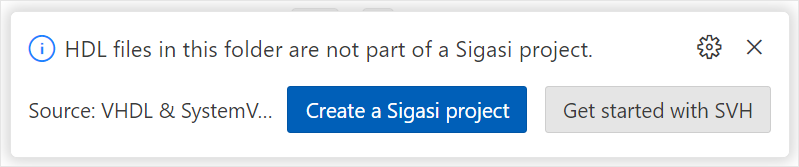
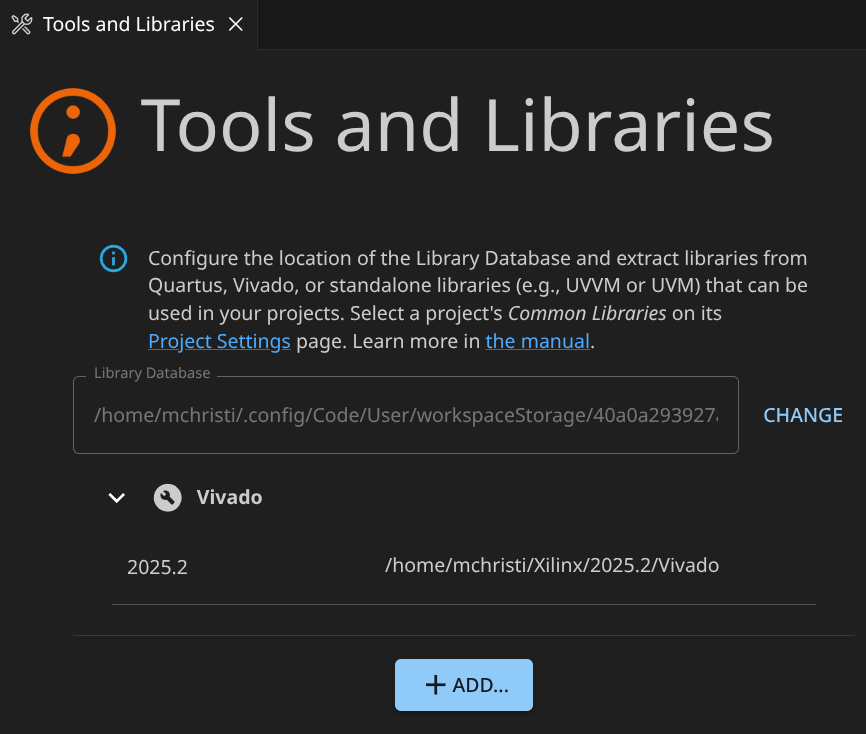
However, if you need to disable it, you can disable the sigasi.server.caching.enableOnDiskCaching setting.


10. Getting help

If this manual didn’t resolve your technical questions, or you found bugs, or you have feature requests or suggestions, please contact our Support team .

For any billing-related questions or administrative questions, such as changing your number of licenses, contact our Sales team .

Reloading

If anything is not behaving as you’d expect it to, it’s a good idea to try reloading VS Code through the Developer: Reload Window command. If the issue persists, is reproducible, or occurs often, please contact our Support team .

License

If you’re not getting the right type of license, you can open the license diagnostic page. It can be opened by clicking on the license status bar item at the bottom of your window.

Troubleshooting your license configuration

Gathering information

Having contacted our Support team, they might ask for more information. You can get this information as shown below.

Version

You can find the version on our extension page. Go to the page by opening the Extensions Activity and searching for VHDL & SystemVerilog IDE by Sigasi.
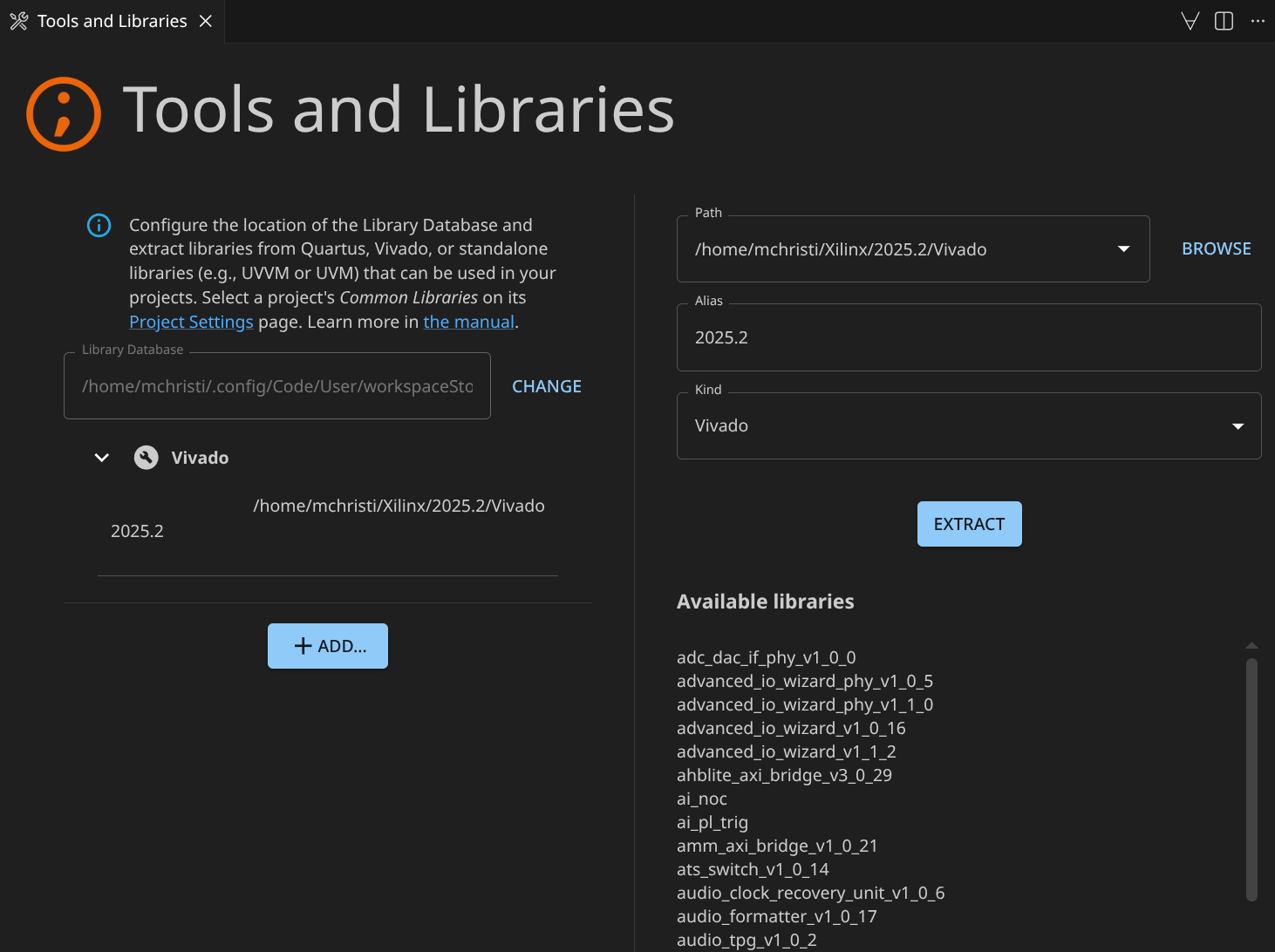
Viewing the version on the extension page
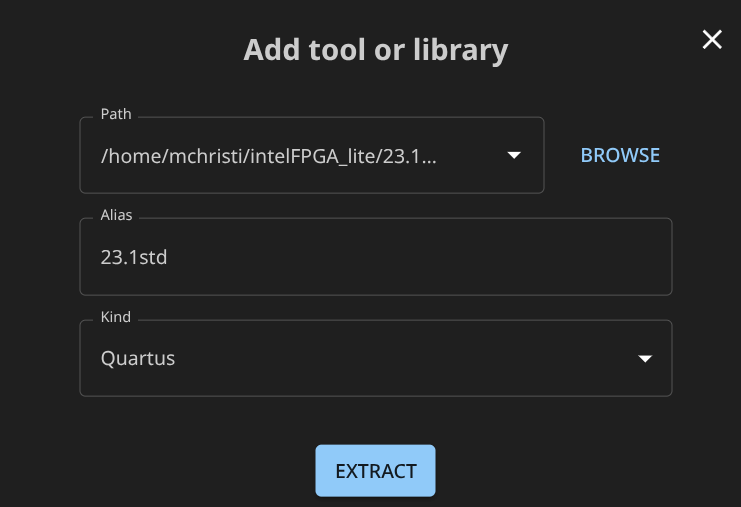
Logs

Sigasi logs contain filenames from your project. Only send them to us if you’re allowed to or after sanitizing them.

Before getting logs, it’s best to increase the log severity. Open the Settings ( ) and search for sigasi.server.log.level. Select debug. Every level up from the lowest option (all) logs more than the previous one. To find the logs, open the Command Palette ( ) and run the Sigasi: Open Log command. These contain the logs produced by our extensions. We may need to dig deeper and increase the verbosity of the logs.

To understand the interactions leading up to your problem, the Tracing Log is crucial. First, set the sigasi.trace.server setting to verbose. Then, run the Sigasi: Open Tracing Log command. This log contains all the interactions between our Language Client and Language Server.

You can also find these logs on your filesystem.

  • On Linux, the logs are below ~/.config/Code/logs
  • On Windows, the logs are in %AppData%\Code\logs

In those folders, find [datetime]/window[1]/exthost/output_logging_[datetime]/[0-9]-Sigasi{Tracing}.log. For each occurrence of [datetime], choose the most recent directory available. Please send us both the debug log and the tracing log.

We recommend opening the exthost folder using the Developer: Open Extension Logs Folder command.
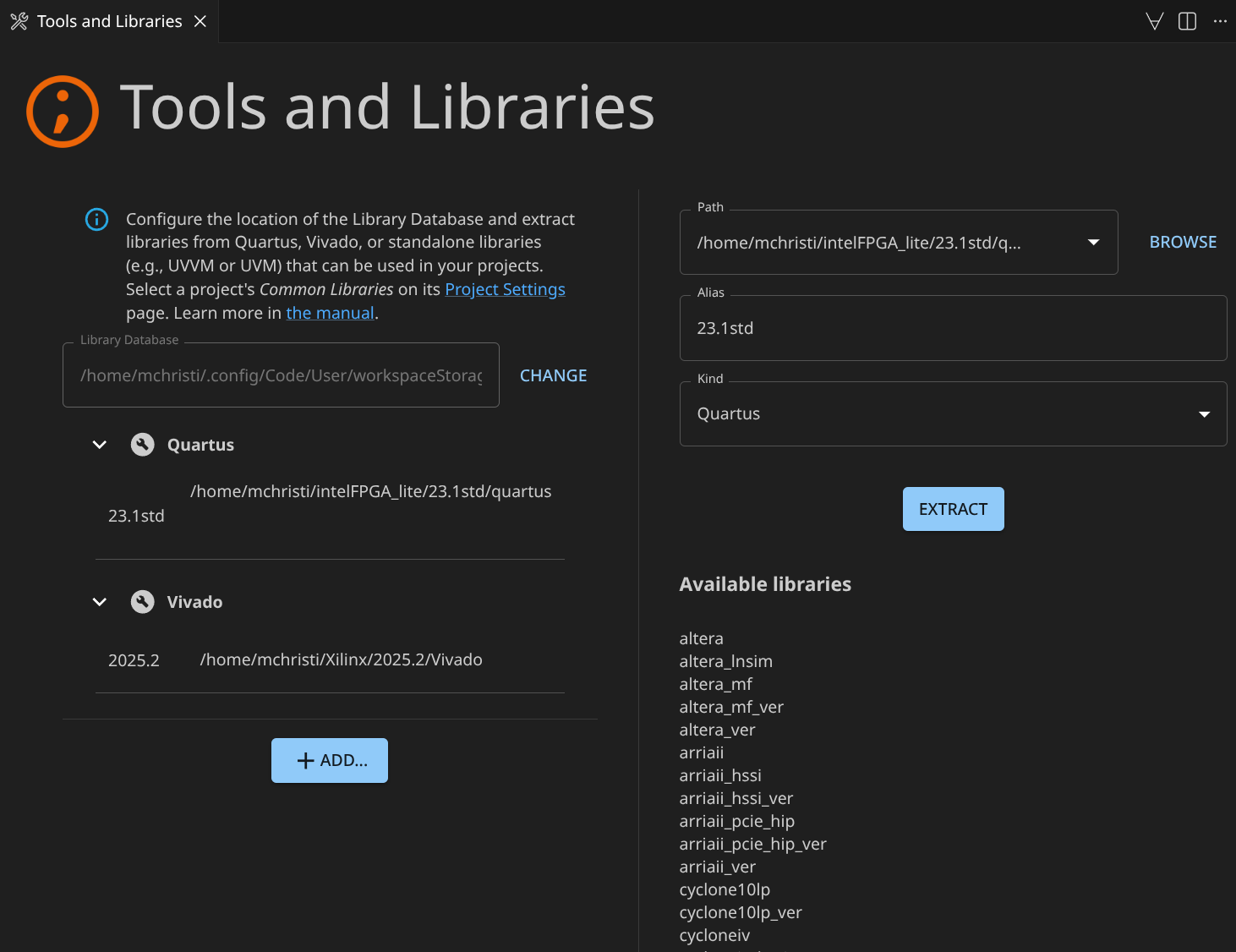
If you need to enable fine-grained logging to help us debug a very specific issue, refer to the Fine grained logging article.

VS Code logs

If the extension doesn’t even start, or in rare cases, you’ll need to look at the VS Code logs. Open them by typing view Output in the Quick Open menu ( ). Press the icon and select Export logs.
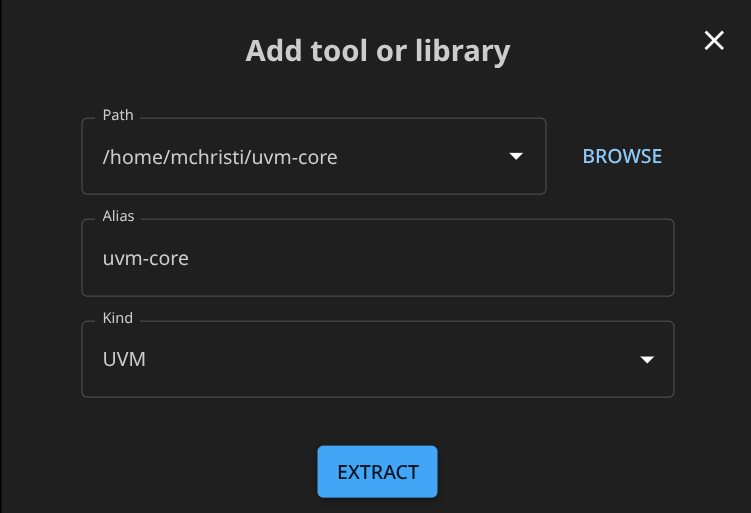
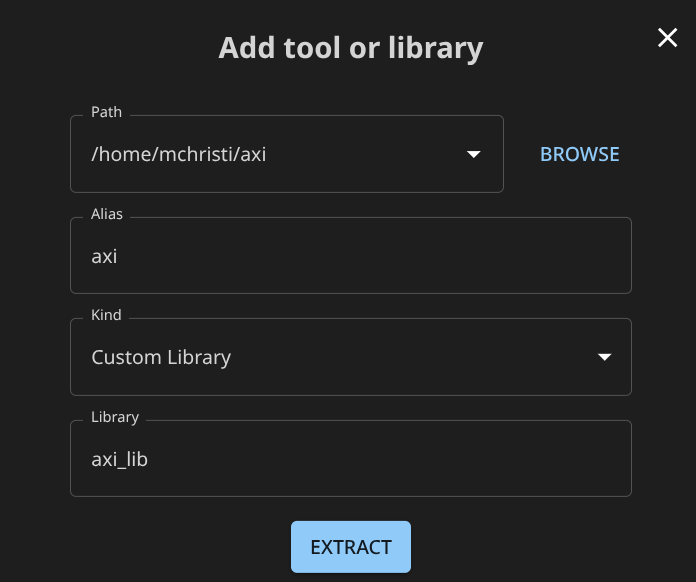
Exporting VS Code logs