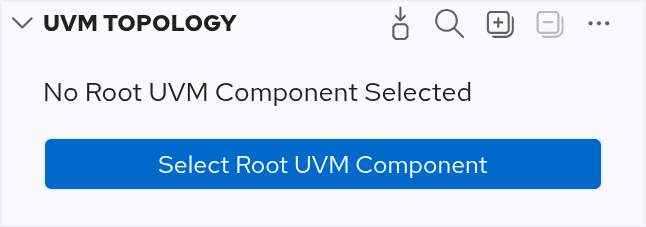
The UVM Topology View shows the verification environment’s component topology. Initially, the view will be empty. To populate it, click on the Select Root UVM Component button to select a root UVM component for your project.
There’s also a  Select Root UVM Component button in the toolbar, or you can use the Code Lens.
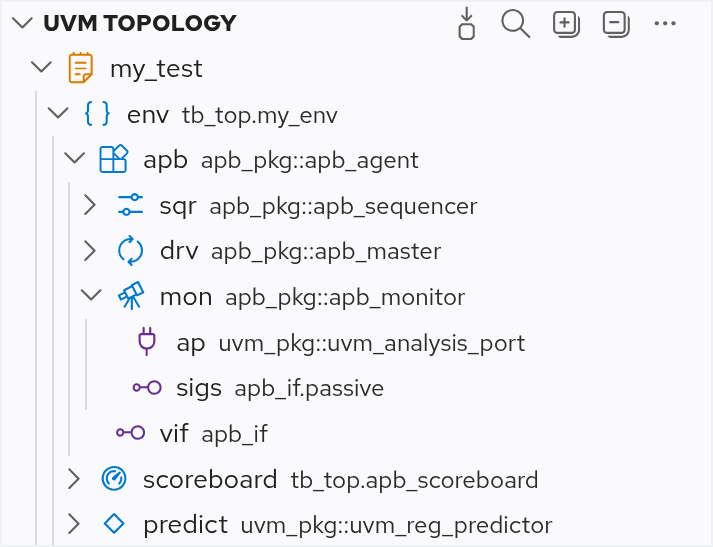
In any case, a Quick Pick pop-up window will show a list of all the available root UVM component candidates. After selecting a root UVM component, the view will be populated with the structure of the selected component and its children, including their ports and virtual interfaces.
Select Root UVM Component button in the toolbar, or you can use the Code Lens.
In any case, a Quick Pick pop-up window will show a list of all the available root UVM component candidates. After selecting a root UVM component, the view will be populated with the structure of the selected component and its children, including their ports and virtual interfaces.
As you change the design, the UVM Topology View will automatically refresh.
You can navigate to a topology element in the editor by double-clicking it. Right-clicking an element opens a context menu with more navigation options: you can open the type, declaration, or instantiation of a selected element in an editor.
If you want the selection in the UVM Topology View to follow your position in the editor, ensure that you enable Follow Cursor in the More Actions menu. Alternatively, you can explicitly right-click and select on a UVM component class, a declaration of a component property, an instantiation assignment to this property, or a port connection statement to navigate to the corresponding element in the UVM Topology View.
Buttons in the UVM Topology View
These buttons are available in the UVM Topology View:
-
Select root UVM component
- Search in the UVM Topology View
- Expand all components
- Collapse all components
- More Actions
Clear Root UVM Component: Clear the selected root UVM componentFollow Cursor: Link the UVM Topology View with the editorSort by: Position: Sort all elements by their position in the source codeSort by: Name: Sort all elements alphabetically
Troubleshooting
Occasionally, you might encounter a Invalid Root UVM Component ... error in the UVM Topology View. This may happen when you rename the file or the root UVM component. In that case, you’d have to set the root UVM component again.
