Sigasi Visual HDL Professional Edition or Sigasi Visual HDL Enterprise Edition
The Block Diagram displays a graphical view of all architectures, modules, their instantiations, and generate constructs in your selected editor’s VHDL or SystemVerilog code.
VHDL processes and SystemVerilog always blocks are also shown in the block diagram.
This view automatically updates while you are editing your code and offers a convenient way to visually inspect and navigate your code, even when it’s unfinished or broken.
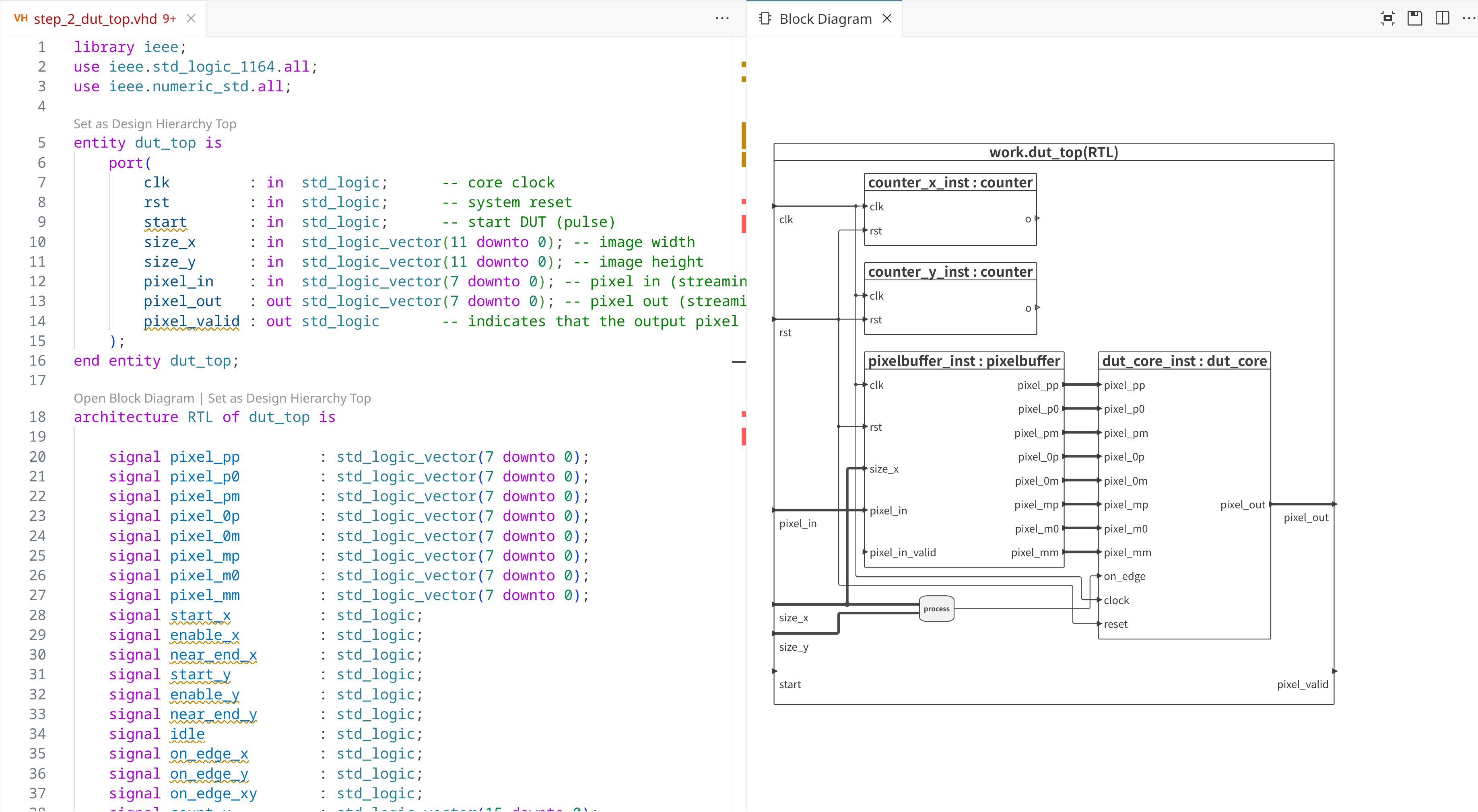
You can open the Block Diagram by clicking the Sigasi logo  in the editor toolbar (top right) and selecting Open Block Diagram. Alternatively, you can open the view using the command palette
and typing
in the editor toolbar (top right) and selecting Open Block Diagram. Alternatively, you can open the view using the command palette
and typing Sigasi: Open Block Diagram.
You can double-click blocks, ports, or wires to navigate to the corresponding HDL code. If you want to go into a block, you right-click it, and select Open Entity Declaration, Open Architecture, or Open Module.
You can also navigate from your code to the Block Diagram. To reveal a specific signal, port, process, generate, or instantiation: right-click it, select Show In… in the context menu, then select Block Diagram in the pop-up menu. Show In… can also be accessed directly from the hover of an applicable code element.
You can export the Block Diagram to an SVG with the save button on the toolbar.