The Target Dependency Diagram gives you a project-wide overview of how the targets in your project depend on each other and on the projects, versions, and libraries they pull in. It combines the dependencies of every target in your project into a single graph so you can see your project’s dependency structure at a glance and quickly spot cycles and unresolved dependencies.
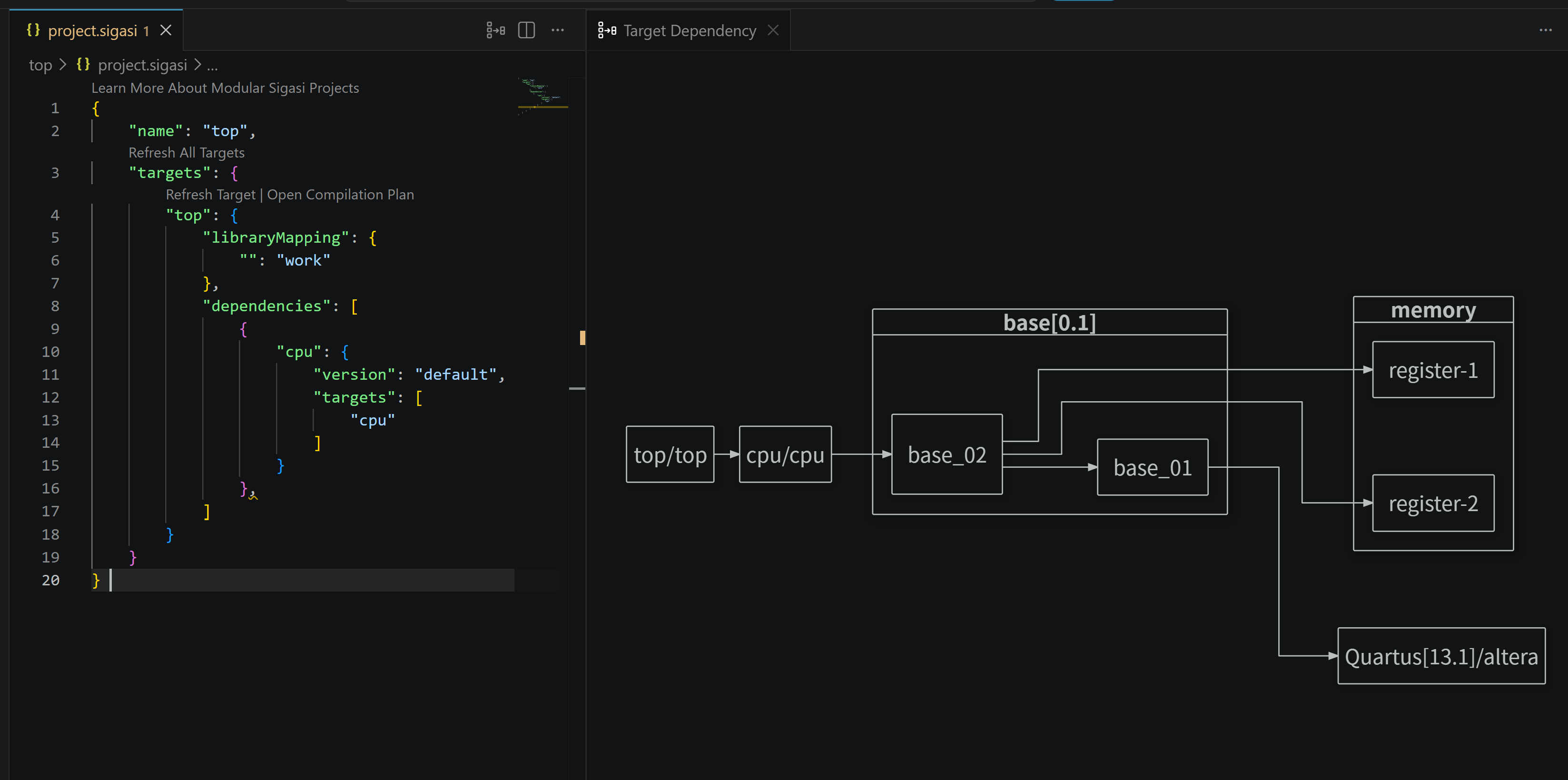
The diagram is automatically updated each time you change your project setup.
You can open the Target Dependency Diagram by opening your project’s project.sigasi file and then clicking the Open Target Dependency Diagram button in the editor toolbar (top right).
Alternatively, open it from the command palette Ctrl+Shift+P
by typing Sigasi: Open Target Dependency Diagram.
How dependencies are shown
Each node represents a target, project, or library that a target depends on. Nodes are grouped so you can tell exactly which dependency is used:
- Project – the outer group, one per dependency project.
- Version – inside a project, targets are grouped per version, so different versions of the same project are kept apart.
- Target – the individual target within a project and version.
To keep the diagram compact, single-child groups are merged: a project with only one version shows the version next to its name, and a version with only one target is drawn as a single node.
A dependency is drawn as an arrow between two nodes. A ⭢ B means A depends on B.
Buttons in the diagram
- Automatically resizes the diagram to fit in the current viewport
- Save the diagram as an SVG. Other file formats are not supported
Cycles
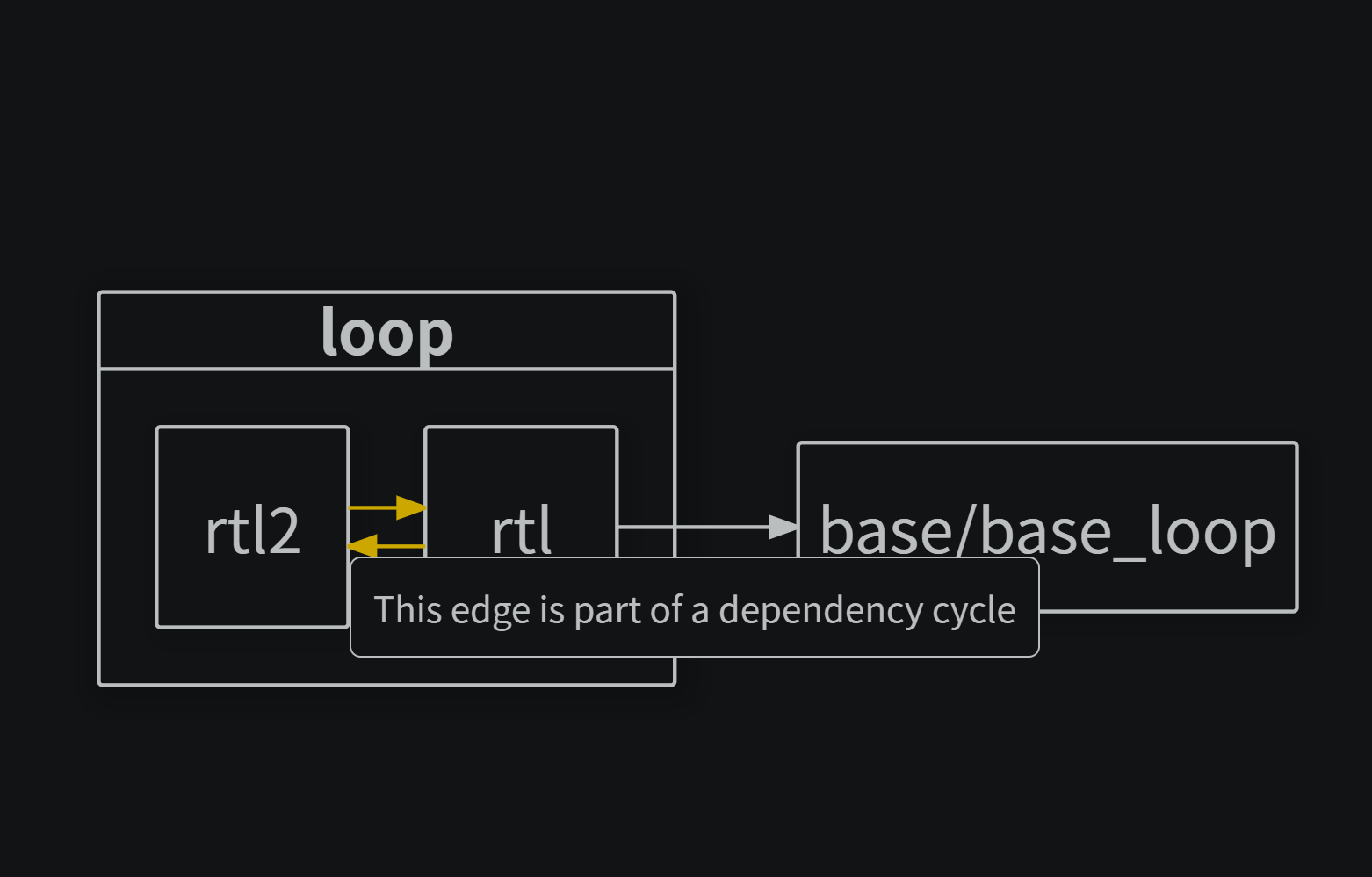
When targets depend on each other in a loop, the edges that form the cycle are highlighted. Hovering over such an edge tells you it is part of a dependency cycle.
A cut edge – drawn as a dashed line – only appears when you export the documentation for one or more targets. Each of those diagrams is built from a single target, so Sigasi picks one dependency to ignore in order to break the cycle. Hovering over the dashed edge explains that it is ignored to cut the cycle.
Missing and unresolved dependencies
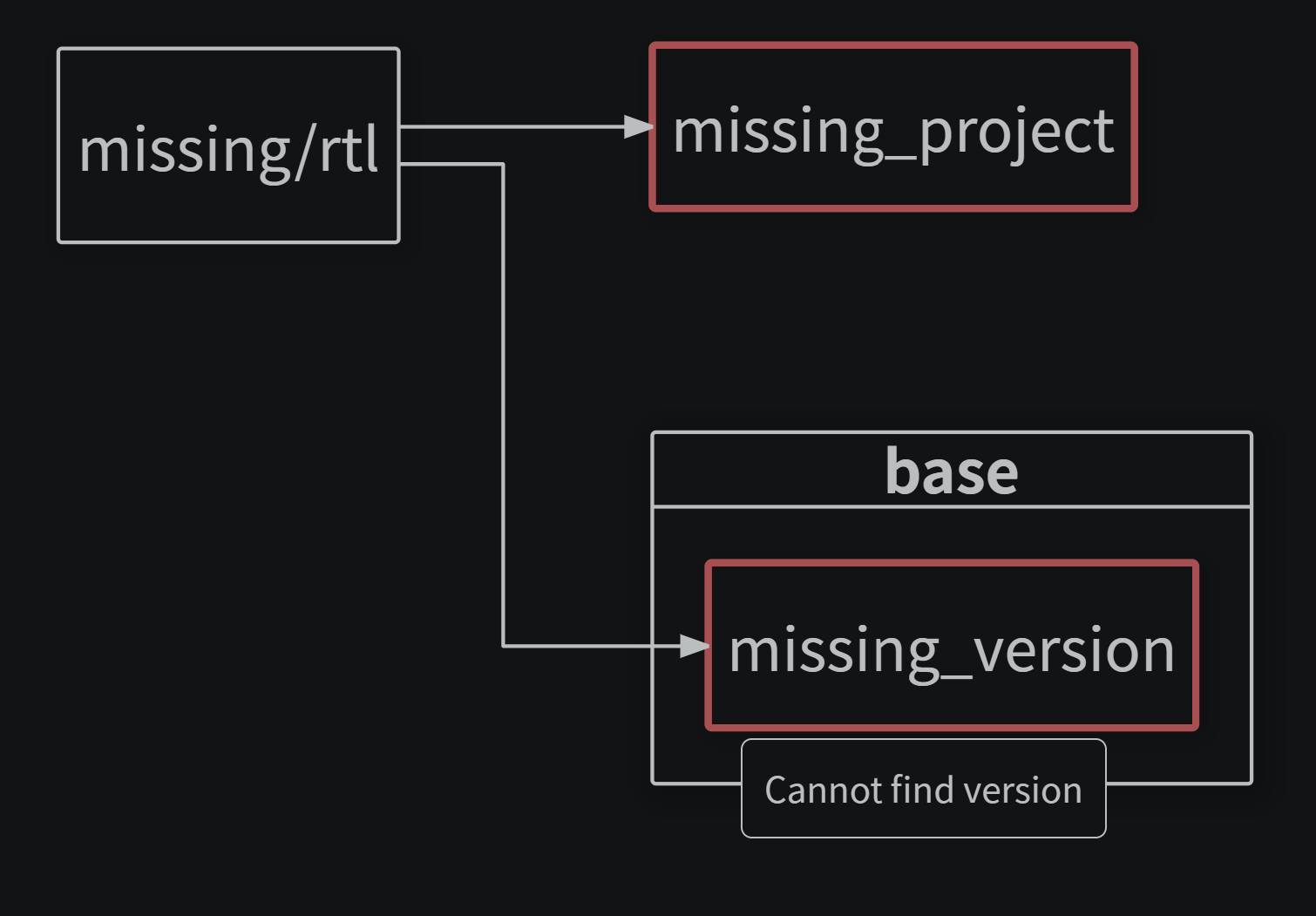
Nodes outlined in red could not be fully resolved. Hover over the node to discover what is going wrong:
| Hover message | Meaning |
|---|---|
| Cannot find project | A dependency refers to a project that could not be found. |
| Cannot find version | The project was found, but not in the requested version. |
| Cannot find target | The project or version was found, but it does not contain the referenced target. |
| Uncompiled target | The target was found but has not been compiled yet, so its dependencies are unknown. |
Unresolved dependencies usually mean the dependency cannot be located on any of the configured search paths. See Dependencies to understand where Sigasi looks for projects and libraries.
An uncompiled target is different: it resolves on its own once Sigasi finishes compiling that target, revealing its dependencies.